Mentor Alliance Business Coach Kit
- Mentor Alliance Business Coach Kit – Platform Overview
- Mentor Alliance Business Coach Kit – Dashboard
- Mentor Alliance Business Coach Kit – Clients Roster
- Mentor Alliance Business Coach Kit – Assign Plan to Client
- Mentor Alliance Business Coach Kit – Client Activity
- Mentor Alliance Business Coach Kit – Invite Client & Manage Templates
- Mentor Alliance Business Coach Kit – Onboarding
- Mentor Alliance Business Coach Kit – Journeys
- Mentor Alliance Business Coach Kit – My Plans
- Mentor Alliance Business Coach Kit – Billing Dashboard
- Mentor Alliance Business Coach Kit – Settings
- Mentor Alliance Business Coach Kit – Messages & Notifications
- Mentor Alliance Business Coach Kit – Client Portal
Mentor Alliance Business Coach Kit – Platform Overview
Mentor Alliance Business Coach Kit – Platform Overview
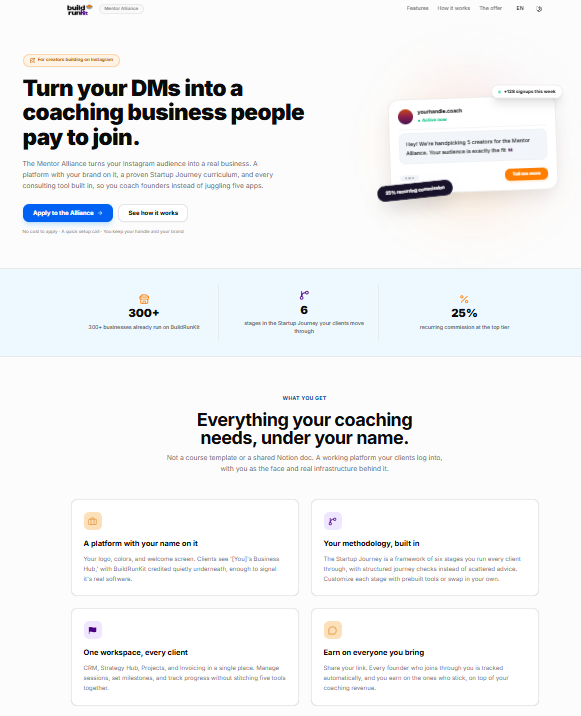
The Mentor Alliance Business Coach Kit gives business coaches a fully branded platform to run, structure, and manage their coaching operations. Coaches operate under their own name and visual identity, keeping themselves at the center of client relationships while delivering a consistent, guided coaching experience.
Core Capabilities
-
Custom-Branded Platform: Deliver coaching under your own brand name, custom logo, and preferred setup while using BuildRunKit's underlying platform infrastructure.
-
Client & Journey Management: Invite clients, build tailored action plans, assign structured business journeys, and monitor client progress step-by-step.
-
Flexible Content & Methods: Use pre-built BuildRunKit business journeys and tools, or integrate your own proprietary coaching material, frameworks, and resources.
-
Unified Workspace Operations: Handle all core coaching functions in one place:
-
Manage client relationships and active communications.
-
Assign plans, track progress, and organize client projects and tasks.
-
Direct high-level business planning and strategy tools.
-
Onboarding Workflow & Deployment Paths
4-Step Onboarding Process
-
Apply: Submit your handle, audience details, and coaching style (takes ~5 minutes).
-
Setup Call: A 20-minute walkthrough to configure your branded instance.
-
Go Live: Platform launches under your own brand with a unique referral link.
-
Grow & Earn: Share your link across social channels; clients sign up under your brand while you earn recurring revenue.
Two Deployment Options
-
Mentor Alliance (Run it as your own): Operate a branded consulting platform with free starter journeys and recurring referral revenue.
-
Co-Create (Help build the next version): Shape platform features directly around your specific coaching methodology with full access from day one.
Pricing & Trial Structure
-
Flat Client Rate: $10 per month per active client, with no setup fees or hidden tiers.
-
100% Revenue Retention: Coaches keep all earnings charged directly to clients for coaching services.
-
Free Trial: First 10 client consultations are included at no charge.
Mentor Alliance Business Coach Kit – Dashboard
Mentor Alliance Business Coach Kit – Dashboard
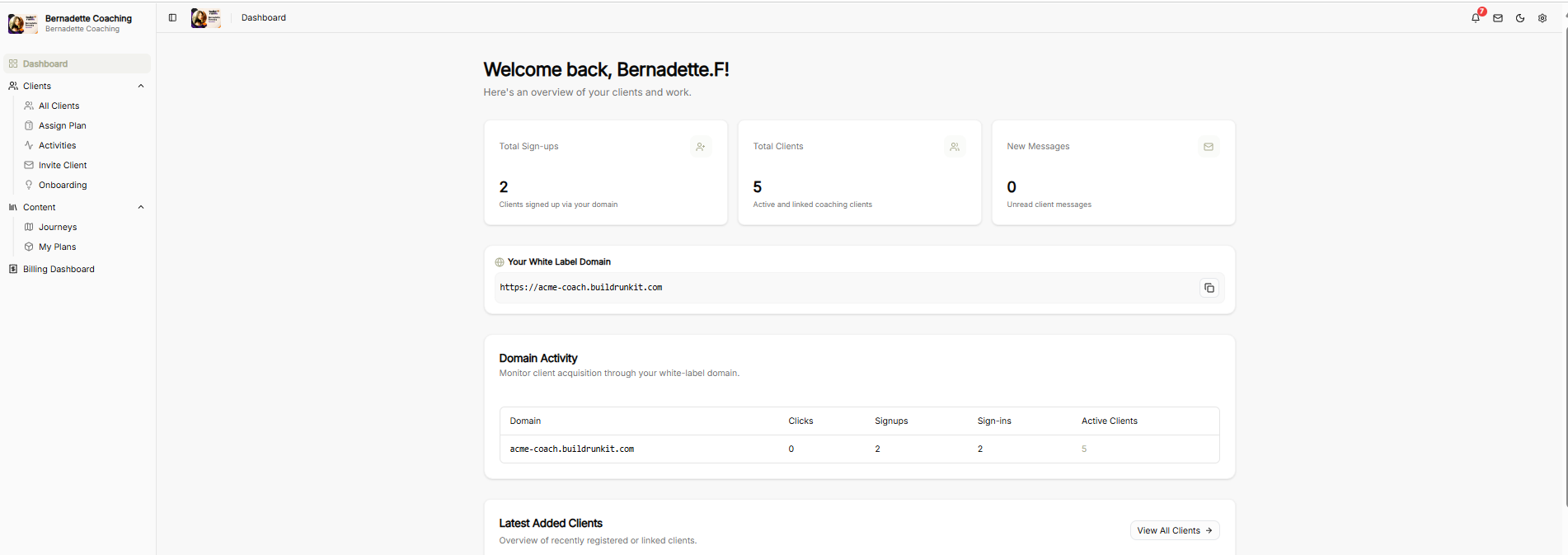
The Mentor Alliance Business Coach Dashboard serves as the central operational hub for coaches to monitor client onboarding, manage custom plans, track white-label domain performance, and access administrative settings.
Top Utility Navigation
-
Notification Bell: Red alert badge icon displaying active workspace alerts and platform updates.
-
Client Messaging Envelope: Quick-access shortcut button to compose and send messages directly to clients.
-
Theme Toggle (Moon Icon): One-click visual control switch to toggle between Light Mode and Dark Mode display themes.
-
Settings Gear: Instant menu access to update account preferences, profile details, and system configurations.
Sidebar Navigation Bar
-
Organization Profile: Displays the active coaching brand name.
-
Dashboard: Home view displaying key metrics, domain activity, and client progress overviews.
-
Clients Group:
-
All Clients: Directory of all linked and active coaching clients.
-
Assign Plan: Interface for assigning custom coaching plans or business journeys to specific clients.
-
Activities: Log of recent client actions, progress milestones, and platform engagements.
-
Invite Client: Onboarding tool to send direct invitations or referral links to new clients.
-
Onboarding: Management flow for guiding new clients through initial profile and business setup.
-
-
Content Group:
-
Journeys: Access and manage built-in and custom coaching frameworks.
-
My Plans: Library of tailored coaching blueprints and action plans.
-
-
Billing Dashboard: Direct link to client billing settings, active subscriptions, and invoicing data.
Dashboard Metrics & Operations
Top Summary Metric Cards
-
Total Sign-ups: Displays the total count of clients who registered using your white-label domain.
-
Total Clients: Active and linked coaching clients currently managed within your workspace.
-
New Messages: Unread client message notifications.
Your White Label Domain
-
Domain Input Block: Displays your custom sub-domain URL alongside a one-click copy button for quick sharing across channels.
Domain Activity Table
Monitors real-time client acquisition and traffic metrics across your white-label URL:
-
Domain: Active custom URL.
-
Clicks: Total unique link visits.
-
Signups: Total registrations recorded through the domain.
-
Sign-ins: Total active client sign-ins logged.
-
Active Clients: Current total of retained active clients.
Latest Added Clients
-
Client Overview Feed: Displays a stream of recently registered or linked clients, with a View All Clients → quick navigation button to jump directly to the full directory.
Mentor Alliance Business Coach Kit – Clients Roster
Mentor Alliance Business Coach Kit – Clients Roster
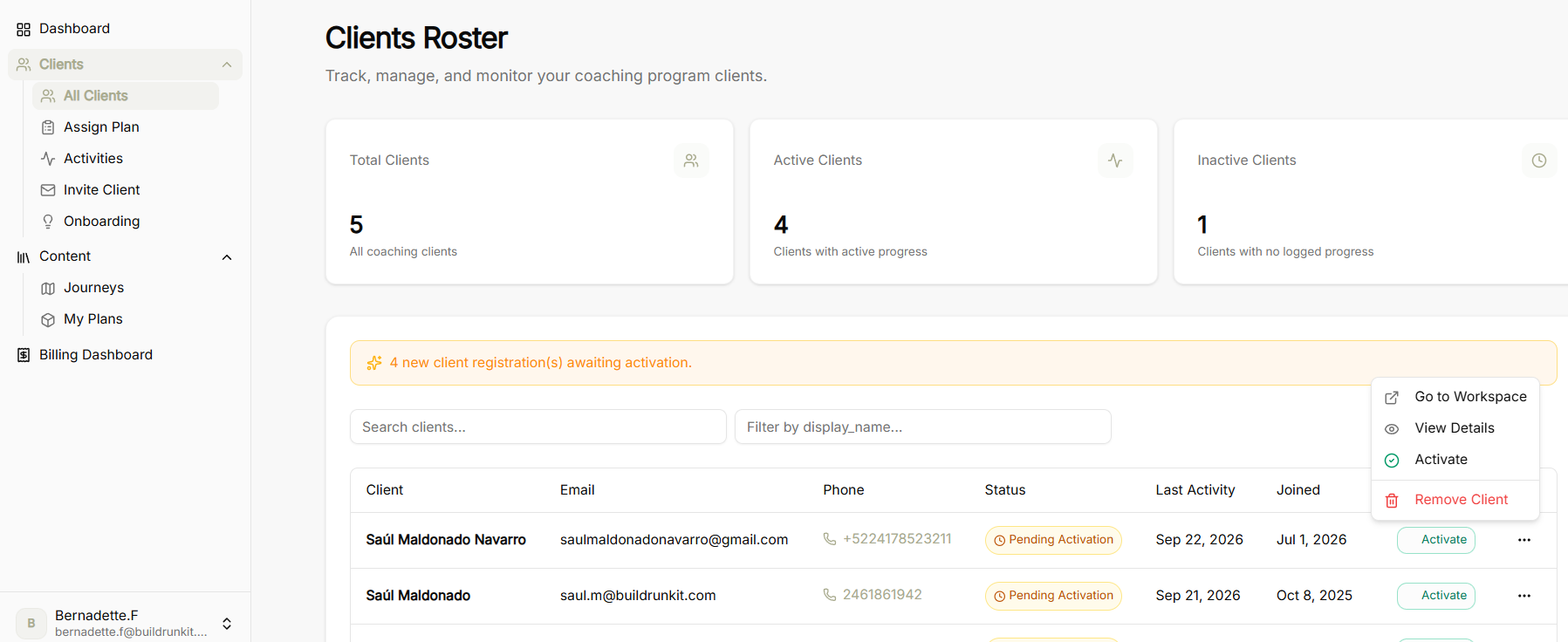
The Clients Roster screen allows coaches to track, manage, and monitor all clients enrolled in their coaching program.
Summary Metrics
-
Total Clients: Overview of all coaching clients in your database.
-
Active Clients: Count of clients currently making active progress through assigned journeys.
-
Inactive Clients: Count of clients with no recent logged progress or activity.
Directory Controls & Registration Alerts
-
Activation Alert Banner: Highlighting new client registrations awaiting activation.
-
Search Clients: Search field to locate specific clients by name or keyword.
-
Filter Options: Dropdown filter to sort or filter records by display name or status.
Clients Table & Actions
Table Columns
-
Client: Name of the client.
-
Email: Primary contact email address.
-
Phone: Contact telephone number.
-
Status: Current account status badge (e.g., Pending Activation).
-
Last Activity: Timestamp of the client's most recent interaction on the platform.
-
Joined: Registration date.
Row Action Menu
Mentor Alliance Business Coach Kit – Assign Plan to Client
Mentor Alliance Business Coach Kit – Assign Plan to Client
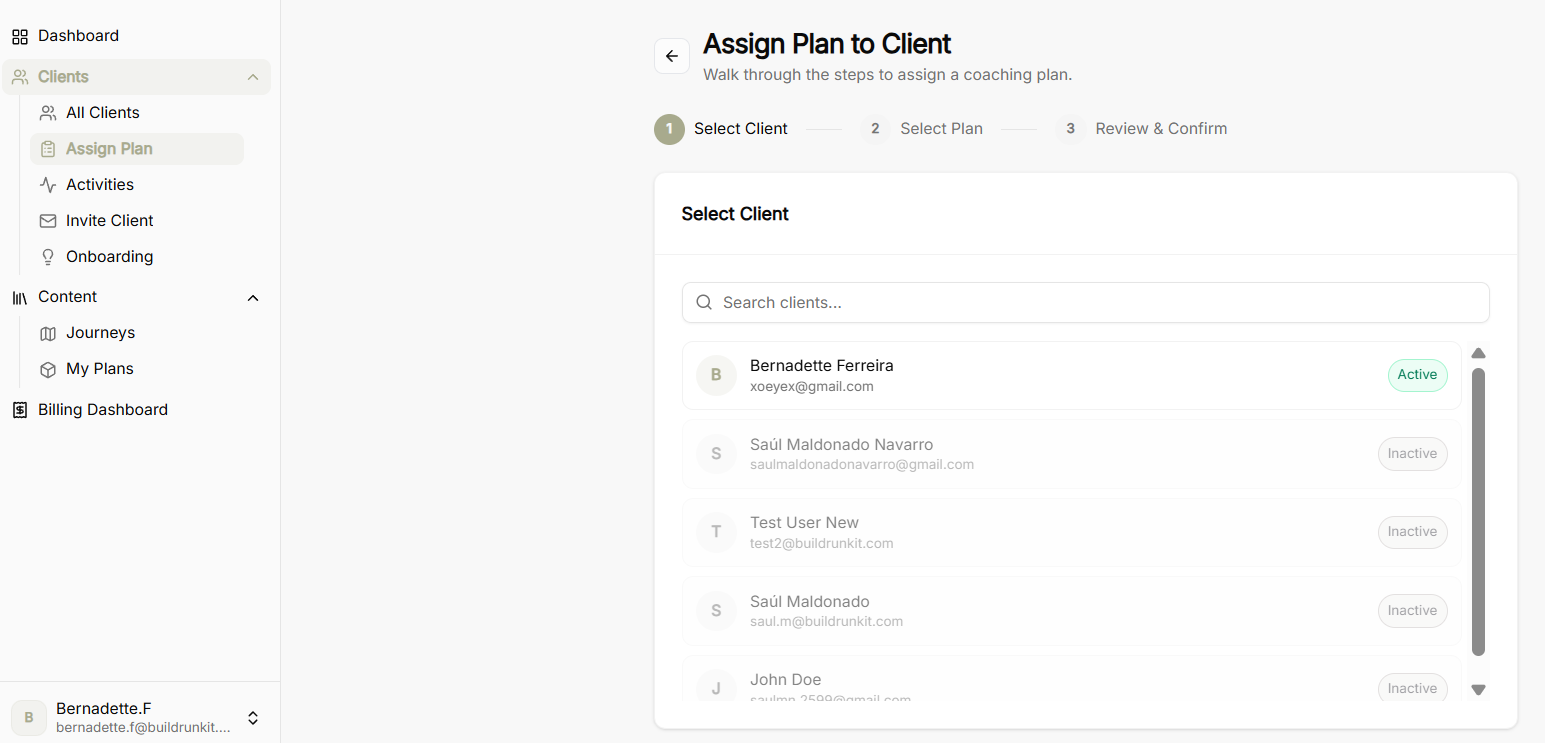
The Assign Plan to Client tool provides a guided step-by-step wizard to attach structured coaching plans and business journeys directly to a client's workspace.
Step 1: Select Client
-
Search Bar: Quickly search and filter through enrolled clients by name or email.
-
Client Selection List: Displays registered coaching clients alongside their account status badges (Active or Inactive).
-
Selection Action: Select the intended client to highlight them and proceed to plan selection.
Step 2: Select Plan
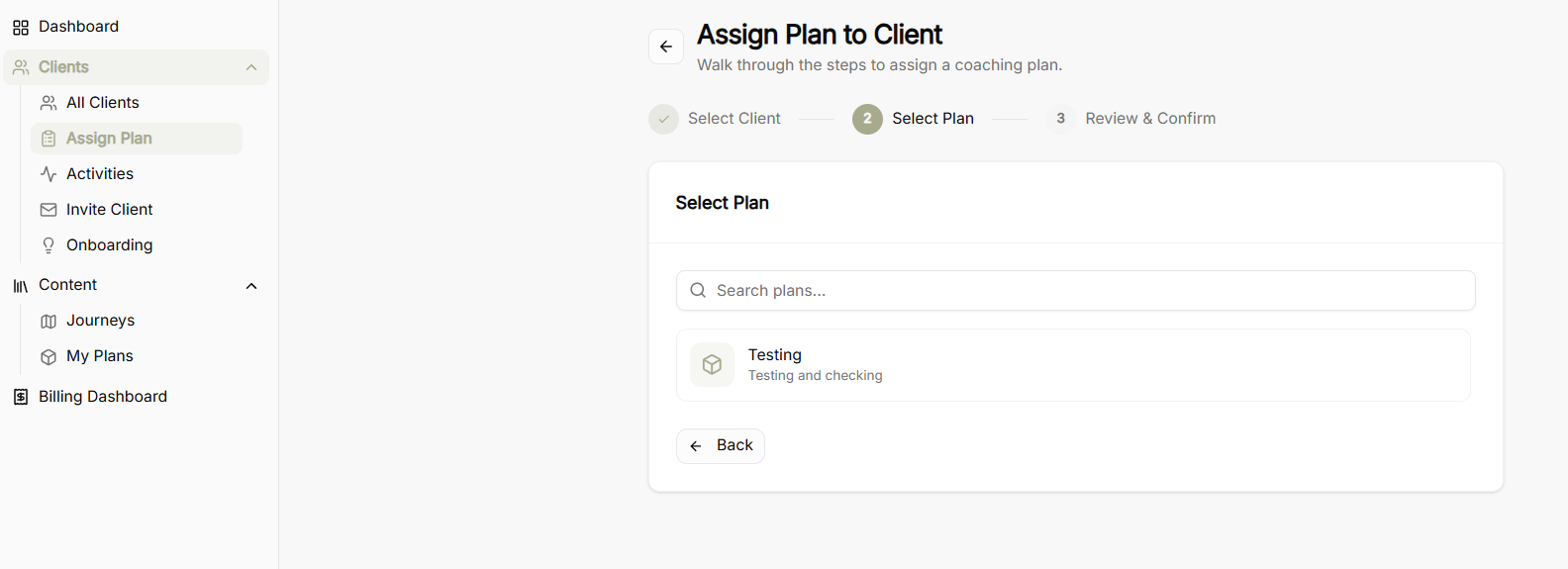
-
Search Plans: Search bar to locate specific coaching plans saved in your My Plans library.
-
Plan Library List: Displays custom coaching plans and blueprints created within the platform.
-
Navigation Controls:
-
Back Button: Return to Step 1 to reselect or change the client.
-
Plan Selection: Click on the desired plan card to advance to final review.
-
Step 3: Review & Confirm
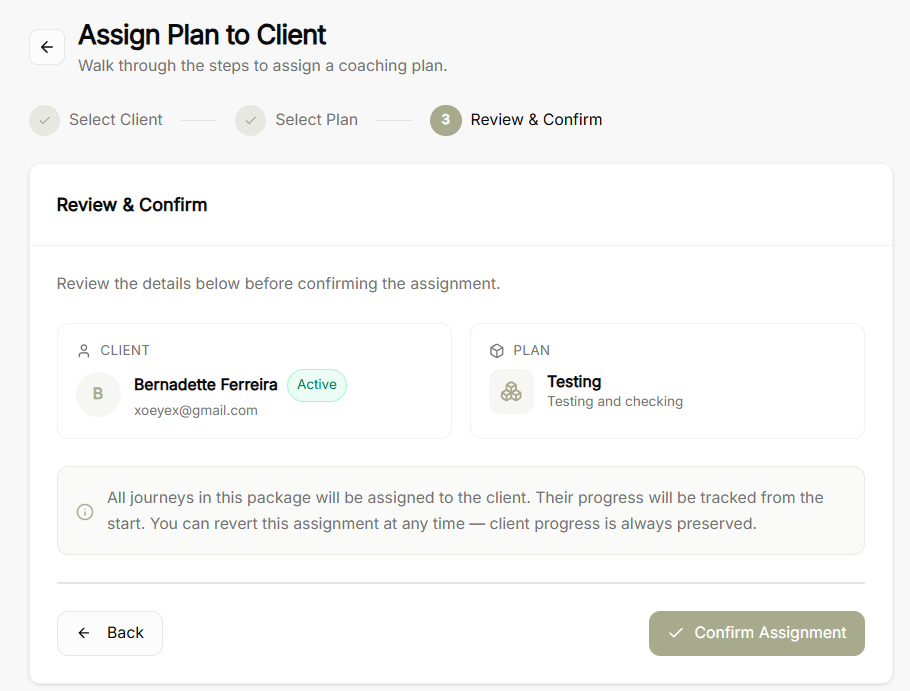
-
Selected Client Summary: Displays chosen client details, email address, and active account status.
-
Selected Plan Summary: Displays the assigned plan title and description.
-
Assignment Operational Notice: Explains that all journeys included in the package will be assigned to the client, with progress tracked from the start and full preservation of client data if reverted later.
-
Final Controls:
-
Back Button: Return to previous steps to make adjustments.
-
Confirm Assignment Button: Finalize and activate the plan assignment for the client.
-
Mentor Alliance Business Coach Kit – Client Activity
Mentor Alliance Business Coach Kit – Client Activity
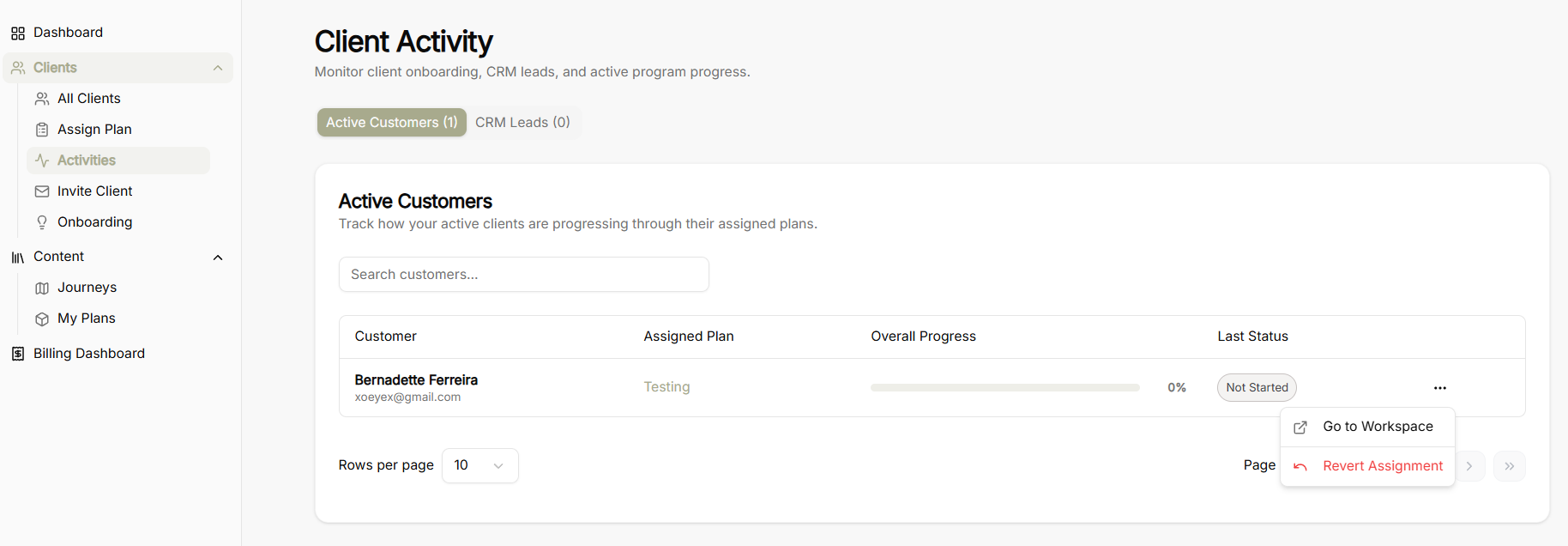
The Client Activity screen allows coaches to monitor client onboarding, track CRM leads, and keep tabs on active program progress across assigned coaching plans.
Activity Category Tabs
-
Active Customers: Displays clients who are currently enrolled and tracking progress through an assigned coaching plan.
-
CRM Leads: Tracks prospective clients and leads currently in the onboarding pipeline.
Active Customers View & Controls
-
Search Bar: Input field to search and filter active customers by name or keyword.
-
Rows Per Page Selector: Dropdown menu to adjust the number of visible customer rows per page.
-
Pagination Controls: Page navigation controls to cycle through larger lists of active clients.
Customer Progress Table & Actions
Table Columns
-
Customer: Displays customer name and registered email address.
-
Assigned Plan: The specific coaching plan or framework assigned to the client.
-
Overall Progress: Visual progress bar accompanied by a percentage indicator showing completion level.
-
Last Status: Status badge indicating active state or milestone completion status.
Row Action Menu (...)
-
Go to Workspace: Direct shortcut to open and inspect the client's dedicated workspace.
-
Revert Assignment: Option to unassign or roll back the current coaching plan from the client's profile.
Mentor Alliance Business Coach Kit – Invite Client & Manage Templates
Mentor Alliance Business Coach Kit – Invite Client & Manage Templates
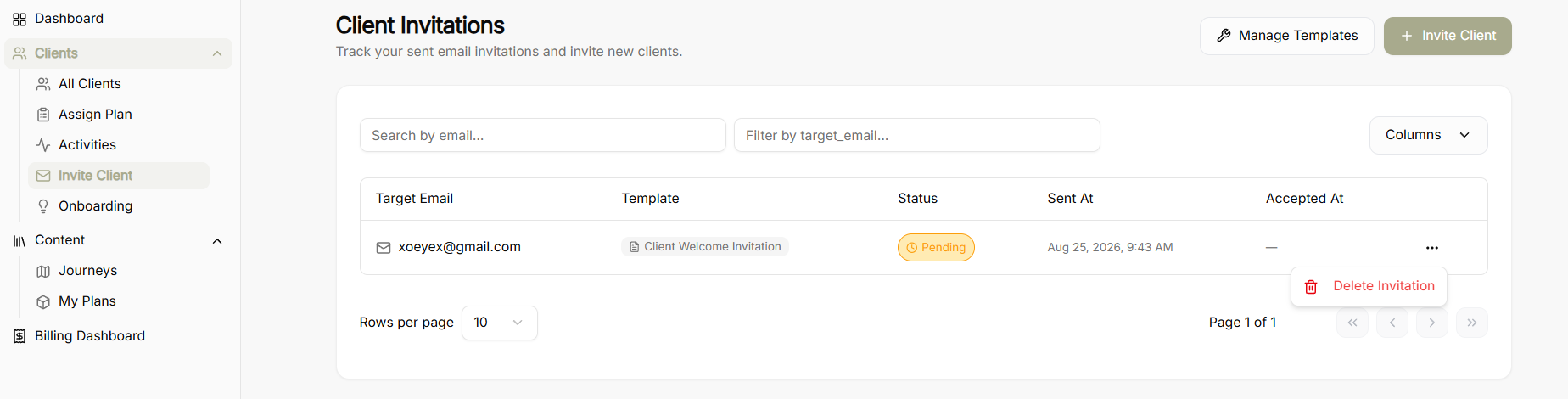
The Invite Client module allows coaches to dispatch custom, branded email invitations to prospective clients, track invitation statuses, and manage reusable email templates.
Client Invitations Overview Dashboard
-
Top Controls:
-
Manage Templates: Opens the reusable invitation template manager.
-
Invite Client: Launches the guided 3-step invitation creation wizard.
-
-
Filter & Search Bar: Search sent invitations by target email address or filter by column parameters.
-
Invitations Table Columns:
-
Target Email: Recipient email address.
-
Template: The specific template used for the invitation.
-
Status: Current invitation delivery/acceptance state (e.g., Pending).
-
Sent At: Timestamp of when the email was sent.
-
Accepted At: Timestamp of when the client accepted the invitation.
-
Row Actions (...): Options to delete or revoke active invitations.
-
Email Templates Manager & Creation Modal
-
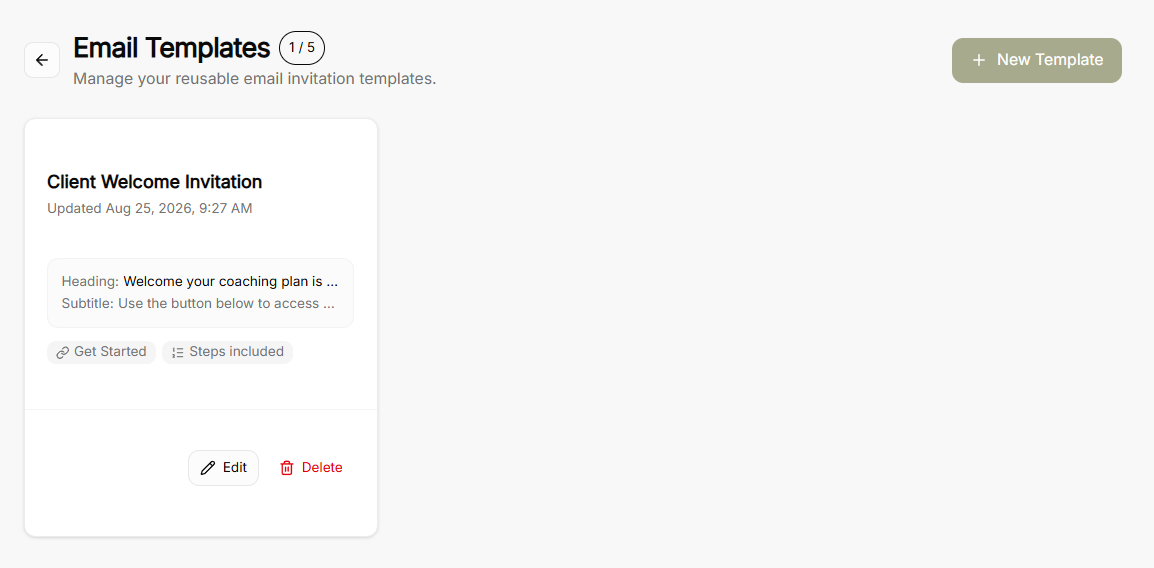
Template List Screen: Displays all saved reusable email templates with options to edit, delete, or create a New Template.
-
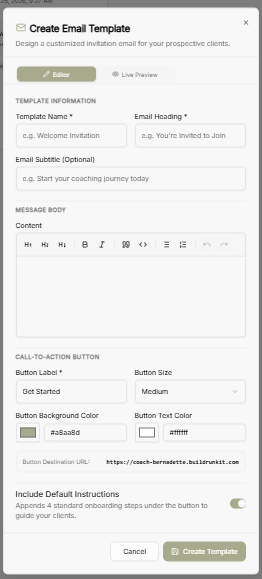
Create/Edit Email Template Modal:
-
Template Information: Define the template name, main email heading, and optional subtitle.
-
Message Body: Rich text editor for formatting body copy (headings, bold, lists, links).
-
Call-to-Action Button: Customize button label text, size, background color, text color, and destination URL.
-
Include Default Instructions Toggle: Automatically appends 4 standard onboarding steps under the call-to-action button to guide new clients through sign-up.
-
Invite Client by Email Wizard
Step 1: Select Template
-
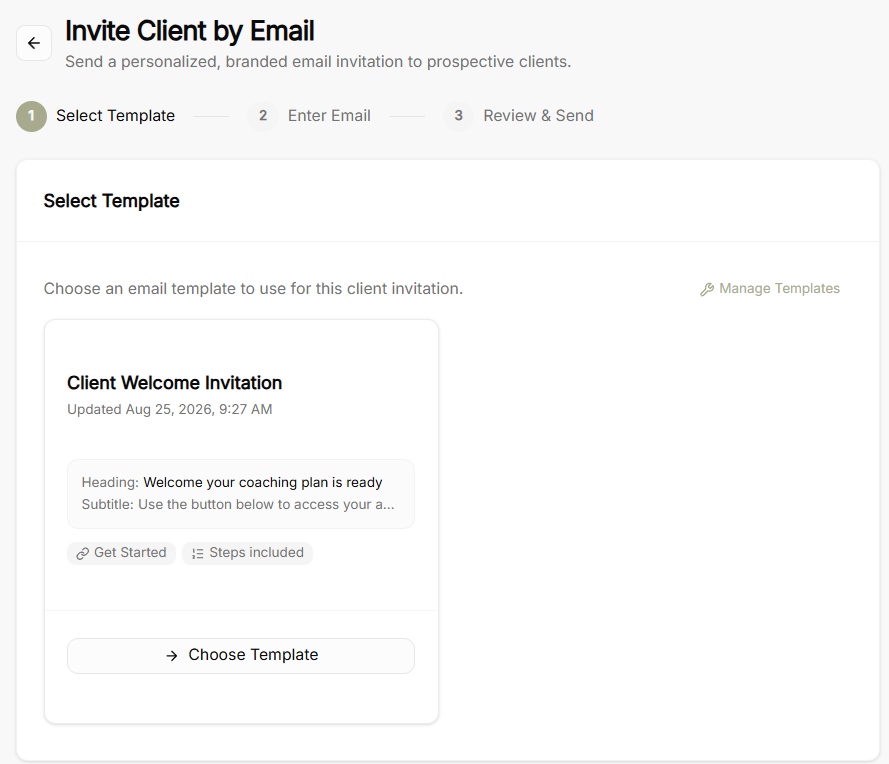
Choose an existing email template from your saved library or click Manage Templates to configure a new one.
Step 2: Enter Email
-
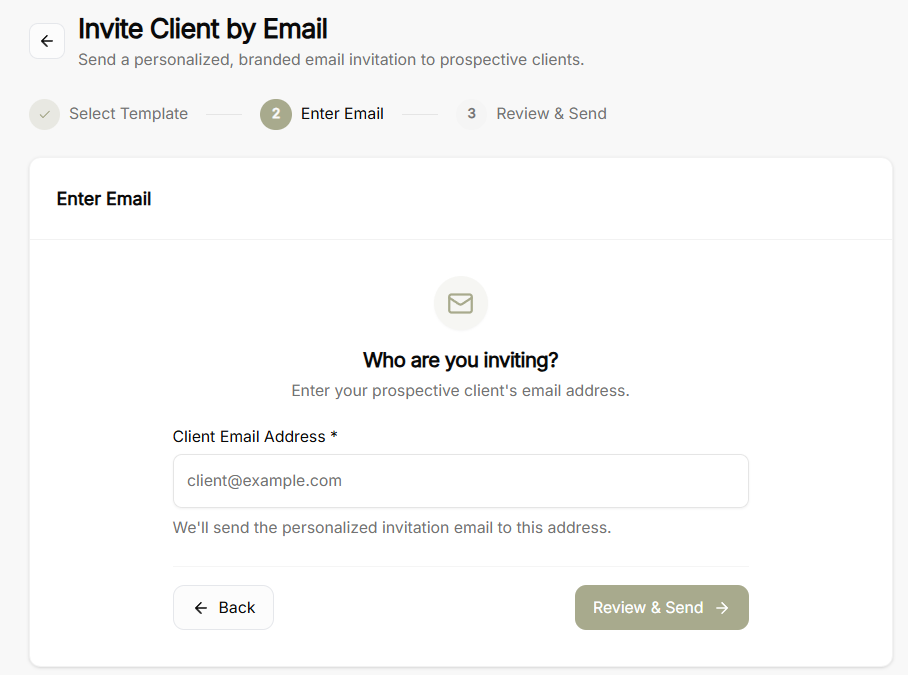
Enter the prospective client’s email address where the personalized invitation will be sent.
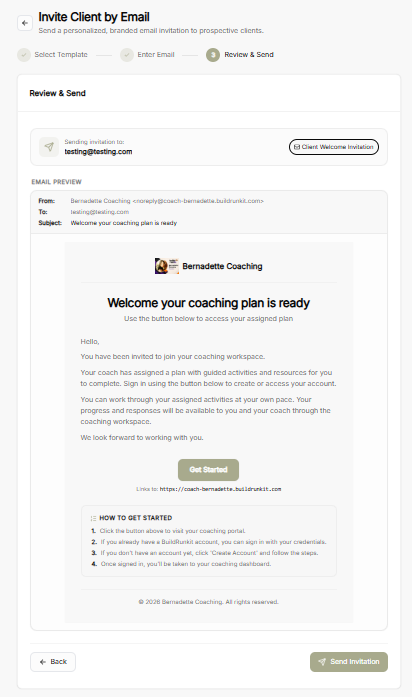
Step 3: Review & Send
-
Live Email Preview: Renders the complete branded email layout, including coach profile header, custom messaging, call-to-action button, and onboarding instructions.
-
Final Actions: Use Back to adjust details or Send Invitation to dispatch the email.
Mentor Alliance Business Coach Kit – Onboarding
Mentor Alliance Business Coach Kit – Onboarding
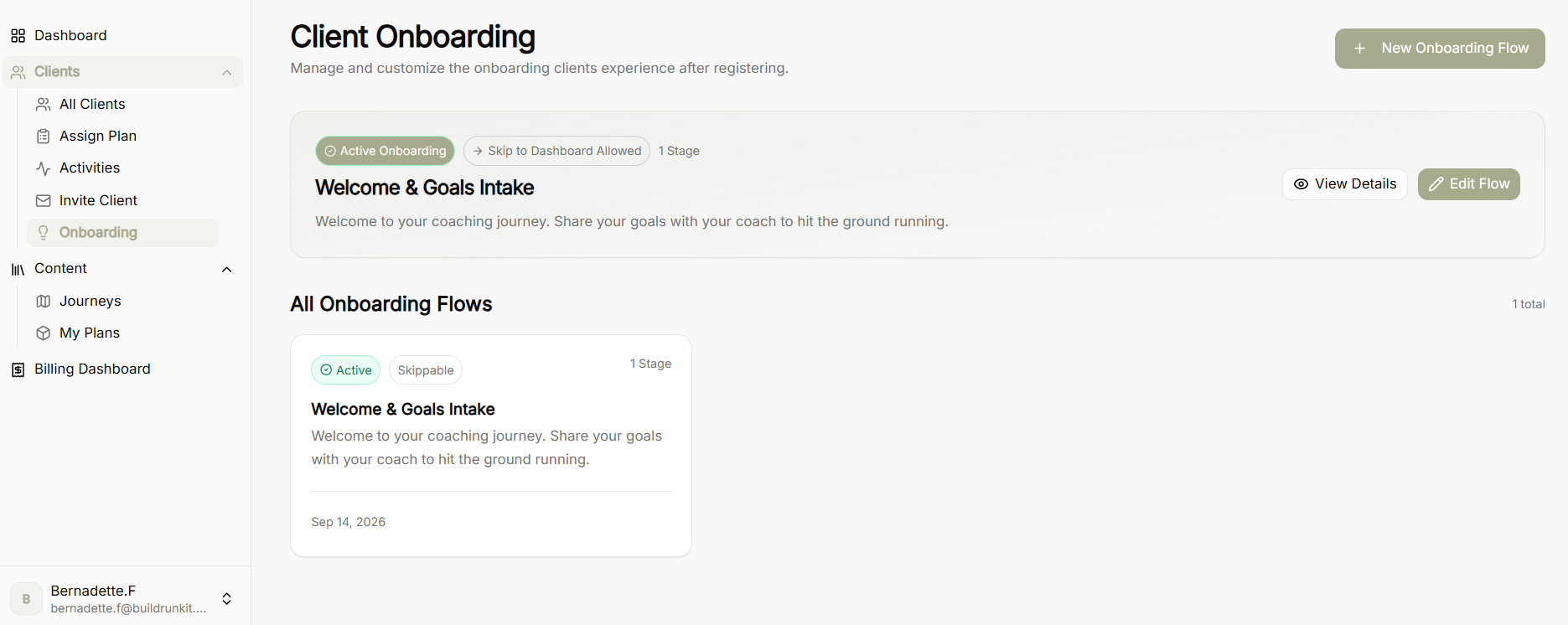
The Onboarding module enables coaches to create, edit, and manage customized first-touch onboarding experiences that new clients encounter immediately after registering.
Client Onboarding Overview Dashboard
-
Active Onboarding Banner: Displays the designated primary onboarding sequence, highlighting total stage count, skippability permissions, and direct actions (View Details or Edit Flow).
-
New Onboarding Flow Button: Launches the builder to design a brand-new onboarding experience.
-
All Onboarding Flows: Library displaying all saved onboarding sequences with status tags (Active, Skippable) and creation dates.
View Details Screen
-
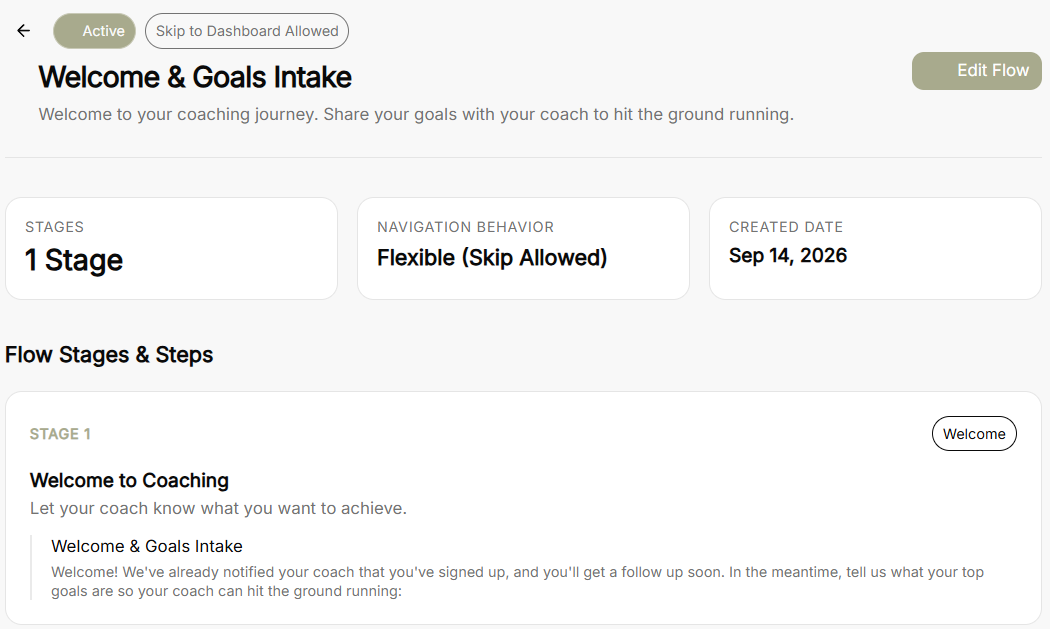
Flow Summary Header: Displays total stage count, navigation behavior (Flexible - Skip Allowed or Mandatory), and original creation date.
-
Flow Stages & Steps Summary: Renders a read-only breakdown of each stage, including stage titles, descriptions, and individual step prompts configured for the client intake.
-
Edit Flow Button: Direct shortcut to open the editor and update the current flow.
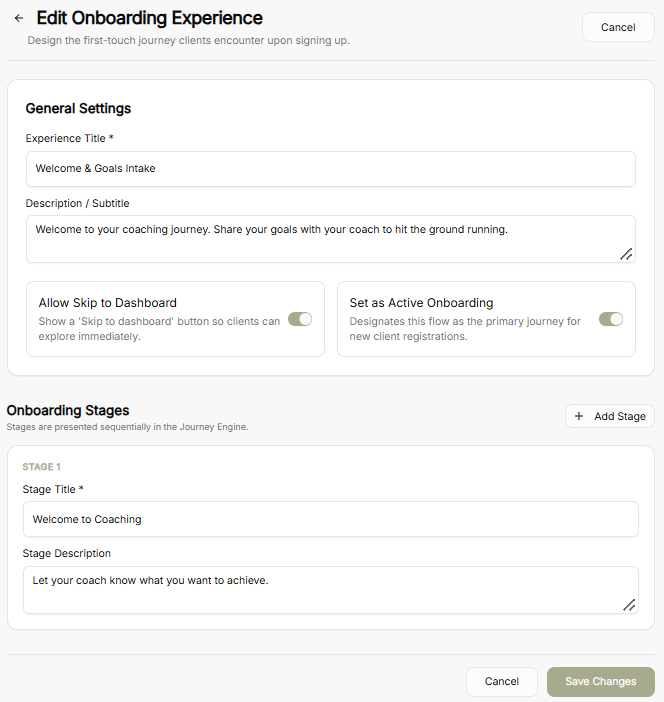
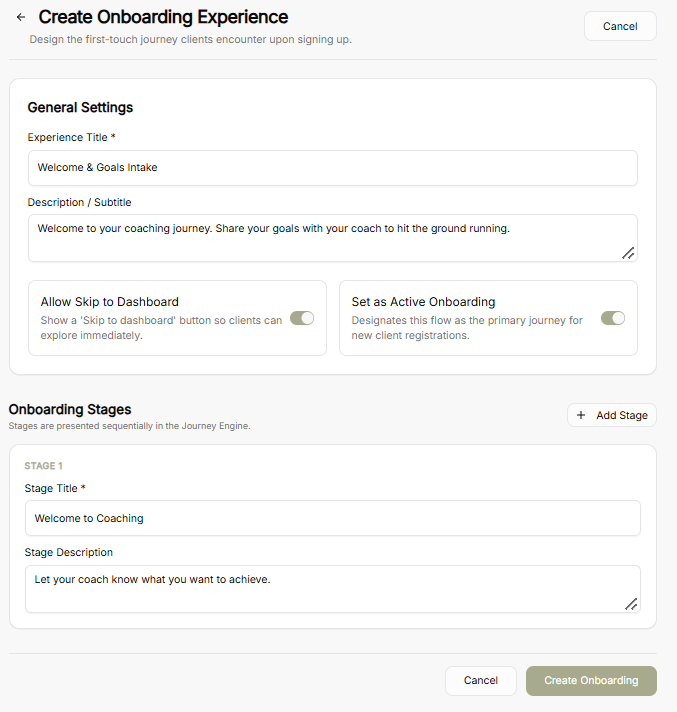
Edit & Create Onboarding Experience Flow Builder
-
General Settings:
-
Experience Title: Set or modify the public title for the onboarding flow.
-
Description / Subtitle: Add guidance text explaining the purpose of the intake to new clients.
-
Allow Skip to Dashboard Toggle: Enables or disables a "Skip to dashboard" button, allowing clients to bypass onboarding and explore the platform right away.
-
Set as Active Onboarding Toggle: Designates the specific flow as the primary journey assigned to new client registrations.
-
Onboarding Stages:
-
-
Stage Title & Description: Configure distinct sequential stages to break intake steps into manageable parts.
-
Add Stage Button: Append additional sequential stages to the onboarding journey.
-
-
Save / Create Controls: Confirm updates with Save Changes or publish a new experience with Create Onboarding.
Mentor Alliance Business Coach Kit – Journeys
Mentor Alliance Business Coach Kit – Journeys
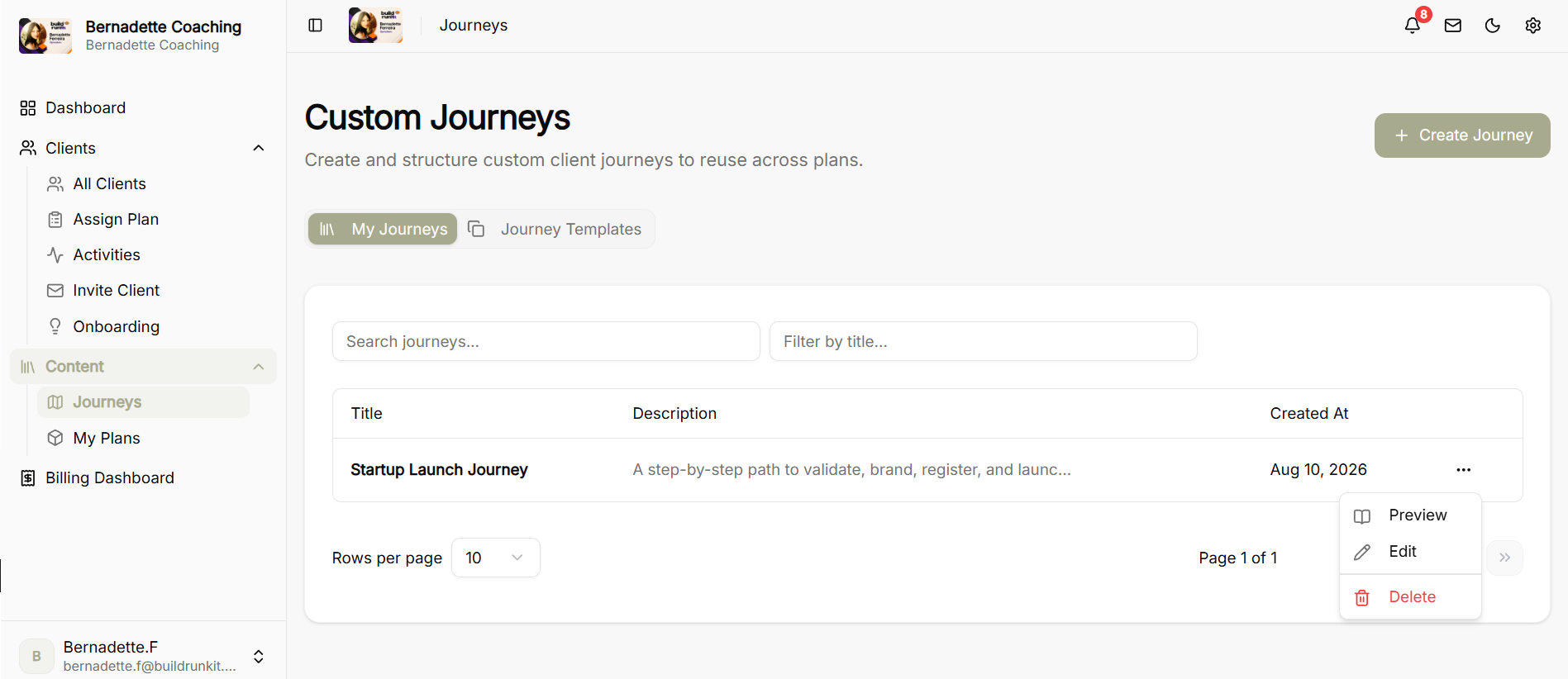
The Journeys module allows coaches to create, manage, preview, and structure custom client journey paths and leverage pre-built templates to build structured coaching content plans.
Custom Journeys Dashboard & Preview Options
-
My Journeys View: Displays a table of all custom journeys with their title, description, and creation date.
-
Action Menu (... Options): Clicking the three dots on any listed journey opens the quick menu to Preview, Edit, or Delete the journey.
-
Preview Journey Screen: Renders a read-only overview showing total stages, total substages, tag type (e.g., Custom), and an expandable breakdown of every stage and substage in the sequence. Includes an Edit button in the top header for quick updates.
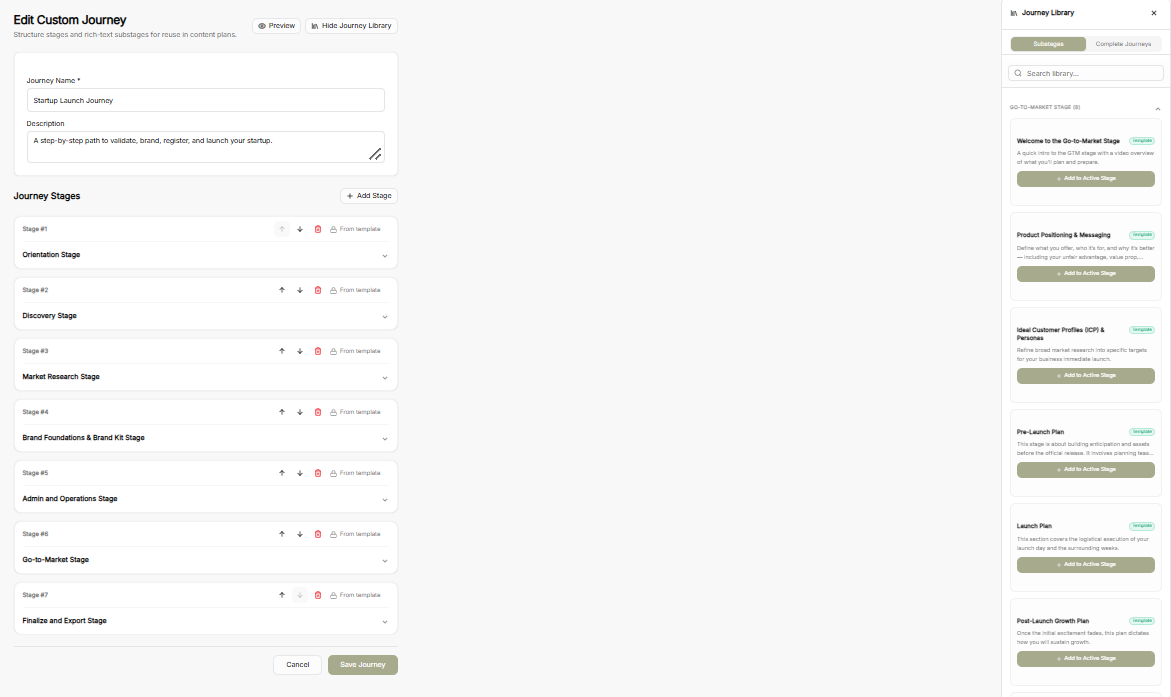
Edit Custom Journey Builder
-
Journey Information: Update the mandatory Journey Name and Description fields.
-
Stage Management: Reorder stages using up/down arrows, delete stages, or collapse/expand stage details.
-
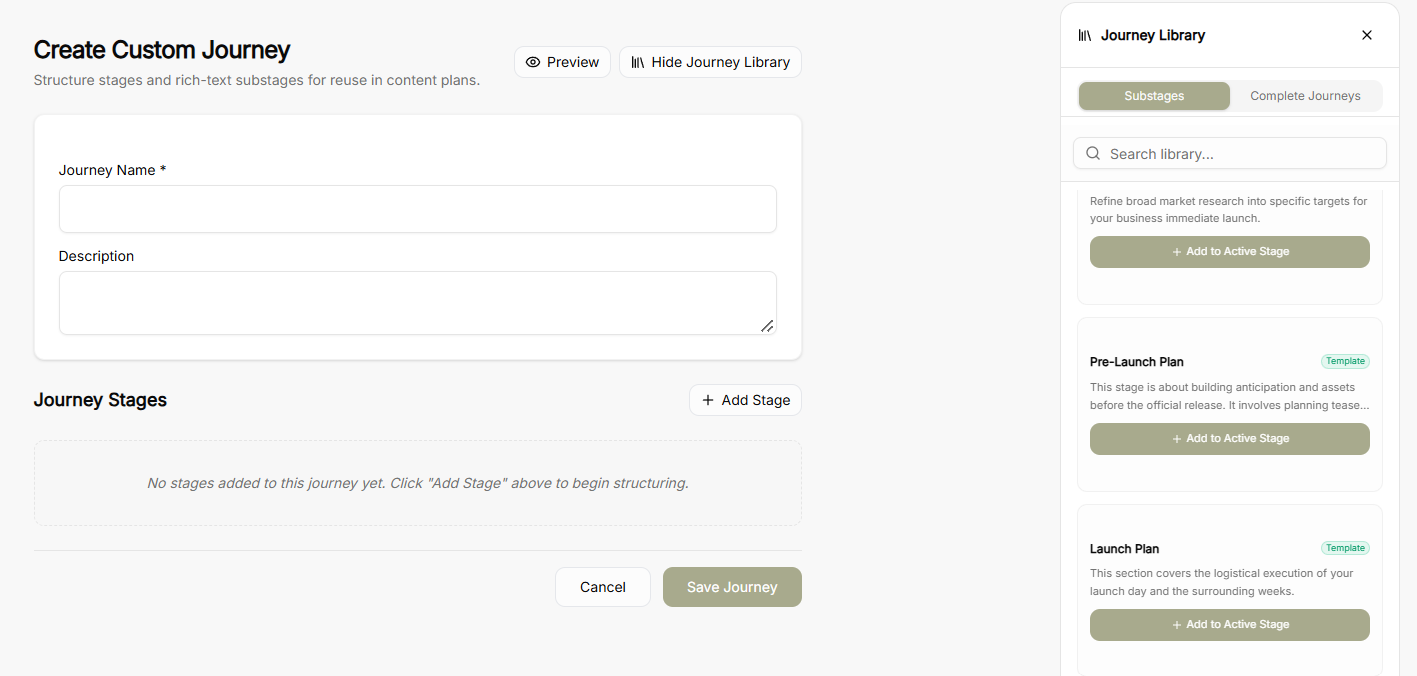
Side-Panel Journey Library: Access pre-made Substages or Complete Journeys from the library side panel and insert them into active stages via Add to Active Stage.
-
Header Controls: Use Preview to check the layout or Hide Journey Library to expand your main editing view.
Journey Templates Library
-
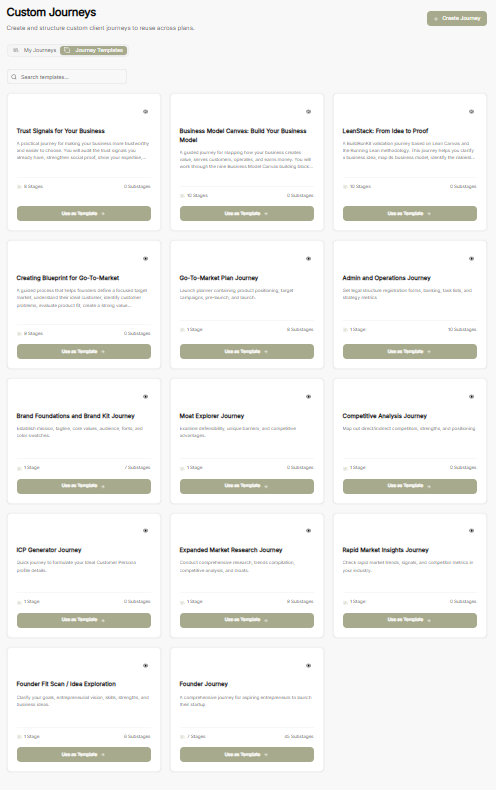
Templates Overview: Switch to the Journey Templates tab to browse pre-built frameworks (e.g., Business Model Canvas, LeanStack, Go-To-Market Plan, Brand Foundations).
-
Template Cards: Each template displays stage counts, substage counts, and a brief summary.
-
Use as Template: Converts any pre-built framework into an editable custom journey.
Create Custom Journey Builder
-
Create Journey Button: Click + Create Journey from the top right of the main dashboard to launch a blank canvas.
-
Canvas Options: Enter a Journey Name and Description, then start building from scratch using + Add Stage or select pre-built assets directly from the Journey Library side panel.
Mentor Alliance Business Coach Kit – My Plans
Mentor Alliance Business Coach Kit – My Plans
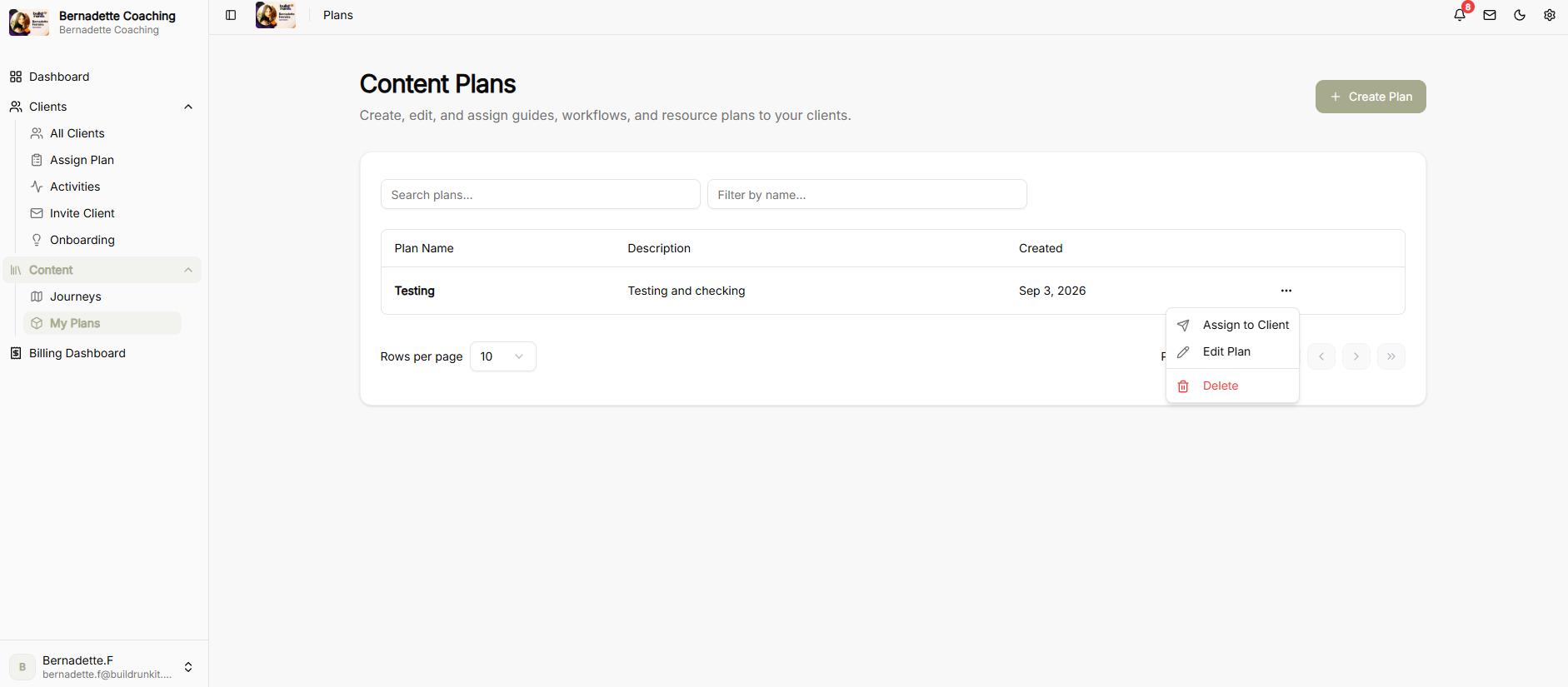
The My Plans module allows coaches to create, edit, assign, and customize content plans for client onboarding by combining custom journeys, pre-built templates, and file attachments.
Assigning a Plan
-
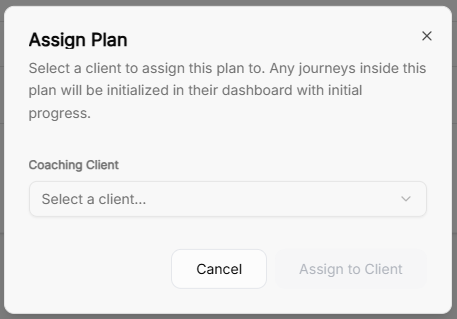
Assign Plan Modal: Select a coaching client from the dropdown menu to assign a content plan.
-
Automatic Progress Tracking: Assigning a plan initializes all included journeys directly on the client’s dashboard with initial progress tracking enabled.
Editing & Building Content Plans
-
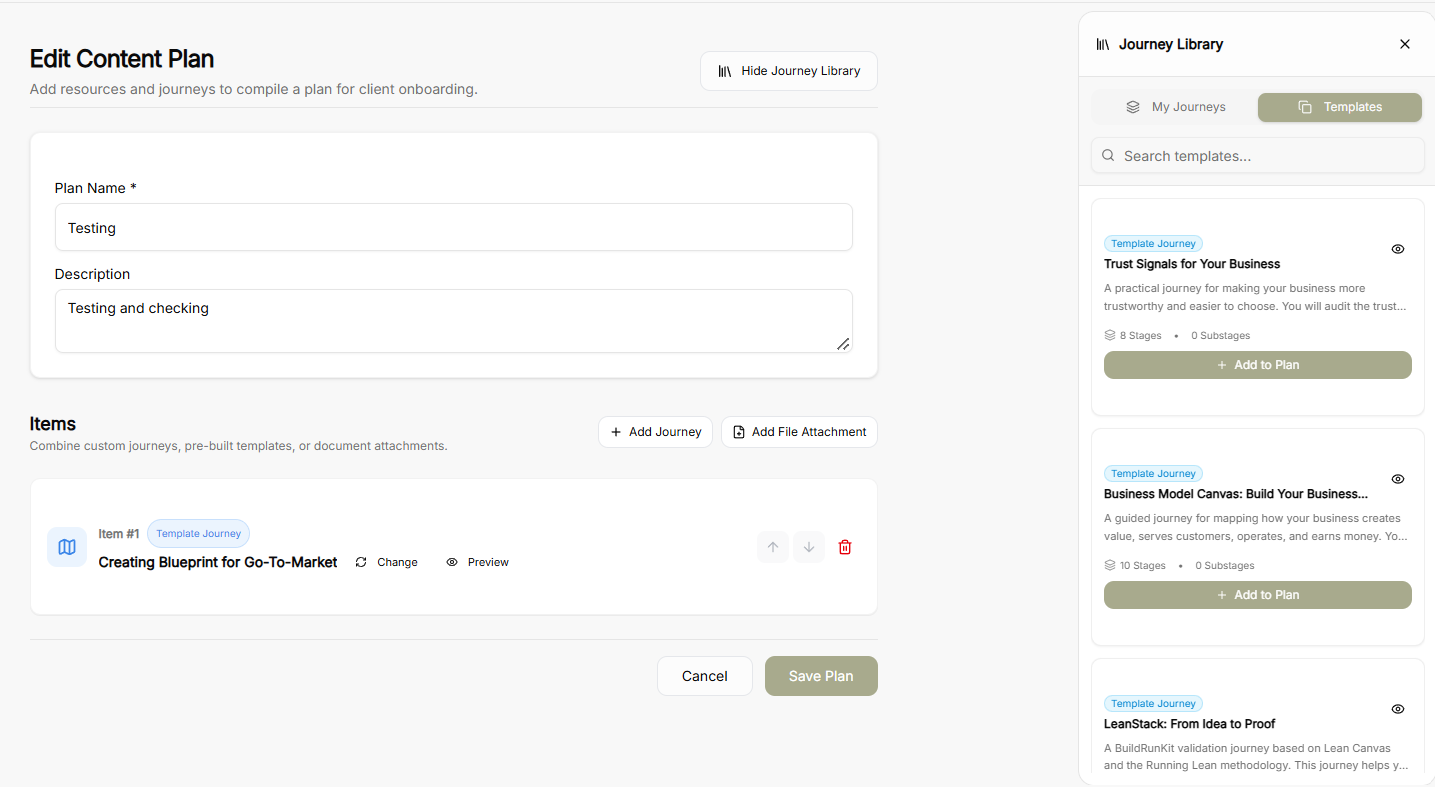
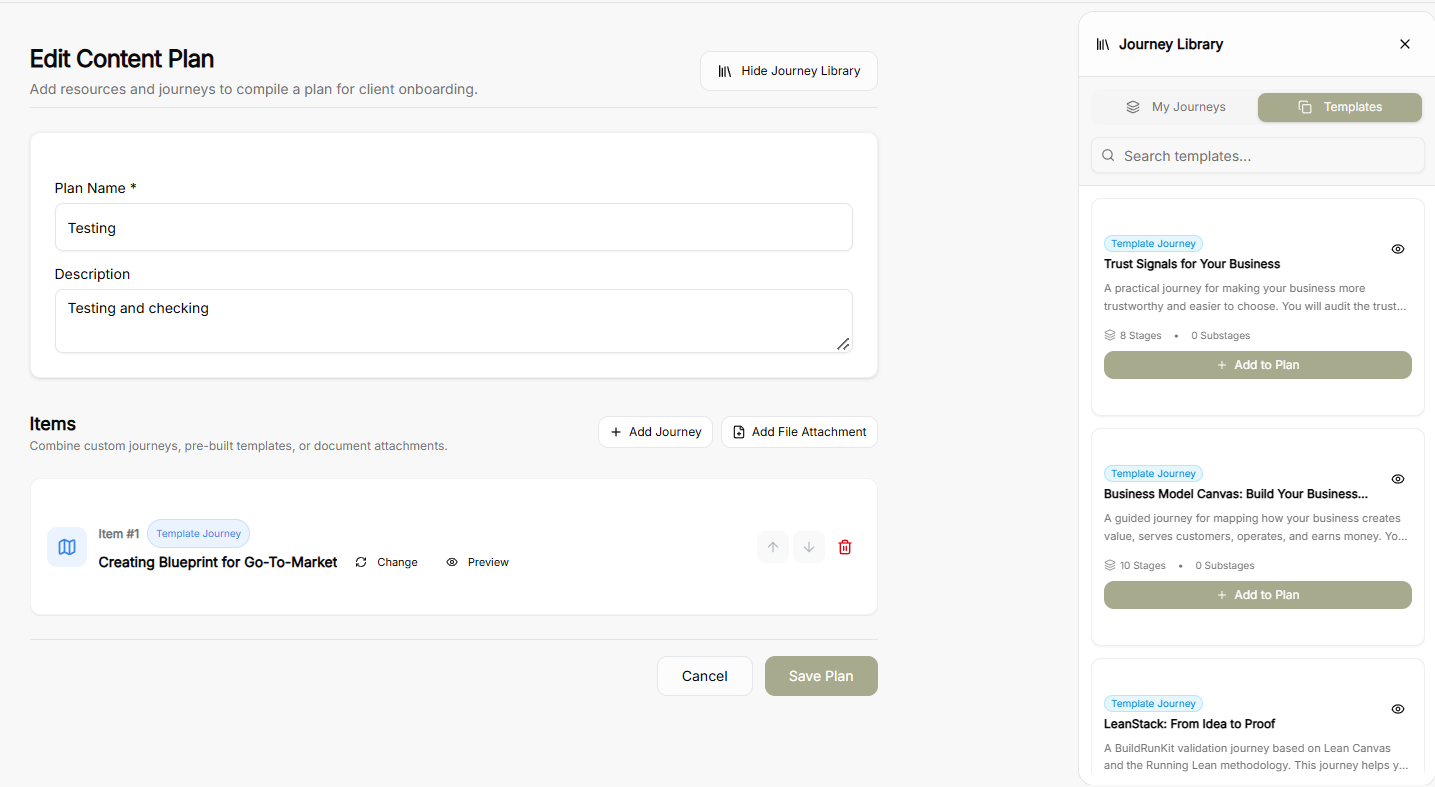
Plan Details: Define or update the mandatory Plan Name and Description.
-
Adding Content Items:
-
Add Journey: Append journeys directly into the plan sequence.
-
Add File Attachment: Attach supplementary documents or resources.
-
-
Journey Library Side Panel:
-
Toggle between My Journeys and Templates tabs to find relevant content.
-
Click + Add to Plan on any card to include it in the active plan.
-
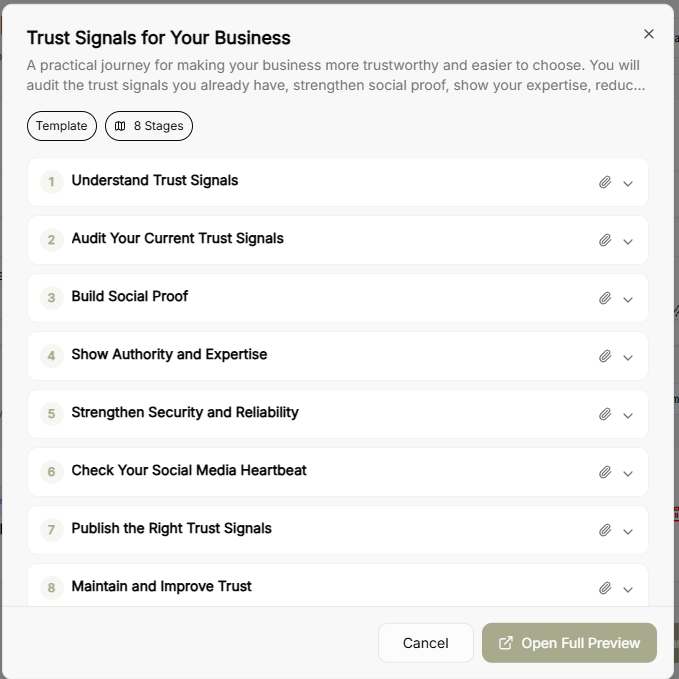
Click the Eye Icon on any journey card in the library or item row to launch a quick preview popup.
-
-
Journey Quick Preview Modal: Displays the journey’s full stage breakdown, stage descriptions, and total stage counts with an option to Open Full Preview.
-
Item Management: Reorder items in the plan using the up/down arrows or remove them using the trash icon.
Creating a New Plan
-
Plan Creator Canvas: Set a Plan Name and Description on a fresh canvas.
-
Library & Attachment Options: Open the Journey Library sidebar to browse through My Journeys or Templates, preview journeys via the eye icon, and attach required documents before clicking Save Plan.
Mentor Alliance Business Coach Kit – Billing Dashboard
Mentor Alliance Business Coach Kit – Billing Dashboard
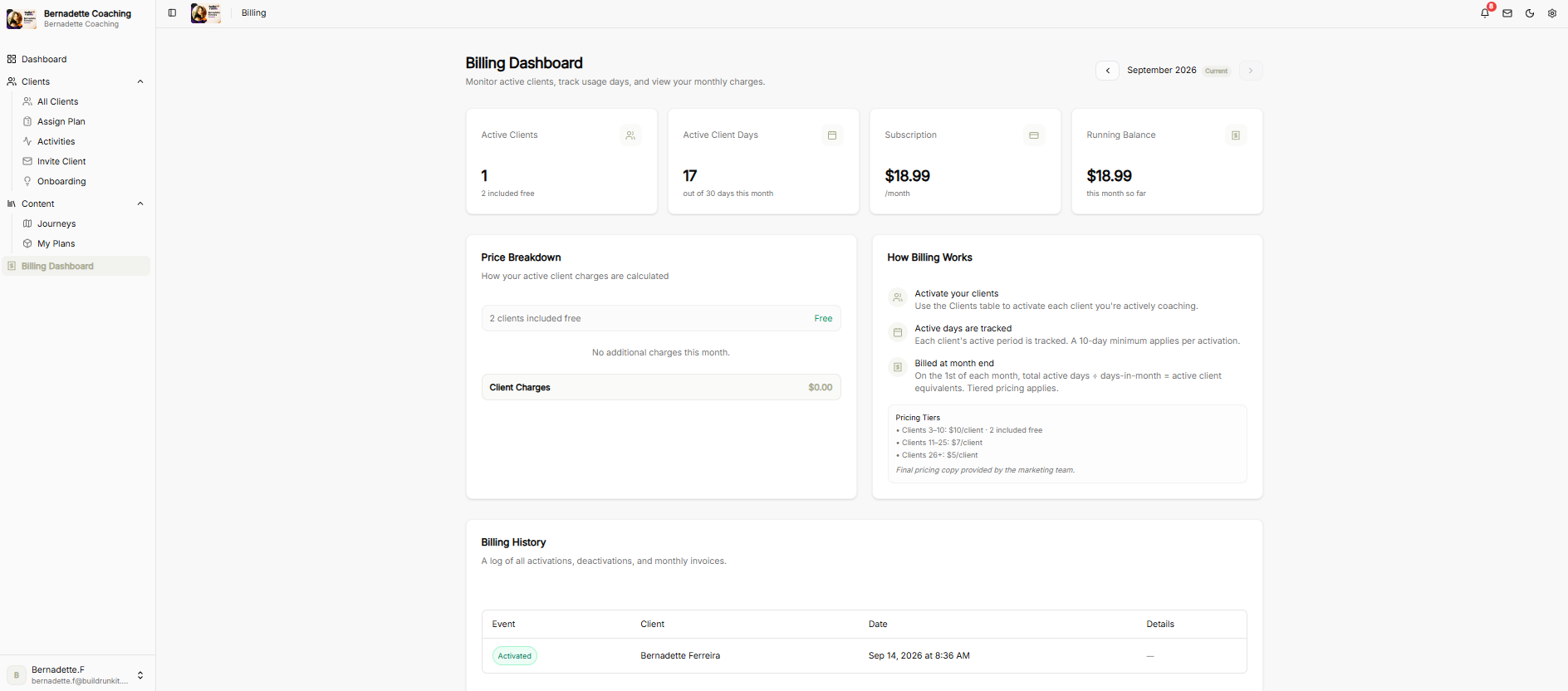
The Billing Dashboard allows coaches to monitor active client counts, track daily usage, review tier-calculated monthly charges, and view historical account activity.
Billing Metrics Summary
-
Active Clients: Shows current total active clients alongside the baseline allowance (2 included free).
-
Active Client Days: Tracks total accumulated active coaching days out of the current month's total days.
-
Subscription: Displays the base monthly account subscription fee.
-
Running Balance: Calculates total accrued charges for the current billing cycle so far.
-
Date Navigator: Allows coaches to toggle between current and previous billing months to inspect historical usage.
Price Breakdown & How Billing Works
-
Price Breakdown: Displays itemized active client calculations and additional fees for the billing cycle.
-
Client Activation & Tracking:
-
Activate Your Clients: Clients are toggled to active via the Clients table to begin coaching tracking.
-
Active Days Tracked: Every active period is recorded daily, with a 10-day minimum rule per activation.
-
Month-End Billing: On the 1st of each month, total active days are divided by total days in the month to compute active client equivalents under tiered pricing.
-
-
Pricing Tiers:
-
Included: First 2 clients free.
-
Clients 3–10: $10 / client.
-
Clients 11–25: $7 / client.
-
Clients 26+: $5 / client.
-
Billing History
-
Activity Log: Provides a detailed audit log of all client events, including activations, deactivations, date/time stamps, and associated monthly invoices.
Mentor Alliance Business Coach Kit – Settings
Mentor Alliance Business Coach Kit – Settings
The Settings module allows coaches to manage public branding info, profile details, security settings, platform display preferences, and automated notification lead times.
Coach Contact & Public Info
-
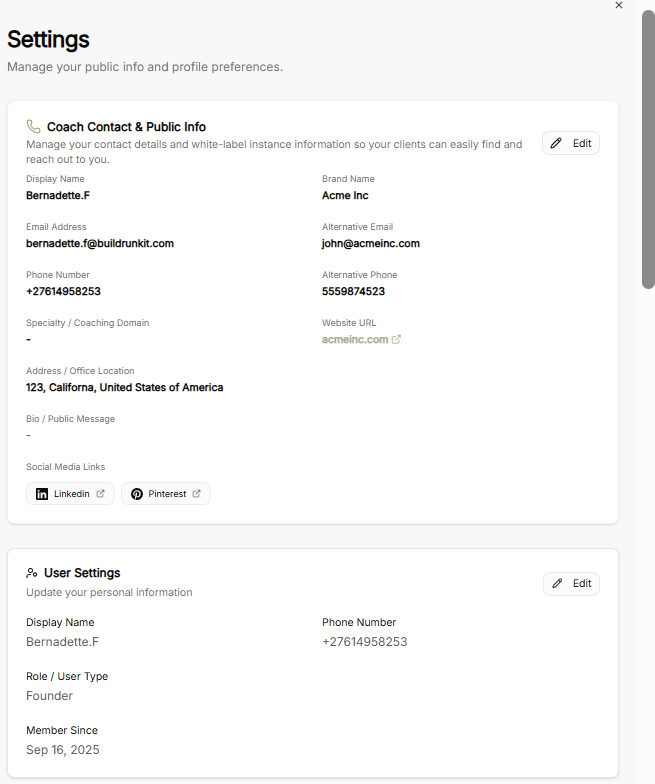
White-Label Branding: Display public details shown to clients, including Display Name, Brand Name, Website URL, Office Location, Bio, and connected Social Media Links (LinkedIn, Pinterest).
-
Contact Details: Set primary and alternative contact channels, including Email Address, Alternative Email, Phone Number, and Alternative Phone.
-
Edit Controls: Use the Edit button to update public-facing coach information.
User Settings & Email Address
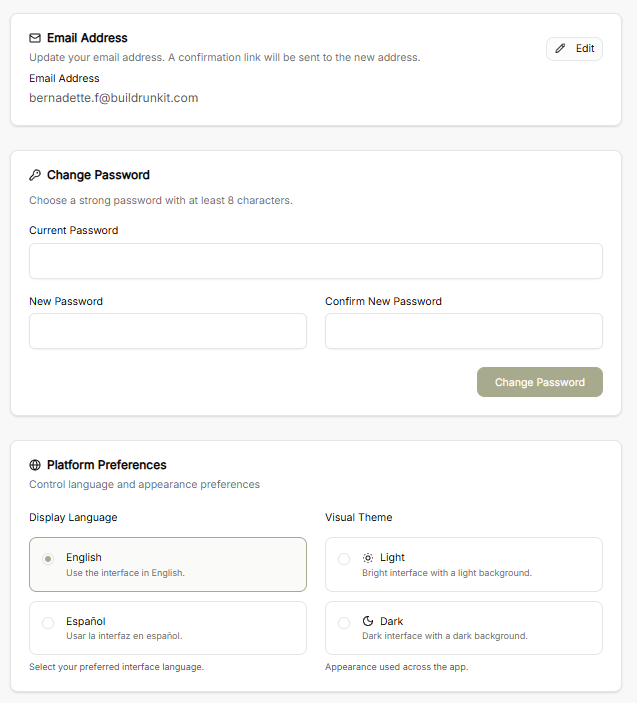
-
Personal Profile: View and edit personal account details such as Display Name, Phone Number, Role / User Type (e.g., Founder), and Member Since date.
-
Email Address Management: Update account login email with confirmation verification sent to the new address.
Security & Platform Preferences
-
Change Password: Update security credentials by entering the Current Password along with the New Password confirmation (minimum 8 characters).
-
Display Language: Toggle interface language between English and Español.
-
Visual Theme: Switch the platform interface appearance between Light and Dark modes.
Notification Preferences
-
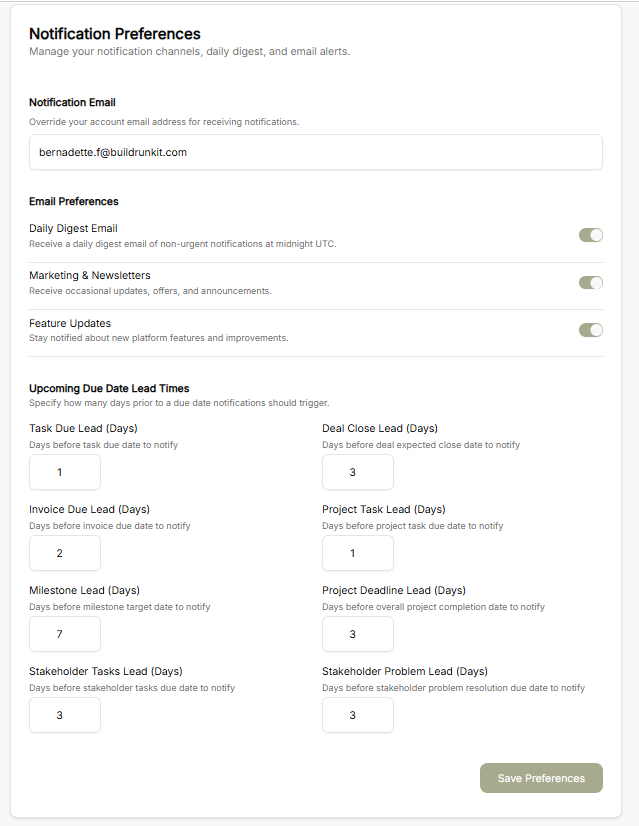
Notification Email: Set an explicit email address to override default account notifications.
-
Email Subscriptions: Toggle options for Daily Digest Email (sent at midnight UTC), Marketing & Newsletters, and Feature Updates.
-
Upcoming Due Date Lead Times: Set specific advance notification days for upcoming deadlines, including:
-
Task Due Lead
-
Deal Close Lead
-
Invoice Due Lead
-
Project Task Lead
-
Milestone Lead
-
Project Deadline Lead
-
Stakeholder Tasks Lead
-
Stakeholder Problem Lead
-
-
Save Preferences: Confirm and apply all updated notification triggers.
Mentor Alliance Business Coach Kit – Messages & Notifications
Mentor Alliance Business Coach Kit – Messages & Notifications

The Messages and Notifications features provide real-time direct communication tools and alert management directly within the platform header and navigation layout.
Messages Center
-
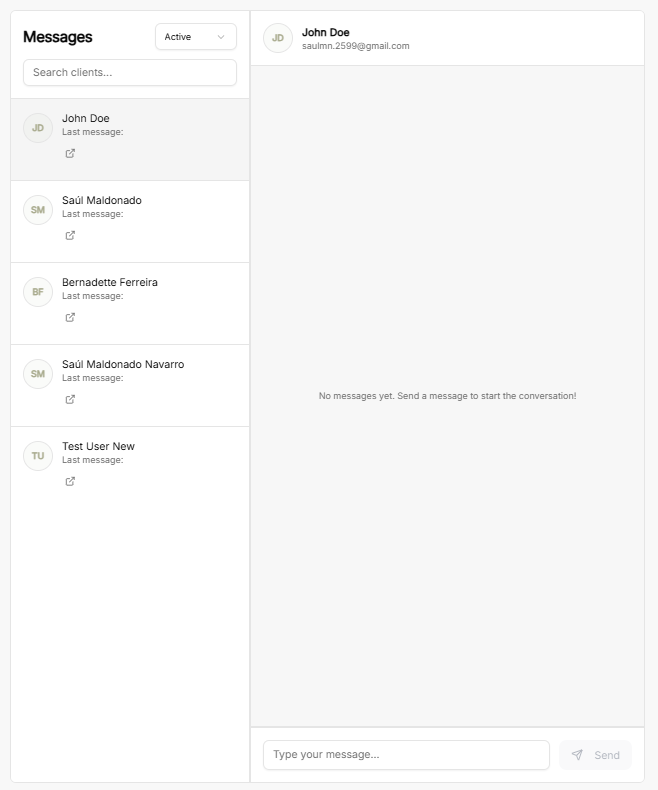
Client Conversations Sidebar:
-
Client Filter Dropdown: Filter client list by account status (e.g., Active).
-
Search Bar: Quickly locate specific client conversations by typing the client's name.
-
Client List: Select active conversations with clients (e.g., John Doe, Saúl Maldonado, Bernadette Ferreira, Saúl Maldonado Navarro, Test User New). Shows client avatar initials and the status of the last message sent.
-
-
Chat Window & Workspace:
-
Recipient Details: Displays selected client's full name, profile initials, and primary email address.
-
Message History Pane: Workspace displaying past thread messages or starting a new conversation.
-
Message Input Controls: Text box to compose new messages paired with a Send button.
-
Notifications Panel
-
Header Controls:
-
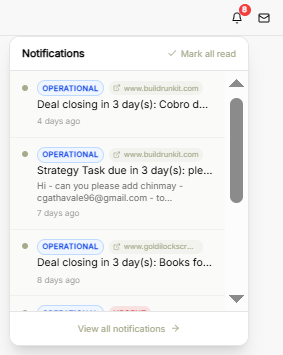
Notification Bell Icon: Displays an unread badge indicator showing total pending alerts (e.g., 8 pending).
-
Mark All Read: Quick action button to clear all unread alert highlights simultaneously.
-
-
Alert Feed & Categories:
-
Operational Tags: Highlights system and operational reminders (e.g., deal closing updates, strategy task due notices).
-
Origin Source Links: Displays origin domain links associated with each alert (e.g., buildrunkit.com, goldilockscrm.com).
-
Alert Time Stamps: Indicates elapsed time since alert generation (e.g., 4 days ago, 7 days ago, 8 days ago).
-
-
Navigation: Click View all notifications at the bottom of the popover menu to access the full notification log.
Mentor Alliance Business Coach Kit – Client Portal
Mentor Alliance Business Coach Kit – Client Portal: Dashboard & Assignments
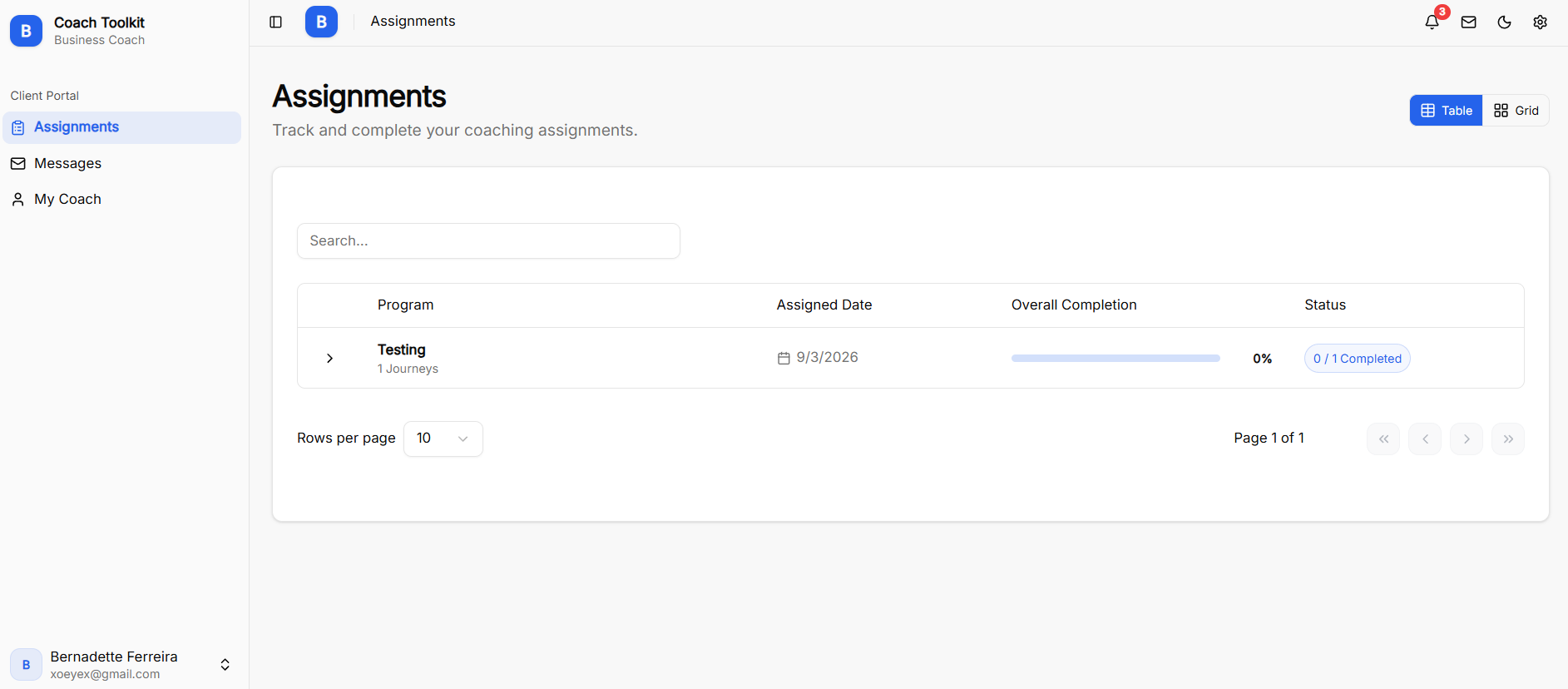
The Dashboard (Assignments) view serves as the main hub when a client logs into the Client Portal, providing an overview of assigned coaching programs, completion rates, and account navigation.
Client Portal Navigation
-
Assignments: Main dashboard showing assigned programs, overall completion, and active tasks.
-
Messages: Chat hub for direct communication with the assigned business coach.
-
My Coach: Dedicated page displaying the coach's contact info, bio, and profile.
Dashboard Features & Program Tracking
-
Layout View: Toggle between Table and Grid views to customize how programs are displayed.
-
Program Search: Search bar to locate specific assigned coaching programs.
-
Program Details:
-
Program Name: Shows the title of assigned plans (e.g., Testing) and total journey count (e.g., 1 Journeys).
-
Assigned Date: Displays the exact date the coach assigned the program.
-
Overall Completion: Progress bar rendering total completed percentage.
-
Status Badge: Tracks finished milestones (e.g., 0 / 1 Completed).
-
Client Portal: Messages
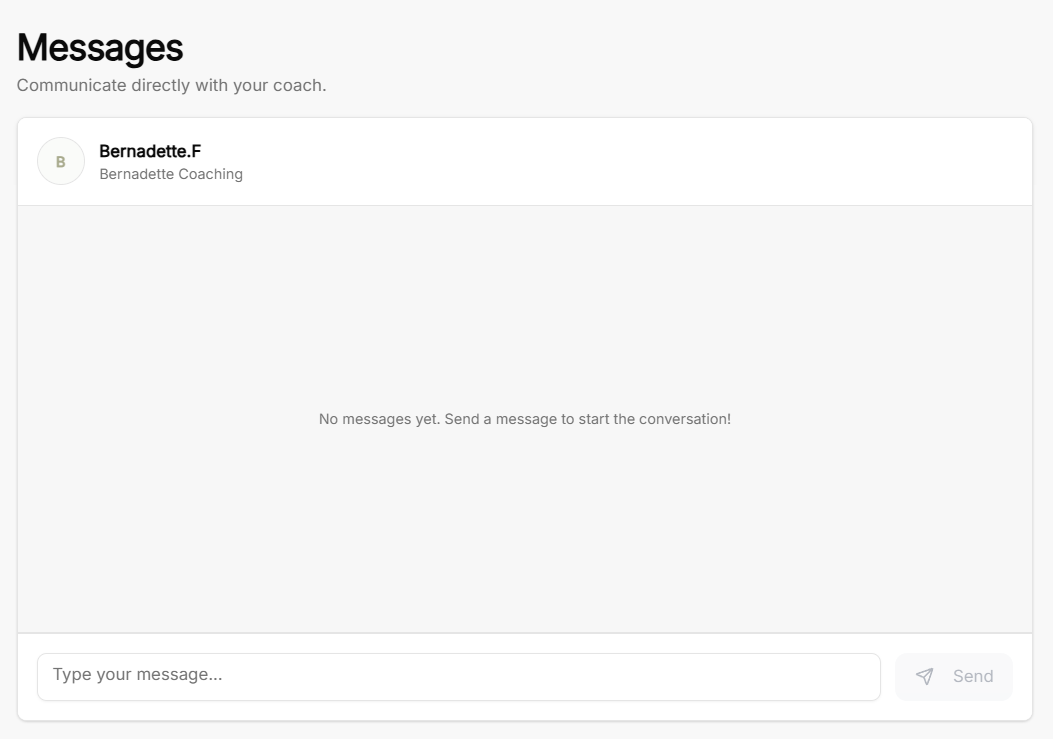
The Messages screen in the Client Portal provides a direct chat interface for clients to communicate with their assigned business coach.
Client Messages Workspace
-
Header & Purpose: Clearly titled Messages with the subtext "Communicate directly with your coach".
-
Coach Profile Info: Displays the assigned coach's name (e.g., Bernadette.F) and coaching practice title (e.g., Bernadette Coaching) along with their profile avatar.
-
Conversation Pane: Main chat window showing conversation history or a starting placeholder ("No messages yet. Send a message to start the conversation!").
-
Message Controls: Includes a text input box ("Type your message...") and a Send button to post direct updates, questions, or feedback.
Client Portal: Notifications
The Notifications panel in the Client Portal gives clients real-time updates regarding new package assignments, coaching plan updates, and operational activity.
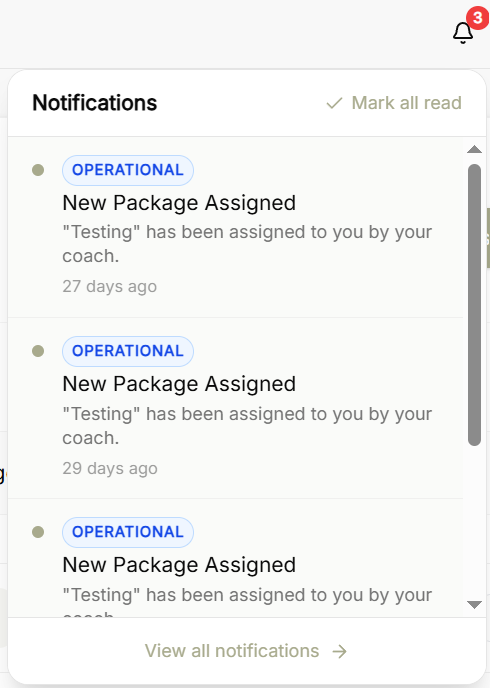
Notifications Panel
-
Header Controls:
-
Notification Bell Icon: Features a counter badge indicating total unread alerts.
-
Mark All Read: Allows clients to clear all unread alert indicators with a single click.
-
-
Alert Feed:
-
Category Badges: Categorizes alerts with operational tags.
-
Alert Details: Displays system notifications, such as new coaching package assignments from the coach.
-
Time Stamps: Shows elapsed time since each alert was issued.
-
-
Navigation: Includes a View all notifications option to access the complete notifications page.
Client Portal: My Coach
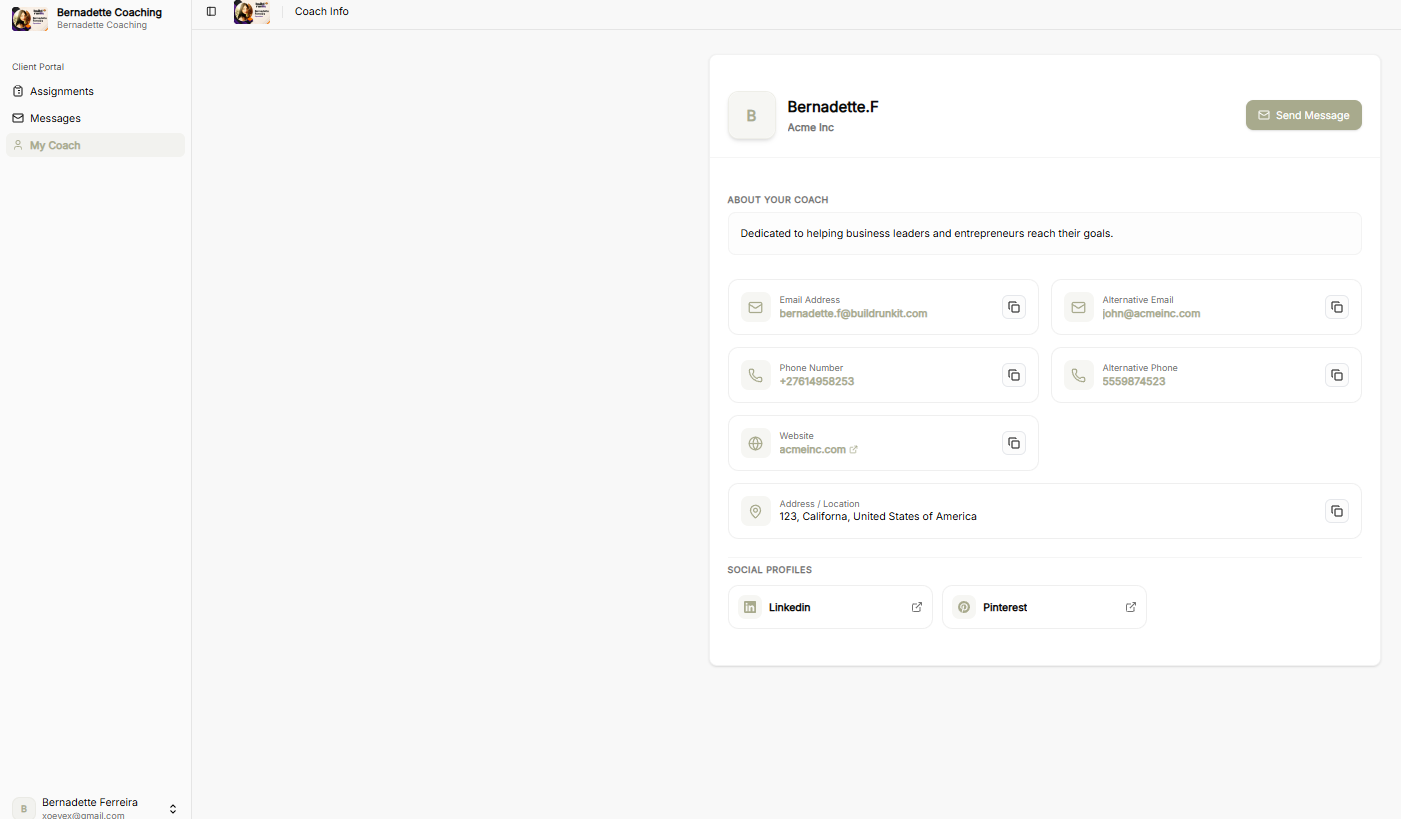
The My Coach screen provides clients with a clear overview of their assigned coach's public profile, business branding, and direct communication channels.
Coach Profile Header
-
Coach & Organization: Shows the coach's full name and company branding alongside their profile avatar.
-
Send Message: Prominent button allowing clients to initiate a direct message thread immediately.
About Your Coach
-
Coach Bio: Displays a concise summary of the coach's background and core coaching approach.
Contact Information
-
Email Details: Lists primary and alternative email addresses, complete with single-click copy buttons.
-
Phone Contact: Displays primary and alternative contact numbers, paired with copy buttons.
-
Website: Provides a direct external link to the coach's site with quick-copy functionality.
-
Office Location: Displays the physical business or mailing address.
Social Profiles
-
External Links: Buttons offering direct access to the coach's external social media profiles.
Client Portal: Account Settings
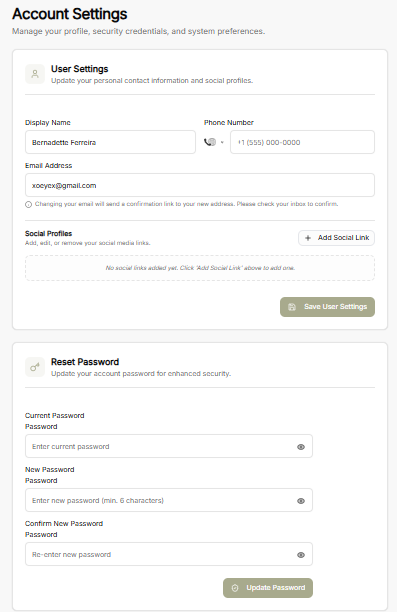
The Account Settings view allows clients to manage personal profile details, update security credentials, configure notification triggers, and customize portal display preferences.
User Settings
-
Contact Information: Update personal details, including display name, phone number, and email address. Updating the email address sends a confirmation link to the new address.
-
Social Profiles: Add, edit, or remove social media profile links.
-
Save Changes: Apply updated account details using the Save User Settings button.
Reset Password
-
Credential Management: Update account security credentials by entering the current password alongside a new password.
-
Password Confirmation: Re-enter the new password to confirm accuracy.
-
Update Security: Apply changes via the Update Password button.
Notification Preferences
-
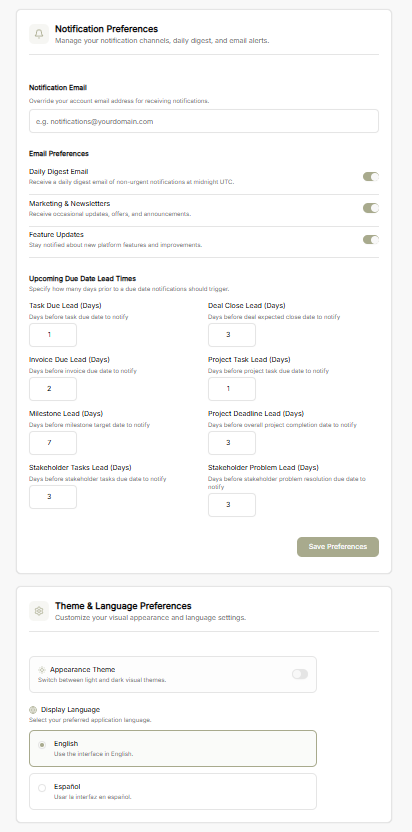
Custom Notification Email: Set a specific email address to override default account notification routing.
-
Email Preferences: Toggle options for daily digest emails, marketing updates, and feature announcements.
-
Due Date Lead Times: Specify lead days for automated task, project, invoice, and milestone reminder alerts.
-
Save Preferences: Confirm updated notification settings with the Save Preferences button.
Theme & Language Preferences
-
Appearance Theme: Switch between light and dark visual modes.
-
Display Language: Select preferred application interface language.