# User Profile & Settings

## **User Profile &amp; Settings**

<div drawio-diagram="261"><img src="https://library.buildrunkit.com/uploads/images/drawio/2026-05/drawing-4-1778675764.png" alt=""/></div>

[![Screenshot 2026-05-13 142157.png](https://library.buildrunkit.com/uploads/images/gallery/2026-05/scaled-1680-/screenshot-2026-05-13-142157.png)](https://library.buildrunkit.com/uploads/images/gallery/2026-05/screenshot-2026-05-13-142157.png)

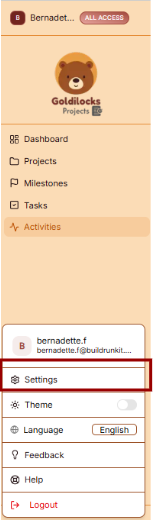
The Settings area allows you to manage your personal information, account security, and how the interface appears to you.

### Managing Personal Information

Under the User Profile tab, you can view and update your primary account details:

- User Profile: This section displays your First Name, Last Name, and Email Address. Enter your details into the text fields to keep your account information current.
- Update Profile: After making changes to your name or email, click the brown Update Profile button at the bottom of the form to save your details.

---

### Account Security

You can update your login credentials at any time in the Security section:

- Current Password: Enter your existing password for verification.
- New Password: Create a new password in the provided field.
- Confirm New Password: Re-enter the new password to ensure it matches.
- Update Password: Click the brown Update Password button to finalize your new credentials.

---

### Interface Preferences

[![Screenshot 2026-05-13 142226.png](https://library.buildrunkit.com/uploads/images/gallery/2026-05/scaled-1680-/screenshot-2026-05-13-142226.png)](https://library.buildrunkit.com/uploads/images/gallery/2026-05/screenshot-2026-05-13-142226.png)

[![Screenshot 2026-05-13 142250.png](https://library.buildrunkit.com/uploads/images/gallery/2026-05/scaled-1680-/screenshot-2026-05-13-142250.png)](https://library.buildrunkit.com/uploads/images/gallery/2026-05/screenshot-2026-05-13-142250.png)

You can customize the look of your workspace through the General Settings menu.

Theme Selection Adjust the visual appearance of the application to match your working environment:

- Dark Mode: Use the toggle switch to enable or disable the high-contrast dark theme.
    
    
    - Light Theme: When toggled off, the interface uses a bright background.
    - Dark Theme: When toggled on, the interface uses a dark background, ideal for low-light environments.

## Workspace Management

[![Screenshot 2026-05-13 144601.png](https://library.buildrunkit.com/uploads/images/gallery/2026-05/scaled-1680-/screenshot-2026-05-13-144601.png)](https://library.buildrunkit.com/uploads/images/gallery/2026-05/screenshot-2026-05-13-144601.png)

The Workspaces settings allow you to manage the different environments you belong to and see your current access levels.

### All Workspaces

This tab provides an overview of the workspace your account is currently associated with.

- Workspace Details: You can see the name of the workspace (e.g., "Goldilocks Projects") and its current subscription plan (e.g., "Free").
- Actions: By clicking the three dots (actions menu) next to the workspace, you can manage your involvement in that environment:
    
    
    - Exit: Select this to remove yourself from the workspace.

---

### Manage Workspace Members

Control who has access to your workspace in this section.

- Member List: View all users, their email addresses, and their assigned roles.
    
    
    - User: Displays the name of the member (e.g., "Bernadette F").
    - Email: Displays the email address associated with the member.
    - Role: Shows the permissions level of the user (e.g., "Owner").
- Invite Members: Click the brown "+ Invite member" button at the top right to add a new person to the team via email.
- Removing Users: To revoke access, click the three dots (actions menu) next to a member's name and select Remove user.

## Billing &amp; Plans

[![Screenshot 2026-05-13 144813.png](https://library.buildrunkit.com/uploads/images/gallery/2026-05/scaled-1680-/screenshot-2026-05-13-144813.png)](https://library.buildrunkit.com/uploads/images/gallery/2026-05/screenshot-2026-05-13-144813.png)

The Billing &amp; Plans section provides a complete overview of your current subscription, usage limits, and available upgrades to ensure your workspace has the resources it needs.

### Current Plan Overview

At the top of the page, you can see the status of your primary subscription:

- Plan Type: Displays your current level of access (e.g., "All access").
- Change Plan: Click this brown button to browse different subscription tiers.
- Manage Subscription: Click this white button to update payment methods or view billing history.

### Subscription Limits

Track your real-time resource consumption through the Subscription Limits dashboard:

- Resource Progress Bars: Visual indicators show your usage for:
    
    
    - Team Seats: Displays the number of active members out of your total limit (e.g., 2 / 2).
    - Storage: Shows how much data you have used (e.g., 0 / 1 GB).
    - AI Credits: Tracks your monthly or evergreen AI usage (e.g., 0 / 3000 credits).
- Module Statistics: Detailed cards provide a breakdown of specific workspace items:
    
    
    - Projects: Tracks active initiatives (e.g., 1 of 500 used).
    - Milestones: Tracks project phases (e.g., 0 of 2000 used).
    - Tasks: Tracks individual work items (e.g., 0 of 5000 used).

---

### Available Add-ons &amp; Expansions

[![Screenshot 2026-05-13 144905.png](https://library.buildrunkit.com/uploads/images/gallery/2026-05/scaled-1680-/screenshot-2026-05-13-144905.png)](https://library.buildrunkit.com/uploads/images/gallery/2026-05/screenshot-2026-05-13-144905.png)

Customize your workspace by adding specific resources without changing your entire plan:

- Search &amp; Filter: Use the search bar or category tags (AI &amp; Credits, CRM, Team, Invoicing, etc.) to find specific upgrades.
- Add-on Options:
    
    
    - Additional Usage Credits: A one-time top-up of 3,000 evergreen AI credits ($3 one-off).
    - CRM Expansion: Increase capacity for contacts, deals, and activities ($5/mo).
    - Extra Seat: Add a new team member to your workspace ($3/mo).
    - Invoices Expansion: Handle high-volume billing with 25,000 additional monthly invoices ($5/mo).
    - Projects Expansion: Manage 2,000 active projects and 25,000 tasks ($5/mo).
    - Storage Pack: Add 5GB of shared storage for documents and assets ($3/mo).
    - Strategy Hub Expansion: Unlock 20,000 tasks and extended mind mapping limits ($5/mo).
- Purchasing: Click the "Get" button on any card to add the expansion to your account.

### Checkout Process

[![Screenshot 2026-05-12 132721.png](https://library.buildrunkit.com/uploads/images/gallery/2026-05/scaled-1680-/screenshot-2026-05-12-132721.png)](https://library.buildrunkit.com/uploads/images/gallery/2026-05/screenshot-2026-05-12-132721.png)

The Checkout page is the final step for any plan change or add-on purchase:

- Back to subscription: A link at the top left to return without purchasing.
- Payment Method: Confirms the card on file that will be charged for the transaction.
- Order Summary: Displays the Subtotal, Tax, and the final Total Amount Due.
- Action: Click the brown Pay &amp; Subscribe button to finalize the order and update your workspace limits.

## Import &amp; Export

[![Screenshot 2026-05-13 145245.png](https://library.buildrunkit.com/uploads/images/gallery/2026-05/scaled-1680-/screenshot-2026-05-13-145245.png)](https://library.buildrunkit.com/uploads/images/gallery/2026-05/screenshot-2026-05-13-145245.png)

The Import/Export section allows you to manage your data by downloading it for external use or uploading existing records into the Goldilocks Projects ecosystem.

### Exporting Your Data

You can export your workspace records into CSV files, which are compiled into a single ZIP archive for easy download.

<div _ngcontent-ng-c1606423905="" class="container" id="bkmrk-selection-options%3A-c"><div _ngcontent-ng-c1759311680="" aria-busy="false" aria-live="polite" class="markdown markdown-main-panel enable-updated-hr-color" dir="ltr" inline-copy-host="">- Selection Options: Choose what data you wish to download by selecting All Data, or specific categories including Projects Only, Milestones Only, Tasks Only, or Activities Only.
- Download: Click the brown Download Data button to generate and save your ZIP file.
- Activities Reports: For specialized reporting, you can choose to generate an Activities Report in PDF (best for printing and sharing) or Excel (best for analysis and editing) formats.

---

</div></div>### Importing Your Data

[![Screenshot 2026-05-13 145325.png](https://library.buildrunkit.com/uploads/images/gallery/2026-05/scaled-1680-/screenshot-2026-05-13-145325.png)](https://library.buildrunkit.com/uploads/images/gallery/2026-05/screenshot-2026-05-13-145325.png)

[![Screenshot 2026-05-13 145625.png](https://library.buildrunkit.com/uploads/images/gallery/2026-05/scaled-1680-/screenshot-2026-05-13-145625.png)](https://library.buildrunkit.com/uploads/images/gallery/2026-05/screenshot-2026-05-13-145625.png)

[![Screenshot 2026-05-13 150103.png](https://library.buildrunkit.com/uploads/images/gallery/2026-05/scaled-1680-/screenshot-2026-05-13-150103.png)](https://library.buildrunkit.com/uploads/images/gallery/2026-05/screenshot-2026-05-13-150103.png)

The Import Assistant guides you through a multi-step process to ensure all data is mapped correctly between projects, milestones, and tasks.

<div _ngcontent-ng-c1606423905="" class="container" id="bkmrk-step-1%3A-import-proje"><div _ngcontent-ng-c1759311680="" aria-busy="false" aria-live="polite" class="markdown markdown-main-panel enable-updated-hr-color" dir="ltr" inline-copy-host="">- Step 1: Import Projects: Start by dragging and dropping your `projects.csv` file to create the base project records. Projects are a required component of the import process.
- Step 2: Import Milestones: Once projects are imported, upload your `milestones.csv` file so each milestone can map correctly to its parent project. Milestones are also a required component of the import.
- Step 3: Import Tasks (Optional): After the milestones are imported, you have the option to upload a `project_tasks.csv` to complete your data flow.
- Finalizing: You can choose to click Finish Import immediately after successfully importing your milestones, or you can continue to the task import step if you have task data to include.
</div></div>> **Technical Note**: All import files must be in **.csv** format with a maximum size of **5MB** per file.

<div _ngcontent-ng-c1606423905="" class="container" id="bkmrk--17"><div _ngcontent-ng-c1759311680="" aria-busy="false" aria-live="polite" class="markdown markdown-main-panel enable-updated-hr-color" dir="ltr" id="bkmrk--18" inline-copy-host=""></div></div>