Tools Ecosystem
Tools Ecosystem
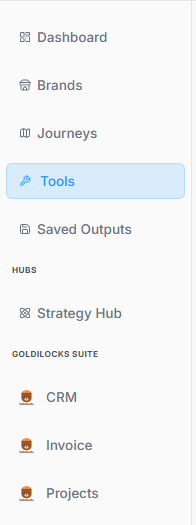
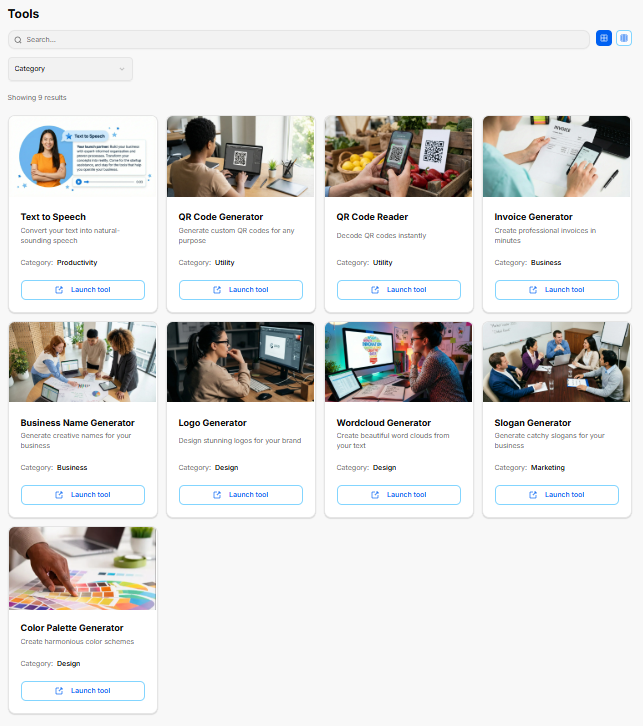
The Tools suite acts as an integrated workshop within the platform, providing standalone utilities to generate creative, visual, and operational assets for business development.
1. Accessing the Tools Suite
-
Sidebar Control: The Tools option is located on the main left-hand navigation panel, directly below Journeys. Clicking it highlights the button with a light blue background and opens the full application directory.
-
Workspace Positioning: It sits directly above Saved Outputs and remains accessible alongside your core operational hubs, allowing you to quickly switch over and generate specific assets as needed.
2. Directory Features & Interface Layout
The main catalog workspace organizes all available utilities into a clean, searchable matrix:
-
Search Functionality: A comprehensive search field at the top of the workspace allows for quick filtering to locate specific standalone generators.
-
Category Sorting: A dedicated dropdown menu allows you to sort utilities by specific focus types, such as Business, Utility, Productivity, Design, or Marketing.
-
Layout Toggles: Located in the top-right corner, grid and list icon toggles let you customize how the tool modules are displayed. The directory indicates a current count of 9 results available in the ecosystem.
3. Available Platform Tools
Each item in the directory is represented by a dedicated card detailing its primary function, categorized type, and a direct action button to boot up the utility:
-
Text to Speech: Converts your written text into natural-sounding audio assets. (Category: Productivity)
-
QR Code Generator: Generates custom, scannable QR codes for any operational or marketing purpose. (Category: Utility)
-
QR Code Reader: Decodes QR codes instantly via direct layout or image input. (Category: Utility)
-
Invoice Generator: Built to compile professional invoices in minutes to handle transactional needs. (Category: Business)
-
Business Name Generator: Helps brainstorm and generate creative naming structures for new business ideas. (Category: Business)
-
Logo Generator: Provides a design environment to create clean logos for your brand profile. (Category: Design)
-
Wordcloud Generator: Generates beautiful word clouds out of your input copy to summarize visual themes. (Category: Design)
-
Slogan Generator: Builds catchy taglines and slogans tailored to your business identity. (Category: Marketing)
-
Color Palette Generator: Creates cohesive, balanced color schemes to help establish primary, secondary, and accent options. (Category: Design)
Every card is anchored by a clear Launch tool → button, which seamlessly opens the respective application workspace.
Text to Speech Generator
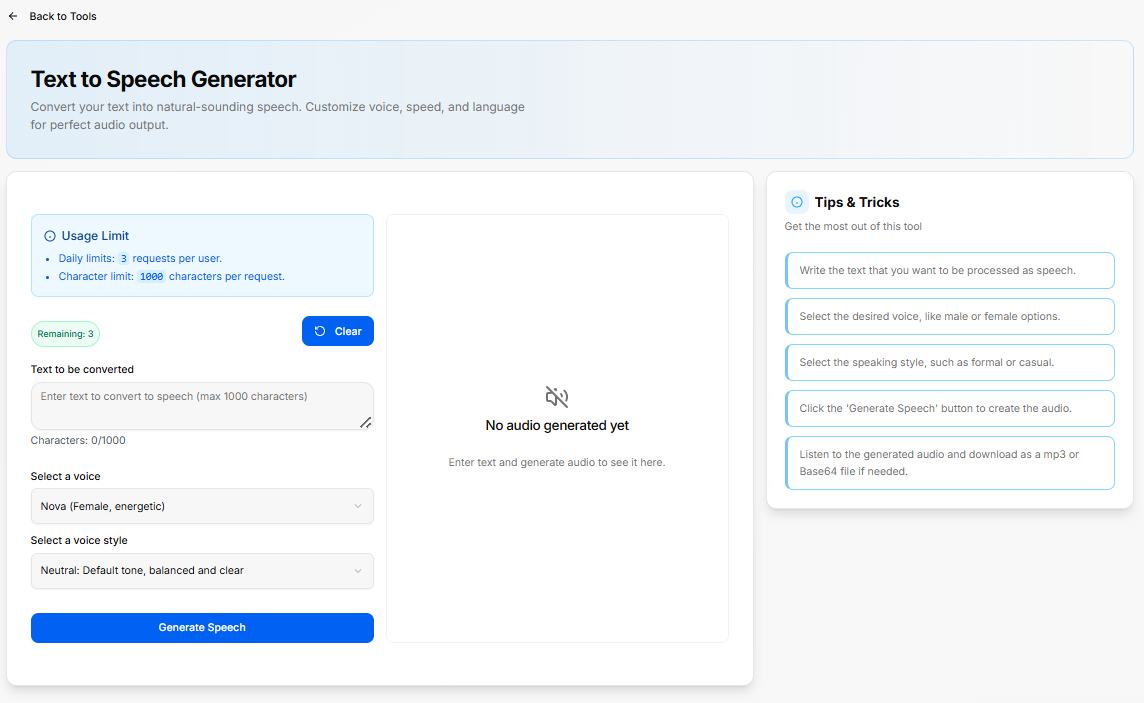
The Text to Speech Generator is a platform utility designed to convert written text into natural-sounding audio. It offers customizable settings for voice and style selection to create polished audio outputs.
1. Generator Constraints and Tracking
The workspace features built-in allocation tracking to ensure fair usage across the platform:
-
Usage Limits:
-
Daily allocation: A maximum of 3 requests per user each day.
-
Character limit: A maximum of 1,000 characters is allowed per individual request.
-
-
Real-Time Status: A dedicated tracking badge displays your remaining requests for the day.
-
Clear Option: A dedicated Clear button resets the active text configuration fields instantly.
2. Configuration Options
The generation panel contains fields to input your text data and customize the audio behavior:
-
Text to be Converted: A dedicated text area where you type or paste your copy. A character counter at the bottom monitors your length in real time against the 1,000-character maximum.
-
Select a Voice: A dropdown menu to choose from different vocal personas and energy profiles.
-
Select a Voice Style: A dropdown menu to alter the delivery format.
Once all parameters are adjusted, hitting the prominent Generate Speech button initiates the audio assembly.
3. Output Canvas and Best Practices
-
Audio Playback Display: The central panel provides a real-time playback arena. When empty, it displays a placeholder state prompting you to enter copy and run the generator. Once compiled, the audio player mounts here to let you listen or export.
-
Workflow Guidelines: The right sidebar houses a Tips & Tricks checklist to optimize your results:
-
Write out the exact text you want to be processed as speech.
-
Select your desired voice profile from the available male or female options.
-
Select the speaking style, choosing whether a formal or casual approach fits the brand best.
-
Click the 'Generate Speech' button to initiate the audio rendering process.
-
Listen to the generated file directly or download it as an
.mp3or Base64 file based on your project requirements.
-
QR Code Generator
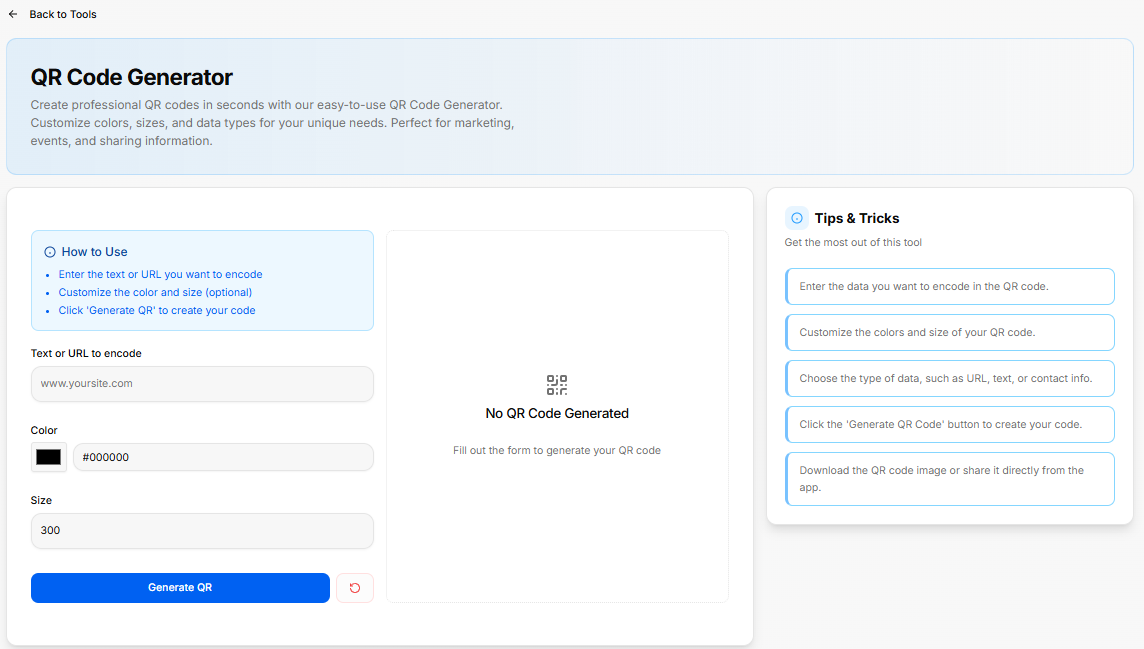
The QR Code Generator is a platform utility designed to build custom QR codes for marketing campaigns, events, and information sharing. It allows you to customize the data, sizing, and color scheme to match your requirements.
1. Quick-Start Guide
The configuration panel includes a clear reference box summarizing the core steps to build an asset:
-
Enter the text or URL: Supply the specific destination or text string you want the code to hold.
-
Customize styles (optional): Modify color selections and dimensions.
-
Click 'Generate QR': Finalize the details to assemble your code.
2. Input Configuration Fields
The left-hand workspace contains your primary setup fields:
-
Text or URL to encode: A data input bar pre-populated with a placeholder (
[www.yoursite.com](https://www.yoursite.com)) where you enter your target link or message. -
Color Selection: A color picker option featuring a direct hex code input bar (defaulting to solid black
#000000). -
Size: A dimension entry field (defaulting to a standard pixel scale of
300) to determine output resolution.
The workspace is anchored by a solid blue Generate QR action button, paired alongside a red accent Reset utility icon to clear all custom inputs instantly.
3. Output Canvas & Best Practices
-
Live Preview Space: The central frame handles your real-time asset rendering. If no form data has been processed, it remains in a placeholder state displaying a "No QR Code Generated" status icon, prompting you to fill out the form details.
-
Tips & Tricks Sidebar: The right-hand column outlines actionable recommendations to get the most out of the tool:
-
Enter the exact data you want to encode in the QR code.
-
Customize the colors and size of your QR code.
-
Choose the type of data, such as a URL, plain text, or specific contact info.
-
Click the 'Generate QR Code' button to create your custom code.
-
Download the completed QR code image file or share it directly from the app interface.
-
QR Code Reader
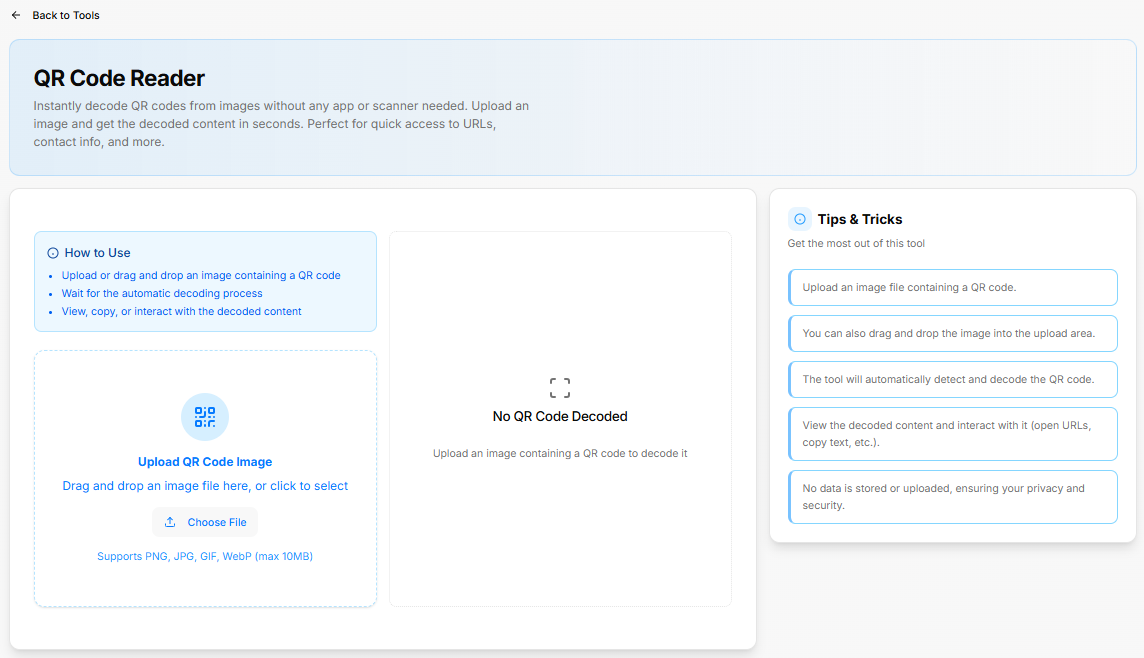
The QR Code Reader is a utility designed to instantly decode QR codes from images without requiring an external app or separate hardware scanner. It provides quick access to embedded URLs, contact info, and raw data strings.
1. Quick-Start Guide
The interface features a dedicated user guide panel outlining the core processing flow:
-
Upload or drag and drop an image containing a QR code.
-
Wait for the system's automatic decoding sequence to process.
-
View, copy, or interact with the resulting decoded text content.
2. Upload Control Area
The left side of the dashboard manages image intake via an interactive upload zone:
-
Interaction Options: Users can drag and drop an image file directly into the designated dashed-border area, or click the Choose File button to open a local directory explorer.
-
File Constraints: The system explicitly supports
PNG,JPG,GIF, andWebPimage formats, up to a maximum file size limit of10MB.
3. Output Canvas & Best Practices
-
Decoding Results Panel: The central live preview card showcases results or displays current decoding status. Until an image file has been uploaded and analyzed, it rests on a placeholder screen showing a "No QR Code Decoded" status icon accompanied by instructions to upload an image.
-
Tips & Tricks Sidebar: The right-hand column outlines operational guidance and privacy details:
-
Upload an image file containing a clear QR code.
-
Drag-and-drop actions are fully supported directly in the upload box window.
-
The utility handles detection and translation automatically upon file arrival.
-
Users can interact directly with the extracted content to launch decoded web links or instantly copy raw text strings.
-
Privacy Guard: No data is permanently stored or uploaded to external servers, protecting user privacy and internal data security.
-
Invoice Generator
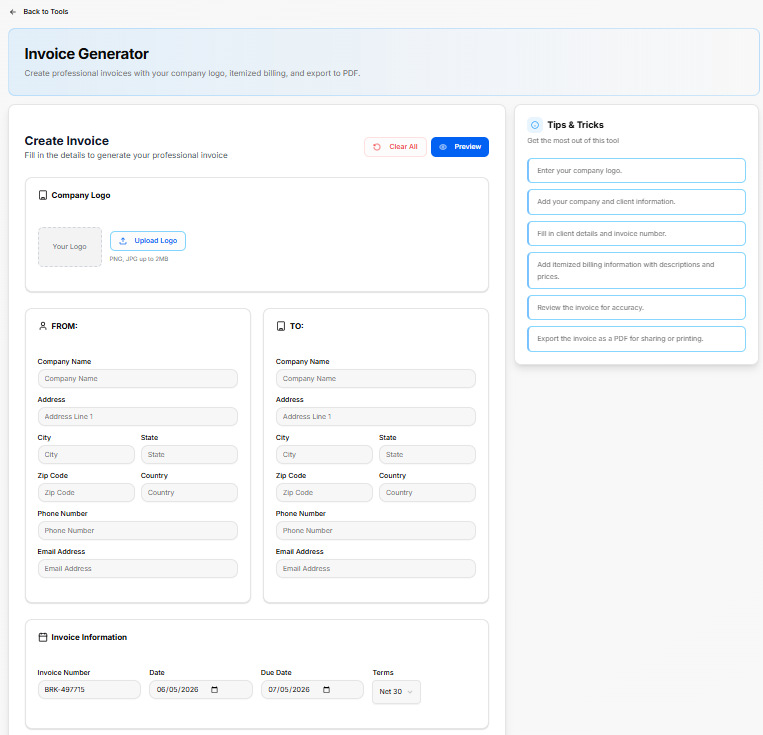
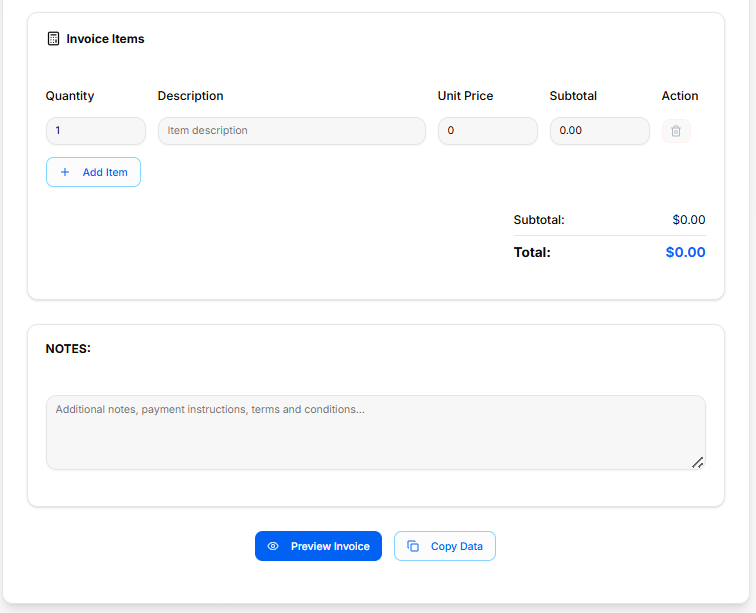
The Invoice Generator is a tool built to create professional invoices equipped with custom logo integration, itemized billing tracking, and direct PDF data export options. The interface is split across multiple configuration blocks to organize transaction records.
1. Header Controls & Visual Assets
The top workspace sets up the layout framework and global actions:
-
Action Bar: Features a pink Clear All button to reset all input forms alongside a blue Preview button to generate an invoice view.
-
Company Logo Upload: A dedicated image module supporting
PNGandJPGformats up to2MBallows users to drag or click Upload Logo to mount corporate branding.
2. Contact & Metadata Fields
The main body organizes administrative information into distinct sections:
-
FROM Panel: Collects your organization's data, including Company Name, Address, City, State, Zip Code, Country, Phone Number, and Email Address.
-
TO Panel: Collects the recipient's details using identical tracking fields (Company Name, Address, Contact details).
-
Invoice Information: Handles specific metadata parameters, displaying entry bars for Invoice Number, Date tracking, Due Date selection, and a dropdown menu to select structural payment Terms (defaulting to Net 30).
3. Itemized Billing & Notes Canvas
The calculation area manages deliverables and balances:
-
Invoice Items Table: An adjustable ledger to track specific deliverables with columns for Quantity, Description, Unit Price, and Subtotal, paired with an icon action to remove rows. Clicking + Add Item appends a blank billing line to the grid.
-
Financial Aggregates: Automatically displays summary rows tracking the calculated Subtotal and final Total amount due.
-
Notes Block: A rich text input field dedicated to appending custom payout descriptions, payment instructions, banking details, or legal terms and conditions.
The absolute bottom of the canvas features primary action keys to launch the Preview Invoice viewer or instantly execute a Copy Data clipboard command.
4. Workflow Guidelines
The tool includes a step-by-step checklist to format your export:
-
Enter your company logo.
-
Add your company and client information.
-
Fill in client details and the invoice number.
-
Add itemized billing information with descriptions and prices.
-
Review the invoice for accuracy.
-
Export the completed invoice as a PDF for direct sharing or printing.
Business Name Generator
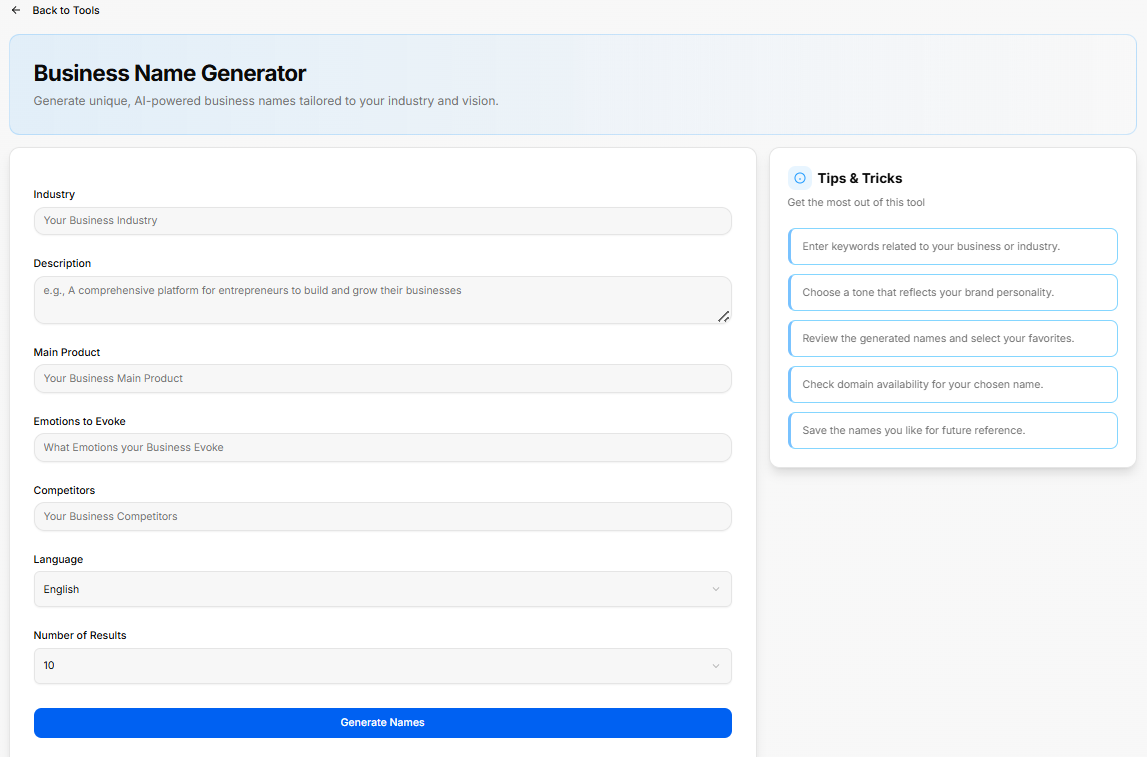
The Business Name Generator is an AI-powered platform utility designed to brainstorm and generate unique company naming options tailored directly to a specific industry, vision, and core offering.
1. Input Configuration Parameters
The setup canvas contains a series of detailed criteria blocks to guide the generation engine:
-
Industry: An entry field to specify your primary sector or business field.
-
Description: A multi-line text block to outline your company's core mission, operational framework, or a brief overview of how it functions.
-
Main Product: A dedicated line to call out the specific primary product, core application, or flagship service being brought to market.
-
Emotions to Evoke: A field to list the key feelings, cultural impressions, or psychological connections you want your business title to stir up.
-
Competitors: An input space to name existing brands or operational models in your niche to help the system avoid duplication and establish market contrast.
-
Language: A selection dropdown to dictate the output language (defaulting to English).
-
Number of Results: A configuration dropdown to set the exact size of the generated list (defaulting to 10 options).
The setup dashboard is anchored by a solid blue Generate Names action button to process your inputs.
2. Workflow Guidelines
The right-hand column outlines actionable recommendations to get the best out of the naming tool:
-
Enter keywords related specifically to your business or broader industry.
-
Choose a distinct tone that accurately reflects your brand personality.
-
Review the generated name list and select your favorites.
-
Check domain availability for your chosen name.
-
Save the names you like for future reference.
Logo Generator
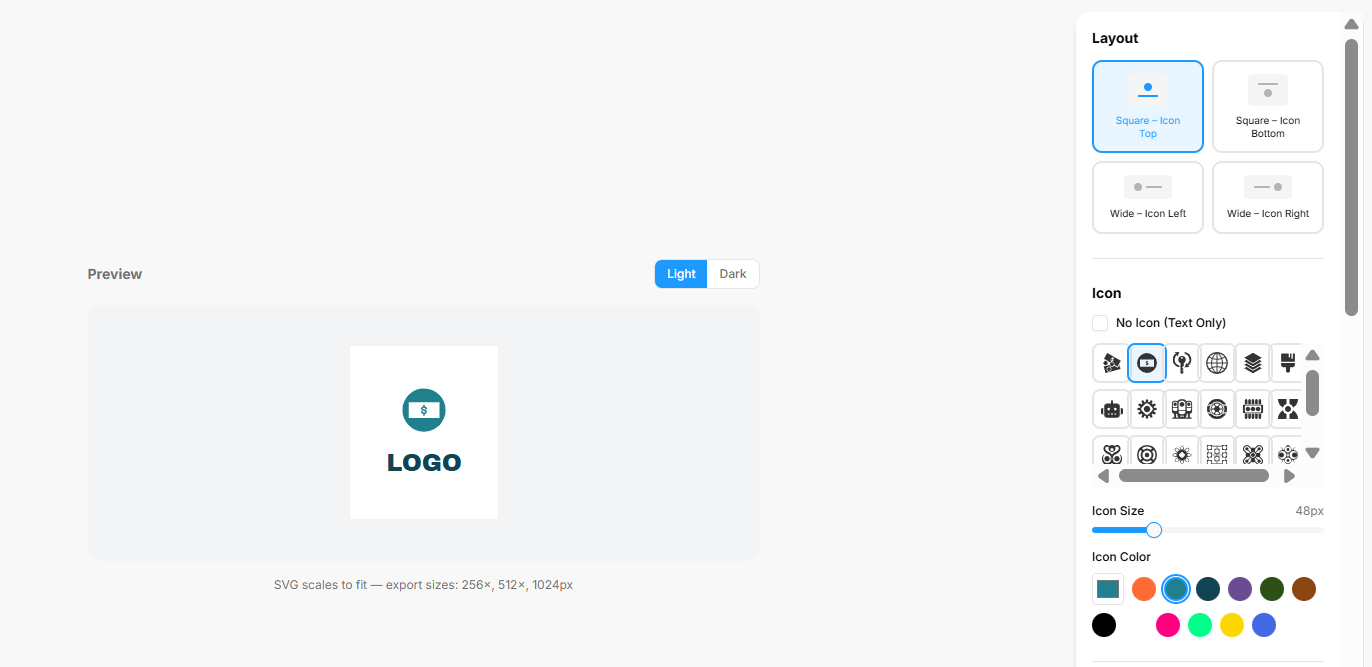
The Logo Generator is an interactive design workspace that lets you build, customize, and export clean vector-based logos. The interface provides a live canvas paired with granular controls over visual layouts, typography, backgrounds, and cohesive color palettes.
1. Main Canvas & Structural Layout
The core design arena structures how your visual assets sit together:
-
Live Preview Window: Displays your logo elements in real time. It features quick toggle keys at the top to check how your composition renders against a Light or Dark interface backdrop.
-
Output Specifications: The asset area generates scalable vector configurations, explicitly noting that the SVG scales to fit with standard package export sizes at $256\times$, $512\times$, and $1024\times$ pixels.
-
Layout Selection Grid: A configuration block that establishes the orientation between your graphics and copy. Available options include:
-
Square – Icon Top (Default selected template)
-
Square – Icon Bottom
-
Wide – Icon Left
-
Wide – Icon Right
-
2. Icon Customization
The graphic module adjustments let you select and style an accompanying emblem:
-
Icon Selection Matrix: A scrollable grid containing specialized graphic shapes, tech glyphs, and business symbols. It includes a No Icon (Text Only) checkbox if you prefer a typographic wordmark.
-
Icon Size: A sliding scale bar that fine-tunes graphic dimensions (defaulted to a standard
48px). -
Icon Color: A direct swatch panel allowing you to select an independent color theme for your active graphic emblem.
3. Typography & Background Settings
The customization panels unlock direct text and canvas editing:
-
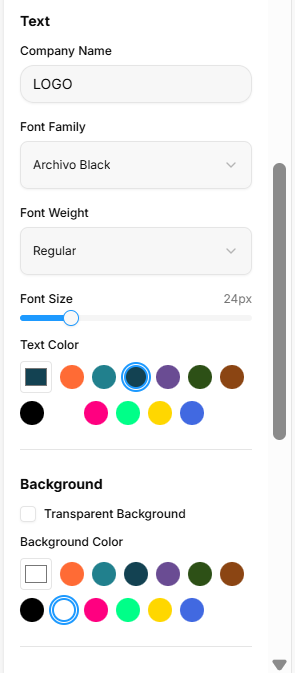
Text Configurations:
-
Company Name: A text entry block where you input your literal brand name (defaulted to
LOGO). -
Font Family: A dropdown menu loaded with typography styles (such as Archivo Black).
-
Font Weight: A dropdown setting to pick typeface density (such as Regular).
-
Font Size: A fluid horizontal slider to scale text proportions (defaulted to
24px). -
Text Color: A circular swatch palette to instantly alter the wording hue.
-
-
Background Parameters: Features a Transparent Background option checkbox to clear out flat fills for overlay usage, paired with a separate Background Color selection grid to assign solid base backdrops.
4. Curated Color Palettes & Global Export
The final configuration blocks coordinate unified aesthetic harmonies and handle project output:
-
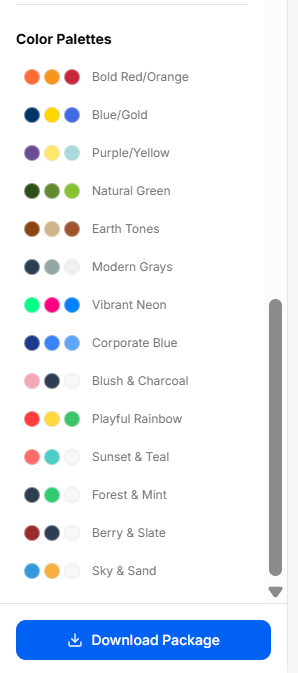
Color Palettes Directory: A scrollable index of pre-packaged, three-tone color groupings designed to jumpstart balanced brand themes. Curated styling sets include options like Bold Red/Orange, Blue/Gold, Natural Green, Earth Tones, Modern Grays, and Corporate Blue.
-
Global Export Action: A prominent blue Download Package button anchors the bottom of the tool, packaging all necessary vector sizes and transparent layouts into a single download.
Word Cloud Generator
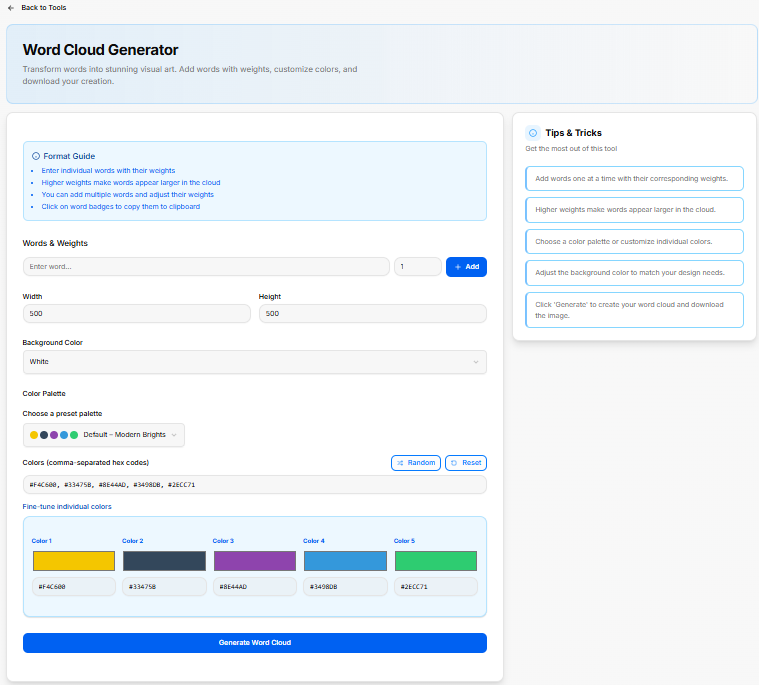
The Word Cloud Generator is a tool designed to transform text terms into custom visual graphics. It features granular configuration controls to weight individual words, modify workspace dimensions, and assign specific color profiles.
1. Interface Setup Guides
The generator includes structured instructions to help configure the text layouts smoothly:
-
Format Guide Summary:
-
Enter individual words paired with unique size weighting factors.
-
Assigning higher numerical values ensures those specific words appear larger in the cloud framework.
-
Add multiple distinct words sequentially and adjust their individual scale weight metrics.
-
Select active word badges within the workspace to instantly copy them to your clipboard.
-
2. Canvas and Content Configurations
The main control panel handles data input and canvas properties:
-
Words & Weights: A combined text field where you type your chosen word, followed by a numerical input slot (defaulted to
1) to set its prominence. Hitting the blue + Add button locks the term into the collection. -
Dimensions: Two numeric inputs for Width and Height scale the absolute size of your output graphic area (both defaulted to
500). -
Background Color: A dropdown menu to select the backdrop fill style for the graphic canvas (defaulted to White).
3. Color Palette Tools
The workspace lets you customize the visual presentation using preset schemes or individual hex values:
-
Choose a Preset Palette: A dropdown menu featuring ready-made theme combinations (such as Default – Modern Brights).
-
Hex Code Vector: A text block displaying raw, comma-separated hex codes for rapid pasting or extraction.
-
Palette Modifiers: A Random utility button shuffles color hex selections instantly, while a Reset button restores your starting color profile.
-
Fine-Tune Individual Colors: A color block area featuring individual swatch controls (Color 1 through Color 5) with clear text input boxes to adjust specific hex codes individually.
The absolute bottom of the layout features a primary blue Generate Word Cloud button to render and process the final asset.
4. Workflow Guidelines
A checklist highlights the steps to build your custom graphic:
-
Add words one at a time with their corresponding structural weights.
-
Assign higher weights to make important words appear larger in the cloud.
-
Choose an overall color palette or customize individual swatches.
-
Adjust the canvas background color to match your design requirements.
-
Click the execution button to create your custom word cloud and download the finalized image file.
Slogan Generator
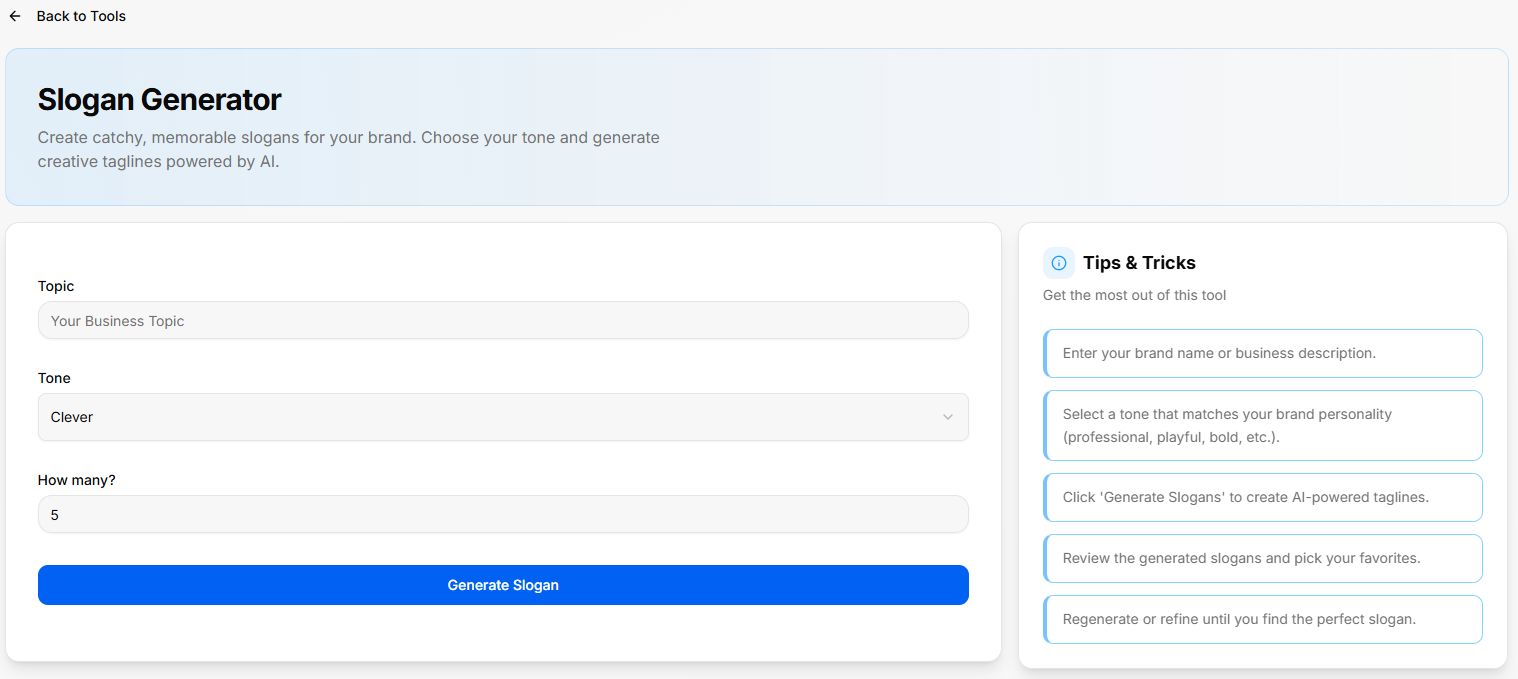
The Slogan Generator is an AI-powered utility designed to create catchy, memorable taglines for a brand based on specified topics, operational themes, and customized tone settings.
1. Input Configuration Fields
The main setup console provides clear input fields to guide the copywriting engine:
-
Topic: A text entry field where you type in your specific core business topic, campaign theme, or company area.
-
Tone: A dropdown selection menu to establish the emotional delivery and brand personality of the output (defaulted to Clever).
-
How many?: A volume input field to dictate the exact number of variations to produce in a single run (defaulted to
5).
The module is anchored by a solid blue Generate Slogan button to execute the request and produce the list of taglines.
2. Workflow Guidelines
A built-in checklist outlines practical steps to refine brand copy:
-
Enter your brand name or a brief business description into the text area.
-
Select a tone setting that matches your established brand personality, choosing from profiles like professional, playful, or bold.
-
Click the execution button to create AI-powered taglines.
-
Review the generated list and pick your top favorites.
-
Regenerate the outputs or refine the input descriptions until you find the perfect match.
Color Palette Generator
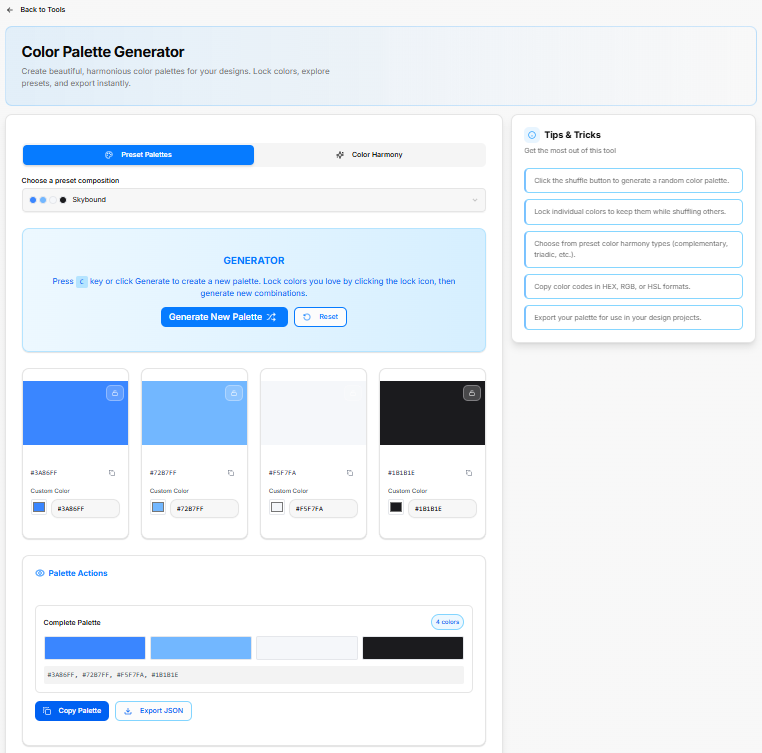
The Color Palette Generator is a platform utility built to assemble cohesive visual themes. It features tools to generate random color balances, lock specific favorites, choose structural color harmonies, and instantly export color schemes for digital products.
1. Composition Selection & Generation Modes
-
Preset Palettes: A tab configuration to browse pre-assembled color themes from a dedicated selection menu (such as the Skybound preset composition).
-
Color Harmony: A separate tab option built to establish arrangements based on formal design rules.
-
The Generator Canvas: A central control box providing keyboard and mouse shortcuts to rapidly cycle options. Pressing the
ckey or clicking the blue Generate New Palette button rolls a fresh combination. A Reset action button restores the canvas back to the baseline configurations.
2. Individual Color Customization Cards
The midsection displays an interactive matrix of columns representing each active shade in your palette. Each card includes independent management controls:
-
Lock Utility: A lock icon badge positioned at the top right of each color block allows you to freeze individual colors, preserving them while shuffling and randomizing the remaining columns.
-
Hex Copy Button: A quick-copy icon lets you copy a single specific hex code to your clipboard instantly.
-
Custom Color Input: A text input box displaying the exact hex value (such as
#3A86FF,#72B7FF,#F5F7FA, or#1B1B1E) paired with a live color-picker box, enabling you to fine-tune shades precisely.
3. Palette Actions & Global Export Options
The lower workspace consolidates the individual shades into a unified design scheme:
-
Complete Palette Tracker: Groups the visual blocks into a continuous ribbon, displaying a notification badge indicating the layout scale (such as 4 colors).
-
Hex Vector Bar: A text block displaying a comma-separated list of all active color values for high-level copying or pasting.
-
Export Functions: Anchored by two primary export keys: a blue Copy Palette action button to save the entire string sequence, alongside an Export JSON option to format the data block for engineering integration.
4. Workflow Guidelines
A reference list outlines operational best practices to build balanced interfaces:
-
Click the shuffle button to generate a random color palette.
-
Lock individual colors to keep them safe while shuffling others.
-
Choose from preset color harmony types like complementary or triadic schemas.
-
Copy color codes directly in HEX, RGB, or HSL formats based on your project needs.
-
Export your palette for use in your active design projects.