Strategy Simple Notes Sub-Section
Strategy Simple Notes Sub-Section
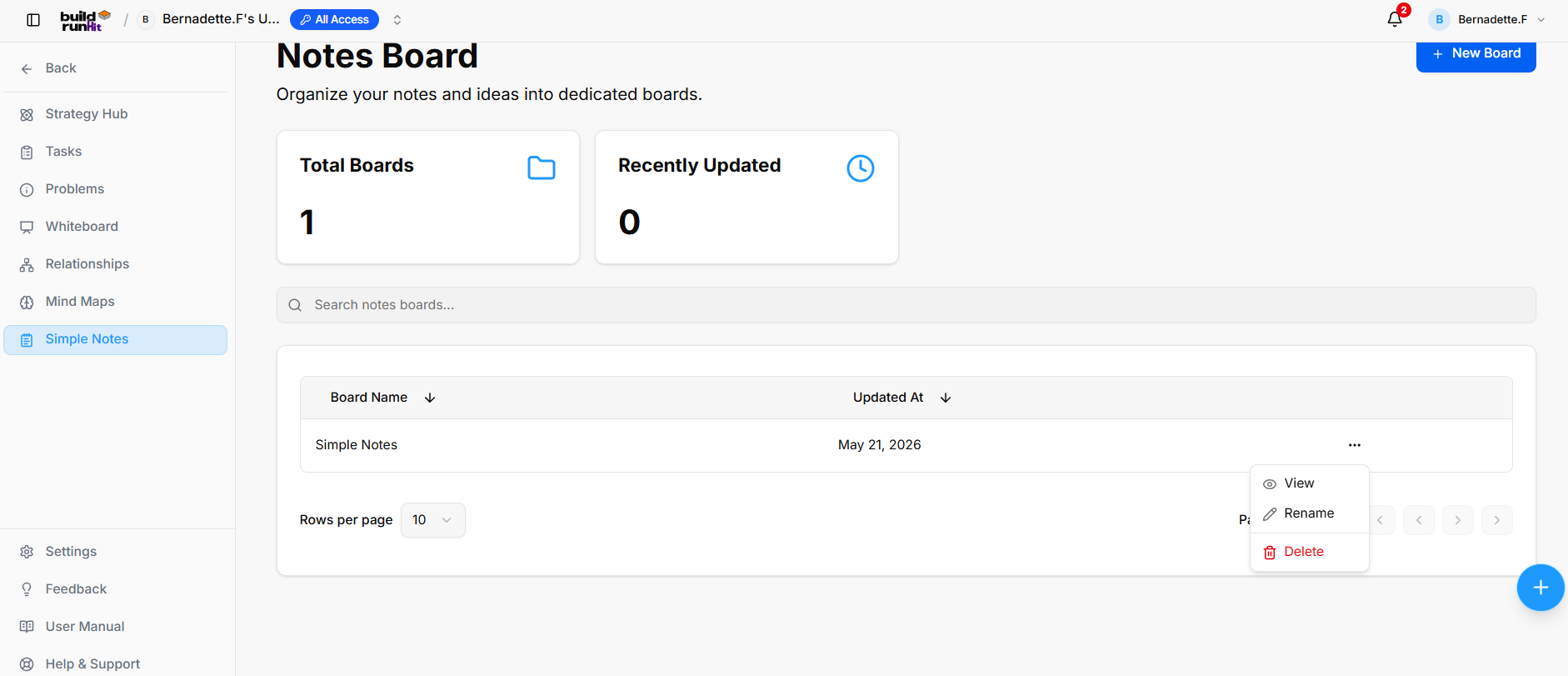
The Strategy Simple Notes sub-section provides a directory and workspace for creating, organizing, and managing dedicated note boards to capture strategic ideas and documentation.
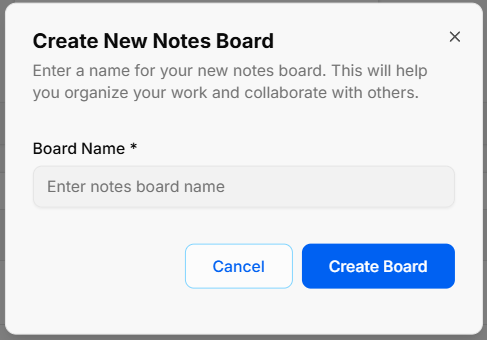
Create New Notes Board
-
Open Modal: Click the blue + New Board button at the top right of the screen.
-
Enter Board Name: Type the title in the required Board Name * field (Enter notes board name).
-
Confirm Creation: Click Create Board to build the new collection, or select Cancel to discard.
Overview Metrics & Search Controls
-
Total Boards: Displays the total number of notes boards in the directory.
-
Recently Updated: Displays the number of notes boards updated recently.
-
Search Bar: Input field (Search notes boards...) to filter boards by title.
Directory Table & Board Management
-
Table Columns: Displays existing collections under Board Name and Updated At headers (with sorting arrows).
-
Row Quick Menu (
...): Accesses additional board actions:-
View: Opens the selected notes board canvas.
-
Rename: Updates the board's display name.
-
Delete: Permanently removes the board.
-
-
Pagination: Use the Rows per page dropdown or navigation arrows to step through board entries.
Strategy Simple Notes
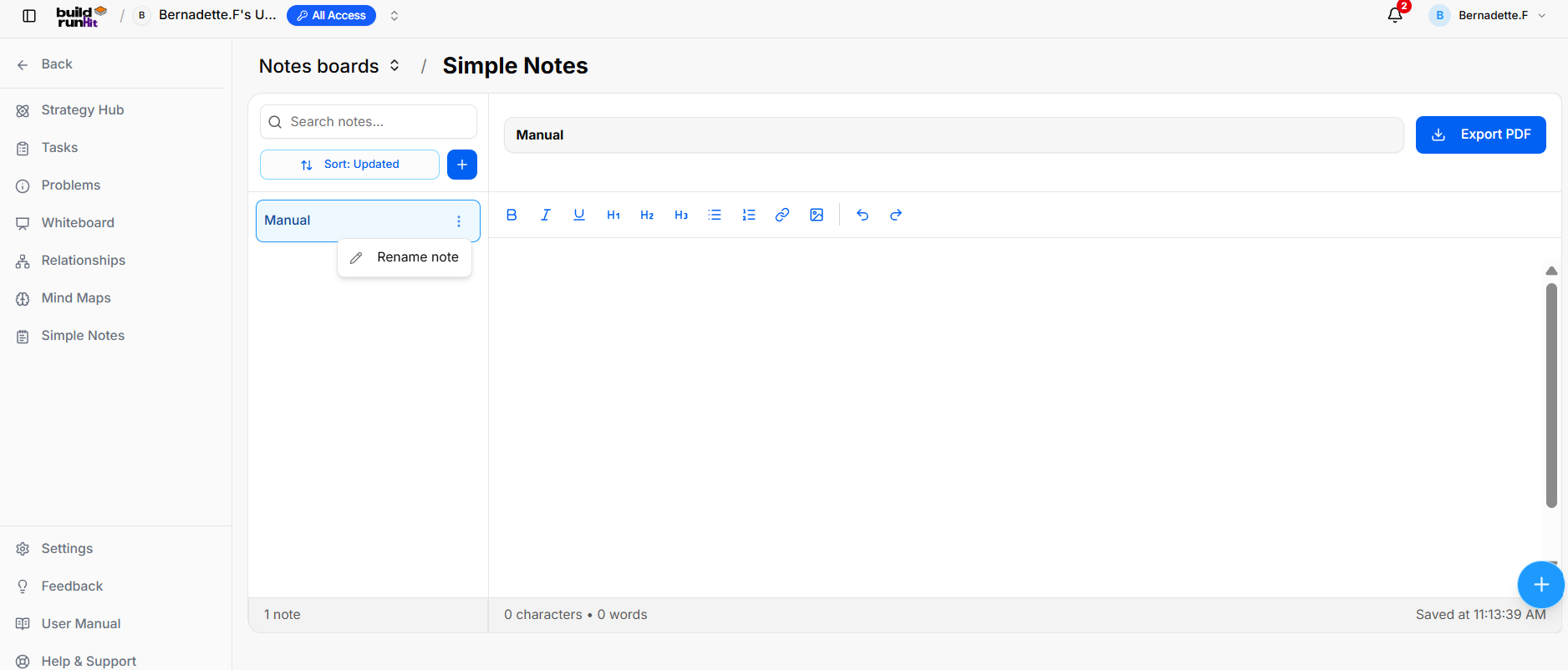
The Notes Board Canvas provides a dedicated text editor environment to write, format, and organize notes within a selected board.
Board Header Controls
-
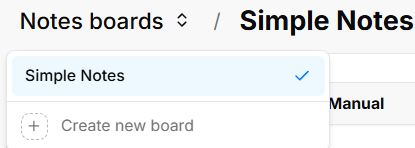
Notes Boards Selector: Dropdown menu showing the active board (Simple Notes), allowing you to switch boards or select + Create new board.
Left Sidebar & Note Management
-
Search Notes: Input field (Search notes...) to filter notes in the active board by title.
-
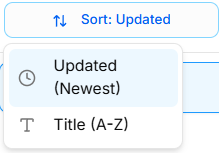
Sort Dropdown: Sort notes list by Updated (Newest) or Title (A-Z).
Formatting Toolbar & Editor Workspace

-
B (Bold): Applies bold styling (
Ctrl + B). -
I (Italic): Applies italic styling (
Ctrl + I). -
U (Underline): Applies underline styling (
Ctrl + U). -
H1 / H2 / H3: Formats text as Heading 1, Heading 2, or Heading 3.
-
Bullet List: Inserts a bulleted list.
-
Numbered List: Inserts a numbered list.
-
Insert Link (Chain Link Icon): Inserts a hyperlink.
-
Insert Image (Image Icon): Embeds an image into the document.
-
Undo / Redo (Arrows): Undo (
Ctrl + Z) or Redo (Ctrl + Y) recent edits.