# Strategy Hub: Tasks Module

## **Strategy Hub: Tasks Module**

**[![Screenshot 2026-05-19 134615.png](https://library.buildrunkit.com/uploads/images/gallery/2026-05/scaled-1680-/screenshot-2026-05-19-134615.png)](https://library.buildrunkit.com/uploads/images/gallery/2026-05/screenshot-2026-05-19-134615.png)**
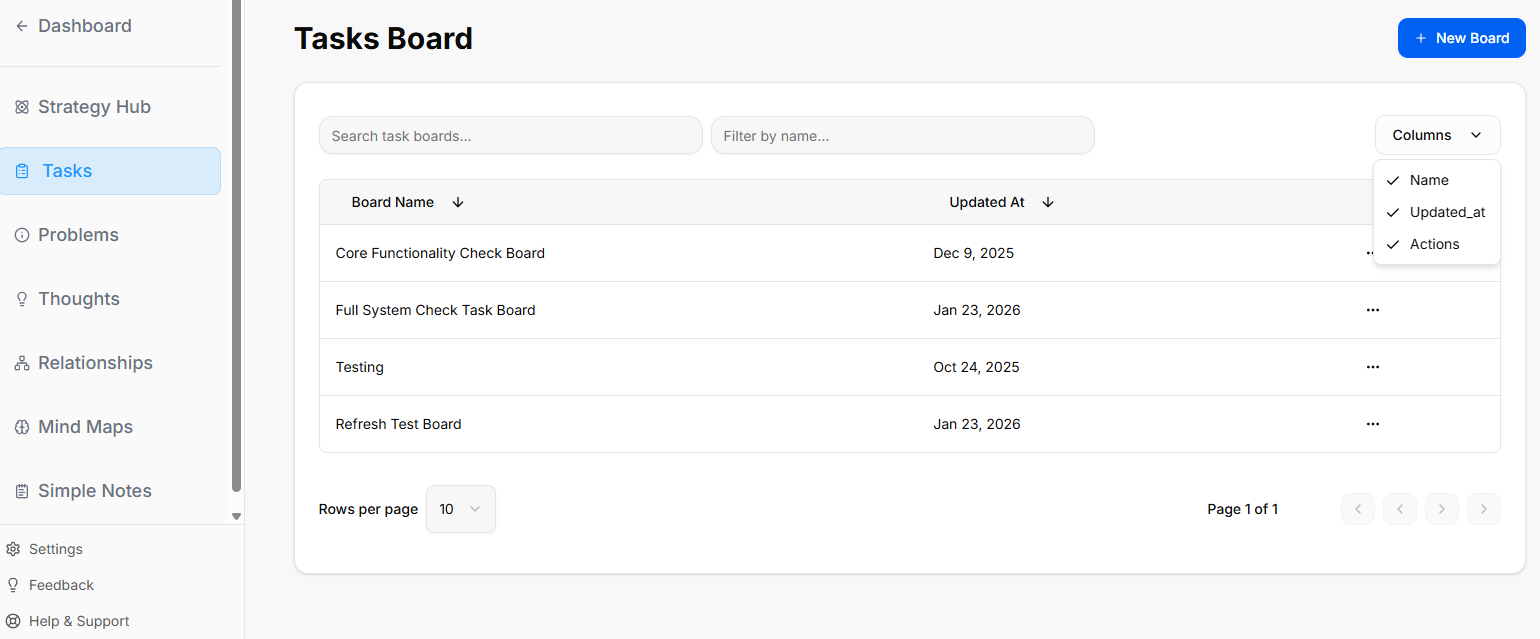
The Tasks module within the Strategy Hub enables you to organize, track, and manage your operational action items using flexible Kanban boards or structured table lists.

<div _ngcontent-ng-c2372931610="" class="container" id="bkmrk--1"><div _ngcontent-ng-c2383366420="" aria-busy="false" aria-live="polite" class="markdown markdown-main-panel enable-updated-hr-color" dir="ltr" inline-copy-host="">---

</div></div>### Managing Tasks Boards

When you enter the Tasks module, you are presented with a global directory of your active planning environments:

<div _ngcontent-ng-c2372931610="" class="container" id="bkmrk-creating-a-board%3A-cl"><div _ngcontent-ng-c2383366420="" aria-busy="false" aria-live="polite" class="markdown markdown-main-panel enable-updated-hr-color" dir="ltr" inline-copy-host="">- Creating a Board: Click the blue + New Board button at the top right to start a fresh project environment.
- Board Directory View: Track active spaces like your Core Functionality Check Board or Full System Check Task Board, along with their last relative modification date under the Updated At column.
- Filtering &amp; Columns: Use the top text bars to search specific project names. Use the Columns dropdown tool to show or hide parameters like *Name*, *Updated\_at*, or *Actions*.
- Board Context Menu: Clicking the three dots icon (`...`) on the right side of any individual board row opens control configurations to View, Rename, or Delete that board.

---

</div></div>### Working Inside a Task Board

[![Screenshot 2026-05-19 134753.png](https://library.buildrunkit.com/uploads/images/gallery/2026-05/scaled-1680-/screenshot-2026-05-19-134753.png)](https://library.buildrunkit.com/uploads/images/gallery/2026-05/screenshot-2026-05-19-134753.png)

Opening an individual board reveals your workflow columns (lists) where standalone action cards reside:

<div _ngcontent-ng-c2372931610="" class="container" id="bkmrk-lists-management%3A-or"><div _ngcontent-ng-c2383366420="" aria-busy="false" aria-live="polite" class="markdown markdown-main-panel enable-updated-hr-color" dir="ltr" inline-copy-host="">- Lists Management: Organize progression stages by clicking the + Add List container. Clicking the three dots (`...`) next to a column header like "First List" allows you to select Rename, Bulk Options, or Delete List.
- Board Layout Controls: Switch between dynamic visual cards using Kanban view or structural line rows using Table view.
- Data Retrieval: Use the Export button to extract your active list details, or utilize the right-hand Filters side-panel to slice view parameters by Priority (*Low, Medium, High*), Due Date (*Overdue, Due Today, Next 7/30 Days*), or completion Status.

---

</div></div>### Quick Board Switching

[![Screenshot 2026-05-19 152605.png](https://library.buildrunkit.com/uploads/images/gallery/2026-05/scaled-1680-/screenshot-2026-05-19-152605.png)](https://library.buildrunkit.com/uploads/images/gallery/2026-05/screenshot-2026-05-19-152605.png)

- Arrow Navigation: When working inside an individual board view, you can seamlessly navigate between your different workspace environments without returning to the main registry list.
- How to Use: Click the up and down arrow buttons located directly to the right of the board's name at the top-left of your workspace header. This allows you to cycle through your boards on the fly.

### Adding and Populating Tasks

You can populate your workflow boards using quick single entries or rapid multi-line creation tools:

#### **Bulk Tasks Creation**

**[![Screenshot 2026-05-19 135411.png](https://library.buildrunkit.com/uploads/images/gallery/2026-05/scaled-1680-/screenshot-2026-05-19-135411.png)](https://library.buildrunkit.com/uploads/images/gallery/2026-05/screenshot-2026-05-19-135411.png)**

**[![Screenshot 2026-05-19 135001.png](https://library.buildrunkit.com/uploads/images/gallery/2026-05/scaled-1680-/screenshot-2026-05-19-135001.png)](https://library.buildrunkit.com/uploads/images/gallery/2026-05/screenshot-2026-05-19-135001.png)**

To quickly seed a list with multiple workflow elements without opening individual cards:

<div _ngcontent-ng-c2372931610="" class="container" id="bkmrk-click-the-list-setti"><div _ngcontent-ng-c2383366420="" aria-busy="false" aria-live="polite" class="markdown markdown-main-panel enable-updated-hr-color" dir="ltr" inline-copy-host="">1. Click the list settings menu and select Bulk Options.
2. In the Bulk Tasks workspace modal, enter one task item per line.
3. Use the explicit colon format: `task:description` (e.g., `Fix login bug:Investigate why the auth token expires early`).
4. Click the blue Save button to automatically generate distinct task cards down your targeted list.

</div></div>#### Individual Task Management &amp; Customization

[![Screenshot 2026-05-19 135506.png](https://library.buildrunkit.com/uploads/images/gallery/2026-05/scaled-1680-/screenshot-2026-05-19-135506.png)](https://library.buildrunkit.com/uploads/images/gallery/2026-05/screenshot-2026-05-19-135506.png)

To configure granular details for an individual work item, click + Add task or click on any existing card to launch the editor window:

<div _ngcontent-ng-c2372931610="" class="container" id="bkmrk-task-title%3A-provide-"><div _ngcontent-ng-c2383366420="" aria-busy="false" aria-live="polite" class="markdown markdown-main-panel enable-updated-hr-color" dir="ltr" inline-copy-host="">- Task Title: Provide a concise action statement at the top input line.
- Assignee: Use the selection dropdown to route accountability to a team member, or click Add External Assignee + to invite an outside contributor.
- Due Date: Use the interactive Pick a date calendar picker to establish your hard deadline.
- Priority: Designate importance tiers using the classification selector (*Low, Medium, High*).
- Color: Assign colored visual identifiers (such as *Pink*) to make cards stand out on your board grid.
- Task Templates:
    
    [![Screenshot 2026-05-19 135758.png](https://library.buildrunkit.com/uploads/images/gallery/2026-05/scaled-1680-/screenshot-2026-05-19-135758.png)](https://library.buildrunkit.com/uploads/images/gallery/2026-05/screenshot-2026-05-19-135758.png)   
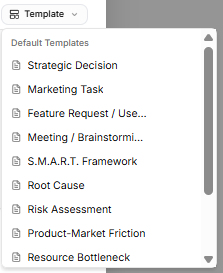
    Avoid starting from scratch by clicking the Template dropdown tool on the description block. Select from pre-structured blueprint outlines, including:
    
    
    - *Strategic Decision*
    - *Marketing Task*
    - *Feature Request / User Story*
    - *Meeting / Brainstorming*
    - *S.M.A.R.T. Framework*
    - *Root Cause*
    - *Risk Assessment*
    - *Product-Market Friction*
    - *Resource Bottleneck*
    - *Technical Debt Audit* *(Note: If you haven't saved any custom layouts yet, the system will display a "No workspace templates yet" notice at the bottom of the list until you toggle on the "Save description as a template" switch.)*
- Description Editor: Fill out your action details manually, or toggle the Save description as a template switch at the bottom to store your layout for future use.
- Status Action: Click the Mark as done check button to shift the task state instantly. Click Create Task to finalize.

---

</div></div>### Advanced Ticket Details: Comments &amp; Attachments

[![Screenshot 2026-05-19 144913.png](https://library.buildrunkit.com/uploads/images/gallery/2026-05/scaled-1680-/screenshot-2026-05-19-144913.png)](https://library.buildrunkit.com/uploads/images/gallery/2026-05/screenshot-2026-05-19-144913.png)

Once an individual task card is generated, you can open it to access dedicated deep-dive tabs for enhanced team collaboration and evidence tracking:

**Details Tab**

- Context &amp; Metadata: Displays your foundational core settings, including assigned team owners, set deadlines, importance tiers, and template-guided problem descriptions.

**Comments Tab**

- Team Communication: Exchange real-time feedback directly within the card context window.
- Posting Updates: Type message notes directly into the Add a comment... text entry block and click the blue Send arrow button to publish.
- Activity Stream: Tracks a clear, chronological conversation log underneath the main card workspace history.

**Attachments Tab**

- Evidence Collection: Centralize external files, technical logs, or system screenshots directly onto the task record.
- Uploading Files: Click the Choose Files icon block to drag and drop or browse local storage for relevant documentation items.
- Storage Rules: The platform handles image verification and securely anchors your uploaded assets right inside the targeted issue ticket layout.

### Task Card Actions &amp; Migration Assistant

[![Screenshot 2026-05-19 142147.png](https://library.buildrunkit.com/uploads/images/gallery/2026-05/scaled-1680-/screenshot-2026-05-19-142147.png)](https://library.buildrunkit.com/uploads/images/gallery/2026-05/screenshot-2026-05-19-142147.png)

[![Screenshot 2026-05-19 140117.png](https://library.buildrunkit.com/uploads/images/gallery/2026-05/scaled-1680-/screenshot-2026-05-19-140117.png)](https://library.buildrunkit.com/uploads/images/gallery/2026-05/screenshot-2026-05-19-140117.png)

Once a card is created on your workspace list, clicking the three vertical dots icon directly on that task card opens immediate item controls:

<div _ngcontent-ng-c2372931610="" class="container" id="bkmrk-open%3A-launches-the-f"><div _ngcontent-ng-c2383366420="" aria-busy="false" aria-live="polite" class="markdown markdown-main-panel enable-updated-hr-color" dir="ltr" id="bkmrk-open%3A-launches-the-f-1" inline-copy-host="">- Open: Launches the full individual configuration details view.
- Delete: Permanently drops the selected card from your board workspace records.
- Move or Copy (Migration Assistant): Selecting this action triggers a modal that helps you reposition or duplicate task items across different spaces without losing formatting details:
    
    
    - Existing Board Tab: Reposition or duplicate your item into another list layer inside any active environment already saved to your workspace profile.
    - New Board Tab: Type in a brand-new Board name and List name inline to build a fresh destination space on the fly, immediately routing the migrated card there.
    - Execution: Click the soft Copy button to clone the item, or click the blue Move button to shift the original record entirely.

</div></div>