# Strategy Hub: Problems Module

## **Strategy Hub: Problems Module**

**[![Screenshot 2026-05-19 143343.png](https://library.buildrunkit.com/uploads/images/gallery/2026-05/scaled-1680-/screenshot-2026-05-19-143343.png)](https://library.buildrunkit.com/uploads/images/gallery/2026-05/screenshot-2026-05-19-143343.png)**
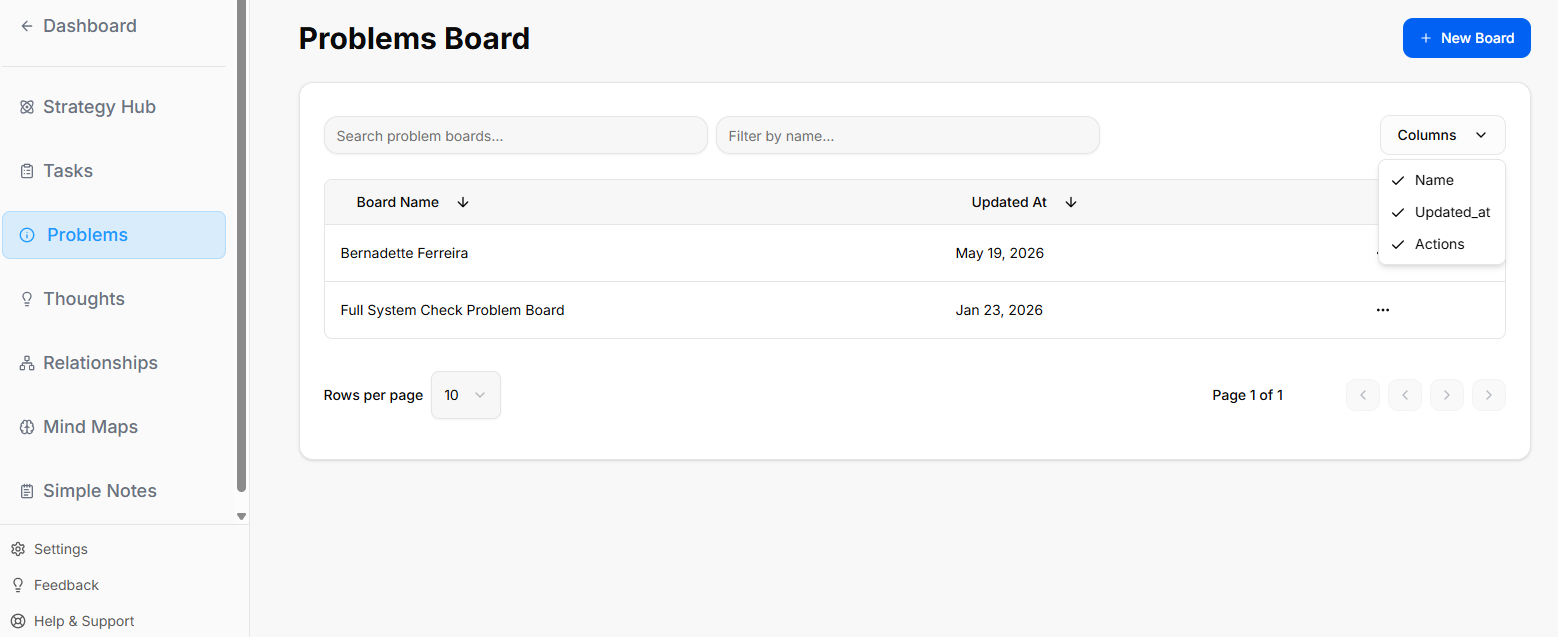
The Problems module within the Strategy Hub enables teams to log, track, and systematically resolve bugs, operational issues, or blockers using Kanban boards or structured data tables.

<div _ngcontent-ng-c2372931610="" class="container" id="bkmrk--1"><div _ngcontent-ng-c2383366420="" aria-busy="false" aria-live="polite" class="markdown markdown-main-panel enable-updated-hr-color" dir="ltr" inline-copy-host="">---

</div></div>### Managing Problems Boards

The primary interface provides a high-level overview of all active issue-tracking environments:

<div _ngcontent-ng-c2372931610="" class="container" id="bkmrk-creating-a-board%3A-cl"><div _ngcontent-ng-c2383366420="" aria-busy="false" aria-live="polite" class="markdown markdown-main-panel enable-updated-hr-color" dir="ltr" inline-copy-host="">- Creating a Board: Click the blue + New Board button in the top-right corner to initiate a separate issue-tracking workspace.
- Directory List: View all active boards (such as the "Core Bug Tracker"), searchable by title and filterable using the Columns dropdown configuration menu.
- Board Options Menu: Click the three dots icon (`...`) on the right side of any listed board row to View, Rename, or Delete that board environment.

---

</div></div>### Working Inside a Problems Board

[![Screenshot 2026-05-19 143701.png](https://library.buildrunkit.com/uploads/images/gallery/2026-05/scaled-1680-/screenshot-2026-05-19-143701.png)](https://library.buildrunkit.com/uploads/images/gallery/2026-05/screenshot-2026-05-19-143701.png)

Opening an issue board displays tracking columns where individual problem entries are managed:

<div _ngcontent-ng-c2372931610="" class="container" id="bkmrk-columns-%26-views%3A-org"><div _ngcontent-ng-c2383366420="" aria-busy="false" aria-live="polite" class="markdown markdown-main-panel enable-updated-hr-color" dir="ltr" inline-copy-host="">- Columns &amp; Views: Organize your issue lifecycles dynamically across columns (e.g., "First List") using either the Kanban grid arrangement or a clean line-by-line Table view.
- List Configurations: Click the three dots icon (`...`) next to any column title header to Rename the list, access Bulk Options, or select Delete List.
- Filtering &amp; Export: Extract your active data sets using the Export function, or use the right-hand Filters side-panel to isolate entries by Priority (*Low, Medium, High*), Due Date, or completion Status.

---

</div></div>### Quick Board Switching

[![Screenshot 2026-05-19 160129.png](https://library.buildrunkit.com/uploads/images/gallery/2026-05/scaled-1680-/screenshot-2026-05-19-160129.png)](https://library.buildrunkit.com/uploads/images/gallery/2026-05/screenshot-2026-05-19-160129.png)

- Arrow Navigation: When working inside an individual board view, you can seamlessly navigate between your different workspace environments without returning to the main registry list.
- How to Use: Click the up and down arrow buttons located directly to the right of the board's name at the top-left of your workspace header. This allows you to cycle through your boards on the fly.

### Logging and Customizing Problems

You can log workspace issues individually or seed structural workflows simultaneously:

#### **Bulk Problems Logging**

**[![Screenshot 2026-05-19 144500.png](https://library.buildrunkit.com/uploads/images/gallery/2026-05/scaled-1680-/screenshot-2026-05-19-144500.png)](https://library.buildrunkit.com/uploads/images/gallery/2026-05/screenshot-2026-05-19-144500.png)**

**[![Screenshot 2026-05-19 144430.png](https://library.buildrunkit.com/uploads/images/gallery/2026-05/scaled-1680-/screenshot-2026-05-19-144430.png)](https://library.buildrunkit.com/uploads/images/gallery/2026-05/screenshot-2026-05-19-144430.png)**

To quickly register multiple issues or tickets without opening separate cards:

<div _ngcontent-ng-c2372931610="" class="container" id="bkmrk-click-your-list-conf"><div _ngcontent-ng-c2383366420="" aria-busy="false" aria-live="polite" class="markdown markdown-main-panel enable-updated-hr-color" dir="ltr" inline-copy-host="">1. Click your list configuration menu and choose Bulk Options.
2. Use the standard colon format: `problem:description` (entering one distinct issue ticket per line).
3. Click the blue Save button to populate your board instantly.

</div></div>#### Individual Problem Configuration

[![Screenshot 2026-05-19 144604.png](https://library.buildrunkit.com/uploads/images/gallery/2026-05/scaled-1680-/screenshot-2026-05-19-144604.png)](https://library.buildrunkit.com/uploads/images/gallery/2026-05/screenshot-2026-05-19-144604.png)

Click + Add task or open an existing card to configure deep-dive issue parameters inside the ticket modal:

<div _ngcontent-ng-c2372931610="" class="container" id="bkmrk-title-%26-mark-done%3A-p"><div _ngcontent-ng-c2383366420="" aria-busy="false" aria-live="polite" class="markdown markdown-main-panel enable-updated-hr-color" dir="ltr" inline-copy-host="">- Title &amp; Mark Done: Provide a descriptive title at the top, or toggle Mark as done to clear the card.
- Assignee: Designate a team member via the dropdown, or select Add External Assignee + to collaborate with outside support.
- Due Date: Set a target resolution deadline using the interactive calendar picker.
- Priority &amp; Color Tiers: Flag critical blockers by defining their importance level (*Low, Medium, High*) and assigning a distinct card accent color (e.g., *Pink*).
- Problem Templates: Drop in pre-structured frameworks by selecting the Template utility dropdown above the description text area. Options include specialized problem-solving blueprints such as Strategic Decision, Root Cause, Risk Assessment, or Technical Debt Audit.

---

</div></div>### Advanced Ticket Details: Comments &amp; Attachments

[![Screenshot 2026-05-19 144913.png](https://library.buildrunkit.com/uploads/images/gallery/2026-05/scaled-1680-/o7gscreenshot-2026-05-19-144913.png)](https://library.buildrunkit.com/uploads/images/gallery/2026-05/o7gscreenshot-2026-05-19-144913.png)

Once an individual problem card is generated, you can open it to access dedicated deep-dive tabs for enhanced team collaboration and evidence tracking:

##### **Details Tab**

<div _ngcontent-ng-c2372931610="" class="container" id="bkmrk-context-%26-metadata%3A-"><div _ngcontent-ng-c2383366420="" aria-busy="false" aria-live="polite" class="markdown markdown-main-panel enable-updated-hr-color" dir="ltr" inline-copy-host="">- Context &amp; Metadata: Displays your foundational core settings, including assigned team owners, set deadlines, importance tiers, and template-guided problem descriptions.

</div></div>##### **Comments Tab**

<div _ngcontent-ng-c2372931610="" class="container" id="bkmrk-team-communication%3A-"><div _ngcontent-ng-c2383366420="" aria-busy="false" aria-live="polite" class="markdown markdown-main-panel enable-updated-hr-color" dir="ltr" inline-copy-host="">- Team Communication: Exchange real-time feedback directly within the card context window.
- Posting Updates: Type message notes directly into the Add a comment... text entry block and click the blue Send arrow button to publish.
- Activity Stream: Tracks a clear, chronological conversation log underneath the main card workspace history.

</div></div>##### **Attachments Tab**

<div _ngcontent-ng-c2372931610="" class="container" id="bkmrk-evidence-collection%3A"><div _ngcontent-ng-c2383366420="" aria-busy="false" aria-live="polite" class="markdown markdown-main-panel enable-updated-hr-color" dir="ltr" inline-copy-host="">- Evidence Collection: Centralize external files, technical logs, or system screenshots directly onto the problem record.
- Uploading Files: Click the Choose Files icon block to drag and drop or browse local storage for relevant documentation items.
- Storage Rules: The platform handles image verification and securely anchors your uploaded assets right inside the targeted issue ticket layout.

---

</div></div>### Card Item Menus &amp; Migrations

[![Screenshot 2026-05-19 144742.png](https://library.buildrunkit.com/uploads/images/gallery/2026-05/scaled-1680-/screenshot-2026-05-19-144742.png)](https://library.buildrunkit.com/uploads/images/gallery/2026-05/screenshot-2026-05-19-144742.png)

Clicking the three vertical dots directly on any active board card reveals prompt item actions:

<div _ngcontent-ng-c2372931610="" class="container" id="bkmrk-open-%26-delete%3A-acces"><div _ngcontent-ng-c2383366420="" aria-busy="false" aria-live="polite" class="markdown markdown-main-panel enable-updated-hr-color" dir="ltr" id="bkmrk-open-%26-delete%3A-acces-1" inline-copy-host="">- Open &amp; Delete: Access full collaboration tabs or wipe obsolete records from the workspace tracking board entirely.
- Move or Copy: Launch the Migration Assistant modal to copy or move issue records. You can copy/move the ticket into an Existing Board layout list, or type a fresh identifier to establish a New Board workspace directly on the fly.

</div></div>