Strategy Hub: Problems Module
Strategy Hub: Problems Module
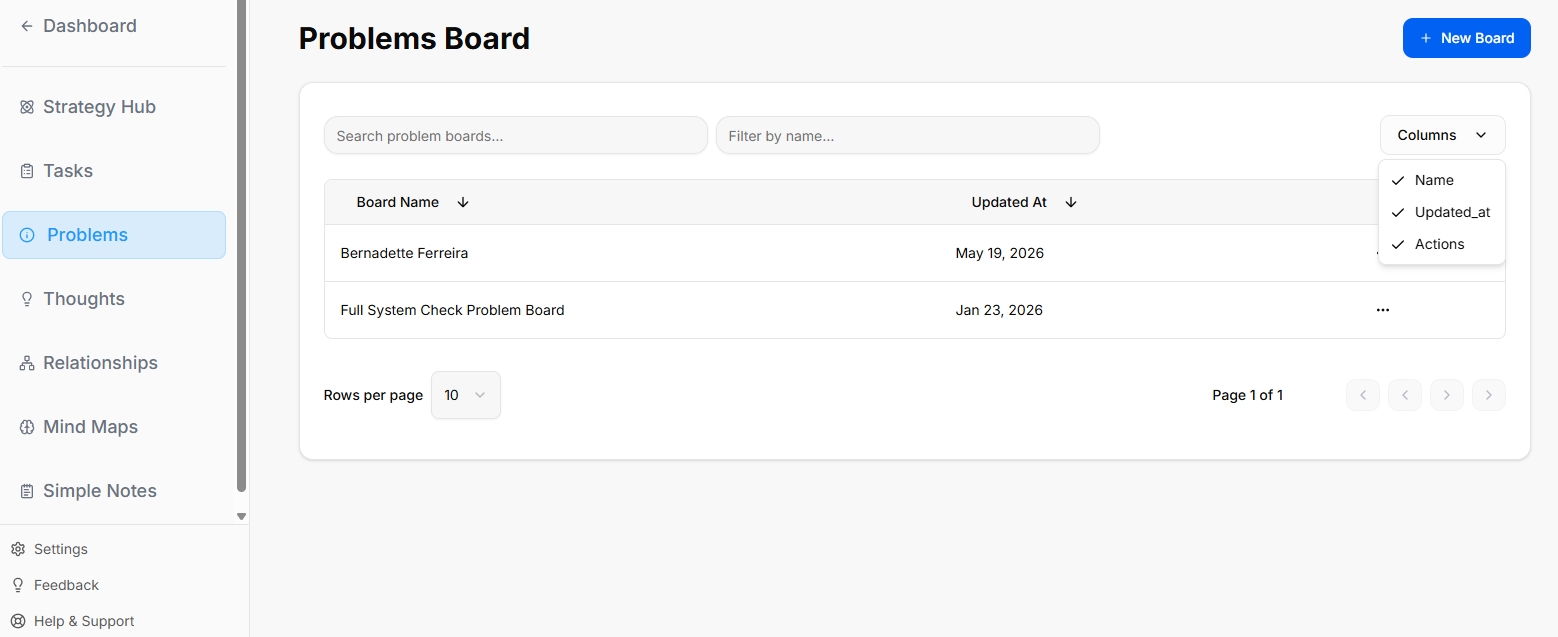
The Problems module within the Strategy Hub enables teams to log, track, and systematically resolve bugs, operational issues, or blockers using Kanban boards or structured data tables.
Managing Problems Boards
The primary interface provides a high-level overview of all active issue-tracking environments:
-
Creating a Board: Click the blue + New Board button in the top-right corner to initiate a separate issue-tracking workspace.
-
Directory List: View all active boards (such as the "Core Bug Tracker"), searchable by title and filterable using the Columns dropdown configuration menu.
-
Board Options Menu: Click the three dots icon (
...) on the right side of any listed board row to View, Rename, or Delete that board environment.
Working Inside a Problems Board
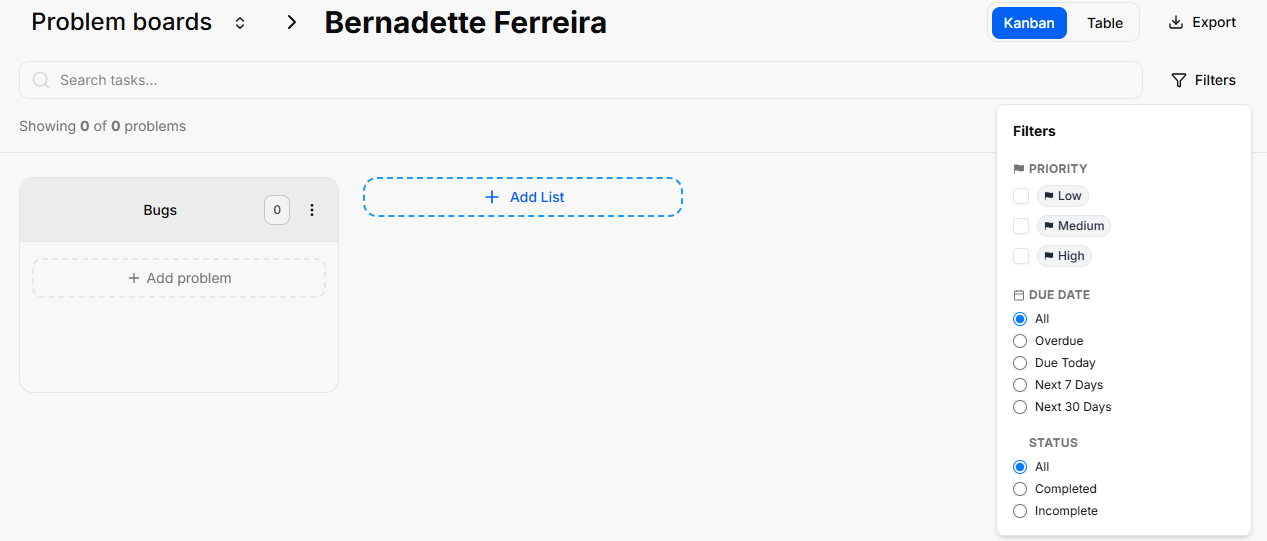
Opening an issue board displays tracking columns where individual problem entries are managed:
-
Columns & Views: Organize your issue lifecycles dynamically across columns (e.g., "First List") using either the Kanban grid arrangement or a clean line-by-line Table view.
-
List Configurations: Click the three dots icon (
...) next to any column title header to Rename the list, access Bulk Options, or select Delete List. -
Filtering & Export: Extract your active data sets using the Export function, or use the right-hand Filters side-panel to isolate entries by Priority (Low, Medium, High), Due Date, or completion Status.
Quick Board Switching
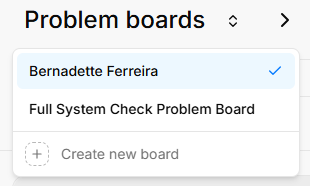
Logging and Customizing Problems
You can log workspace issues individually or seed structural workflows simultaneously:
Bulk Problems Logging
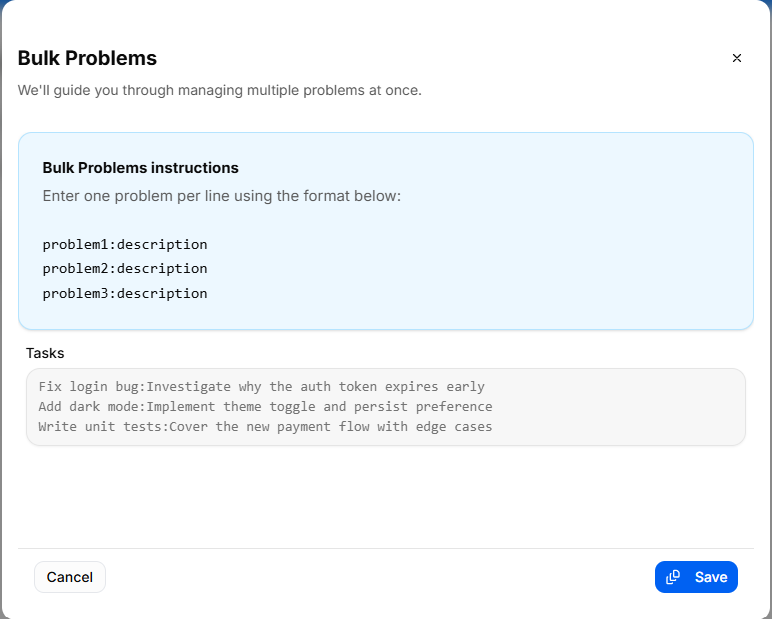
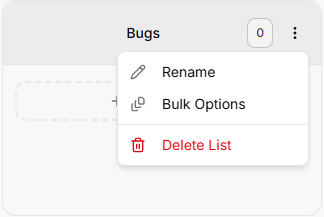
To quickly register multiple issues or tickets without opening separate cards:
-
Click your list configuration menu and choose Bulk Options.
-
Use the standard colon format:
problem:description(entering one distinct issue ticket per line). -
Click the blue Save button to populate your board instantly.
Individual Problem Configuration
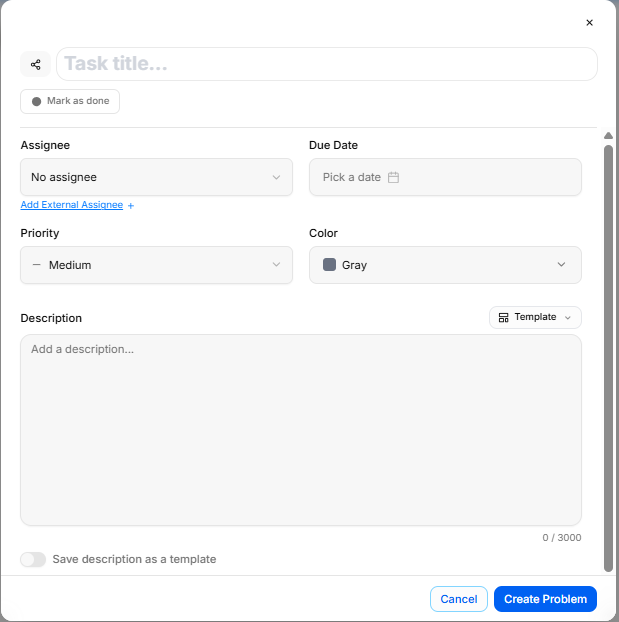
Click + Add task or open an existing card to configure deep-dive issue parameters inside the ticket modal:
-
Title & Mark Done: Provide a descriptive title at the top, or toggle Mark as done to clear the card.
-
Assignee: Designate a team member via the dropdown, or select Add External Assignee + to collaborate with outside support.
-
Due Date: Set a target resolution deadline using the interactive calendar picker.
-
Priority & Color Tiers: Flag critical blockers by defining their importance level (Low, Medium, High) and assigning a distinct card accent color (e.g., Pink).
-
Problem Templates: Drop in pre-structured frameworks by selecting the Template utility dropdown above the description text area. Options include specialized problem-solving blueprints such as Strategic Decision, Root Cause, Risk Assessment, or Technical Debt Audit.
Advanced Ticket Details: Comments & Attachments

Once an individual problem card is generated, you can open it to access dedicated deep-dive tabs for enhanced team collaboration and evidence tracking:
Details Tab
-
Context & Metadata: Displays your foundational core settings, including assigned team owners, set deadlines, importance tiers, and template-guided problem descriptions.
Comments Tab
-
Team Communication: Exchange real-time feedback directly within the card context window.
-
Posting Updates: Type message notes directly into the Add a comment... text entry block and click the blue Send arrow button to publish.
-
Activity Stream: Tracks a clear, chronological conversation log underneath the main card workspace history.
Attachments Tab
-
Evidence Collection: Centralize external files, technical logs, or system screenshots directly onto the problem record.
-
Uploading Files: Click the Choose Files icon block to drag and drop or browse local storage for relevant documentation items.
-
Storage Rules: The platform handles image verification and securely anchors your uploaded assets right inside the targeted issue ticket layout.
Card Item Menus & Migrations
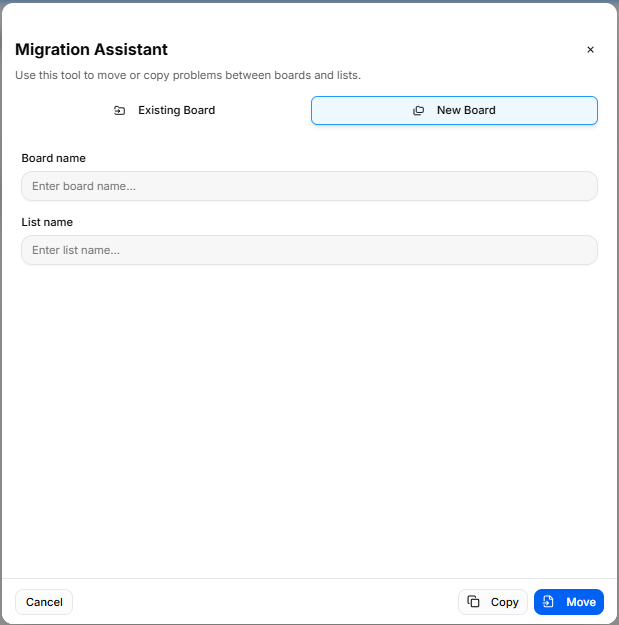
Clicking the three vertical dots directly on any active board card reveals prompt item actions:
-
Open & Delete: Access full collaboration tabs or wipe obsolete records from the workspace tracking board entirely.
-
Move or Copy: Launch the Migration Assistant modal to copy or move issue records. You can copy/move the ticket into an Existing Board layout list, or type a fresh identifier to establish a New Board workspace directly on the fly.