# Startup Launch Journey

## Startup Launch Journey: Initial Navigation

<div drawio-diagram="350"><img src="https://library.buildrunkit.com/uploads/images/drawio/2026-05/drawing-4-1779363856.png" alt=""/></div>

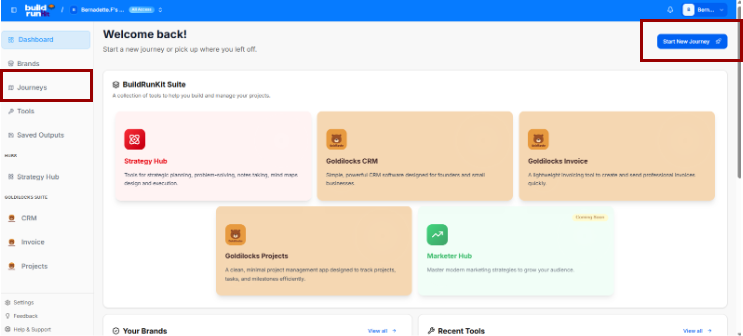
To begin your startup journey, use the primary dashboard area to navigate to the designated workspace:

- Accessing Journeys: Locate the left-hand sidebar menu under the main navigation group and click on Journeys to enter the startup launch tracking panel.
- Alternative Quick Launch: You can also initiate a fresh track directly from the top right corner of the Welcome back! main dashboard by clicking the blue Start New Journey button featuring a rocket ship icon.

### Startup Launch Journey: Journeys Directory

The Journeys module enables you to track active entrepreneurial roadmaps or launch a new guided path tailored to your business goals.

### Managing Journeys

[![Screenshot 2026-05-21 134519.png](https://library.buildrunkit.com/uploads/images/gallery/2026-05/scaled-1680-/screenshot-2026-05-21-134519.png)](https://library.buildrunkit.com/uploads/images/gallery/2026-05/screenshot-2026-05-21-134519.png)

When you enter the Journeys module, you are presented with a global directory table of your active tracking environments:

<div _ngcontent-ng-c2170363542="" class="container" id="bkmrk-creating-a-journey%3A-"><div _ngcontent-ng-c1323015604="" aria-busy="false" aria-live="polite" class="markdown markdown-main-panel enable-updated-hr-color" dir="ltr" inline-copy-host="">- Creating a Journey: Click the blue Start New Journey button at the top right to open the startup selection layout.
- Searching and Filtering:
    
    
    - Use the Search journeys... text field above the table to filter your active paths by their specific title text.
    - Use the Filter by title... search field next to it to narrow down directory rows by matching exact title terms.
- Journey Directory Table: Track active spaces across several parameters:
    
    
    - Title: The name of the roadmap (e.g., *Founder Journey*).
    - Description: A short outline summary detailing the scope of the path.
    - Journey Type: Identifies the framework category classification (e.g., *Founder*).
    - Brand: Logs any specific internal company asset or brand associated with the tracking environment.
    - Created By: Displays the user profile who initiated the roadmap.
    - Created At: Tracks the initial date the tracking module was opened.
- Columns Visibility Tool: Click the Columns dropdown tool above the table to toggle parameters visible or hidden via checkmarks (Title, Description, Journey\_type, Brand, Created\_by, Created\_at, or Actions).
- Selection Summary: A tracking counter at the bottom left logs your selected table rows (e.g., *0 of 2 row(s) selected.*).

</div></div>### Select a Journey Menu

[![Screenshot 2026-05-21 134802.png](https://library.buildrunkit.com/uploads/images/gallery/2026-05/scaled-1680-/screenshot-2026-05-21-134802.png)](https://library.buildrunkit.com/uploads/images/gallery/2026-05/screenshot-2026-05-21-134802.png)

Clicking the Start New Journey button triggers a dropdown menu panel titled SELECT A JOURNEY TO START, prompting you to select from five guided track environments:

<div _ngcontent-ng-c2170363542="" class="container" id="bkmrk-build-and-grow-your-"><div _ngcontent-ng-c1323015604="" aria-busy="false" aria-live="polite" class="markdown markdown-main-panel enable-updated-hr-color" dir="ltr" inline-copy-host="">- Build and grow your startup from idea to success (Blue Rocket Icon): The active primary track focused on complete end-to-end business execution.
- Develop strategic plans and execute them effectively (Purple Target Icon): A strategic planning track.
- Create powerful marketing campaigns and build your brand (Green Trend Icon): A marketing and brand growth track.
- Conduct thorough research and gather valuable insights (Orange Magnifying Glass Icon): A research and market analysis track.
- Manage human resources and build great teams (Pink Team Icon): An operations and team management framework track.
</div></div>### Brand Association Modal

When you select a track type to start a new journey, a modal window explicitly titled Brand Association appears, prompting you to decide how to link your new journey to a business entity.

#### Option 1: Use an Existing Brand

[![Screenshot 2026-05-21 141121.png](https://library.buildrunkit.com/uploads/images/gallery/2026-05/scaled-1680-/screenshot-2026-05-21-141121.png)](https://library.buildrunkit.com/uploads/images/gallery/2026-05/screenshot-2026-05-21-141121.png)

Selecting the Use an existing brand radio button configures the modal with the following fields:

- Select a brand Dropdown: A selection menu field (e.g., defaulted to Untitled Brand) where you can click to choose from your already established business profiles.
- Title: A text field to input the specific name or title for this new journey setup (Enter a title for the journey).
- Description: A multi-line text block to add descriptive details or goals for this specific roadmap path (Enter a description for the journey).

#### Option 2: Create Journey Without a Brand

[![Screenshot 2026-05-21 141358.png](https://library.buildrunkit.com/uploads/images/gallery/2026-05/scaled-1680-/screenshot-2026-05-21-141358.png)](https://library.buildrunkit.com/uploads/images/gallery/2026-05/screenshot-2026-05-21-141358.png)

Switching to the Create journey without a brand radio button alters the modal layout by removing the brand selector dropdown and replacing it with an informational alert:

- System Information Banner: A light blue notification box appears with a clear message stating: “You can create a brand profile during the journey.”
- Title: The standard text input field remains to name your journey environment (Enter a title for the journey).
- Description: The multi-line text block remains available to record your initial pathway notes (Enter a description for the journey).

#### Modal Actions (Both Views)

Regardless of the radio selection, two control items sit at the bottom right corner to finalize the form:

- Cancel: A text link button to abort the journey creation process and return to the main dashboard menu.
- Continue: A solid blue button to save your brand preferences and load into your new journey canvas space.

### The Founder Journey Roadmap

<span class="citation-1 citation-end-1">The Founder Journey is a structured, interactive roadmap designed to guide entrepreneurs from an initial idea to a full market launch.<sup class="superscript" data-turn-source-index="1"></sup></span> The journey is divided into seven major operational stages, each containing sequential sub-stages that must be completed to progress.

### The Journey Stages Sidebar (Left Panel)

The left sidebar acts as the primary navigation hub. Users can expand each major stage to reveal and access the actionable sub-stages within:

1. Orientation Stage (Current)
2. Discovery Stage
3. Market Research Stage
4. Brand Foundations &amp; Brand Kit Stage
5. Admin and Operations Stage
6. Go-to-Market Stage
7. Finalize and Export Stage

<div _ngcontent-ng-c2170363542="" class="container" id="bkmrk--6"></div><div _ngcontent-ng-c2170363542="" class="container" id="bkmrk--7"><div _ngcontent-ng-c1323015604="" aria-busy="false" aria-live="polite" class="markdown markdown-main-panel enable-updated-hr-color" dir="ltr" id="bkmrk--8" inline-copy-host=""></div></div>