Settings
Settings

The Settings option serves as the main entry point for managing your entire account and platform configuration.
-
Function: Clicking this item opens up the central administrative hub of the application.
-
Purpose: It allows you to access and modify your personal profile details, look over your active subscription, adjust team permissions, change layout languages, and update security credentials like your password.
Profile & Settings
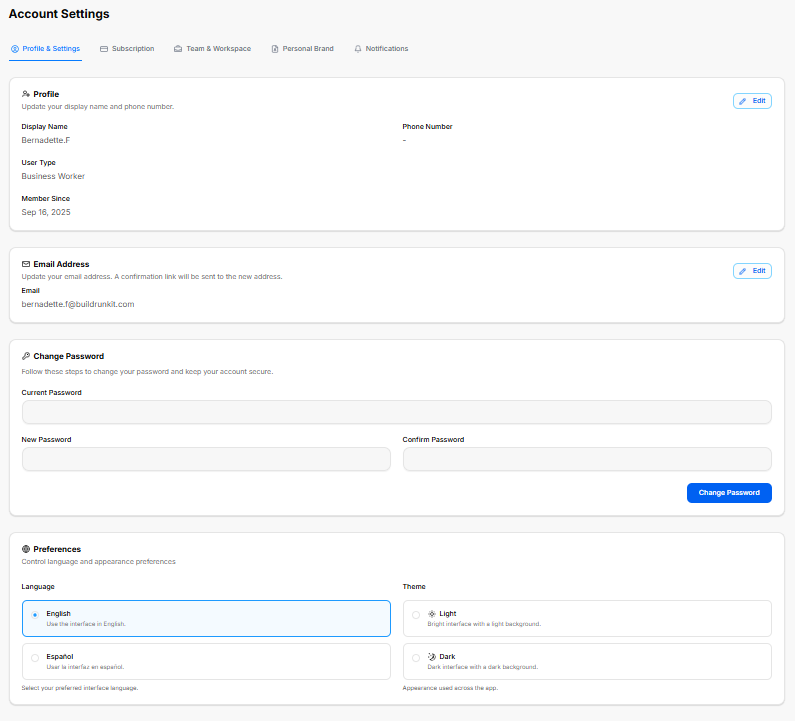
The Profile & Settings workspace is the primary tab within the global Account Settings dashboard. It consolidates personal identity details, contact information, authentication security fields, and universal layout preferences into an organized interface.
1. Account Navigation Framework
The main workspace header provides top-level tab links to access alternative configuration dashboards:
-
Profile & Settings: The default view for user identity and workspace customization.
-
Subscription: Manages billing, platform tiers, and payment options.
-
Team & Workspace: Coordinates organizational permissions, collaborator access, and team roles.
-
Personal Brand: Manages custom branding visual assets and identity configurations.
-
Notifications: Configures system alerts, email updates, and messaging parameters.
2. Profile Identity Management
The Profile block tracks basic identification and user classification data:
-
Display Name: Sets the visible name across the platform.
-
User Type: Displays your assigned system operational tier.
-
Member Since: Records the exact creation date of the account.
-
Phone Number: Displays the linked mobile or direct contact number.
-
Edit Control: A dedicated Edit action button opens an override panel to update display credentials and contact numbers.
3. Contact Security
The Email Address block handles communication routing and updates:
-
Email Field: Displays the active corporate electronic mail address linked to the profile.
-
Verification Note: Advises that changing this address triggers an automated confirmation security link to the newly requested location.
-
Edit Control: A dedicated Edit button toggles input capabilities for this field.
4. Password Authentication
The Change Password section handles credential security updates and account protection:
-
Current Password: A full-width input block where you type your active password to verify identity.
-
New Password: A secure data entry bar where you input your fresh passphrase combination.
-
Confirm Password: A secondary verification entry block to match and confirm the new string entry exactly.
-
Execution Key: A solid blue Change Password action button processes and locks in the update.
5. System Preferences
The Preferences workspace controls the language framework and visual appearance settings:
-
Language Options: Large toggle blocks change the system translation output:
-
English: Configures the user interface to use English strings.
-
Español: Configures the user interface to use Spanish translations.
-
-
Theme Options: Direct selection cards switch the application backdrop profile:
-
Light: Enforces a bright background interface.
-
Dark: Transitions the app layout to a dark background interface.
-
Subscription Settings
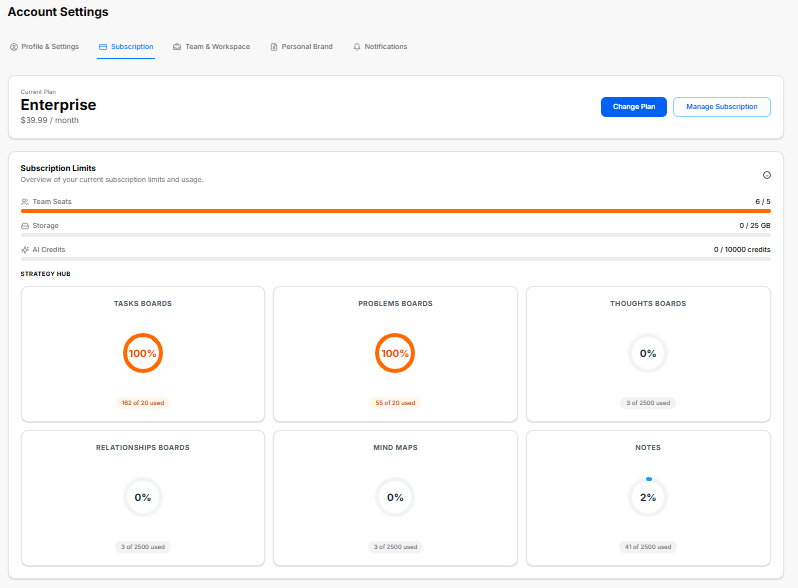
The Subscription dashboard lets you track active membership tiers, monitor data resource usage caps, and purchase modular resource upgrades.
1. Plan Overview
The top workspace displays structural tier statuses and direct subscription controls:
-
Current Plan: Shows your active membership level, price, and billing cycle.
-
Change Plan: A blue action button to transition to a completely different tier.
-
Manage Subscription: A secondary button to modify billing methods or update payment profiles.
2. Subscription Limits & Allocation Meters
This panel charts real-time usage metrics against your plan parameters to track overages or open capacity:
-
Global Account Seats & Resources:
-
Team Seats: Track allocated user slots against plan allowances.
-
Storage: Monitors active media, file, and asset storage allocations.
-
AI Credits: Displays available generation allowances used by automated modules.
-
-
Core Modules Tracker:
-
Tasks Boards: Measures layout parameters and active task counts.
-
Problems Boards: Monitors active problem-tracking logs.
-
Thoughts Boards: Measures dedicated long-form brainstorming inputs.
-
Relationships Boards: Tracks customer profiles or network directories.
-
Mind Maps: Counts active organizational layouts.
-
Notes: Tracks basic scratchpads and text documents.
-
3. Available Add-ons & Expansions
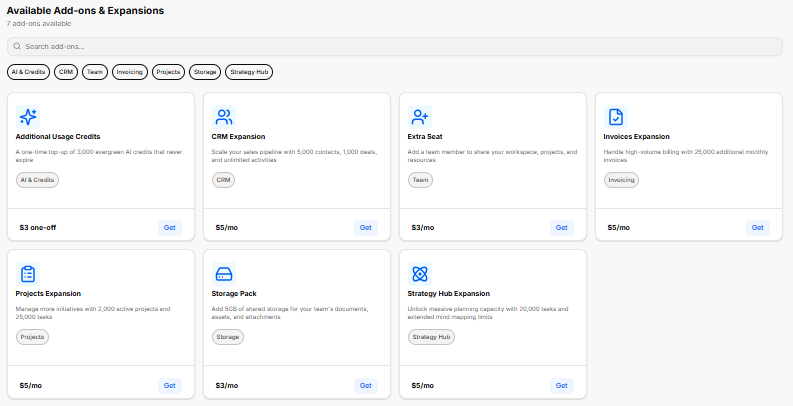
A modular store lets you expand specific capacity allocations without upgrading your entire core plan tier. It includes a search filter bar alongside category tags to quickly isolate upgrades:
-
Additional Usage Credits: Provides a one-time purchase top-up for evergreen AI credits that do not expire.
-
CRM Expansion: Scales sales pipelines by adding contacts, deals, and activities.
-
Extra Seat: Appends a team member slot to share workspace projects and assets.
-
Invoices Expansion: Raises monthly billing limits for high-volume invoice generation.
-
Projects Expansion: Increases your maximum allowed active projects and tasks.
-
Storage Pack: Adds blocks of shared cloud storage for team documentation and attachments.
-
Strategy Hub Expansion: Unlocks extra planning capacity for tasks and extended mind-mapping elements.
Team & Workspace Settings
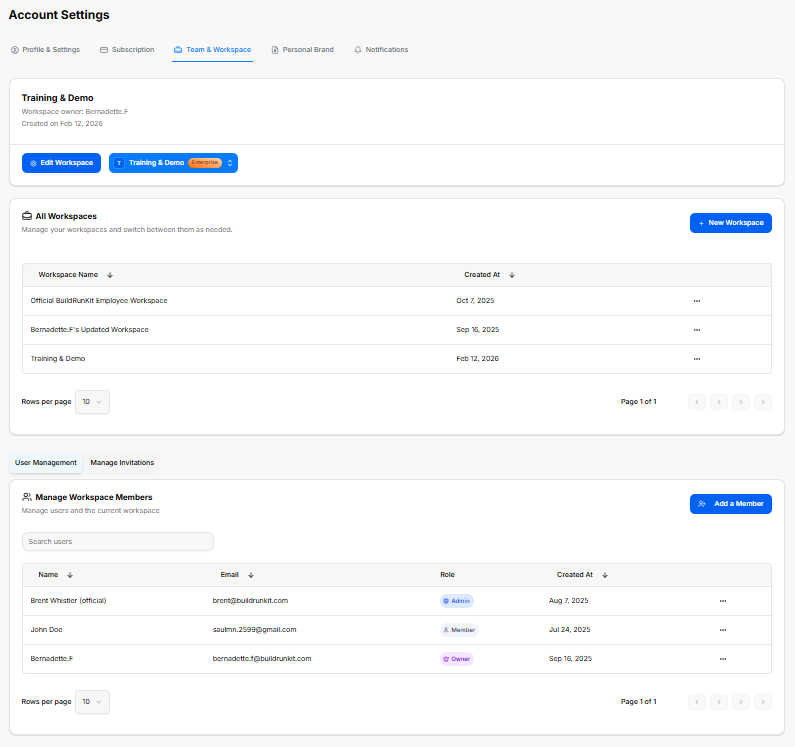
The Team & Workspace dashboard allows you to organize multiple operational environments, manage collaborator permissions, and control user access across your organization.
1. Active Workspace Summary
The top section highlights details for the workspace you are currently modifying:
-
Workspace Identity: Displays the current workspace name, its designated owner, and the exact creation date.
-
Workspace Controls:
-
Edit Workspace: A blue action button to update the active workspace's configuration or change its main settings.
-
Workspace Selector Switcher: A dropdown button labeled with your active plan tier that lets you swap or pivot between active accounts.
-
2. All Workspaces Directory
A master data table structures all environments tied to your profile, allowing you to manage environments and switch between them as needed:
-
Workspace Creation: A blue + New Workspace button allows you to instantly spin up a separate operational environment.
-
Workspace Ledger: Tracks all created environments with dedicated columns for Workspace Name and Created At timestamp records, complete with a settings icon menu for individual row actions.
3. Member Management Hub
The bottom management suite coordinates access controls and is split into two administrative tabs: User Management and Manage Invitations. Under the active User Management view, you can configure users and the current workspace:
-
Add a Member: A blue button to invite new collaborators directly into the workspace.
-
Search Box: A filter bar to quickly search users by name or credential.
-
Manage Workspace Members Table: A detailed directory tracking all active team members using four descriptive data columns:
-
Name: Displays the user's name.
-
Email: Lists the direct communication address linked to their seat.
-
Role: Displays designated permission levels using colored badges (such as Admin, Member, or Owner).
-
Created At: Logs the exact historical date the user was added to the platform.
-
Personal Brand Settings
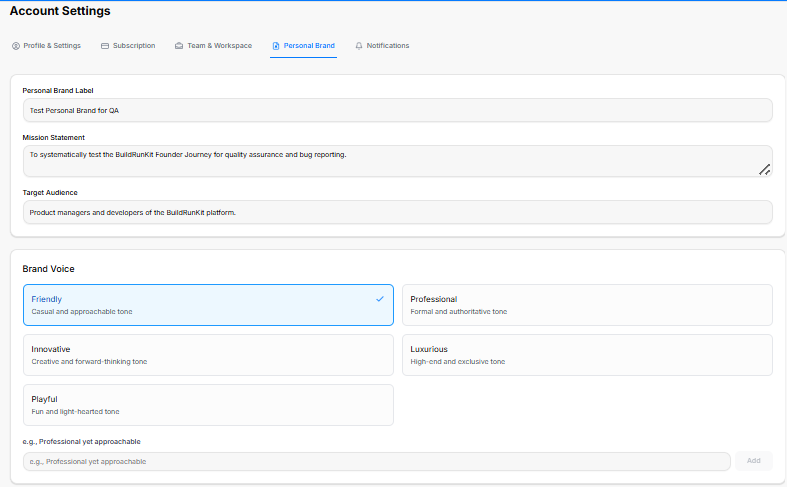
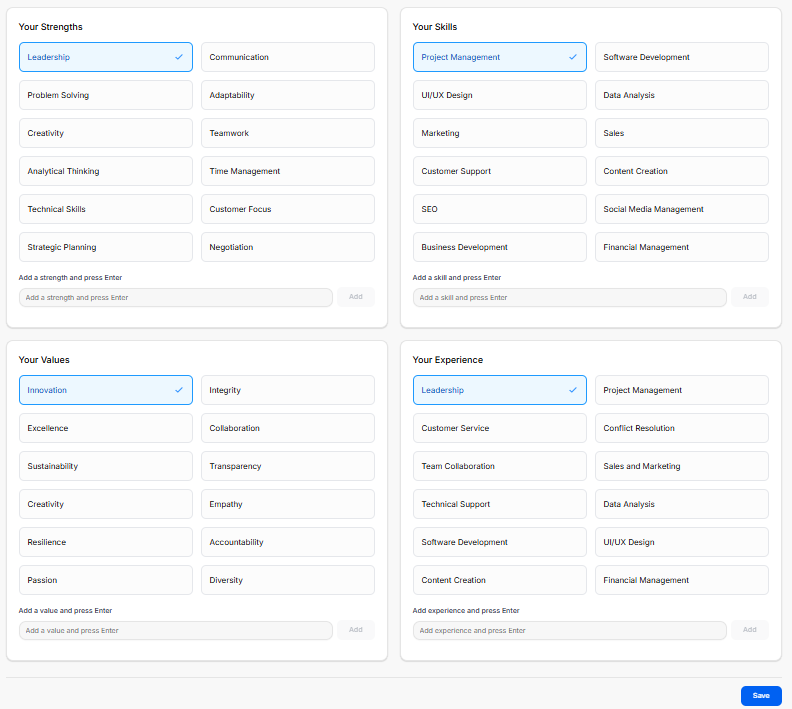
The Personal Brand settings dashboard is a comprehensive workspace divided across two view areas to configure your unique professional identity framework. These parameters feed direct context to the platform's AI generation engines.
1. Core Identity & Formatting Fields
The upper console segment manages the foundational details of your professional persona:
-
Personal Brand Label: A clear text entry box to input an internal identification name for the specific profile.
-
Mission Statement: A multi-line text block designed to frame your core operational focus, long-term targets, or business purpose.
-
Target Audience: A baseline input line to specify the exact consumer demographics, professionals, or market sectors your content aims to reach.
2. Brand Voice Profiles
The system lets you select the exact tonal delivery for your platform outputs using distinct selectable cards or completely custom entries:
-
Friendly: A casual and approachable style.
-
Professional: A formal and authoritative communication style.
-
Innovative: A creative and forward-thinking perspective.
-
Luxurious: A high-end, highly premium, and exclusive tone.
-
Playful: A fun, dynamic, and light-hearted tone.
-
Custom Selection: An extension line at the base to type in unique, specific stylistic traits (e.g., Professional yet approachable) and register them with the Add key.
3. Professional Foundation Pillars
The lower portion of the setup space is organized into a interactive four-quadrant selection grid to map out your skillsets and professional philosophy:
-
Your Strengths: High-level individual traits and core soft skills. Selectable tags include options like Leadership, Problem Solving, Creativity, Analytical Thinking, Technical Skills, Strategic Planning, Communication, Adaptability, Teamwork, Time Management, Customer Focus, and Negotiation.
-
Your Skills: Direct execution capabilities and industrial focus areas. Selectable options include Project Management, UI/UX Design, Marketing, Customer Support, SEO, Business Development, Software Development, Data Analysis, Sales, Content Creation, Social Media Management, and Financial Management.
-
Your Values: Underlying corporate standards and driving execution principles. Preset toggles include Innovation, Excellence, Sustainability, Creativity, Resilience, Passion, Integrity, Collaboration, Transparency, Empathy, Accountability, and Diversity.
-
Your Experience: Key professional environments and functional roles you have operated within. Quick tags list Leadership, Customer Service, Team Collaboration, Technical Support, Software Development, Content Creation, Project Management, Conflict Resolution, Sales and Marketing, Data Analysis, UI/UX Design, and Financial Management.
Each of the four quadrants includes an internal generation field at its baseline where you can type an unlisted trait, press your enter key, or click Add to expand your profile matrix.
4. Committing Changes
-
Global Save: Once you have selected your voice traits and structured your background vectors across both segments, clicking the solid blue Save action button in the bottom-right corner locks the dataset into your profile.
Notifications Settings
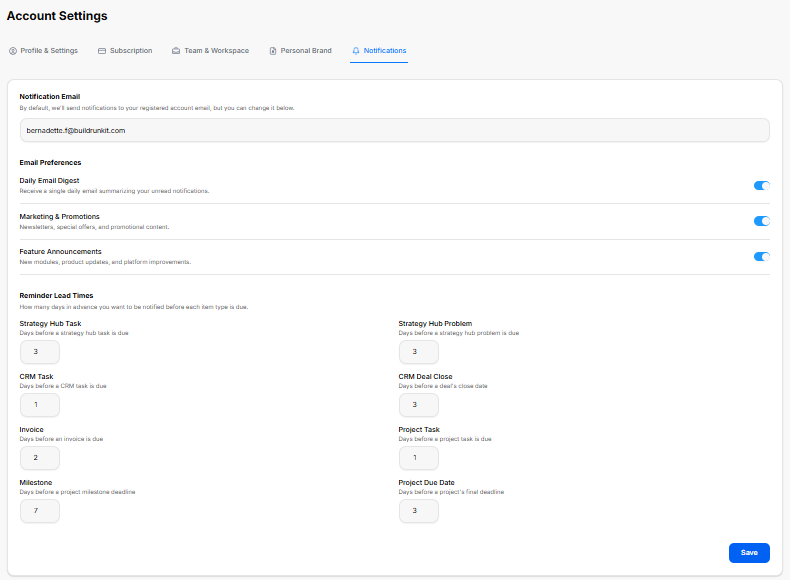
The Notifications dashboard lets you manage where you receive system alerts, toggle specific email delivery preferences, and customize automated reminder timelines for deadlines.
1. Notification Routing
-
Notification Email: A centralized text entry field that designates where your platform updates are sent. By default, the system routes notifications directly to your registered account email, but it can be manually overridden here.
2. Email Preferences
A suite of master toggle switches allows you to opt into or out of specific communication streams:
-
Daily Email Digest: Toggles a single, consolidated daily email summarizing your unread platform notifications.
-
Marketing & Promotions: Controls the delivery of general newsletters, special campaign offers, and seasonal promotional content.
-
Feature Announcements: Manages alerts regarding new software modules, immediate product updates, and continuous platform improvements.
3. Reminder Lead Times
This section lets you configure exactly how many days in advance you want to be system-notified before a specific item type hits its official due date:
-
Strategy Hub Task: Adjusts the advance notice window before a strategy hub task is due.
-
Strategy Hub Problem: Configures the advance warning buffer before an active strategy hub problem reaches its due date.
-
CRM Task: Sets the number of warning days leading up to an assigned CRM task deadline.
-
CRM Deal Close: Coordinates advance notification lead times before a specific customer deal's target close date.
-
Invoice: Establishes the advance warning period prior to an invoice falling due.
-
Project Task: Restructures the day buffer leading up to an assigned project task deadline.
-
Milestone: Dictates the long-term warning buffer sent before an overarching project milestone deadline arrives.
-
Project Due Date: Sets the general reminder lead time before a project's absolute final completion deadline.
Once all alert preferences and calendar day buffers are updated, clicking the solid blue Save action button in the lower right-hand corner commits the rules to your profile.