Saved Outcomes Repository
Saved Outcomes Repository
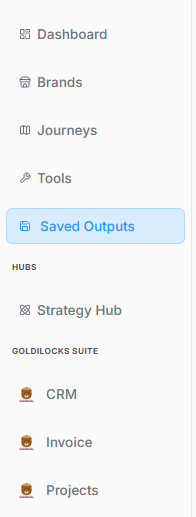
The Saved Outcomes section serves as a centralized digital filing cabinet for your progress. Instead of holding static text or marketing assets, this repository acts as a running historical record of every major decision, milestone, and phase completion achieved across the platform.
1. Accessing Your Saved Work
Locating your historical logs is straightforward within the workspace structure:
2. Managing the Master Log Dashboard
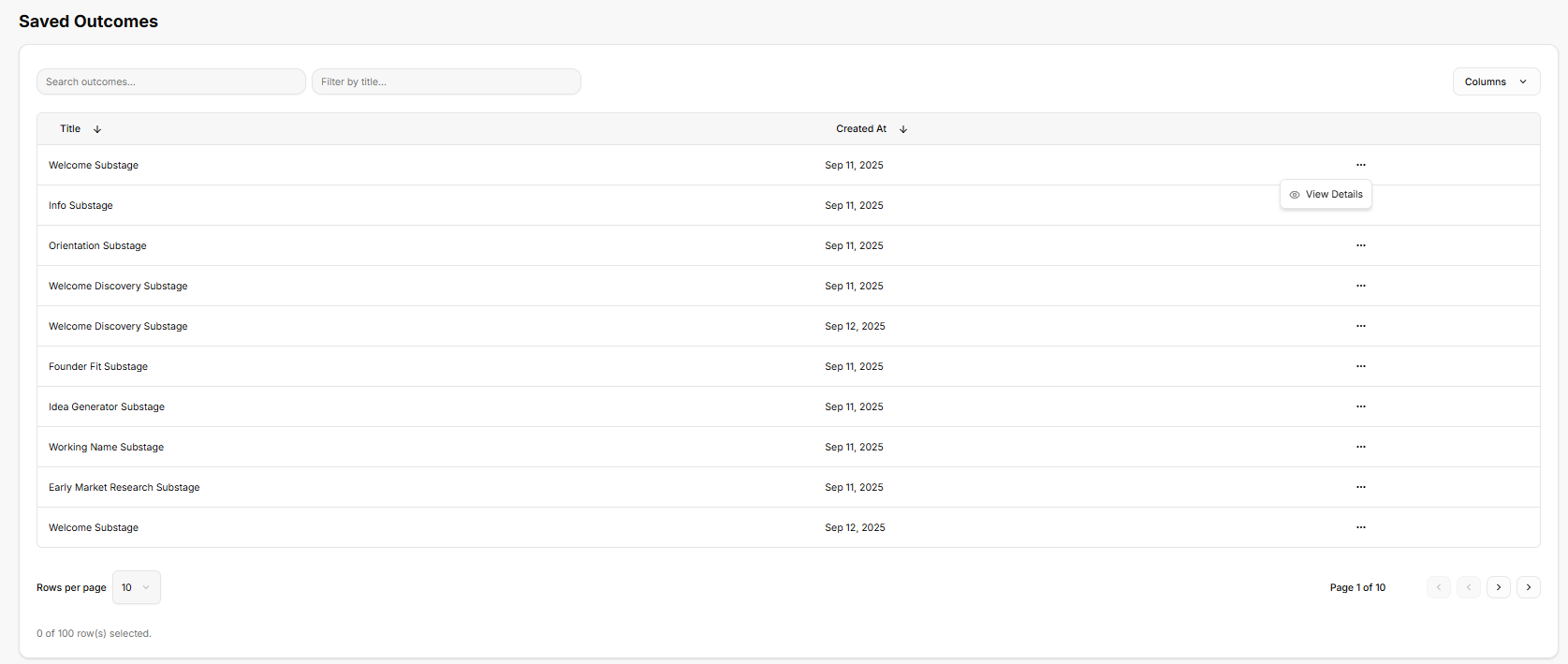
Once inside the repository, the platform provides a structured, high-level data table built to help organize and locate individual business milestones:
-
Search and Filter Functions: Text entry fields at the top allow quick sorting by specific titles or keywords to pull up exact records instantly.
-
Chronological Record Keeping: Every generated milestone is logged as a separate row, showing the precise title of the entry alongside an automatic timestamp indicating exactly when it was achieved.
-
Actionable Entries: Selecting the horizontal ellipsis (
...) on any logged row opens up a quick action menu where you can click View Details to pull up the deeper record.
3. Reviewing Individual Milestone Details
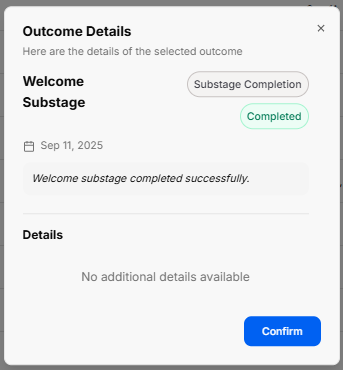
Opening a specific record triggers a clean pop-up window that breaks down exactly what that historical log represents:
-
Status & Type Badges: The window clearly labels the entry type (such as a Substage Completion) and displays a distinct green stamp confirming its status as Completed.
-
Logged Activity Summary: The window provides a quick text confirmation of the milestone reached, followed by a Details canvas. When a stage is marked complete, this space holds the specific notes, operational logs, or data blocks tied directly to that point in the journey.
-
Context Control: A prominent Confirm action button at the bottom allows you to easily acknowledge the historical view and return to the main tracking list.