# Goldilocks Projects Dashboard
## Goldilocks Projects Dashboard
[](https://library.buildrunkit.com/uploads/images/gallery/2026-06/screenshot-2026-06-19-120111.png)
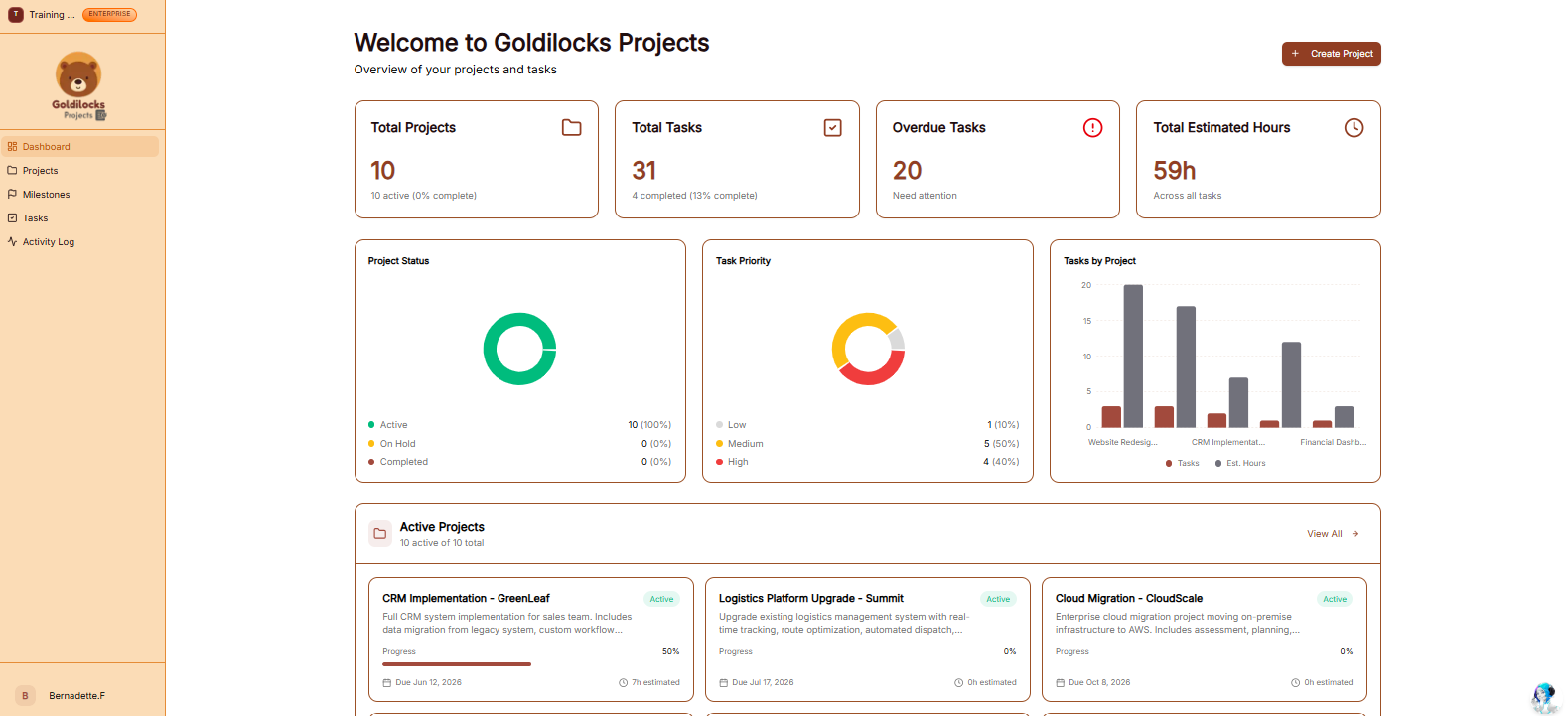
Once you have successfully signed in, you will be greeted by the Dashboard. This page is designed to give you an "at a glance" view of your latest project progress and provide fast jumps into your most important management workflows.
### Managing Your Workspace
[](https://library.buildrunkit.com/uploads/images/gallery/2026-05/screenshot-2026-05-13-132412.png)
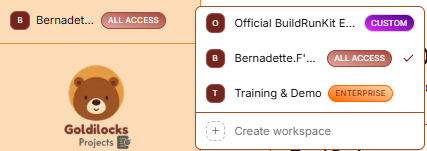
At the very top of the left sidebar, you will see your current workspace name. BuildRunKit allows you to manage multiple project environments from a single account.
How to Switch Workspaces:
- Click the Workspace Selector: Click on the workspace name at the top of the sidebar.
- Select from the List: A dropdown menu will appear showing all workspaces you have access to, labeled with their specific access level (e.g., "Official BuildRunKit..." with a CUSTOM tag or "Training & Demo" with an ENTERPRISE tag).
- Instant Switch: Click on the desired name to instantly switch all project data (Tasks, Milestones, and Activities) to that workspace.
- Create New: You can also click "+ Create workspace" at the bottom of this menu to start a brand new project environment.
- Total Projects: Shows the total count of active projects and an overall completion percentage.
- Total Tasks: Displays the total number of tasks in the workspace and how many are finished.
- Overdue Tasks: Highlights the number of tasks that have passed their due dates and "Need attention."
- Upcoming Deadlines: Tracks tasks that are scheduled to be completed within the current week.
- Recent Projects: This section displays your most recently accessed projects. If you are just starting, click the brown "Create Project" button in the center of the dashboard to begin your first workflow.
- View All: Click the "View All →" link to see a full list of every project in your workspace.
- Dashboard: Returns you to this overview page.
- Projects: View and manage your full list of ongoing and archived projects.
- Milestones: Track major goals and roadmap targets.
- Tasks: Access your full task list and manage individual to-dos.
- Activities: View a log of recent updates and changes across the workspace.