# Goldilocks CRM: Tasks

## **Goldilocks CRM: Tasks**

**[![Screenshot 2026-05-14 150603.png](https://library.buildrunkit.com/uploads/images/gallery/2026-05/scaled-1680-/screenshot-2026-05-14-150603.png)](https://library.buildrunkit.com/uploads/images/gallery/2026-05/screenshot-2026-05-14-150603.png)**
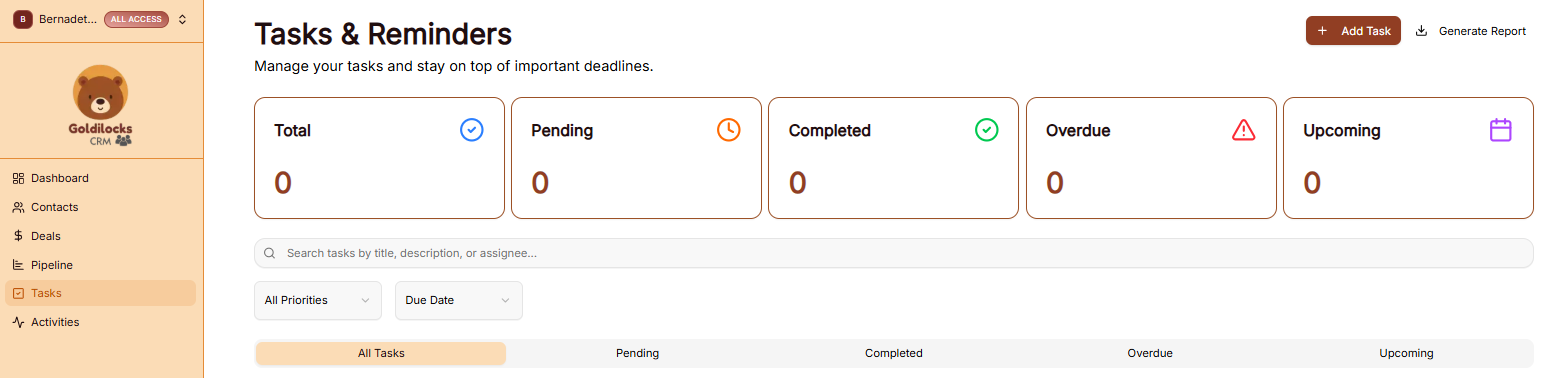
The Tasks module allows you to manage your daily to-do lists and stay on top of important project deadlines.

### Tasks Dashboard Overview

The main dashboard provides a high-level summary of your current workload through five key metric cards:

<div _ngcontent-ng-c2811658299="" class="container" id="bkmrk-total%3A-the-overall-c"><div _ngcontent-ng-c1029391613="" aria-busy="false" aria-live="polite" class="markdown markdown-main-panel enable-updated-hr-color" dir="ltr" inline-copy-host="">- Total: The overall count of all tasks assigned to you.
- Pending: Tasks that are currently open and awaiting action.
- Completed: A count of all finalized tasks.
- Overdue: Tasks that have passed their assigned due date without being completed.
- Upcoming: A look-ahead at tasks scheduled for the near future.

---

</div></div>### Managing Your Task List

You can organize and find specific tasks using the following tools:

<div _ngcontent-ng-c2811658299="" class="container" id="bkmrk-search-bar%3A-locate-t"><div _ngcontent-ng-c1029391613="" aria-busy="false" aria-live="polite" class="markdown markdown-main-panel enable-updated-hr-color" dir="ltr" inline-copy-host="">- Search Bar: Locate tasks quickly by searching for their title, description, or the assigned team member.
- Filtering: Narrow your view by using the All Priorities or Due Date dropdown menus.
- Quick View Tabs: Switch between status-specific lists, including All Tasks, Pending, Completed, Overdue, and Upcoming.

---

</div></div>### Adding a New Task

[![Screenshot 2026-05-14 150645.png](https://library.buildrunkit.com/uploads/images/gallery/2026-05/scaled-1680-/screenshot-2026-05-14-150645.png)](https://library.buildrunkit.com/uploads/images/gallery/2026-05/screenshot-2026-05-14-150645.png)

To create a new entry, click the brown + Add Task button at the top right of the screen. This opens the Add New Task window:

Task Information:

<div _ngcontent-ng-c2811658299="" class="container" id="bkmrk-task-title%3A-enter-a-"><div _ngcontent-ng-c1029391613="" aria-busy="false" aria-live="polite" class="markdown markdown-main-panel enable-updated-hr-color" dir="ltr" inline-copy-host="">- Task Title: Enter a clear, concise name for the task.
- Description: Add optional details or specific instructions for the task.
- Priority: Use the dropdown to set the importance level (e.g., Medium Priority).
- Due Date: Click the calendar icon to pick a specific deadline.

</div></div>Connections &amp; Finalization:

<div _ngcontent-ng-c2811658299="" class="container" id="bkmrk-link-to-contact-or-d"><div _ngcontent-ng-c1029391613="" aria-busy="false" aria-live="polite" class="markdown markdown-main-panel enable-updated-hr-color" dir="ltr" inline-copy-host="">- Link to Contact or Deal: Optionally link the task to a specific person or sales opportunity for better organization.
- Save: Click the brown Add Task button at the bottom right to save the task to your list.

---

</div></div>### Generating a Tasks Report

[![Screenshot 2026-05-14 150716.png](https://library.buildrunkit.com/uploads/images/gallery/2026-05/scaled-1680-/screenshot-2026-05-14-150716.png)](https://library.buildrunkit.com/uploads/images/gallery/2026-05/screenshot-2026-05-14-150716.png)

To export your current task data, click the Generate Report link in the top right corner.

<div _ngcontent-ng-c2811658299="" class="container" id="bkmrk-choose-format%3A-selec"><div _ngcontent-ng-c1029391613="" aria-busy="false" aria-live="polite" class="markdown markdown-main-panel enable-updated-hr-color" dir="ltr" id="bkmrk-choose-format%3A-selec-1" inline-copy-host="">- Choose Format: Select either PDF (best for printing/sharing) or Excel (best for data analysis).
- Finalize: Click Preview to check the layout or Generate Report to download the file.

</div></div>