Goldilocks CRM Contacts
Goldilocks CRM Contacts Dashboard
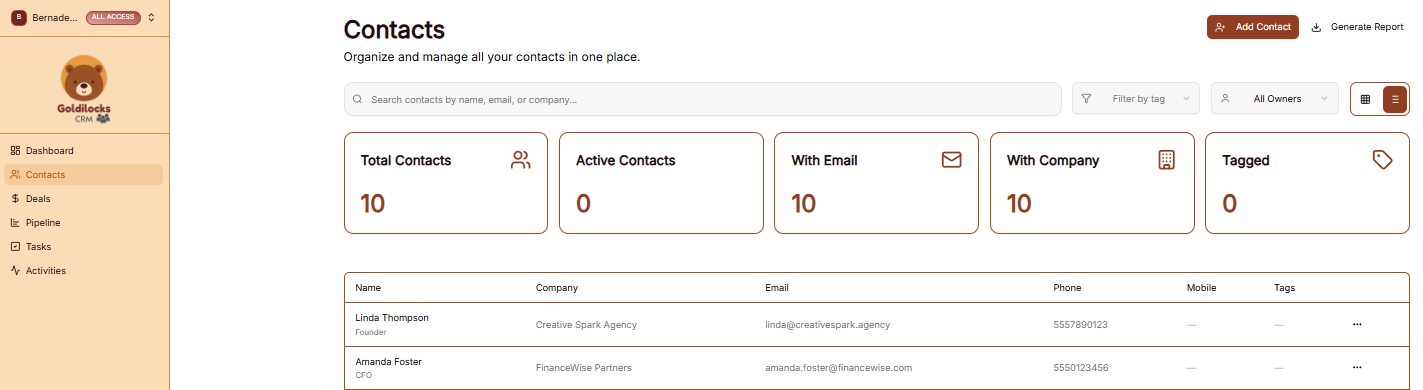
The Contacts page is your central directory for organizing and managing all individual relationships within your workspace. This page provides a high-level summary of your database through five metric cards:
-
Total Contacts: Displays the absolute number of people in your CRM (e.g., 10).
-
Active Contacts: Tracks the number of individuals currently engaged in active deals.
-
With Email: Shows how many records include a primary email address.
-
With Company: Displays the number of contacts associated with a specific business.
-
Tagged: Indicates how many contacts have been categorized using custom tags.
How to Add a Contact
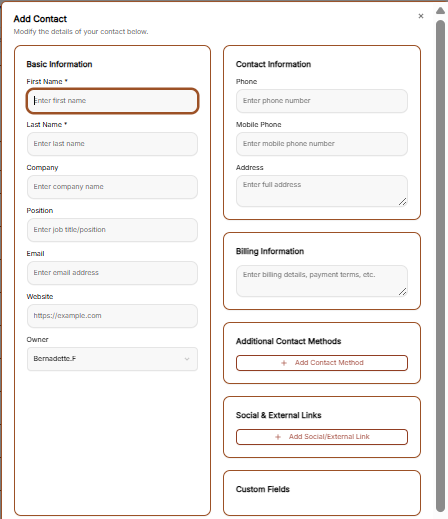
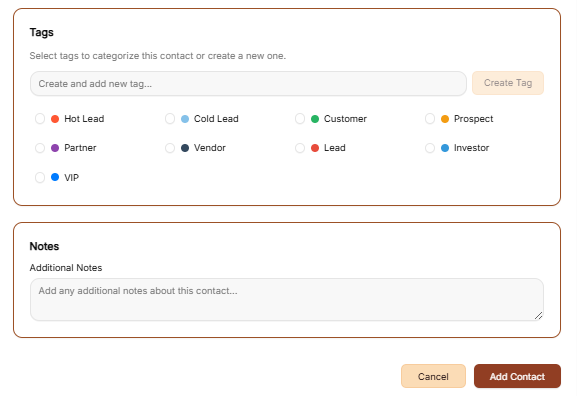
To manually enter a new individual into the system, click the brown + Add Contact button at the top right of the screen. This opens a detailed form where you can provide the following information:
-
Basic Information: Enter the contact’s First Name, Last Name, Company, Position, Email, and Website.
-
Contact & Billing: Store professional details like Phone and Mobile numbers, physical Addresses, and specific Billing Information for payments.
-
Social & Custom Data: Add Social & External Links or populate specialized data in the Custom Fields section.
-
Tags: Categorize the contact by selecting from preset options like Hot Lead, Customer, VIP, or Partner, or create your own unique tag.
-
Notes: Add any additional context or background information in the text field.
-
Finalize: Click the brown Add Contact button at the bottom of the form to save the record.
Generate Report
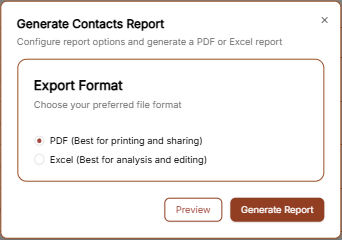
To export your contact data for external use, click the Generate Report link located next to the add contact button.
-
Choose Export Format: A window will appear allowing you to select your preferred file format.
-
PDF: Best for printing and sharing official documents.
-
Excel: Best for deep data analysis and bulk editing.
-
-
Preview or Generate: You can choose to Preview the report first or click Generate Report to immediately create the file.