# BuildRunKit Tools Directory Sub-section

## **Tools Directory Sub-section**

**[![Screenshot 2026-09-16 123325.png](https://library.buildrunkit.com/uploads/images/gallery/2026-09/scaled-1680-/screenshot-2026-09-16-123325.png)](https://library.buildrunkit.com/uploads/images/gallery/2026-09/screenshot-2026-09-16-123325.png)**
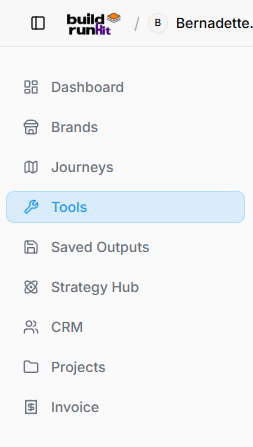
**[![Screenshot 2026-09-16 123354.png](https://library.buildrunkit.com/uploads/images/gallery/2026-09/scaled-1680-/screenshot-2026-09-16-123354.png)](https://library.buildrunkit.com/uploads/images/gallery/2026-09/screenshot-2026-09-16-123354.png)**
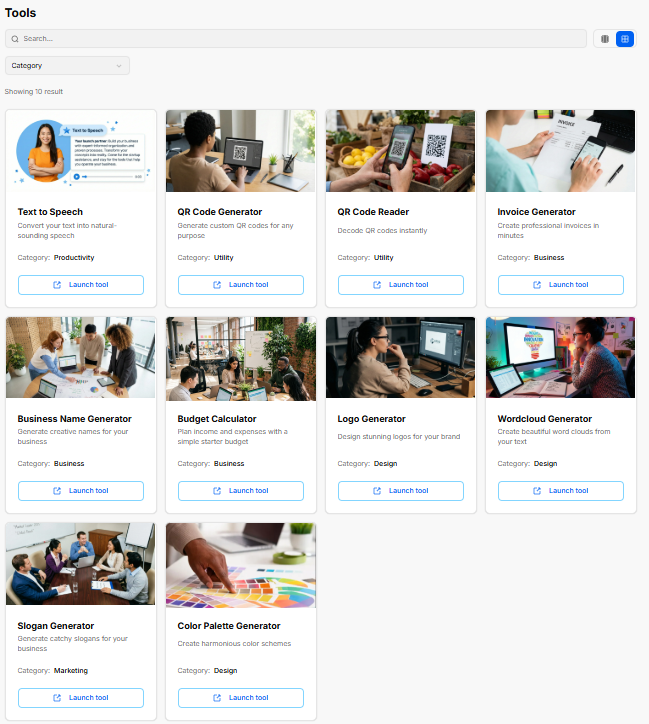
The **Tools** section acts as a central library for built-in utilities designed to streamline content generation, branding, productivity, and financial calculations.

#### **Navigation &amp; Filtering Controls**

<div _ngcontent-ng-c3108543318="" class="container" id="bkmrk-search-bar%3A-quick-fi"><div _ngcontent-ng-c3262731227="" aria-busy="false" aria-live="polite" class="markdown markdown-main-panel md-content enable-luminous-fast-follows enable-updated-hr-color tutor-markdown-rendering" dir="ltr" inline-copy-host="">- **Search Bar**: Quick filter field to search for specific tools by name.
- **Category Dropdown**: Allows filtering tools by functional area (*e.g., Productivity, Utility, Business, Design, Marketing*).
- **View Switcher**: Toggles display between card grid view and list view.

</div></div>#### **Available Built-In Tools Overview**

<div _ngcontent-ng-c3108543318="" class="container" id="bkmrk-text-to-speech-%28prod"><div _ngcontent-ng-c3262731227="" aria-busy="false" aria-live="polite" class="markdown markdown-main-panel md-content enable-luminous-fast-follows enable-updated-hr-color tutor-markdown-rendering" dir="ltr" inline-copy-host="">- **Text to Speech** (*Productivity*): Converts written text into natural-sounding speech audio files.
- **QR Code Generator** (*Utility*): Generates custom QR codes for web links, contact details, or media.
- **QR Code Reader** (*Utility*): Scans and decodes existing QR codes directly within the workspace.
- **Invoice Generator** (*Business*): Quick utility to draft and export professional invoices on the fly.
- **Business Name Generator** (*Business*): Generates creative business name suggestions based on brand prompts.
- **Budget Calculator** (*Business*): Helps map income, operational costs, and initial starter budgets.
- **Logo Generator** (*Design*): Creates initial logo design concepts for brand setup.
- **Wordcloud Generator** (*Design*): Builds visual word clouds from input text or dataset keywords.
- **Slogan Generator** (*Marketing*): Creates marketing taglines and catchy slogans for products or services.
- **Color Palette Generator** (*Design*): Generates complementary color schemes for brand aesthetics.
- **Launch Tool Button**: Opens the selected tool interface in full view.

</div></div>### **Text to Speech Generator Tool Sub-Section**

**[![Screenshot 2026-09-16 124256.png](https://library.buildrunkit.com/uploads/images/gallery/2026-09/scaled-1680-/screenshot-2026-09-16-124256.png)](https://library.buildrunkit.com/uploads/images/gallery/2026-09/screenshot-2026-09-16-124256.png)**

The **Text to Speech Generator** transforms typed content into natural-sounding speech audio files for voiceovers, podcasts, or audiobooks.

#### **Usage Limits &amp; Parameters**

- **Usage Limit Notice**: Displays active daily restrictions (*3 requests per user*) and character limits (*1000 characters per request*).
- **Remaining Indicator**: Shows remaining available requests for the session (*e.g., Remaining: 3*).

#### **Configuration Controls**

- **Text to be converted**: Input text area accepting up to 1000 characters with an active character counter (*e.g., Characters: 0/1000*).
- **Clear Button**: Resets the text input box.
- **Select a voice**: Dropdown menu to select preferred speaker profiles:

[![Screenshot 2026-09-16 124522.png](https://library.buildrunkit.com/uploads/images/gallery/2026-09/scaled-1680-/screenshot-2026-09-16-124522.png)](https://library.buildrunkit.com/uploads/images/gallery/2026-09/screenshot-2026-09-16-124522.png)

- - **Alloy**: Neutral tone.
    - **Echo**: Male, smooth tone.
    - **Fable**: Male, warm tone.
    - **Onyx**: Male, strong tone.
    - **Nova**: Female, energetic tone.
    - **Shimmer**: Female, clear tone.
- **Select a voice style**: Dropdown menu to adjust delivery tone:

[![Screenshot 2026-09-16 124757.png](https://library.buildrunkit.com/uploads/images/gallery/2026-09/scaled-1680-/screenshot-2026-09-16-124757.png)](https://library.buildrunkit.com/uploads/images/gallery/2026-09/screenshot-2026-09-16-124757.png)

- - **Neutral**: Default tone, balanced and clear.
    - **Professional**: Formal and authoritative, suitable for business or technical contexts.
    - **Excited**: Energetic and enthusiastic, ideal for conveying excitement or positivity.
    - **Empathetic**: Warm and understanding, great for emotional or supportive communication.
    - **Friendly**: Casual and approachable, perfect for informal conversations.
    - **Serious**: Calm and focused, used for delivering important or sensitive information.
    - **Narrative**: Storytelling tone, engaging and expressive.
    - **Calm**: Relaxed and soothing, useful for meditative or comforting scenarios.
    - **Persuasive**: Convincing and confident, tailored for motivational or sales-oriented speech.
- **Generate Speech Button**: Processes the input text and generates the audio file.

#### **Audio Preview &amp; Output**

- **Audio Player Display**: Center panel showing generated audio playback controls (*displays "No audio generated yet" before processing*).

#### **Tips &amp; Tricks Sidebar**

- **Step 1**: Enter your text in the input box.
- **Step 2**: Select a voice and voice style from the dropdowns.
- **Step 3**: Adjust the tone if needed.
- **Step 4**: Click "Generate Audio" to create the file.
- **Step 5**: Download your audio file with one click.

### **QR Code Generator Tool Sub-Section**

**[![Screenshot 2026-09-16 124907.png](https://library.buildrunkit.com/uploads/images/gallery/2026-09/scaled-1680-/screenshot-2026-09-16-124907.png)](https://library.buildrunkit.com/uploads/images/gallery/2026-09/screenshot-2026-09-16-124907.png)**

The **QR Code Generator** allows users to instantly encode text, web links, contact details, or promotional data into custom downloadable QR codes.

#### **How to Use Panel**

- **Step 1**: Enter the text or URL you want to encode.
- **Step 2**: Customize the color and size (optional).
- **Step 3**: Click 'Generate QR' to create your code.

#### **Configuration Controls**

- **Text or URL to encode**: Input field to specify destination web address or raw text (*e.g., [www.yoursite.com](https://www.google.com/search?q=https%3A%2F%2Fwww.yoursite.com)*).
- **Color**: Color selector and hex code input field to set custom QR code accent colors (*defaults to #000000*).
- **Size**: Numeric input field specifying image dimension in pixels (*defaults to 300*).
- **Generate QR Button**: Processes inputs and creates the rendered code image.
- **Reset Button**: Red icon button to clear form settings.

#### **Preview Panel**

- **QR Output Display**: Center panel showing generated code preview (*displays "No QR Code Generated" before processing*).

#### **Tips &amp; Tricks Sidebar**

- **Tip 1**: Generate QR codes for websites, restaurant menus, social media, or contact information.
- **Tip 2**: Create QR codes for event tickets or registrations.
- **Tip 3**: Share promotional materials or discounts via QR codes.
- **Tip 4**: Encode text, URLs, or other data into QR codes for easy sharing.

### **QR Reader Tool Sub-Section**

**[![Screenshot 2026-09-16 125101.png](https://library.buildrunkit.com/uploads/images/gallery/2026-09/scaled-1680-/screenshot-2026-09-16-125101.png)](https://library.buildrunkit.com/uploads/images/gallery/2026-09/screenshot-2026-09-16-125101.png)**

The **QR Reader** utility decodes uploaded QR code images directly within the browser without storing or transmitting personal data.

#### **How to Use Panel**

- **Step 1**: Upload or drag and drop an image containing a QR code.
- **Step 2**: Wait for the automatic decoding process.
- **Step 3**: View, copy, or interact with the decoded content.

#### **Upload &amp; File Controls**

- **Upload Area**: Drag and drop region with file browser trigger (*"Drag and drop an image file here, or click to select"*).
- **Choose File Button**: Opens the local file selector window.
- **Supported Formats Notice**: Highlights accepted file types (*Supports PNG, JPG, GIF, WebP - max 10MB*).

#### **Decoded Output Panel**

- **Result Display**: Center area showing the decoded text or link output (*displays "No QR Code Decoded" before an image is selected*).

#### **Tips &amp; Tricks Sidebar**

- **Tip 1**: Click on the upload button to select an image file containing a QR code.
- **Tip 2**: The tool will automatically decode the QR code and display the content.
- **Tip 3**: You can copy the decoded content or use it as needed.
- **Tip 4**: No data is stored or uploaded, ensuring your privacy and security.

### **Invoice Generator Tool Sub-Section**

**[![Screenshot 2026-09-16 125305.png](https://library.buildrunkit.com/uploads/images/gallery/2026-09/scaled-1680-/screenshot-2026-09-16-125305.png)](https://library.buildrunkit.com/uploads/images/gallery/2026-09/screenshot-2026-09-16-125305.png)**

**[![Screenshot 2026-09-16 125329.png](https://library.buildrunkit.com/uploads/images/gallery/2026-09/scaled-1680-/screenshot-2026-09-16-125329.png)](https://library.buildrunkit.com/uploads/images/gallery/2026-09/screenshot-2026-09-16-125329.png)**

The **Invoice Generator** tool allows users to quickly draft, preview, and generate PDF invoices with custom branding, sender/client contact details, line items, and payment notes.

#### **Header Actions**

<div _ngcontent-ng-c3108543318="" class="container" id="bkmrk-clear-all-button%3A-re"><div _ngcontent-ng-c3262731227="" aria-busy="false" aria-live="polite" class="markdown markdown-main-panel md-content enable-luminous-fast-follows enable-updated-hr-color tutor-markdown-rendering" dir="ltr" inline-copy-host="">- **Clear All Button**: Resets all form fields and line items across the entire tool.
- **Preview Button**: Opens the formatted PDF preview window.

</div></div>#### **Company Logo Panel**

<div _ngcontent-ng-c3108543318="" class="container" id="bkmrk-upload-logo-button%3A-"><div _ngcontent-ng-c3262731227="" aria-busy="false" aria-live="polite" class="markdown markdown-main-panel md-content enable-luminous-fast-follows enable-updated-hr-color tutor-markdown-rendering" dir="ltr" inline-copy-host="">- **Upload Logo Button**: Opens local file selector to attach company branding (*Supports PNG, JPG up to 2MB*).

</div></div>#### **Sender &amp; Recipient Details**

<div _ngcontent-ng-c3108543318="" class="container" id="bkmrk-from-panel%3A-form-fie"><div _ngcontent-ng-c3262731227="" aria-busy="false" aria-live="polite" class="markdown markdown-main-panel md-content enable-luminous-fast-follows enable-updated-hr-color tutor-markdown-rendering" dir="ltr" inline-copy-host="">- **FROM Panel**: Form fields to specify sender contact details including **Company Name**, **Address**, **City**, **State**, **Zip Code**, **Country**, **Phone Number**, and **Email Address**.
- **TO Panel**: Form fields to specify client billing details including **Company Name**, **Address**, **City**, **State**, **Zip Code**, **Country**, **Phone Number**, and **Email Address**.

</div></div>#### **Invoice Information Panel**

<div _ngcontent-ng-c3108543318="" class="container" id="bkmrk-invoice-number%3A-auto"><div _ngcontent-ng-c3262731227="" aria-busy="false" aria-live="polite" class="markdown markdown-main-panel md-content enable-luminous-fast-follows enable-updated-hr-color tutor-markdown-rendering" dir="ltr" inline-copy-host="">- **Invoice Number**: Auto-generated identifier string (*e.g., BRK-947677*).
- **Date**: Calendar selector to set the issuance date.
- **Due Date**: Calendar selector to set the payment deadline date.
- **Terms**: Dropdown menu to select payment terms (*e.g., Net 30*).

</div></div>#### **Invoice Items Panel**

<div _ngcontent-ng-c3108543318="" class="container" id="bkmrk-itemized-line-form%3A-"><div _ngcontent-ng-c3262731227="" aria-busy="false" aria-live="polite" class="markdown markdown-main-panel md-content enable-luminous-fast-follows enable-updated-hr-color tutor-markdown-rendering" dir="ltr" inline-copy-host="">- **Itemized Line Form**: Table row fields for **Quantity**, **Description**, **Unit Price**, and calculated **Subtotal**.
- **Action Column**: Red trash icon to remove an individual line item.
- **Add Item Button**: Appends a new blank row to the invoice table.
- **Calculated Totals**: Displays real-time **Subtotal** and final **Total** amounts.

</div></div>#### **Notes &amp; Final Controls**

<div _ngcontent-ng-c3108543318="" class="container" id="bkmrk-notes-box%3A-multiline"><div _ngcontent-ng-c3262731227="" aria-busy="false" aria-live="polite" class="markdown markdown-main-panel md-content enable-luminous-fast-follows enable-updated-hr-color tutor-markdown-rendering" dir="ltr" inline-copy-host="">- **NOTES Box**: Multiline text area for adding payment instructions, bank details, or terms and conditions.
- **Preview Invoice Button**: Generates the final formatted document layout.
- **Copy Data Button**: Copies input data to clipboard for quick reuse.

</div></div>#### **Tips &amp; Tricks Sidebar**

<div _ngcontent-ng-c3108543318="" class="container" id="bkmrk-step-1%3A-upload-your-"><div _ngcontent-ng-c3262731227="" aria-busy="false" aria-live="polite" class="markdown markdown-main-panel md-content enable-luminous-fast-follows enable-updated-hr-color tutor-markdown-rendering" dir="ltr" inline-copy-host="">- **Step 1**: Upload your company logo (optional but recommended).
- **Step 2**: Fill in your company information in the FROM section.
- **Step 3**: Add your client's information in the TO section.
- **Step 4**: Add items with descriptions, quantities, and prices.
- **Step 5**: Add any additional notes or payment instructions.
- **Step 6**: Preview your invoice and export to PDF when ready.

</div></div>### **Business Name Generator Tool Sub-Section**

**[![Screenshot 2026-09-16 125601.png](https://library.buildrunkit.com/uploads/images/gallery/2026-09/scaled-1680-/screenshot-2026-09-16-125601.png)](https://library.buildrunkit.com/uploads/images/gallery/2026-09/screenshot-2026-09-16-125601.png)**

The **Business Name Generator** tool uses AI to transform keywords, business descriptions, and industry positioning into brand-ready business name ideas.

#### **Configuration Controls**

- **Industry**: Text input field to enter the target business domain (*e.g., Your Business Industry*).
- **Description**: Multiline text input field to summarize the company overview and offerings (*placeholder displays default variable label*).
- **Main Product**: Input field to specify the primary product or service offered (*e.g., Your Business Main Product*).
- **Emotions to Evoke**: Field to define target feelings or brand impression (*e.g., What Emotions your Business Evoke*).
- **Competitors**: Input field to list key industry competitors for comparative naming context (*e.g., Your Business Competitors*).
- **Language**: Dropdown selector to choose output language (*defaults to English*).
- **Number of Results**: Dropdown menu to set total name suggestions generated (*defaults to 10*).
- **Generate Names Button**: Triggers the AI model to output name suggestions based on specified inputs.

#### **Tips &amp; Tricks Sidebar**

- **Step 1**: Enter keywords related to your business or industry.
- **Step 2**: Describe your business or product briefly.
- **Step 3**: Specify the main product or service you offer.
- **Step 4**: Click "Generate Names" to see a list of unique business name ideas.
- **Step 5**: Review the suggestions and choose your favorite.

### **Budget Calculator Tool Sub-Section**

**[![Screenshot 2026-09-16 125749.png](https://library.buildrunkit.com/uploads/images/gallery/2026-09/scaled-1680-/screenshot-2026-09-16-125749.png)](https://library.buildrunkit.com/uploads/images/gallery/2026-09/screenshot-2026-09-16-125749.png)**

The **Budget Calculator** helps users estimate revenue, operational expenses, and profitability using pre-configured industry templates or custom financial structures.

#### **Business Budget Planner Templates**

<div _ngcontent-ng-c3108543318="" class="container" id="bkmrk-saas-%28software-as-a-"><div _ngcontent-ng-c3262731227="" aria-busy="false" aria-live="polite" class="markdown markdown-main-panel md-content enable-luminous-fast-follows enable-updated-hr-color tutor-markdown-rendering" dir="ltr" inline-copy-host="">- **SaaS (Software as a Service)**: Includes 5 income streams and 8 default expense categories.
- **Consulting Business**: Includes 5 income streams and 8 default expense categories.
- **Home-Based Service**: Includes 4 income streams and 8 default expense categories.
- **HVAC / Handyman**: Includes 5 income streams and 9 default expense categories.

</div></div>#### **Tips &amp; Tricks Sidebar**

<div _ngcontent-ng-c3108543318="" class="container" id="bkmrk-step-1%3A-choose-a-tem"><div _ngcontent-ng-c3262731227="" aria-busy="false" aria-live="polite" class="markdown markdown-main-panel md-content enable-luminous-fast-follows enable-updated-hr-color tutor-markdown-rendering" dir="ltr" inline-copy-host="">- **Step 1**: Choose a template to create your first budget year.
- **Step 2**: Enter your projected income and expenses by month.
- **Step 3**: Customize category names, add or remove categories.
- **Step 4**: Clone a year or create a new one as you plan ahead.
- **Step 5**: Export your budget to a CSV spreadsheet.

</div></div>### **Logo Generator Tool Sub-Section**

**[![Screenshot 2026-09-16 125952.png](https://library.buildrunkit.com/uploads/images/gallery/2026-09/scaled-1680-/screenshot-2026-09-16-125952.png)](https://library.buildrunkit.com/uploads/images/gallery/2026-09/screenshot-2026-09-16-125952.png)**

**[![Screenshot 2026-09-16 130047.png](https://library.buildrunkit.com/uploads/images/gallery/2026-09/scaled-1680-/screenshot-2026-09-16-130047.png)](https://library.buildrunkit.com/uploads/images/gallery/2026-09/screenshot-2026-09-16-130047.png)**

The **Logo Generator** allows users to create, customize, and export vector logos with adjustable icon arrangements, typography, color palettes, and canvas backgrounds.

#### **Preview Canvas Controls**

- **Preview Theme Toggle**: Switches canvas display between **Light** and **Dark** background modes.
- **SVG Export Sizes**: Renders resizable SVG graphics supporting export dimensions at **256×**, **512×**, and **1024px**.

#### **Layout Options**

- **Square – Icon Top**: Arranges icon centered directly above company text.
- **Square – Icon Bottom**: Arranges icon centered directly below company text.
- **Wide – Icon Left**: Positions icon to the left of company text.
- **Wide – Icon Right**: Positions icon to the right of company text.

#### **Icon Settings**

- **No Icon (Text Only)**: Checkbox to remove symbol graphics for wordmark designs.
- **Icon Selection Matrix**: Grid picker with scrollable categories of vector icons.
- **Icon Size Slider**: Adjustable range slider setting pixel dimension (*e.g., 48px*).
- **Icon Color Swatches**: Palette buttons to apply primary colors to the selected icon.

#### **Text Settings**

- **Company Name**: Input text field to set displayed brand name (*e.g., LOGO*).
- **Font Family**: Dropdown menu to select typography (*e.g., Archivo Black*).
- **Font Weight**: Dropdown menu to adjust font weight (*e.g., Regular*).
- **Font Size Slider**: Range slider setting font dimensions in pixels (*e.g., 24px*).
- **Text Color Swatches**: Palette choices for company name lettering.

#### **Background Settings**

- **Transparent Background**: Checkbox to remove canvas fill for transparent PNG/SVG exports.
- **Background Color Swatches**: Palette choices for solid canvas background colors.

#### **Color Palettes**

- **Preset Themes**: Pre-configured palette combinations including **Bold Red/Orange**, **Blue/Gold**, **Purple/Yellow**, **Natural Green**, **Earth Tones**, **Modern Grays**, **Vibrant Neon**, **Corporate Blue**, **Blush &amp; Charcoal**, **Playful Rainbow**, **Sunset &amp; Teal**, **Forest &amp; Mint**, **Berry &amp; Slate**, and **Sky &amp; Sand**.

### **Word Cloud Generator Tool Sub-Section**

**[![Screenshot 2026-09-16 130320.png](https://library.buildrunkit.com/uploads/images/gallery/2026-09/scaled-1680-/screenshot-2026-09-16-130320.png)](https://library.buildrunkit.com/uploads/images/gallery/2026-09/screenshot-2026-09-16-130320.png)**

The **Word Cloud Generator** allows users to transform word lists and assigned numerical weights into custom downloadable word cloud artwork.

#### **Format Guide Panel**

<div _ngcontent-ng-c3108543318="" class="container" id="bkmrk-step-1%3A-enter-indivi"><div _ngcontent-ng-c3262731227="" aria-busy="false" aria-live="polite" class="markdown markdown-main-panel md-content enable-luminous-fast-follows enable-updated-hr-color tutor-markdown-rendering" dir="ltr" inline-copy-host="">- **Step 1**: Enter individual words with their weights.
- **Step 2**: Higher weights make words appear larger in the cloud.
- **Step 3**: You can add multiple words and adjust their weights.
- **Step 4**: Click on word badges to copy them to clipboard.

</div></div>#### **Configuration Controls**

<div _ngcontent-ng-c3108543318="" class="container" id="bkmrk-words-%26-weights-entr"><div _ngcontent-ng-c3262731227="" aria-busy="false" aria-live="polite" class="markdown markdown-main-panel md-content enable-luminous-fast-follows enable-updated-hr-color tutor-markdown-rendering" dir="ltr" inline-copy-host="">- **Words &amp; Weights Entry**: Input fields for word entry (*"Enter word..."*) and numerical weight assignment (*defaults to 1*), alongside an **+ Add** button to commit terms to the list.
- **Dimensions**: Numeric input fields for canvas **Width** (*defaults to 500*) and **Height** (*defaults to 500*).
- **Background Color**: Dropdown menu to select canvas background styling (*defaults to White*).

</div></div>#### **Color Customization**

<div _ngcontent-ng-c3108543318="" class="container" id="bkmrk-choose-a-preset-pale"><div _ngcontent-ng-c3262731227="" aria-busy="false" aria-live="polite" class="markdown markdown-main-panel md-content enable-luminous-fast-follows enable-updated-hr-color tutor-markdown-rendering" dir="ltr" inline-copy-host="">- **Choose a preset palette**: Dropdown menu offering pre-configured color schemes (*e.g., Default – Modern Brights*).
- **Colors (comma-separated hex codes)**: Text field accepting direct hex color codes (*e.g., #F4C600, #33475B, #8E44AD, #3498DB, #2ECC71*).
- **Random Button**: Shuffles hex values to generate random color combinations.
- **Reset Button**: Restores default palette settings.
- **Fine-tune individual colors**: Swatch controls to manually adjust individual color slots (**Color 1** through **Color 5**) using color pickers or hex inputs.
- **Generate Word Cloud Button**: Triggers canvas rendering based on active terms, weights, and color settings.

</div></div>#### **Tips &amp; Tricks Sidebar**

<div _ngcontent-ng-c3108543318="" class="container" id="bkmrk-tip-1%3A-define-your-w"><div _ngcontent-ng-c3262731227="" aria-busy="false" aria-live="polite" class="markdown markdown-main-panel md-content enable-luminous-fast-follows enable-updated-hr-color tutor-markdown-rendering" dir="ltr" inline-copy-host="">- **Tip 1**: Define your word list, each followed by a numerical weight (e.g., House:10, Chair:6). Higher weights denote greater importance and visual prominence.
- **Tip 2**: Customize the width and height of your word cloud to fit your design needs.
- **Tip 3**: Set the background color, for example "blue".
- **Tip 4**: Select a color palette or specify custom colors to enhance the visual appeal of your word cloud.
- **Tip 5**: Click on Generate Word Cloud to create yours. The tool will process your input and display the word cloud image.

</div></div>**Slogan Generator Tool Sub-Section**

**[![Screenshot 2026-09-16 130526.png](https://library.buildrunkit.com/uploads/images/gallery/2026-09/scaled-1680-/screenshot-2026-09-16-130526.png)](https://library.buildrunkit.com/uploads/images/gallery/2026-09/screenshot-2026-09-16-130526.png)**

The **Slogan Generator** tool instantly creates catchy, professional slogans tailored to your brand for marketing, websites, packaging, and more.

#### **Configuration Controls**

- **Topic**: Text input field to specify the brand topic or keywords (*e.g., Your Business Topic*).
- **Tone**: Dropdown menu to select the delivery style (*defaults to Clever*).
- **How many?**: Numeric input field to specify the total number of slogans generated (*defaults to 5*).
- **Generate Slogan Button**: Triggers the generation process based on specified inputs.

#### **Tips &amp; Tricks Sidebar**

- **Step 1**: Enter a topic or keyword related to your brand.
- **Step 2**: Select the tone of the slogan (e.g., Clever, Funny or Serious).
- **Step 3**: Click "Generate Slogan" to see a list of catchy slogans.
- **Step 4**: Review the generated slogans and choose your favorites.

### **Color Palette Generator Tool Sub-Section**

**[![Screenshot 2026-09-16 130805.png](https://library.buildrunkit.com/uploads/images/gallery/2026-09/scaled-1680-/screenshot-2026-09-16-130805.png)](https://library.buildrunkit.com/uploads/images/gallery/2026-09/screenshot-2026-09-16-130805.png)**

The **Color Palette Generator** helps designers, developers, and founders discover, fine-tune, and export cohesive color schemes using presets or color harmony rules.

#### **Generator Mode Tabs**

- **Preset Palettes**: Select from curated multi-color brand combinations.
    
    
    - **Choose a preset composition**: Dropdown menu offering pre-built compositions: **Skybound**, **MintShift**, **NeonPulse**, **CoralTech**, **ArcticWave**, **CitrusGrid**, **VioletFog**, **SolarBloom**, **Oceanic**, and **SlateMint**.
- **Color Harmony**: Generate combinations based on formal color wheel relationships.
    
    
    - **Color harmony type**: Dropdown menu to select harmony rules:
        
        
        - **Complementary**: Colors opposite on the color wheel.
        - **Analogous**: Colors next to each other on the color wheel.
        - **Triadic**: Three evenly spaced colors on the color wheel.
        - **Monochromatic**: Different shades of a single color.
        - **Split Complementary**: Base color plus two colors adjacent to its complement.
        - **Random**: Completely random color generation.

#### **Generator Controls &amp; Cards**

- **Generate New Palette Button**: Creates a new color combination (or press key **C**).
- **Reset Button**: Restores initial default colors.
- **Color Swatch Cards**: Individual cards showing generated hex values (*e.g., #3A86FF, #7287FF, #F5F7FA, #18181E*):
    
    
    - **Lock Icon**: Locks individual swatches so they remain unchanged during subsequent randomizations.
    - **Copy Hex Icon**: Copies the specific hex code to clipboard.
    - **Custom Color Input**: Color picker and hex text input box for direct manual edits.

**[![Screenshot 2026-09-16 130834.png](https://library.buildrunkit.com/uploads/images/gallery/2026-09/scaled-1680-/screenshot-2026-09-16-130834.png)](https://library.buildrunkit.com/uploads/images/gallery/2026-09/screenshot-2026-09-16-130834.png)**

**[![Screenshot 2026-09-16 130908.png](https://library.buildrunkit.com/uploads/images/gallery/2026-09/scaled-1680-/screenshot-2026-09-16-130908.png)](https://library.buildrunkit.com/uploads/images/gallery/2026-09/screenshot-2026-09-16-130908.png)**

#### **Palette Actions Panel**

- **Complete Palette Preview**: Summary bar displaying all generated colors together with item count indicator (*e.g., 4 colors*).
- **Copy Palette Button**: Copies all comma-separated hex codes to clipboard (*e.g., #3A86FF, #7287FF, #F5F7FA, #18181E*).
- **Export JSON Button**: Downloads palette configuration as a structured JSON file.

#### **Tips &amp; Tricks Sidebar**

- **Tip 1**: Click 'Generate New Palette' or press 'C' key to create colors.
- **Tip 2**: Lock colors you want to keep by clicking the lock icon.
- **Tip 3**: Generate again to randomize only unlocked colors.
- **Tip 4**: Fine-tune individual colors using the color pickers.
- **Tip 5**: Copy individual colors or the complete palette.

<div _ngcontent-ng-c3108543318="" class="container" id="bkmrk--18"><div _ngcontent-ng-c3262731227="" aria-busy="false" aria-live="polite" class="markdown markdown-main-panel md-content enable-luminous-fast-follows enable-updated-hr-color tutor-markdown-rendering" dir="ltr" id="bkmrk--19" inline-copy-host=""></div></div><div _ngcontent-ng-c3108543318="" class="container" id="bkmrk--20"><div _ngcontent-ng-c3262731227="" aria-busy="false" aria-live="polite" class="markdown markdown-main-panel md-content enable-luminous-fast-follows enable-updated-hr-color tutor-markdown-rendering" dir="ltr" id="bkmrk--21" inline-copy-host=""></div></div><div _ngcontent-ng-c3108543318="" class="container" id="bkmrk--22"><div _ngcontent-ng-c3262731227="" aria-busy="false" aria-live="polite" class="markdown markdown-main-panel md-content enable-luminous-fast-follows enable-updated-hr-color tutor-markdown-rendering" dir="ltr" id="bkmrk--23" inline-copy-host=""></div></div><div _ngcontent-ng-c3108543318="" class="container" id="bkmrk--24"><div _ngcontent-ng-c3262731227="" aria-busy="false" aria-live="polite" class="markdown markdown-main-panel md-content enable-luminous-fast-follows enable-updated-hr-color tutor-markdown-rendering" dir="ltr" id="bkmrk--25" inline-copy-host=""></div></div><div _ngcontent-ng-c2747712683="" class="container" id="bkmrk--26"><div _ngcontent-ng-c1556873897="" aria-busy="false" aria-live="polite" class="markdown markdown-main-panel enable-updated-hr-color" dir="ltr" id="bkmrk--27" inline-copy-host=""></div></div><div _ngcontent-ng-c2747712683="" class="container" id="bkmrk--28"><div _ngcontent-ng-c1556873897="" aria-busy="false" aria-live="polite" class="markdown markdown-main-panel enable-updated-hr-color" dir="ltr" id="bkmrk--29" inline-copy-host=""></div></div><div _ngcontent-ng-c2747712683="" class="container" id="bkmrk--30"><div _ngcontent-ng-c1556873897="" aria-busy="false" aria-live="polite" class="markdown markdown-main-panel enable-updated-hr-color" dir="ltr" id="bkmrk--31" inline-copy-host=""></div></div>