BuildRunKit Strategy Hub: Problems Sub-Section
BuildRunKit Strategy Hub: Problems Sub-Section
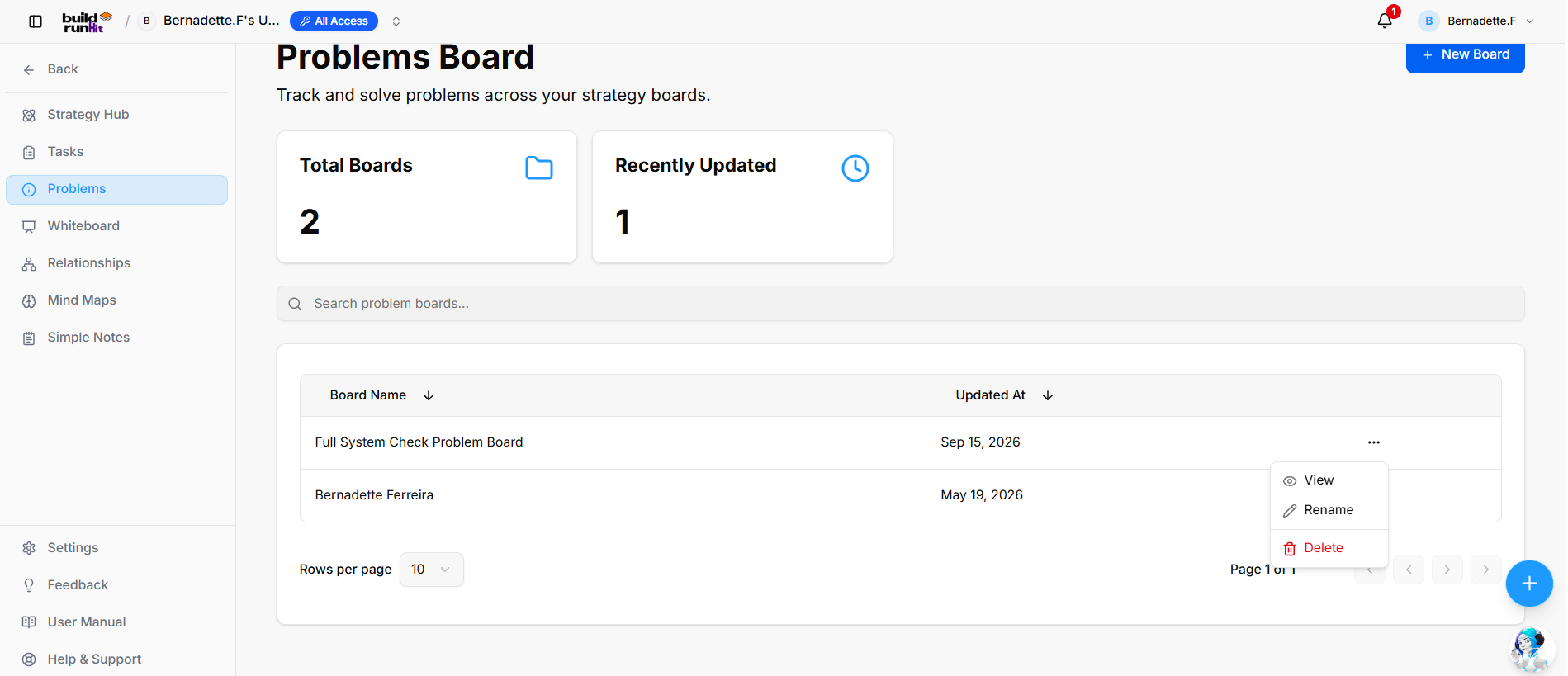
The Strategy Problems sub-section offers a dedicated board layout for organizing, tracking, and resolving operational roadblocks across your workspace.
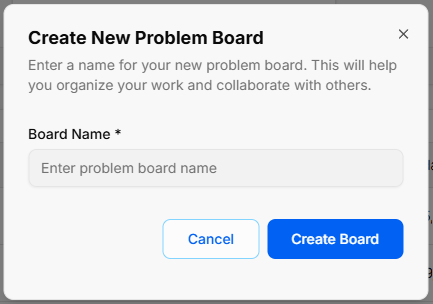
Create New Problem Board
-
Open Modal: Click the blue + New Board button at the top right of the main directory view, or select + Create new board from the board selector dropdown menu.
-
Enter Board Name: Type your desired title into the required Board Name * input field (Enter problem board name).
-
Confirm Creation: Click Create Board to generate your new board canvas, or select Cancel to exit without saving.
Summary Metrics
Top KPI cards highlight board counts and recent activity:
-
Total Boards: Tracks the overall number of created problem boards (e.g.,
2). -
Recently Updated: Counts problem boards with recent activity or modifications (e.g.,
1).
Directory Controls & Search
-
Search problem boards...: Global filter input for locating boards by name.
-
Rows per page: Dropdown selector to set board density per page (e.g.,
10). -
Pagination: Directional controls to step through board directory pages (e.g., Page 1 of 1).
Problems Table Data Columns
-
Board Name: Title assigned to the problem board (e.g., Full System Check Problem Board, Bernadette Ferreira). Includes a sort arrow.
-
Updated At: Date of the most recent changes (e.g., Sep 15, 2026, May 19, 2026). Includes a sort arrow.
Row Actions Menu (...)
Clicking the three dots icon on any board row displays quick options:
-
View: Opens the selected problem board workspace.
-
Rename: Displays an inline input to update the board title.
-
Delete: Removes the problem board record from the system.
Header & Action Buttons
-
+ New Board: Primary blue action button to open the problem board setup interface.
Strategy Problems
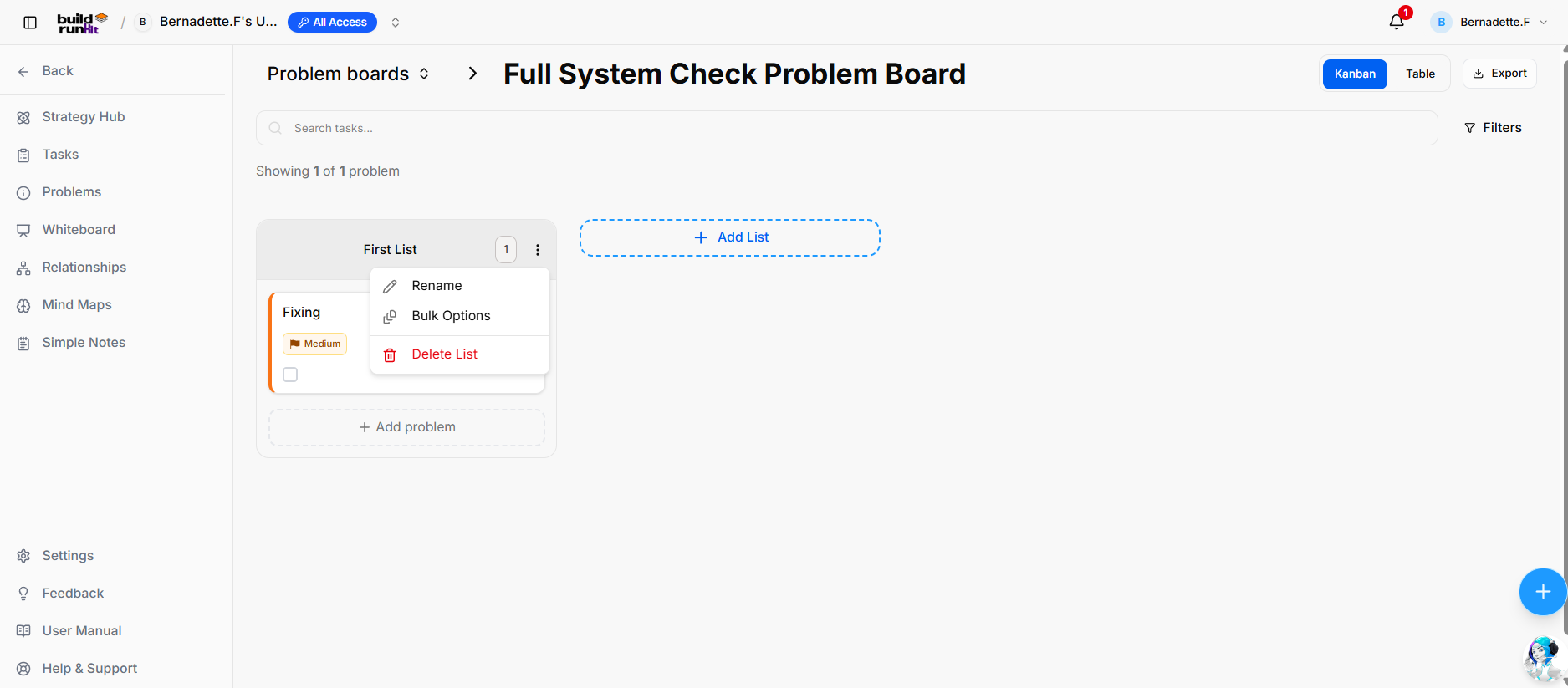
The Strategy Problems sub-section offers a dedicated board layout for organizing, tracking, and resolving operational roadblocks across your workspace.
Header Controls & Board Selection
-
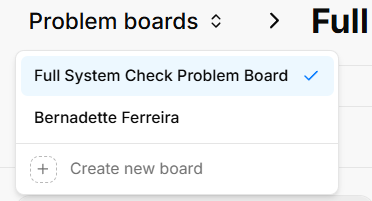
Problem Boards Selector: Dropdown menu showing the active board name (Full System Check Problem Board) with options to switch between available boards (Bernadette Ferreira) or click + Create new board.
-
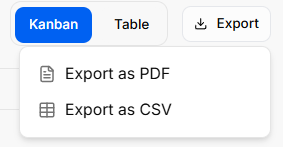
View Switcher: Toggle options to switch the canvas layout between Kanban view and Table view.
-
Export Menu: Action button to download problem items, offering options to Export as PDF or Export as CSV.
-
Search & Filters: Input field (Search tasks...) with a Filters button to narrow down displayed problem cards.
List Management & Status Columns
-
List Container: Custom status columns (e.g., First List) displaying total contained items in a numerical badge (e.g.,
1). -
List Quick Menu (
...): Context menu on column headers with options to:-
Rename: Change the list title.
-
Bulk Options: Apply batch updates across all problems in the column.
-
Delete List: Remove the entire column from the active board.
-
-
+ Add List: Dashed action box to generate new workflow columns.
-
+ Add problem: Dashed button at the bottom of lists to log a new problem item.
Problem Cards & Quick Actions
-
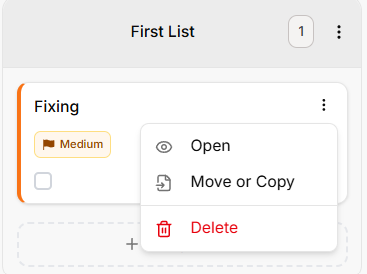
Problem Card: Visual card showing the title (e.g., Fixing), priority tag (e.g., Medium), and completion status.
-
Card Quick Menu (
...): Options accessible directly on individual cards:-
Open: Launch full problem details, discussion comments, and attachments.
-
Move or Copy: Re-assign the card across different lists or boards.
-
Delete: Permanently remove the problem item from the board.
-
Strategy Hub: How to Create and Edit Problems
Creating a New Problem
-
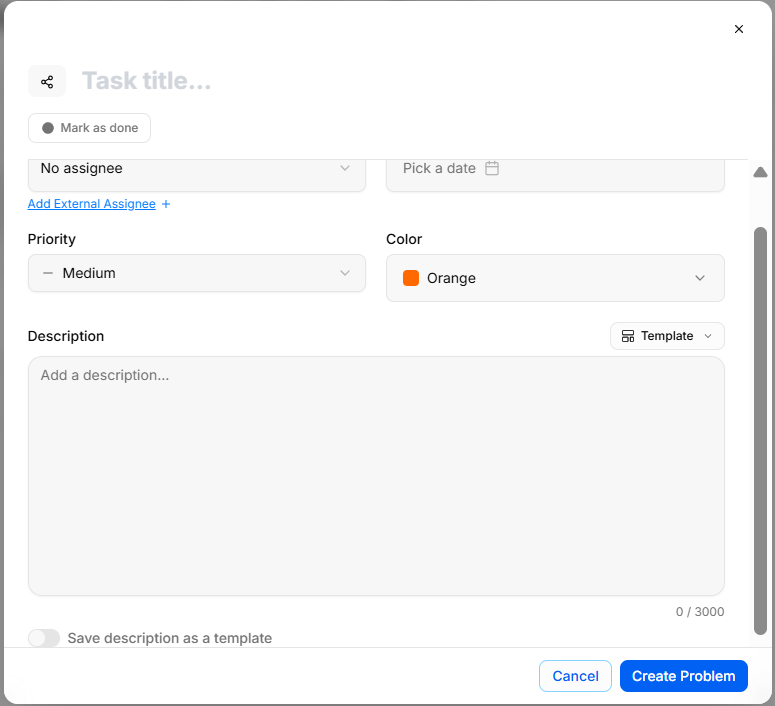
Open Create Modal: Click the dashed + Add problem button at the bottom of any column on your problem board canvas.
-
Enter Problem Title: Type the name of the issue into the Task title... field at the top of the modal.
-
Assign & Classify: Select team members via the Assignee dropdown (or use Add External Assignee +), set a Due Date, and assign a Priority level and Color tag (e.g., Orange).
-
Add Description & Details: Input notes into the Description field, apply a layout via the Template menu, or enable Save description as a template for future issue logging.
-
Save Problem: Select Create Problem to add the card to your board, or click Mark as done if the issue is already resolved.
Editing Problem Details
-
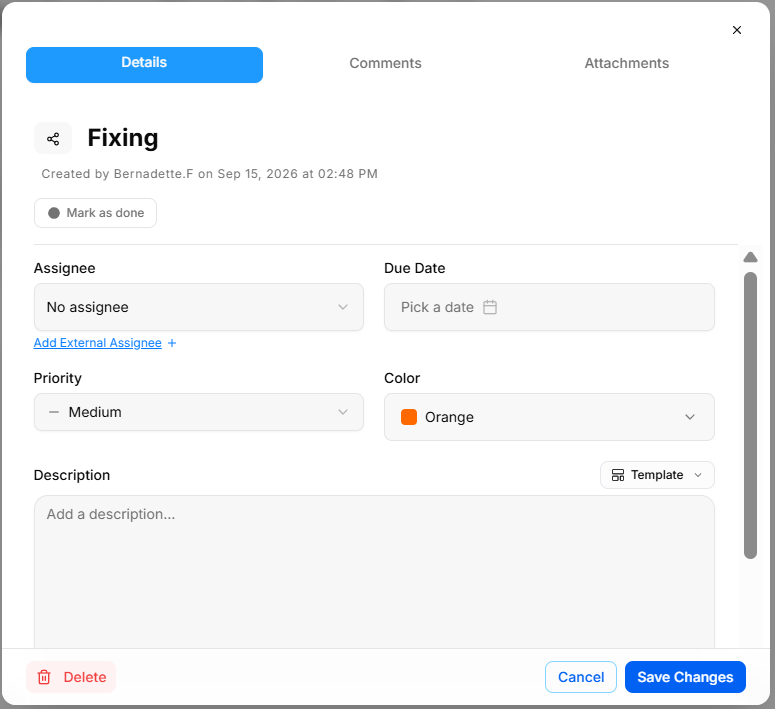
Open Edit View: Click any problem card or select Open from the card's action menu (
...) to display the modal tabs. -
Update Properties: Edit fields within the Details tab, such as title, assignee, deadline, priority, or description.
-
Save or Remove: Select Save Changes to preserve updates, or click Delete in the bottom corner to remove the problem card completely.
Adding Comments & Attachments
-
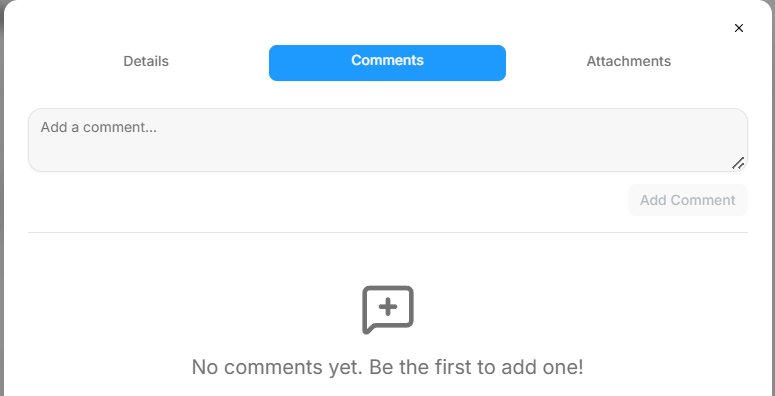
Post Updates: Switch to the Comments tab to type notes in the text box and select Add Comment to keep team members informed.
-
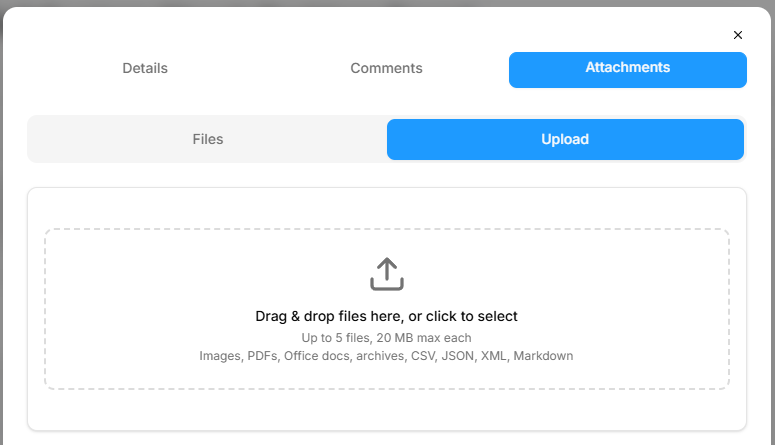
Upload Files: Switch to the Attachments tab under Upload to drag and drop supporting files (up to 5 files, 20 MB max each; accepts images, PDFs, Office docs, archives, CSV, JSON, XML, and Markdown) or view existing uploads under Files.