BuildRunKit CRM: Service Scheduling Sub-Section
BuildRunKit CRM: Service Scheduling Sub-Section
The Services module is used to set up and manage service offerings and schedule them for recipients.
Enable the Services Module
Services is disabled by default. Enable it before using the Services module.
-
Sign in to BuildRunKit and open the main dashboard.
-
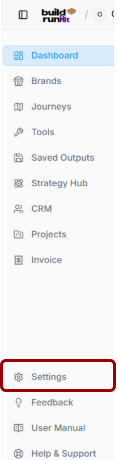
Select Settings from the workspace navigation.

-
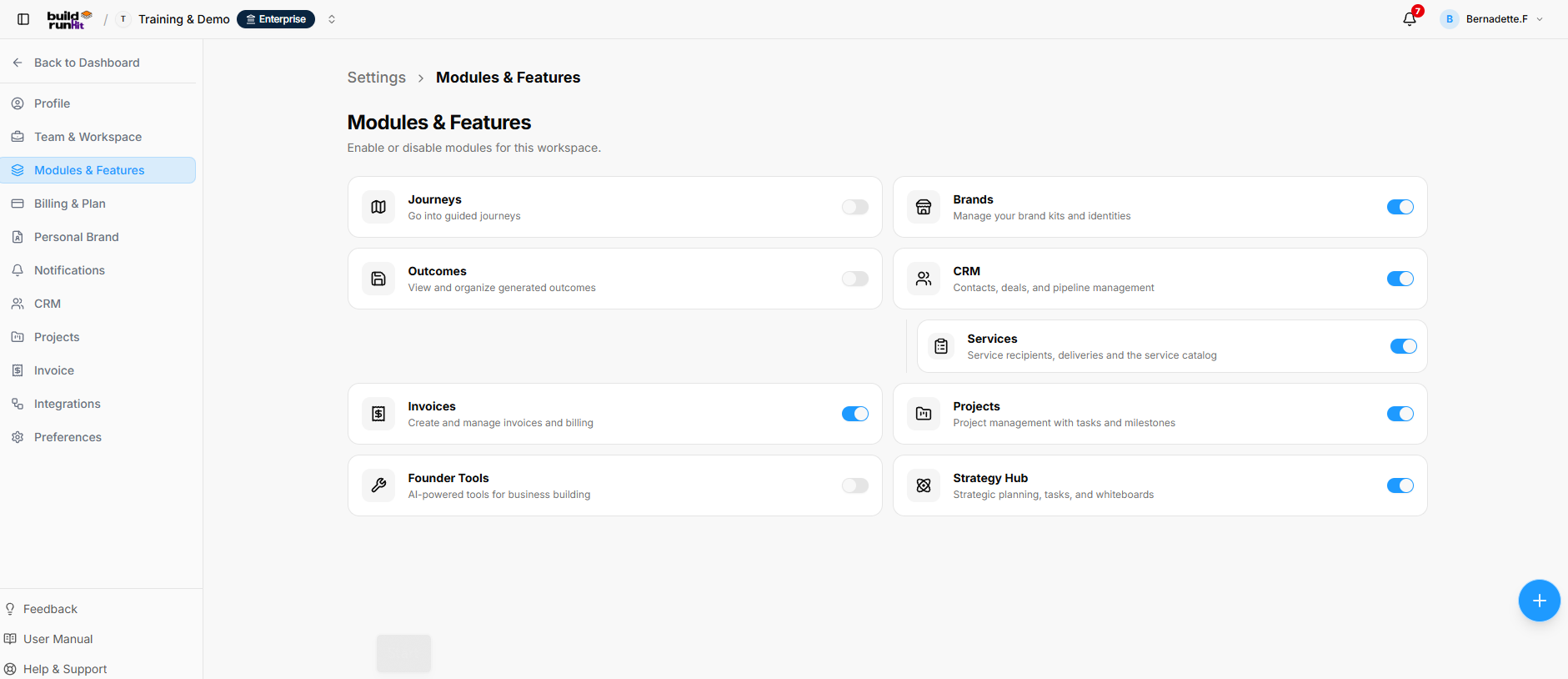
In Settings, select Modules & Features.
-
Find Services in the module list and turn its toggle on.

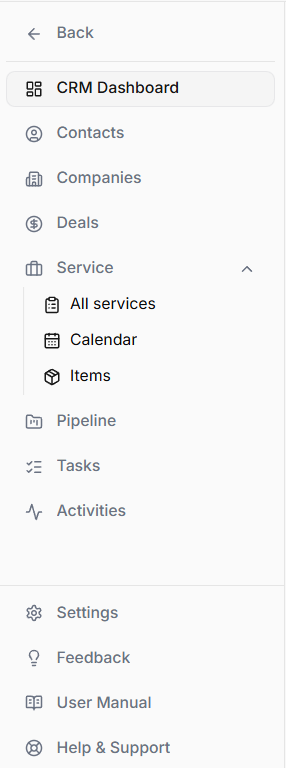
Once enabled, Services appears in the CRM navigation.
BuildRunKit CRM: Configure Services
The Services settings let administrators configure reusable templates, recipient types, services, and the resources used for scheduling.
Open Services Settings
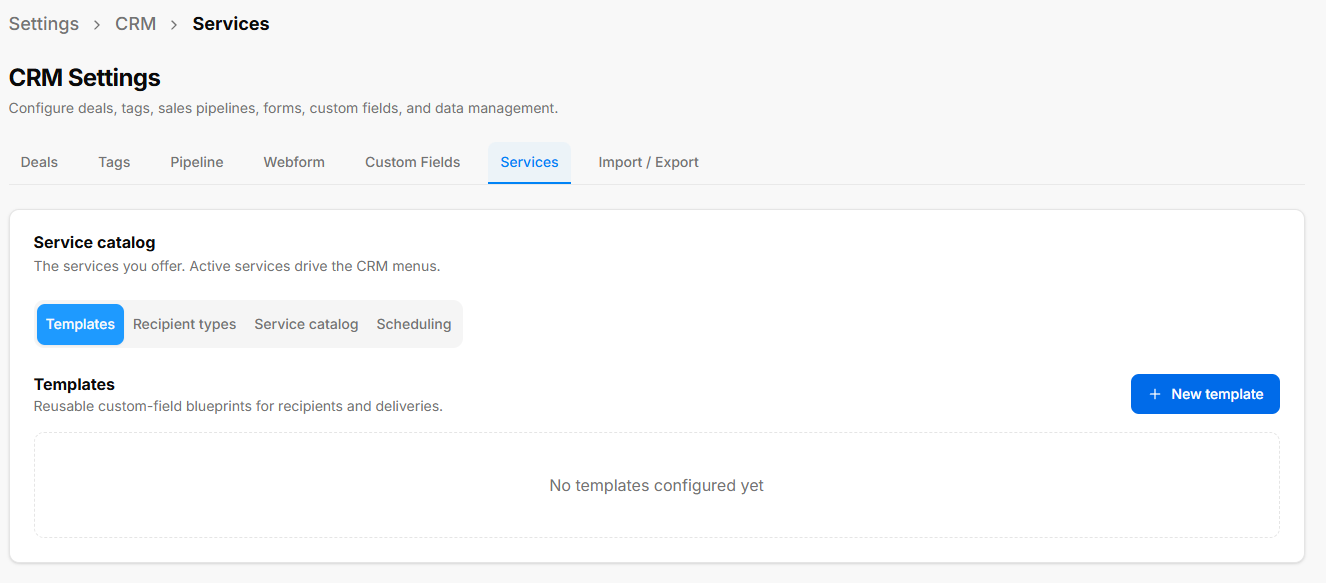
- Open Settings.
- Select CRM.
- Select Services.
The Services settings include Templates, Recipient types, Service catalog, and Scheduling.
Templates
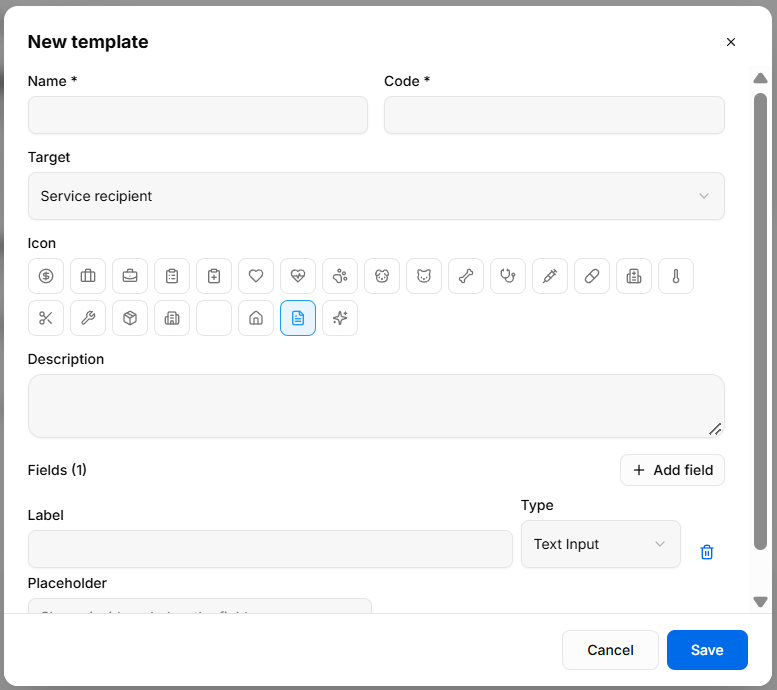
Templates are reusable custom-field blueprints for service recipients and deliveries.
Select Templates to view or create templates. Use + New template to open the template form, which includes:
- Name * and Code *
- Target: Selects the template’s target; the form shows Service recipient.
- Icon
- Description
- Fields: Use + Add field to define fields. Each field can have a label, type, and placeholder.
Recipient Types
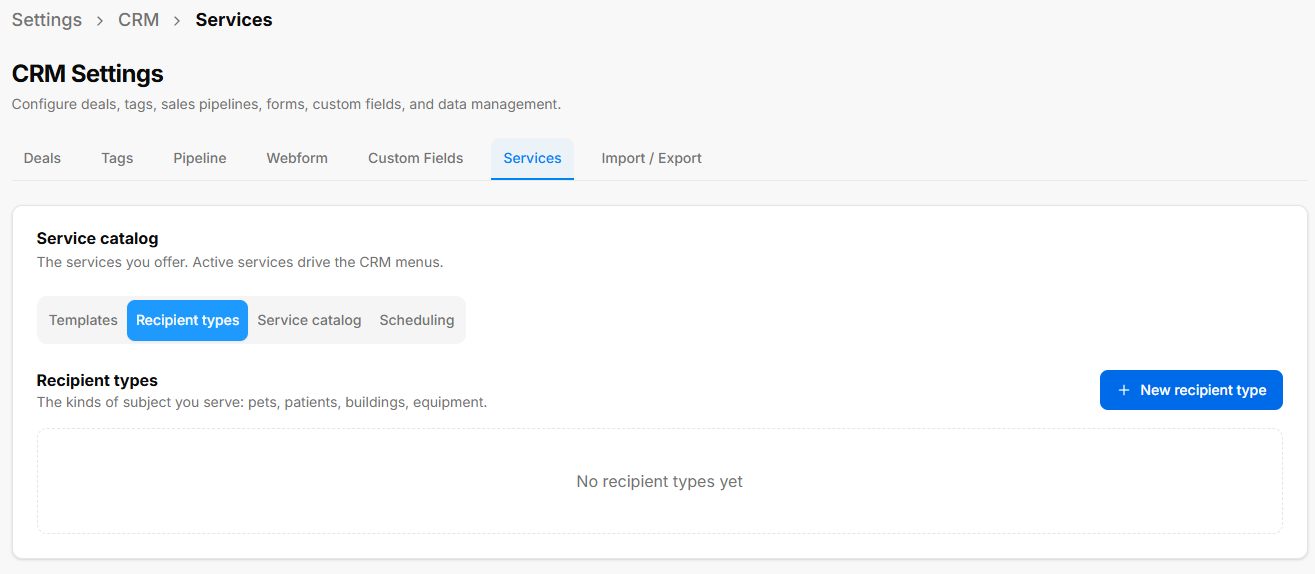
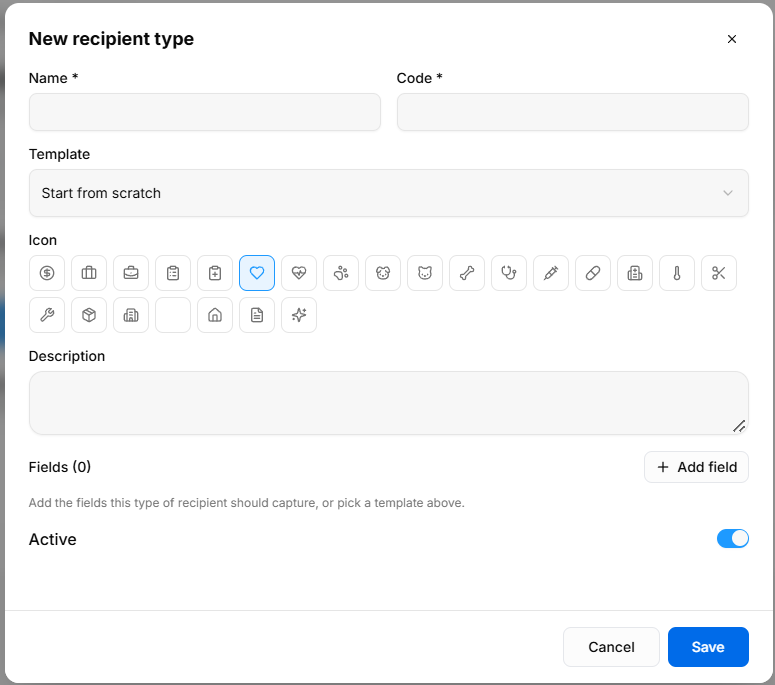
Recipient types define the kinds of recipients that can receive services—for example, pets, patients, buildings, or equipment.
Select Recipient types to view or create types. Use + New recipient type to open the form.
The form includes:
- Name * and Code *
- Template: Select a template or start from scratch.
- Icon
- Description
- Fields: Use + Add field to define the information to capture for this recipient type, or use a template.
- Active: Toggle to control whether the recipient type is active.
Service Catalog
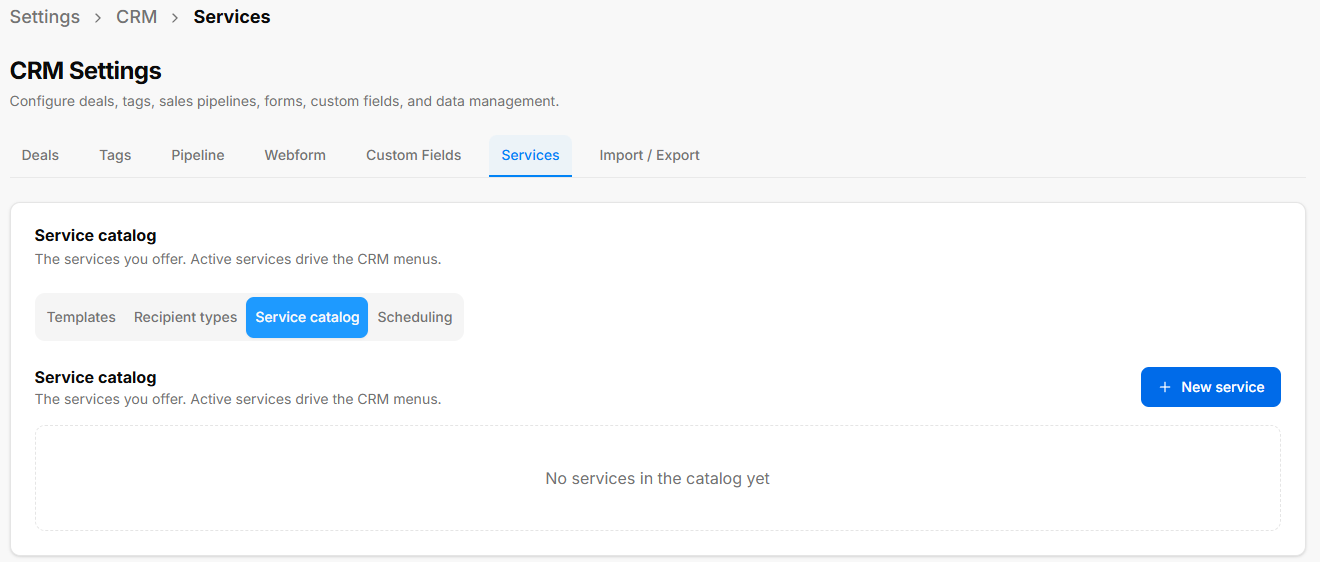
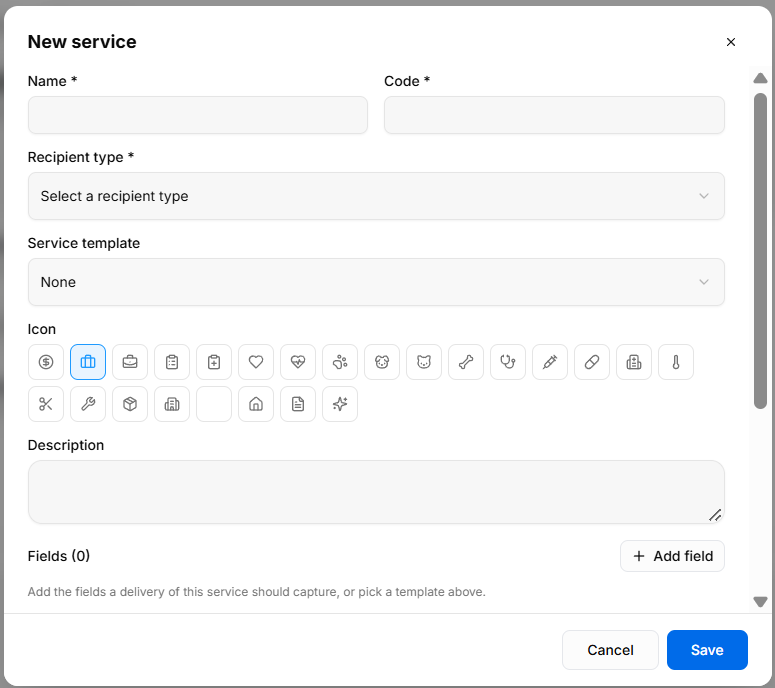
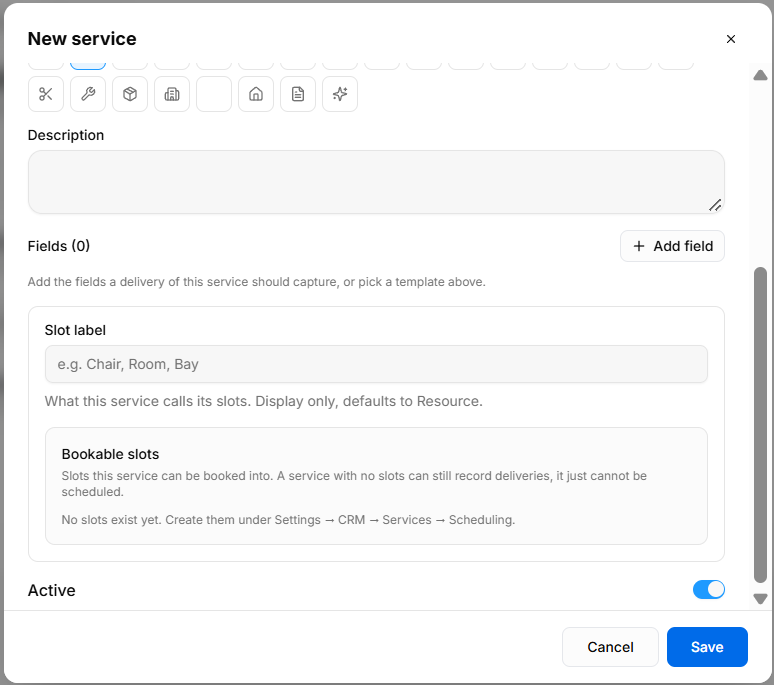
The Service catalog contains the services offered. Active services are used in CRM menus.
Select Service catalog to view or create services. Use + New service to open the service form.
The form includes:
- Name * and Code *
- Recipient type *: Selects the recipient type for this service.
- Service template: Selects a template or None.
- Icon
- Description
- Fields: Use + Add field to define the information captured for a delivery of this service, or select a template.
- Slot label: Sets the display name for the service’s bookable slots. It defaults to Resource.
- Bookable slots: Selects the slots where the service can be booked. A service without slots can still record deliveries, but cannot be scheduled. If no slots are available, create them under Settings > CRM > Services > Scheduling.
- Active: Toggle to control whether the service is active.
Scheduling
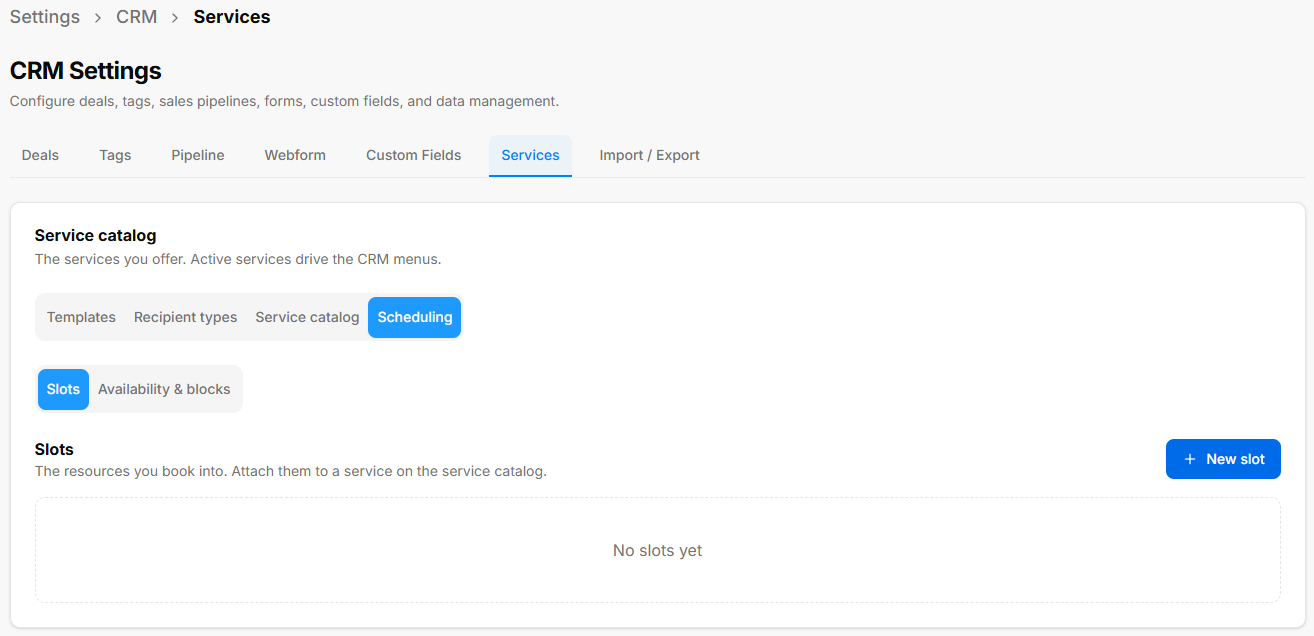
The Scheduling tab manages availability and blocks. Slots are the resources appointments are booked into; slots can be attached to a service in the Service catalog.
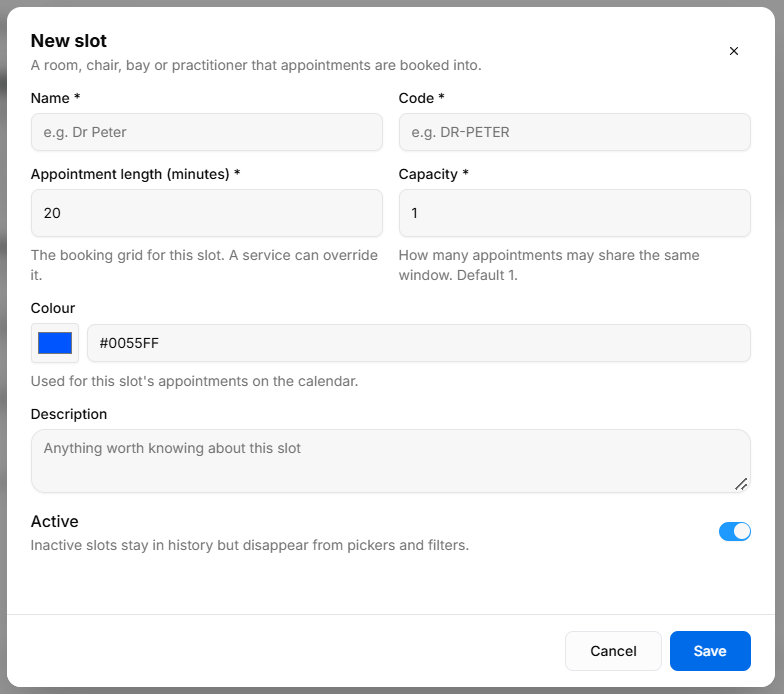
Use + New slot to add a bookable resource.
The form describes a slot as a room, chair, bay, or practitioner that appointments are booked into. It includes:
- Name * and Code *
- Appointment length (minutes) *
- Capacity *: The number of appointments that may share the same time window; the form shows a default of 1.
- Booking grid: Sets the slot’s booking window. The form notes that a service can override it.
- Colour: Sets the colour used for the slot’s appointments on the calendar.
- Description
- Active: Inactive slots stay in history but no longer appear in pickers and filters.
BuildRunKit CRM: Using Services
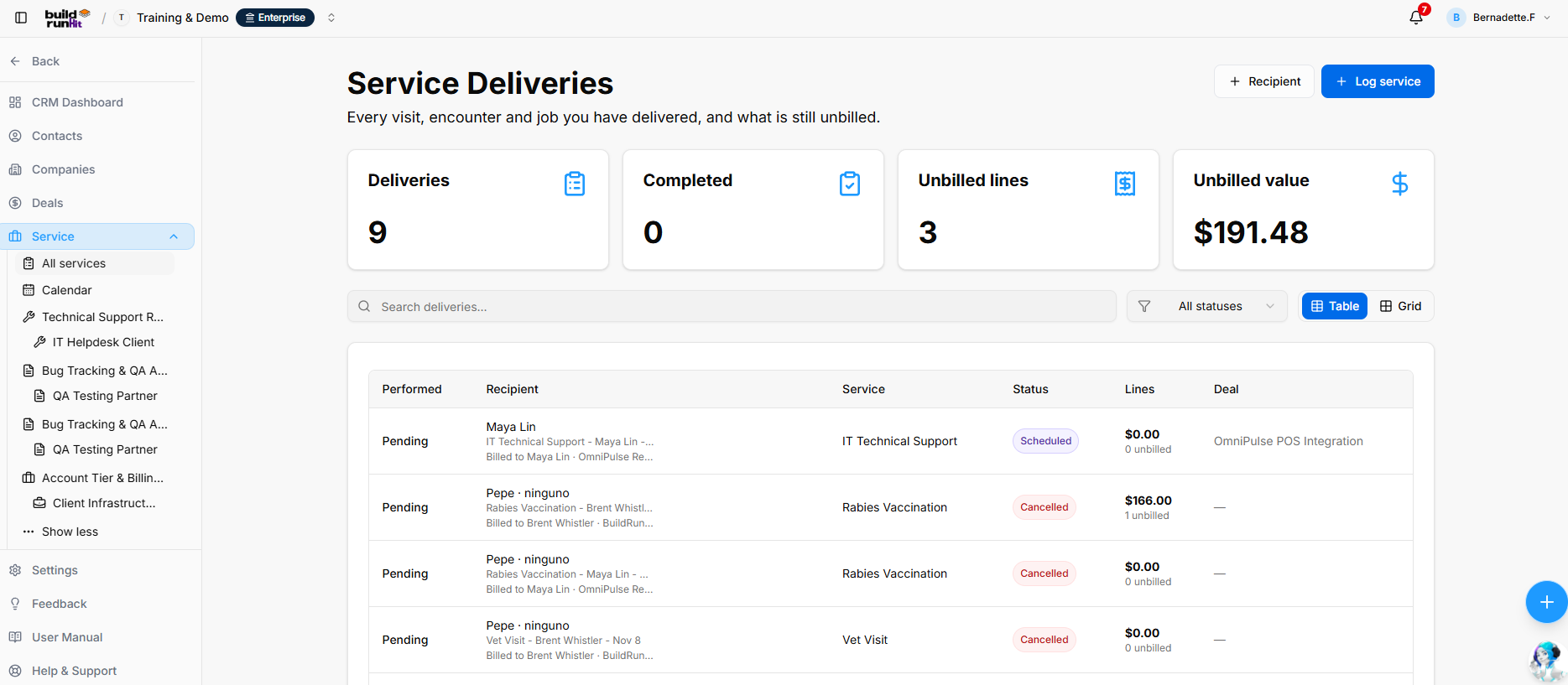
The Services module is used to record service deliveries, manage recipient and billing details, and schedule appointments into service slots.
Service Deliveries
The Service Deliveries page lists visits, encounters, and jobs, including their service, recipient, status, related deal, and billing lines.
Service Navigation
The expanded Service menu includes All services, Calendar, and links to individual services.
Header & Actions
- + Recipient: Opens the form to add a recipient.
- + Log service: Opens the form to record a service delivery.
Summary Cards
The page displays:
- Deliveries: Number of service delivery records.
- Completed: Number of completed deliveries.
- Unbilled lines: Number of delivery lines that have not been billed.
- Unbilled value: Total value of unbilled lines.
These counts and amounts depend on workspace data and may change.
Search, Filters & View
- Search deliveries…: Searches delivery records.
- All statuses: Filters deliveries by status.
- Table / Grid: Switches between table and grid views.
Deliveries Table
The table displays:
- Performed: Performance information for the delivery.
- Recipient: The recipient associated with the delivery.
- Service: The service being delivered.
- Status: The delivery status.
- Lines: The number of delivery lines and their billing status.
- Deal: The associated deal, when one is linked.
Logging a Service
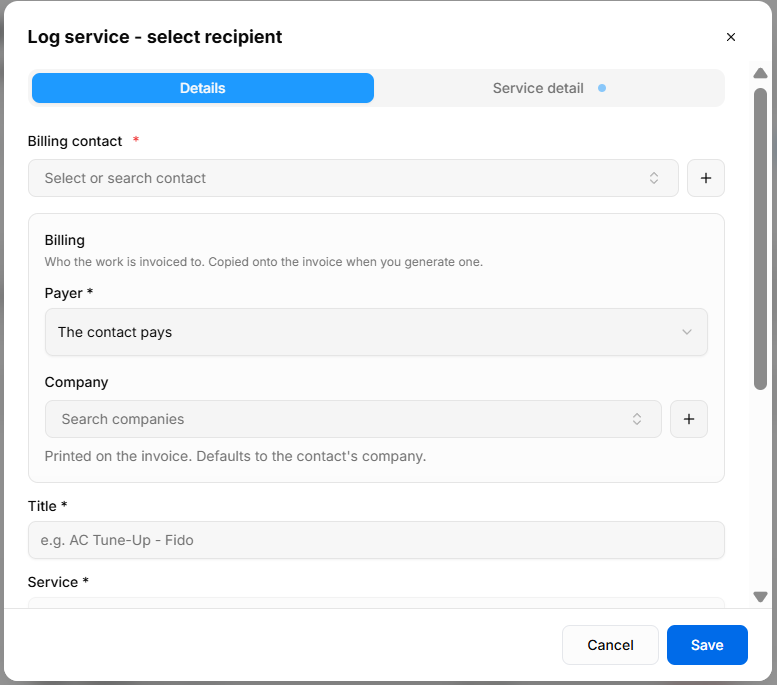
Select + Log service to record a service delivery.
The Details tab includes:
- Billing contact *: Select or search for the contact responsible for billing. Use + to add a contact.
- Payer *: Specifies who pays. The screenshot shows The contact pays.
- Company: Select the associated company. The form notes that it defaults to the billing contact’s company.
- Title *: Enter a title for the delivery.
- Service *: Select the service to be delivered.
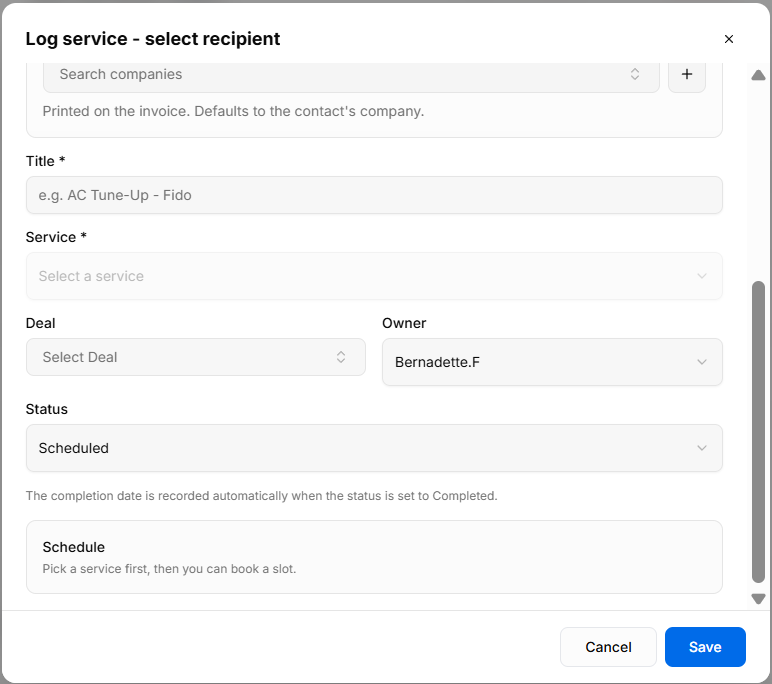
The lower part of the form includes:
- Deal: Optionally associate a deal.
- Owner: Assign an owner.
- Status: Set the delivery status; the screenshot shows Scheduled.
- Schedule: The form prompts users to select a service before booking a slot.
The form notes that the completion date is recorded automatically when the status is set to Completed. Select Save to record the delivery or Cancel to close without saving.
Service Detail Tab
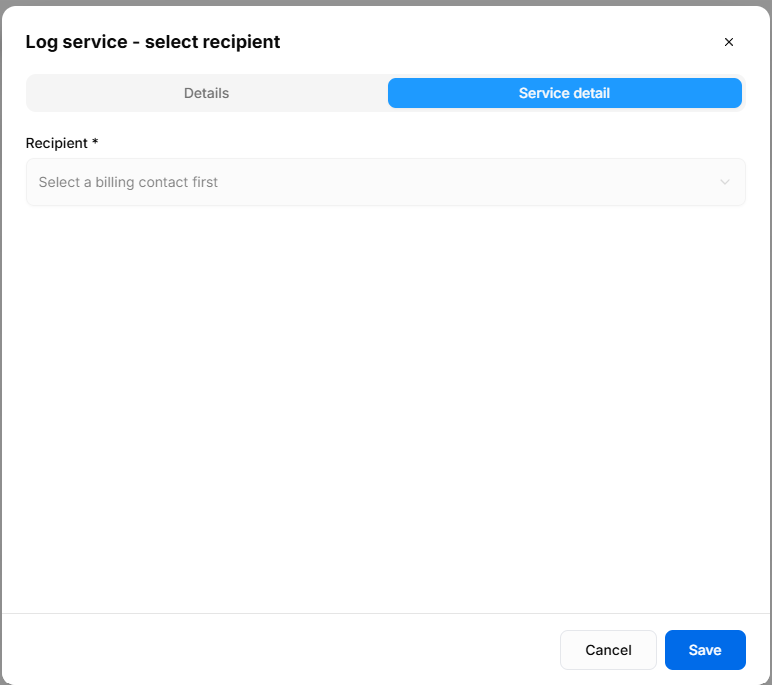
The Service detail tab includes a required Recipient field. Select a billing contact first, then choose a recipient.
Adding a Recipient
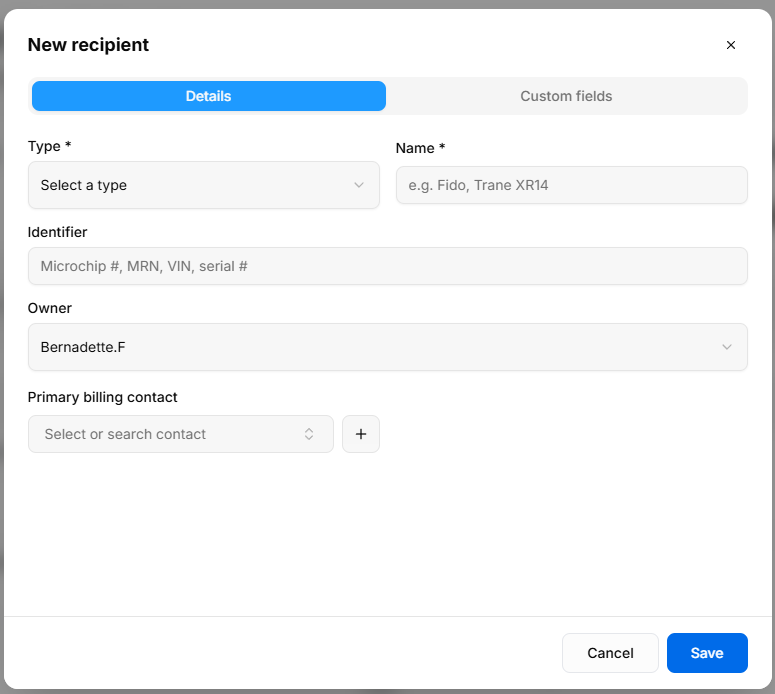
In the recipient selector, choose an existing recipient, search for one, or select Add new recipient.
The New Recipient form includes:
- Type *: Select a configured recipient type.
- Name *: Enter the recipient’s name.
- Identifier: Enter an identifier, such as a microchip number, medical record number, VIN, or serial number.
- Owner: Assign an owner.
- Primary billing contact: Select or search for a contact, or use + to add one.
- Custom fields: A separate tab for additional fields configured for the recipient type.
Select Save to add the recipient or Cancel to close without saving.
Viewing a Service Delivery
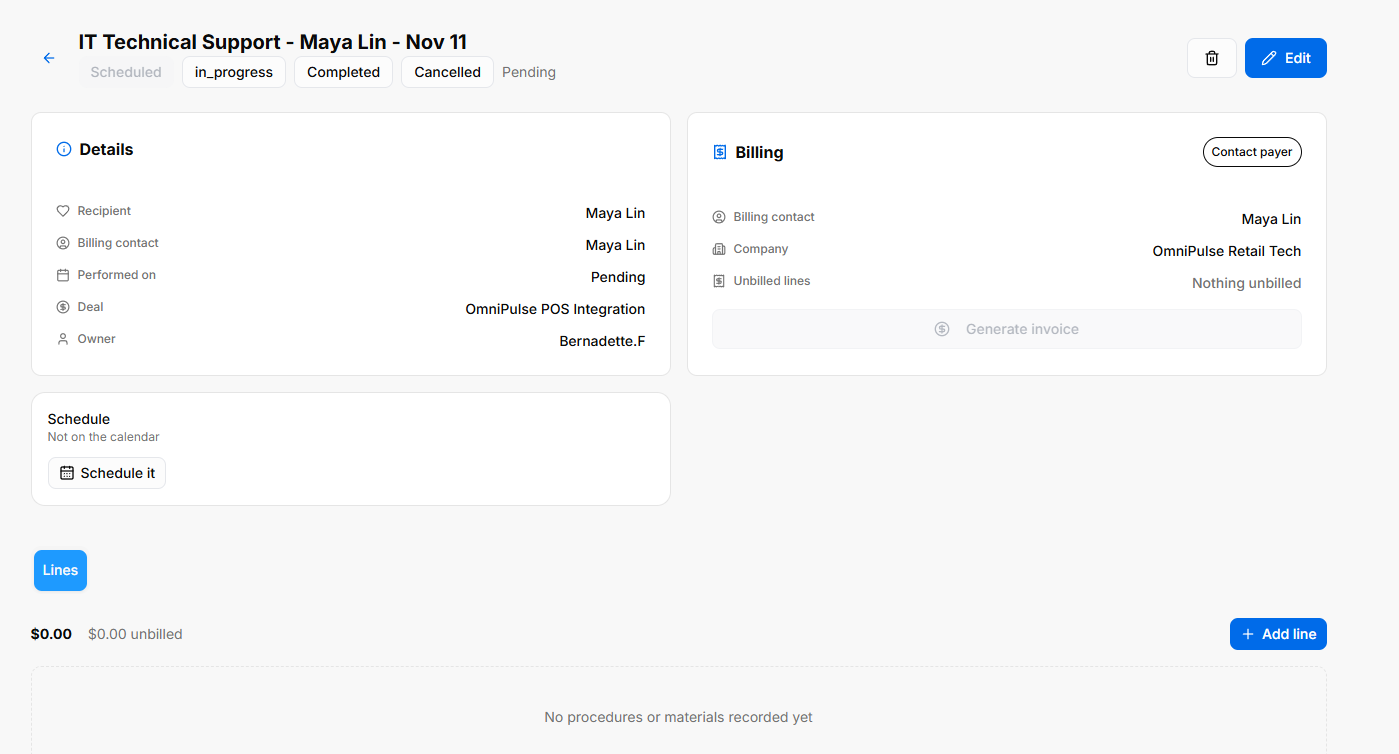
The service delivery record includes status controls and Edit and delete actions.
Details
The Details panel shows the recipient, billing contact, performed-on information, linked deal, and owner.
Billing
The Billing panel displays the billing contact, company, and unbilled lines. Select Generate invoice to create an invoice from billable lines. The screenshot shows no unbilled lines, so the invoice action is unavailable.
Schedule
The Schedule panel shows whether the delivery is on the calendar. Select Schedule it to begin scheduling the delivery.
Lines
The Lines area shows the delivery’s procedures or materials and their totals. Select + Add line to add a line. When no procedures or materials have been recorded, the area displays an empty state.
Editing a Service Delivery
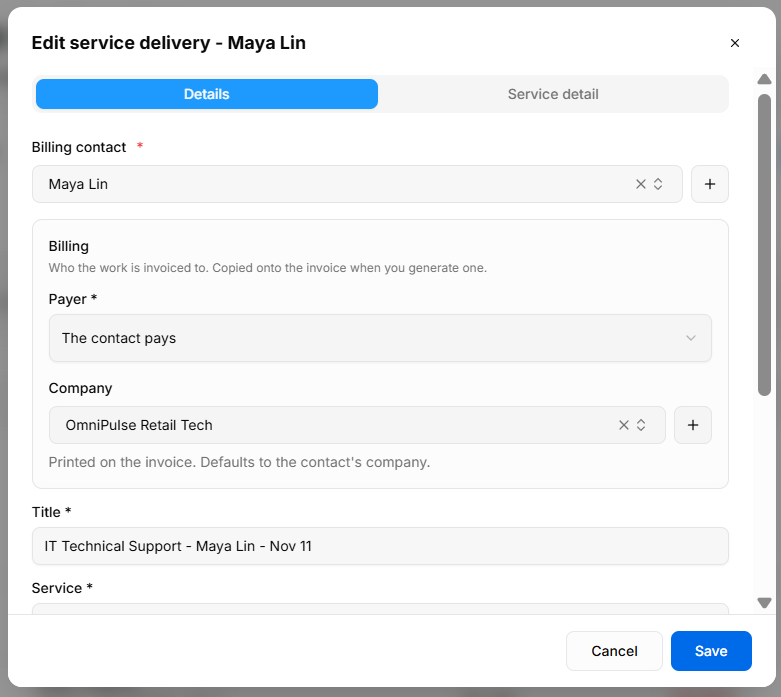
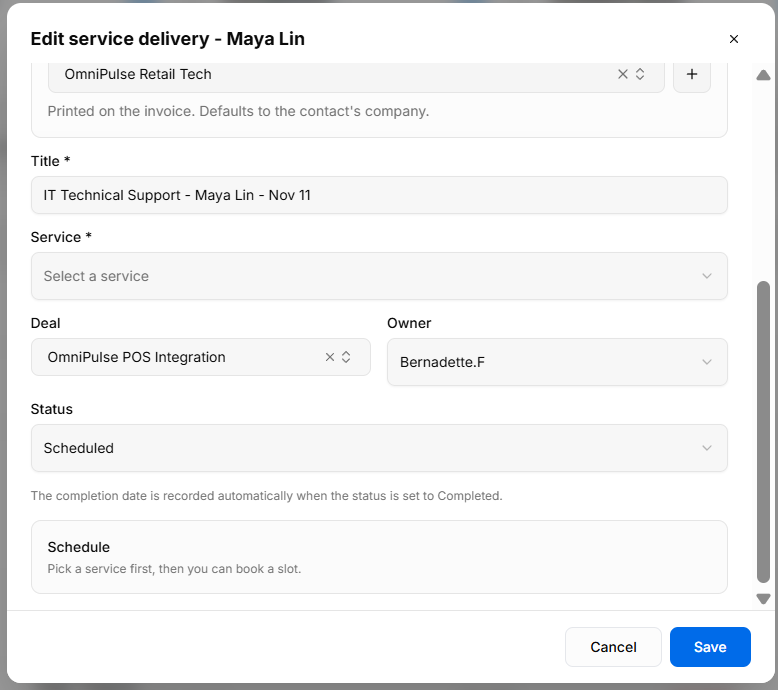
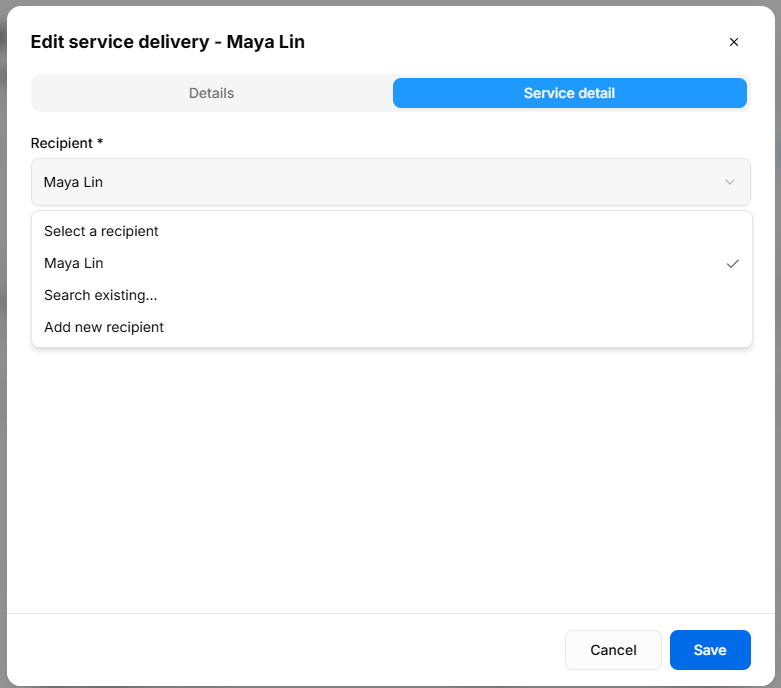
- Select Edit on a service delivery record to update it.
- The Details tab includes the billing contact, payer, company, title, service, deal, owner, and status fields.
- The form notes that a service must be selected before a slot can be booked. It also states that the completion date is recorded automatically when the status is set to Completed.
- The Service detail tab lets users select a recipient. The selector provides options to choose a recipient, search existing recipients, or add a new recipient.
- Select Save to save changes, Cancel to close without saving, or X to close the form.
Scheduling a Service Delivery
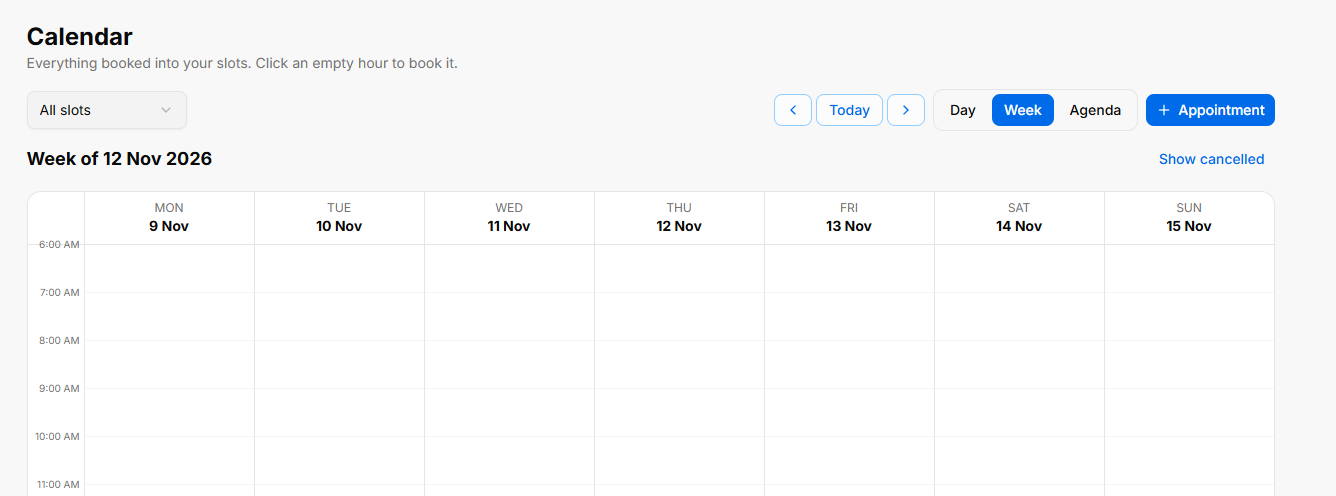
To schedule a delivery, select a service and use Schedule it in the delivery’s Schedule panel. The Log Service form also indicates that a service must be selected before a slot can be booked.
Using the Calendar
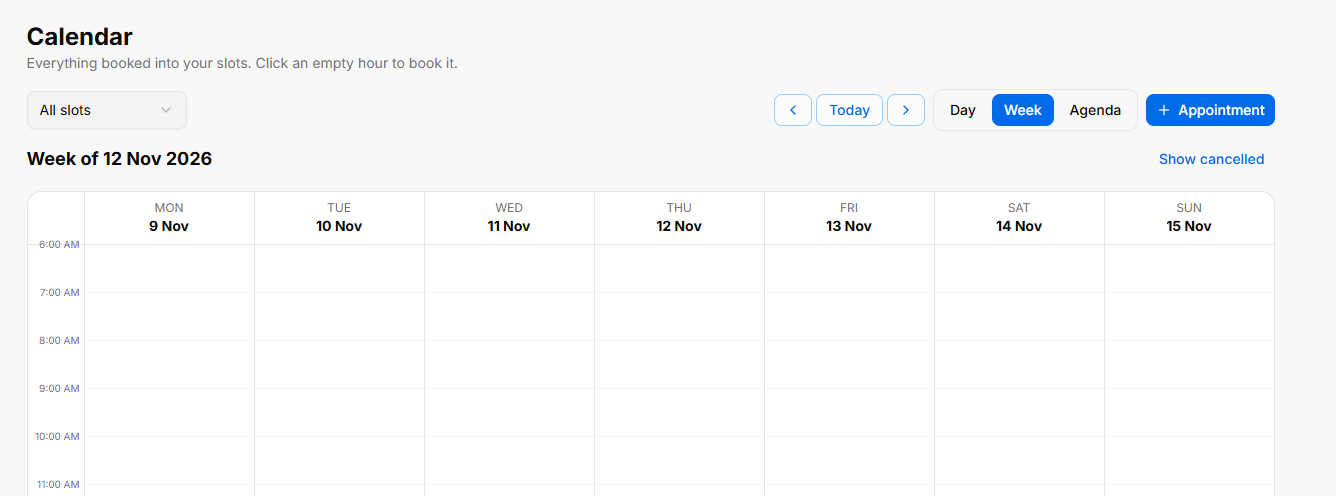
The Calendar shows appointments booked into service slots. Click an empty time slot to book it.
- All slots: Filter the calendar by slot.
- Previous, Today, and Next: Navigate the calendar.
- Day, Week, and Agenda: Change the calendar view.
- + Appointment: Start creating an appointment.
- Show canceled: Display canceled appointments.
The calendar grid shows the days and time slots, with appointments appearing in their scheduled slots.