BuildRunKit CRM: Contacts Sub-Section
BuildRunKit CRM: Contacts Sub-Section
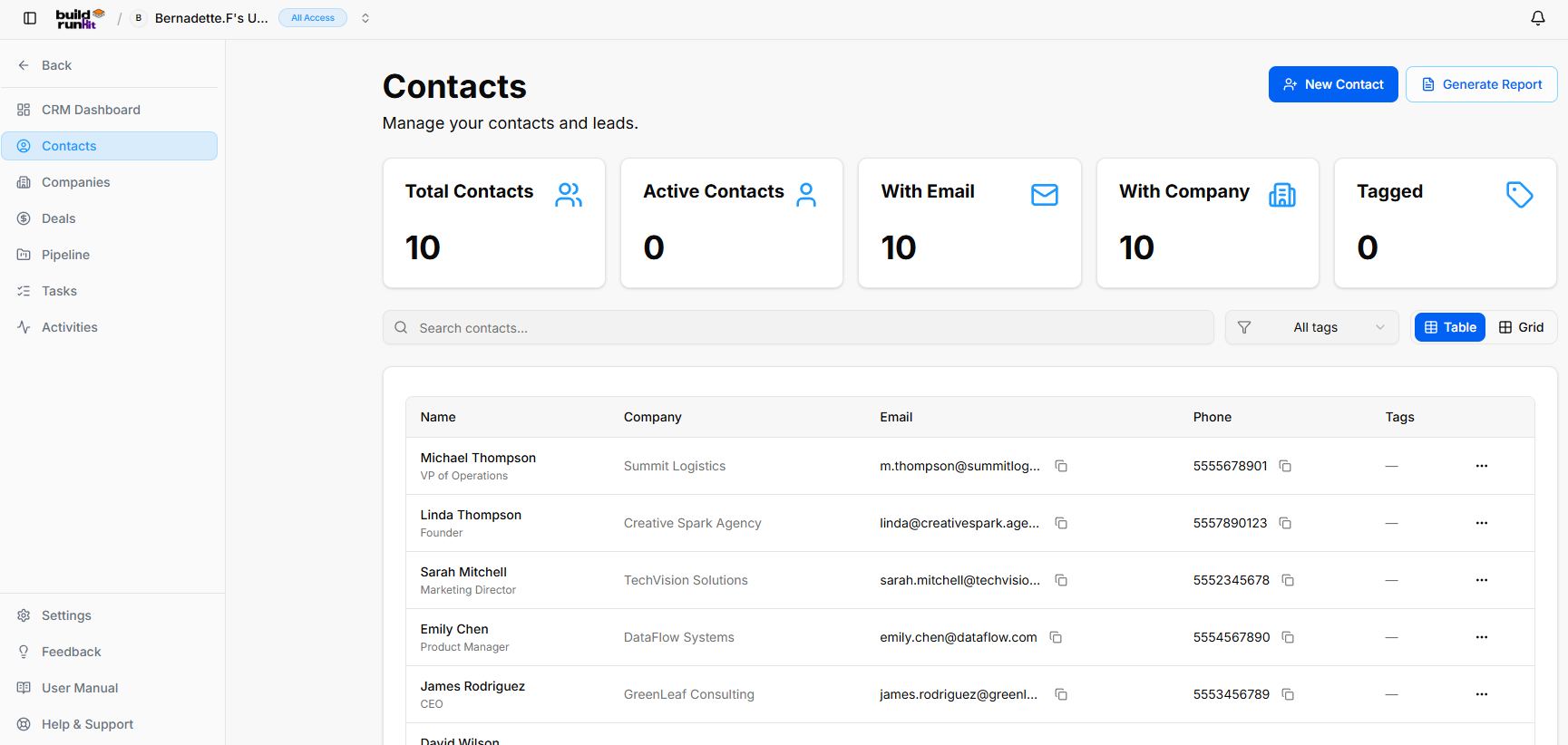
The Contacts sub-section provides central directory management for tracking leads, individual client representatives, and account contacts.
Header & Action Buttons
-
New Contact: Direct action button to open the contact registration modal.
-
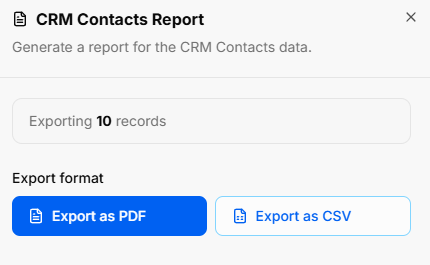
Generate Report: Launches the CRM Contacts Report modal to export contact dataset snapshots:
-
Export Count: Displays total active records targeted for download (e.g., Exporting 10 records).
-
Export Options: Download file as Export as PDF or Export as CSV.
-
Contact Summary Metrics
Top KPI cards display real-time audience breakdowns:
-
Total Contacts: Displays total registered contacts (e.g., 10).
-
Active Contacts: Tracks currently active lead interactions.
-
With Email: Displays total records with valid email addresses attached.
-
With Company: Counts records linked to parent organization profiles.
-
Tagged: Displays total contacts assigned custom organizational tags.
Directory Controls & Search Bar
-
Search contacts...: Input field for searching contacts by name, email, or company.
-
Filter Toggle: Filter icon button to refine visible contacts.
-
All Tags Dropdown: Dropdown menu to filter records based on specific tags.
-
View Switches: Toggle between Table (list view) and Grid (card view).
Contacts Table Data Columns
-
Name: Primary contact name alongside job title (e.g., Michael Thompson - VP of Operations).
-
Company: Associated client or partner business.
-
Email: Direct email address with quick Copy button.
-
Phone: Direct contact phone number with quick Copy button.
-
Tags: Applied status or categorization tags.
-
Row Actions (...): Action menu for editing, viewing, or deleting individual contact records.
Contacts Table Row Actions Menu
Clicking the three dots icon (...) on the far right of any contact row opens a quick-action context menu:
-
View: Opens the complete contact record profile to review all details, communication history, linked deals, and notes.
-
Edit: Launches the contact editor modal to update profile details, contact information, custom fields, or assigned tags.
-
Delete: Removes the contact record from your CRM directory.
BuildRunKit CRM: Adding a New Contact
Clicking the + New Contact button launches the creation modal organized into four main tabs:
1. Details Tab
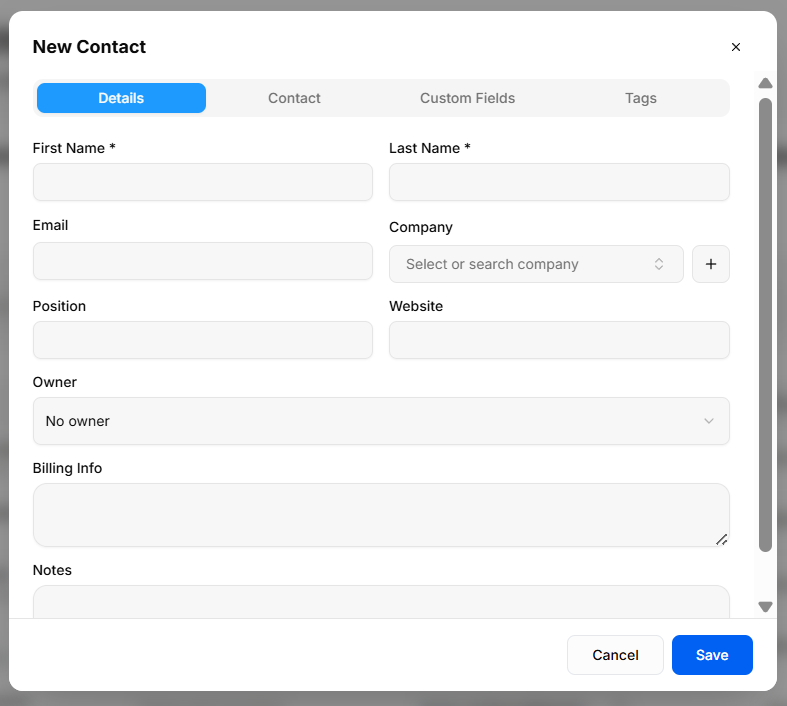
Captures core profile and organization assignment data:
-
First Name * & Last Name *: Required fields for contact identification.
-
Email: Primary electronic address.
-
Company: Searchable dropdown to select existing organizations, or click + to add a new company instantly.
-
Position: Title or role within their company.
-
Website: Personal or company web address.
-
Owner: Select an internal account manager or sales representative.
-
Billing Info: Free-text field for invoice context, tax IDs, or payment notes.
-
Notes: Additional background context regarding the contact.
2. Contact Tab
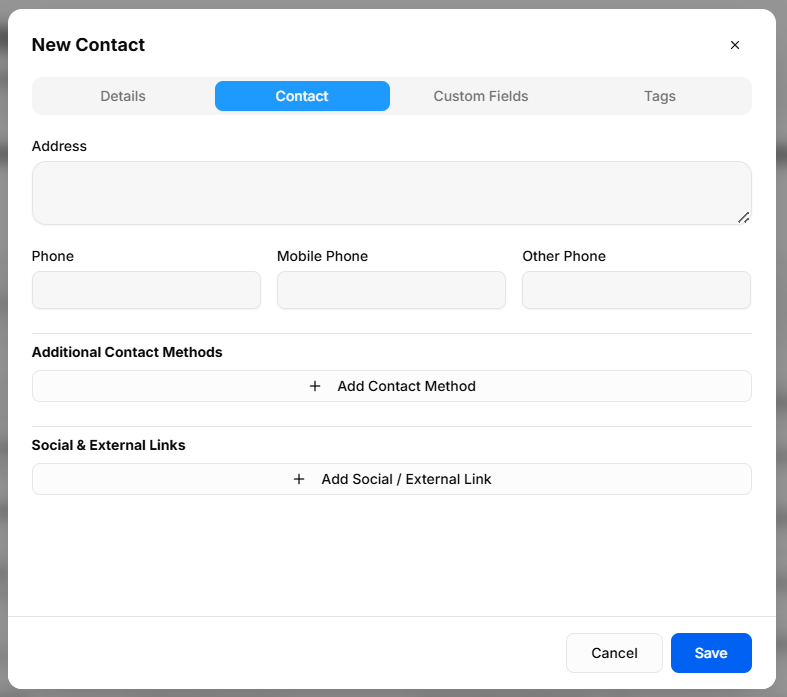
Captures physical location and additional reachability channels:
-
Address: Multi-line physical mailing or billing address block.
-
Phone Numbers: Dedicated inputs for primary Phone, Mobile Phone, and Other Phone.
-
Additional Contact Methods: Expandable section to add non-standard communication channels (e.g., Skype, WhatsApp).
-
Social & External Links: Expandable section to attach web profiles (e.g., LinkedIn, X, personal portfolio).
3. Custom Fields Tab
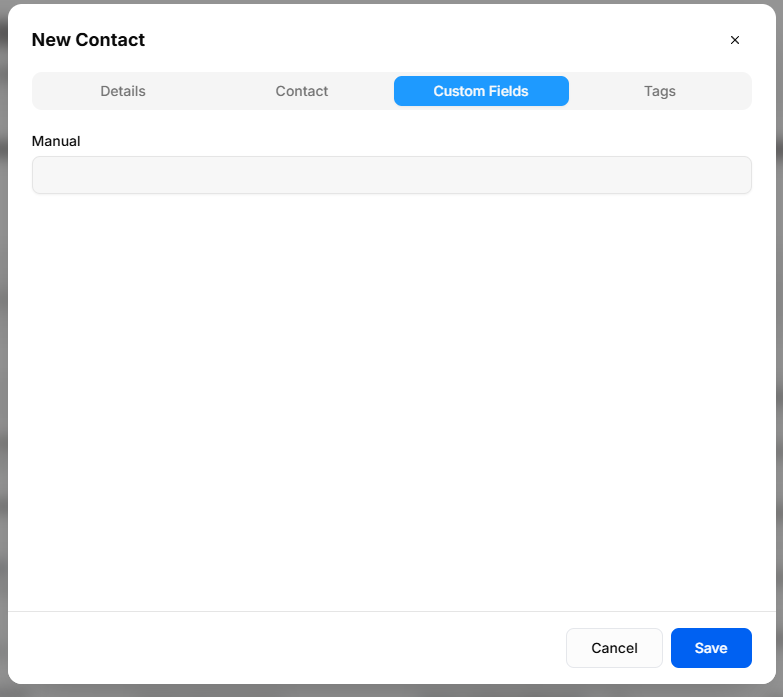
Displays tailored data fields configured specifically for your business operations:
-
Business-Specific Inputs: Pulls directly from user-defined properties configured in Settings > Custom Fields.
-
Dynamic Loading: Any custom fields added via system settings automatically populate in this tab during contact creation.
4. Tags Tab
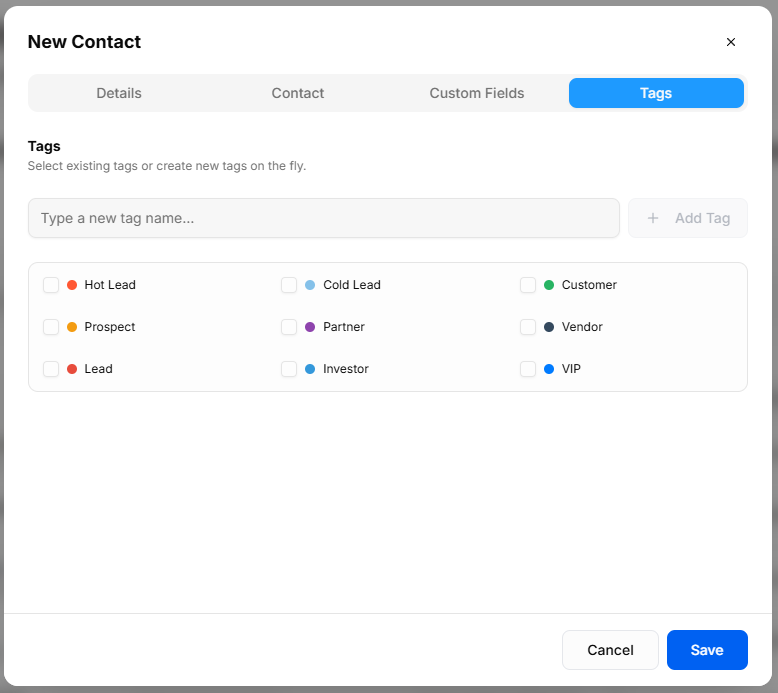
Categorizes contacts for audience segmentation and quick filtering:
-
Create New Tag: Input box to type custom tag names and click + Add Tag to create them on the fly.
-
Pre-Defined Tags: Checkbox selection for standard stages and categories, including:
-
Status Tags: Hot Lead, Cold Lead, Lead, Prospect
-
Relationship Tags: Customer, Partner, Vendor, Investor, VIP
-