# BuildRunKit Account Setup and Overview
[](https://library.buildrunkit.com/uploads/images/gallery/2026-09/screenshot-2026-09-17-090131.png)
BuildRunKit is an all-in-one business operating system designed for founders, entrepreneurs, and growing teams. It bridges the gap between high-level strategy and daily execution by providing a unified workspace for planning, building, and running every aspect of a modern business.
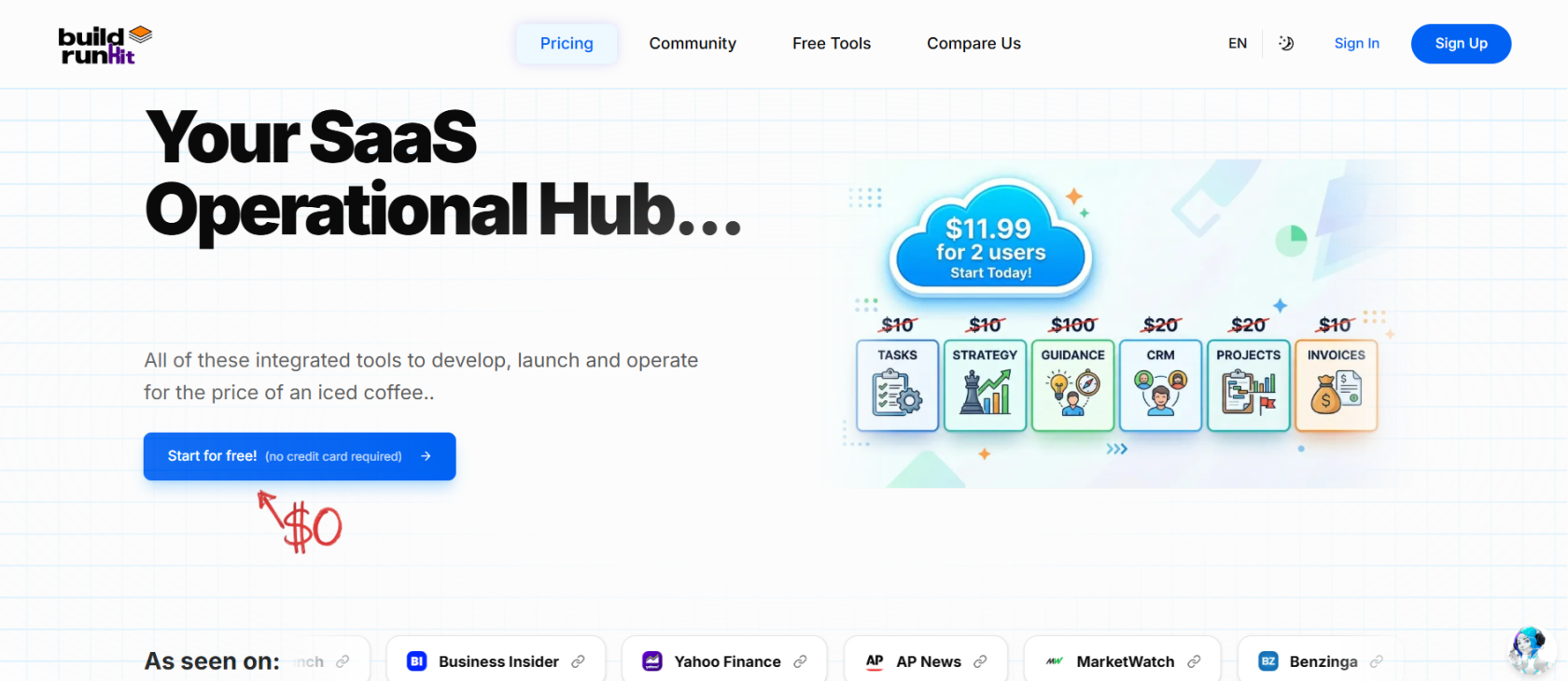
#### **Landing Page Controls & Hero Callouts**
- **Top Navigation Bar**: Direct links to **Pricing**, **Community**, **Free Tools**, **Compare Us**, language selection (**EN**), theme toggle, **Sign In**, and **Sign Up**.
- **Primary Call-to-Action**: **Start for free! (no credit card required)** button directing users directly to registration without upfront payment.
- **Pricing Highlight**: Promotional banner displaying bundled platform access (*$11.99 for 2 users*) replacing individual tool costs across Tasks, Strategy, Guidance, CRM, Projects, and Invoices.
- **Social Proof**: Press badge bar featuring coverage logos (*e.g., Business Insider, Yahoo Finance, AP News, MarketWatch, Benzinga*).
### **Creating Your Account**
**[](https://library.buildrunkit.com/uploads/images/gallery/2026-09/screenshot-2026-09-17-100418.png)**
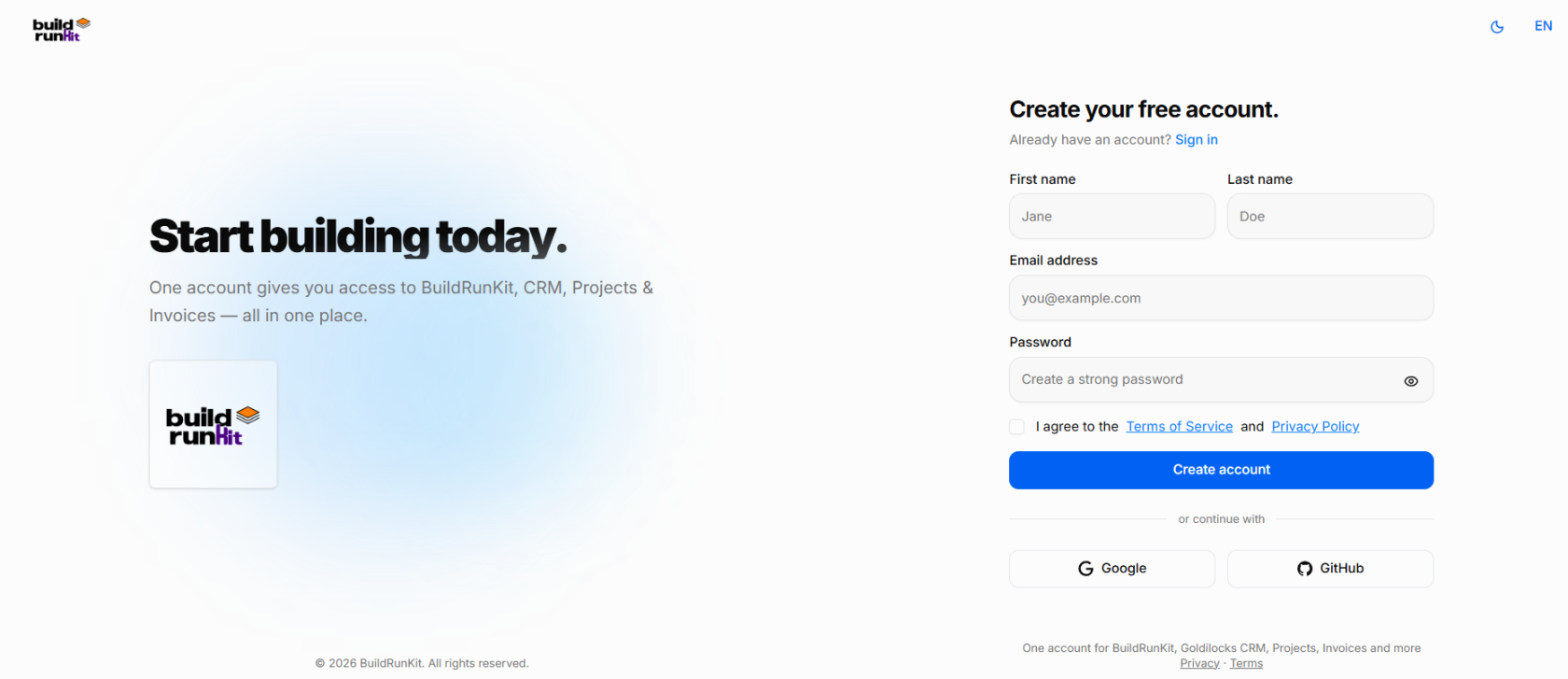
Setting up your account with BuildRunKit is quick and easy. Follow these steps to register and access your workspace:
#### **What You Need**
- A valid email address
- A secure password of your choice
- Agreement to the platform Terms of Service and Privacy Policy
#### **How to Sign Up**
1. **Enter Personal Details**: Type your **First name** and **Last name** in the top fields.
2. **Email Address**: Enter your primary email address in the **Email address** field.
3. **Create a Password**: Type a strong, secure password into the **Password** field. Click the eye icon on the right to double-check your typing.
4. **Terms & Privacy**: Review the **Terms of Service** and **Privacy Policy**, then check the box next to *"I agree to the Terms of Service and Privacy Policy"*. This step is required to proceed.
5. **Complete Registration**: Click the blue **Create account** button to finish setting up your profile.
#### **Alternative Registration Options**
- **Single Sign-On (SSO)**: Click either the **Google** or **GitHub** button at the bottom of the form to register instantly using your existing accounts.
### **Already Have an Account?**
**[](https://library.buildrunkit.com/uploads/images/gallery/2026-09/screenshot-2026-09-17-101338.png)**
- If you already have a profile, click the **Sign in** link at the top or bottom of the page to return to the standard login screen.
#### **Accessing Your Workspace**
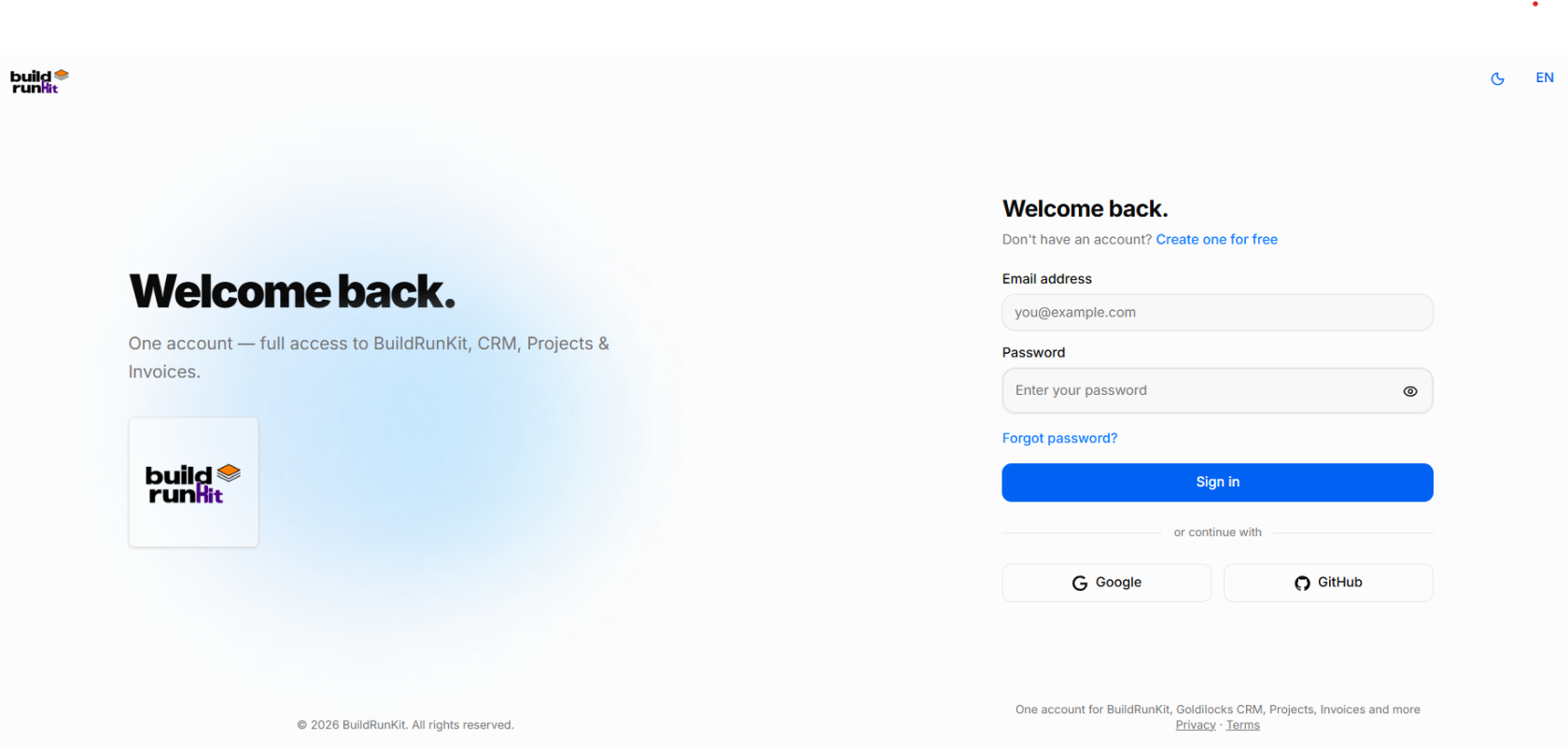
Logging in to BuildRunKit gives you immediate access to your entire integrated tool suite. Follow these steps to sign in:
#### **What You Need**
- Your registered email address
- Your account password (or connected Google/GitHub account)
#### **How to Sign In**
1. **Email Address**: Enter your registered email address in the **Email address** field.
2. **Password**: Type your account password in the **Password** field. Click the eye icon on the right to toggle password visibility and verify your typing.
3. **Submit Credentials**: Click the blue **Sign in** button to access your workspace.
#### **Alternative Sign-In Options**
- **Single Sign-On (SSO)**: Click either the **Google** or **GitHub** button under the *"or continue with"* section to log in instantly using your connected third-party credentials.
#### **Troubleshooting & New Users**
- **Forgot Password**: If you cannot remember your password, click the **Forgot password?** link directly above the **Sign in** button to trigger a password reset link via email.
- **New Users**: If you do not have an account yet, click the **Create one for free** link located next to *"Don't have an account?"* at the top right of the form to switch to the registration page.
### **Initial Brand Onboarding Setup**
**[](https://library.buildrunkit.com/uploads/images/gallery/2026-09/screenshot-2026-09-17-101611.png)**
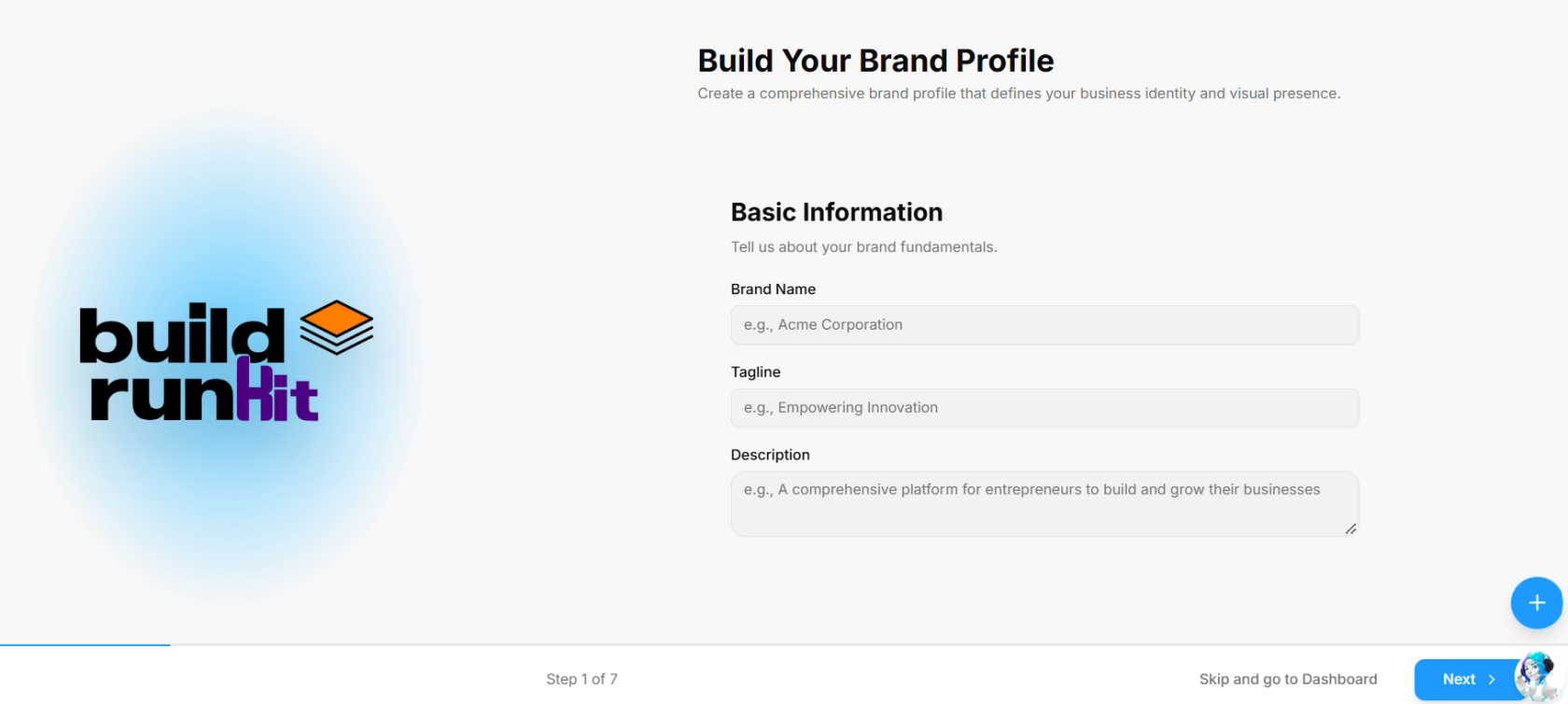
After signing up or logging in for the first time, you are guided through the multi-step **Build Your Brand Profile** onboarding wizard to define your business identity.
#### **What You Need**
- Your company or project name
- A short catchy tagline (optional)
- A brief summary or mission statement describing your business
### **Step 1: Basic Information**
1. **Brand Name**: Enter your official business or project name in the **Brand Name** field (*e.g., Acme Corporation*).
2. **Tagline**: Enter your primary catchphrase or slogan in the **Tagline** field (*e.g., Empowering Innovation*).
3. **Description**: Provide a summary of what your business does in the **Description** text box (*e.g., A comprehensive platform for entrepreneurs to build and grow their businesses*).
4. **Navigation & Submission**:
- Click **Next >** at the bottom right to save your details and advance to Step 2.
- **Skip Option**: If you prefer to set up your brand details later, click **Skip and go to Dashboard** at the bottom of the screen to head straight to your workspace.
### **Step 2: Brand Voice**
**[](https://library.buildrunkit.com/uploads/images/gallery/2026-09/screenshot-2026-09-17-101825.png)**
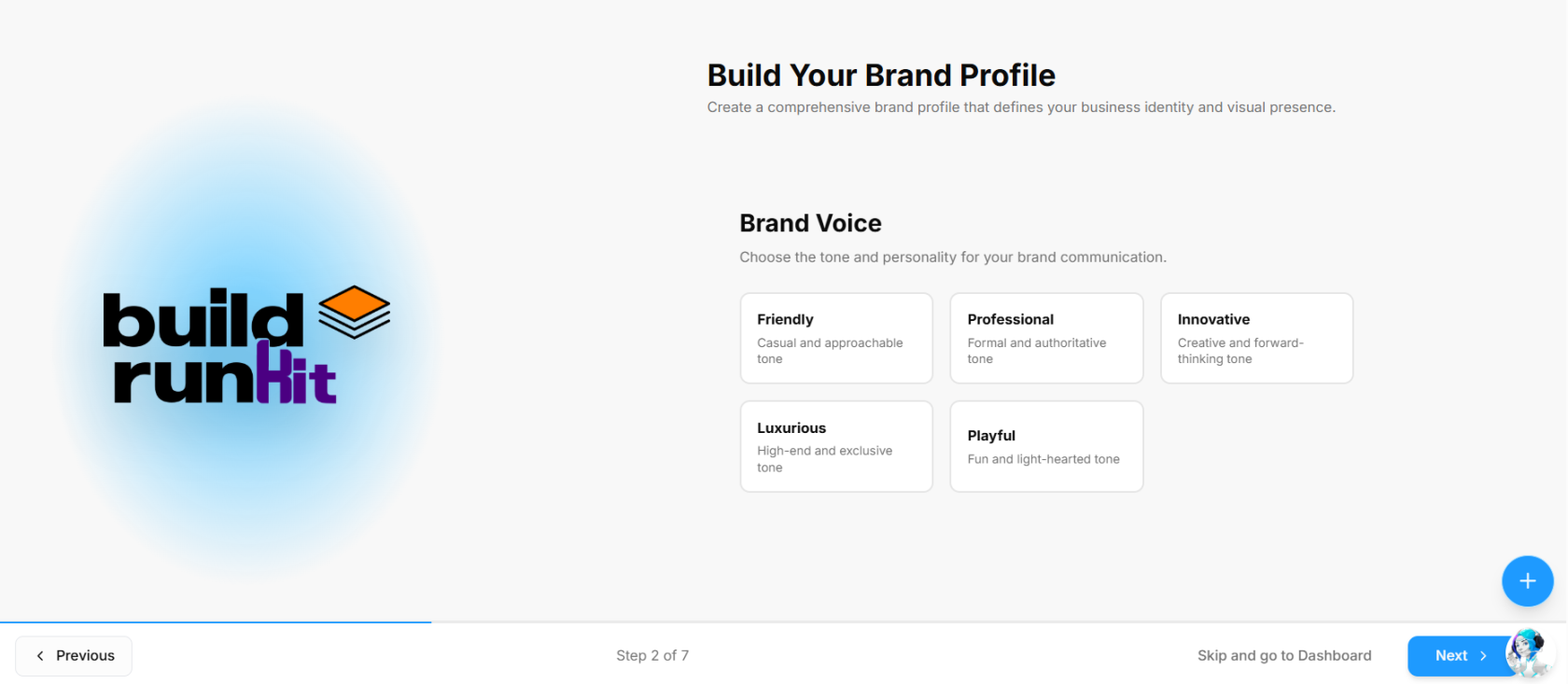
Step 2 of the **Build Your Brand Profile** onboarding wizard helps define the overall tone and communication style of your brand.
#### **What You Need**
- A clear idea of the communication style and personality that best aligns with your target audience
#### **How to Select Your Brand Voice**
1. **Choose a Personality Card**: Click one of the preset tone options to set your primary brand voice:
- **Friendly**: Casual and approachable tone.
- **Professional**: Formal and authoritative tone.
- **Innovative**: Creative and forward-thinking tone.
- **Luxurious**: High-end and exclusive tone.
- **Playful**: Fun and light-hearted tone.
2. **Navigation Controls**:
- Click **Next >** at the bottom right to save your selection and advance to Step 3.
- Click **< Previous** at the bottom left to return to Step 1 and edit your basic details.
- **Skip Option**: Click **Skip and go to Dashboard** at the bottom of the screen to bypass setup and enter your workspace immediately.
### **Step 3: Target Audience**
**[](https://library.buildrunkit.com/uploads/images/gallery/2026-09/screenshot-2026-09-17-102007.png)**
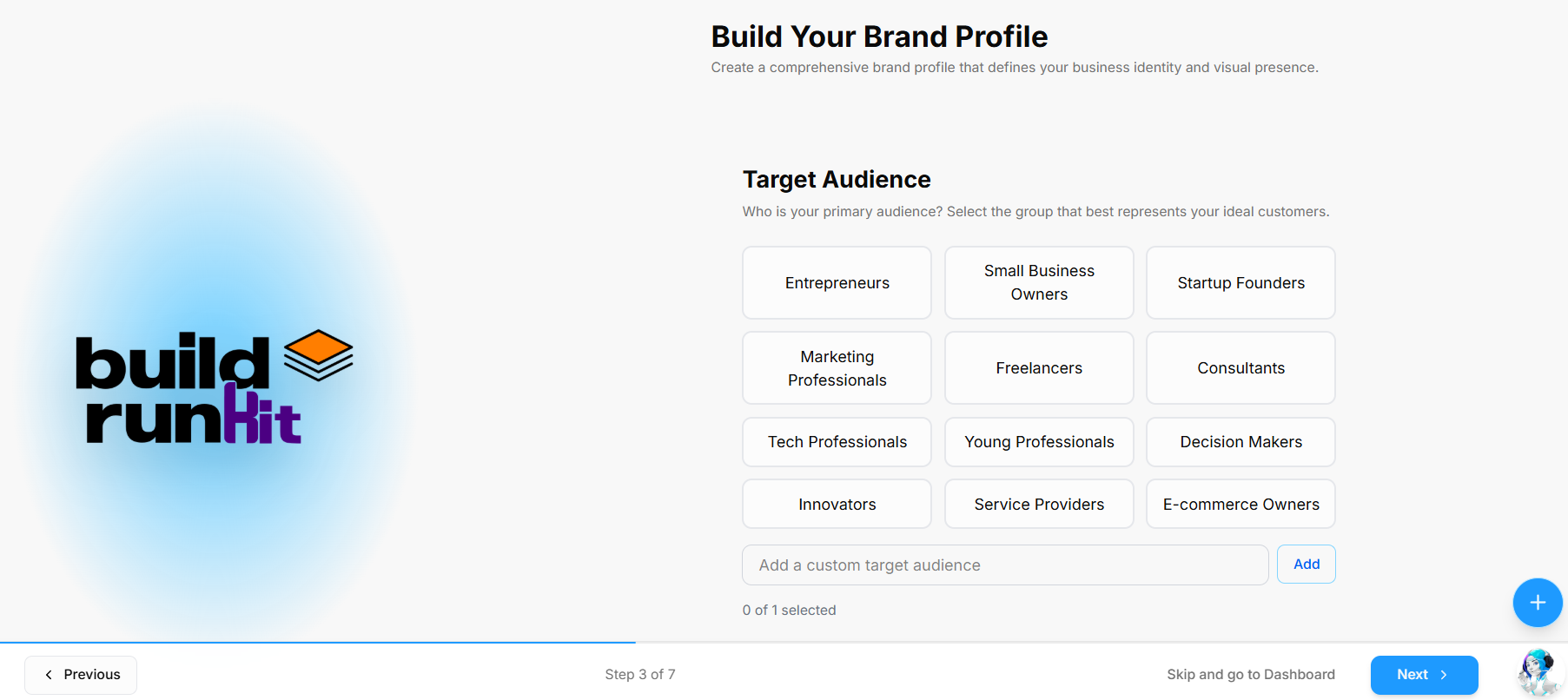
Step 3 of the **Build Your Brand Profile** onboarding wizard defines the primary group that best represents your ideal customers.
#### **What You Need**
- An understanding of your primary audience segment or ideal buyer persona
#### **How to Select Your Target Audience**
1. **Choose Preset Audience Categories**: Click one of the preset options to select your primary target group:
- **Entrepreneurs**
- **Small Business Owners**
- **Startup Founders**
- **Marketing Professionals**
- **Freelancers**
- **Consultants**
- **Tech Professionals**
- **Young Professionals**
- **Decision Makers**
- **Innovators**
- **Service Providers**
- **E-commerce Owners**
2. **Add Custom Target Audience**: If your specific customer demographic is not listed, type your custom audience into the **Add a custom target audience** field and click **Add**.
3. **Verify Selection**: Check the counter below the input field (*e.g., 0 of 1 selected*) to ensure your chosen target group is applied.
4. **Navigation Controls**:
- Click **Next >** at the bottom right to save your selection and advance to Step 4.
- Click **< Previous** at the bottom left to return to Step 2 and adjust your brand voice choices.
- **Skip Option**: Click **Skip and go to Dashboard** at the bottom of the screen to enter your workspace immediately.
### **Step 4: Core Values**
**[](https://library.buildrunkit.com/uploads/images/gallery/2026-09/screenshot-2026-09-17-102144.png)**
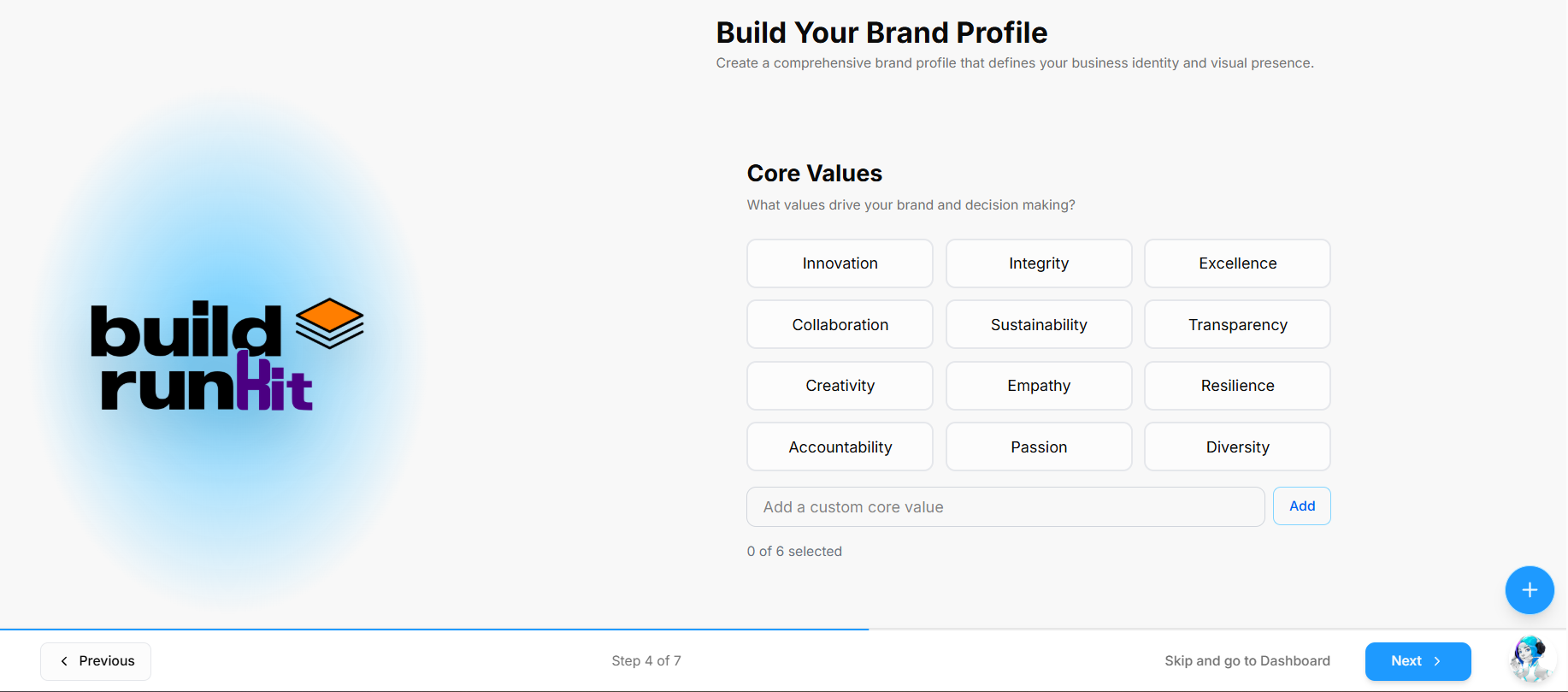
Step 4 of the **Build Your Brand Profile** onboarding wizard defines the core principles and values that drive your brand and decision-making.
**What You Need**
- The foundational principles and values that represent your business operations and company culture
**How to Select Your Core Values**
1. **Choose Preset Core Values**: Click the options that represent your brand principles (up to 5 values):
- **Innovation**
- **Integrity**
- **Excellence**
- **Collaboration**
- **Sustainability**
- **Transparency**
- **Creativity**
- **Empathy**
- **Resilience**
- **Accountability**
- **Passion**
- **Diversity**
2. **Add Custom Core Values**: If a specific value is missing, enter it into the **Add a custom core value** field and click **Add**.
3. **Verify Selection**: Review the counter below the input box (*e.g., 0 of 5 selected*) to track your chosen principles.
4. **Navigation Controls**:
- Click **Next >** at the bottom right to save your selections and advance to Step 5.
- Click **< Previous** at the bottom left to return to Step 3 and modify your target audience options.
- **Skip Option**: Click **Skip and go to Dashboard** at the bottom of the screen to enter your workspace immediately.
### **Step 5: Visual Identity**
**[](https://library.buildrunkit.com/uploads/images/gallery/2026-09/screenshot-2026-09-17-102723.png)**
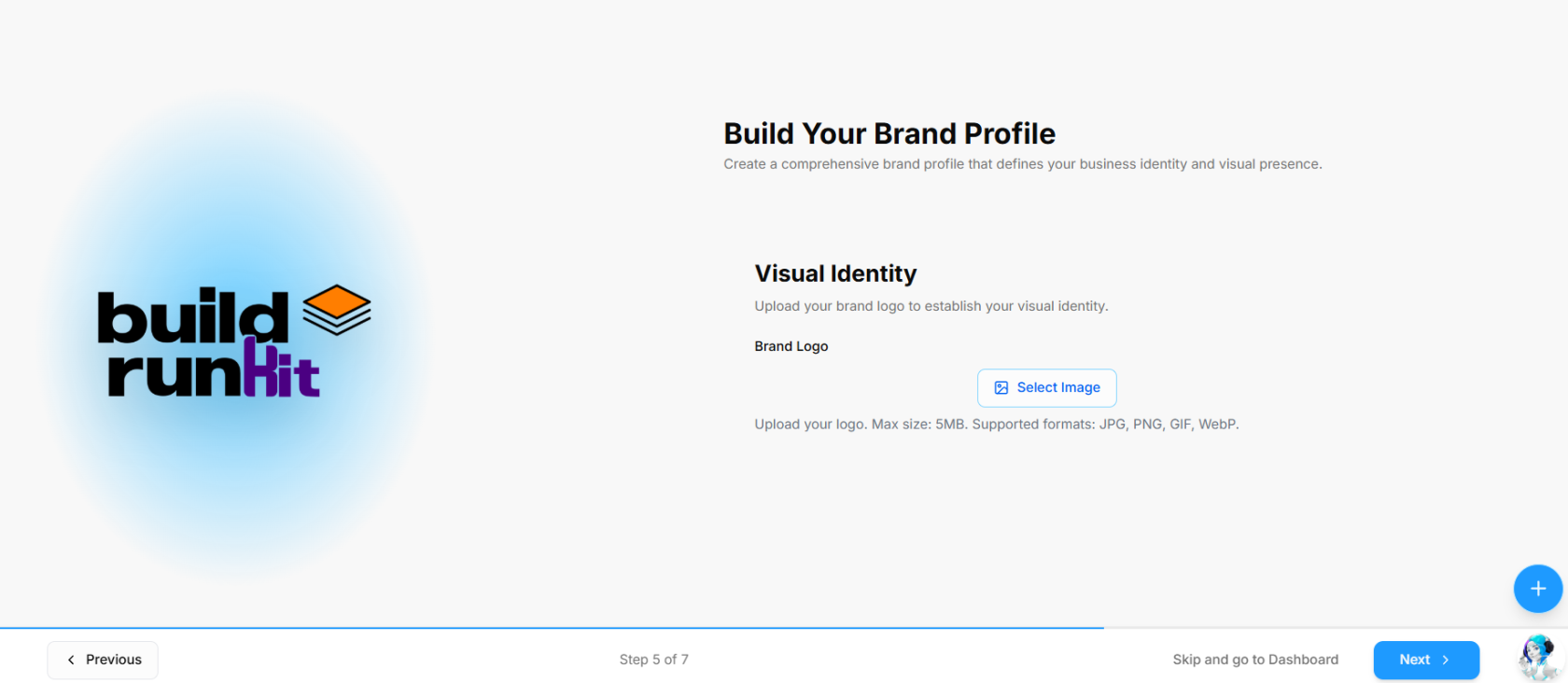
Step 5 of the **Build Your Brand Profile** onboarding wizard establishes your visual branding by uploading your official brand logo.
**What You Need**
- An image file of your brand logo (JPG, PNG, GIF, or WebP format, max 5MB)
**How to Set Up Your Visual Identity**
1. **Upload Brand Logo**: Click the **Select Image** button to open your device file browser and select your logo graphic.
2. **Review Image Requirements**: Ensure your image meets the supported format specifications (**JPG, PNG, GIF, WebP**) and file size limit (**5MB max**).
3. **Navigation Controls**:
- Click **Next >** at the bottom right to upload your asset and advance to Step 6.
- Click **< Previous** at the bottom left to return to Step 4 and adjust your core values choices.
- **Skip Option**: Click **Skip and go to Dashboard** at the bottom of the screen to enter your workspace immediately.
### **Step 6: Brand Colors**
**[](https://library.buildrunkit.com/uploads/images/gallery/2026-09/screenshot-2026-09-17-102840.png)**
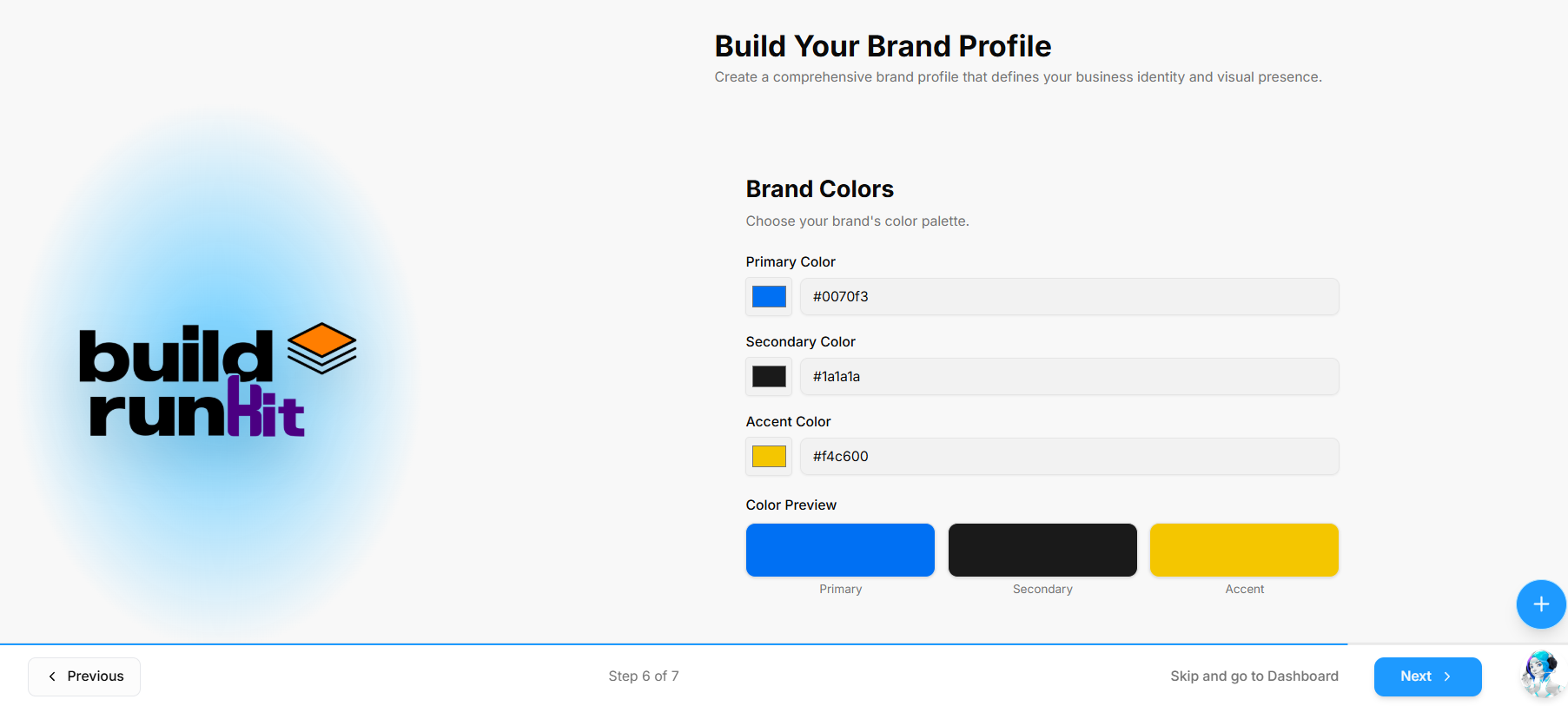
Step 6 of the **Build Your Brand Profile** onboarding wizard defines your visual palette across primary, secondary, and accent colors.
#### **What You Need**
- Hex color codes for your brand's primary, secondary, and accent shades
#### **How to Set Up Your Brand Colors**
1. **Primary Color**: Click the color picker box or type a hex code into the **Primary Color** field (*e.g., `#0070f3`*).
2. **Secondary Color**: Select a color or enter a hex code in the **Secondary Color** field (*e.g., `#1a1a1a`*).
3. **Accent Color**: Select a color or enter a hex code in the **Accent Color** field (*e.g., `#f4c600`*).
4. **Color Preview**: Review the real-time **Color Preview** blocks below the fields to verify how your **Primary**, **Secondary**, and **Accent** colors look side by side.
5. **Navigation Controls**:
- Click **Next >** at the bottom right to save your color palette and advance to Step 7.
- Click **< Previous** at the bottom left to return to Step 5 and update your visual identity assets.
- **Skip Option**: Click **Skip and go to Dashboard** at the bottom of the screen to enter your workspace immediately.
### **Step 7: Typography**
**[](https://library.buildrunkit.com/uploads/images/gallery/2026-09/screenshot-2026-09-17-103046.png)**
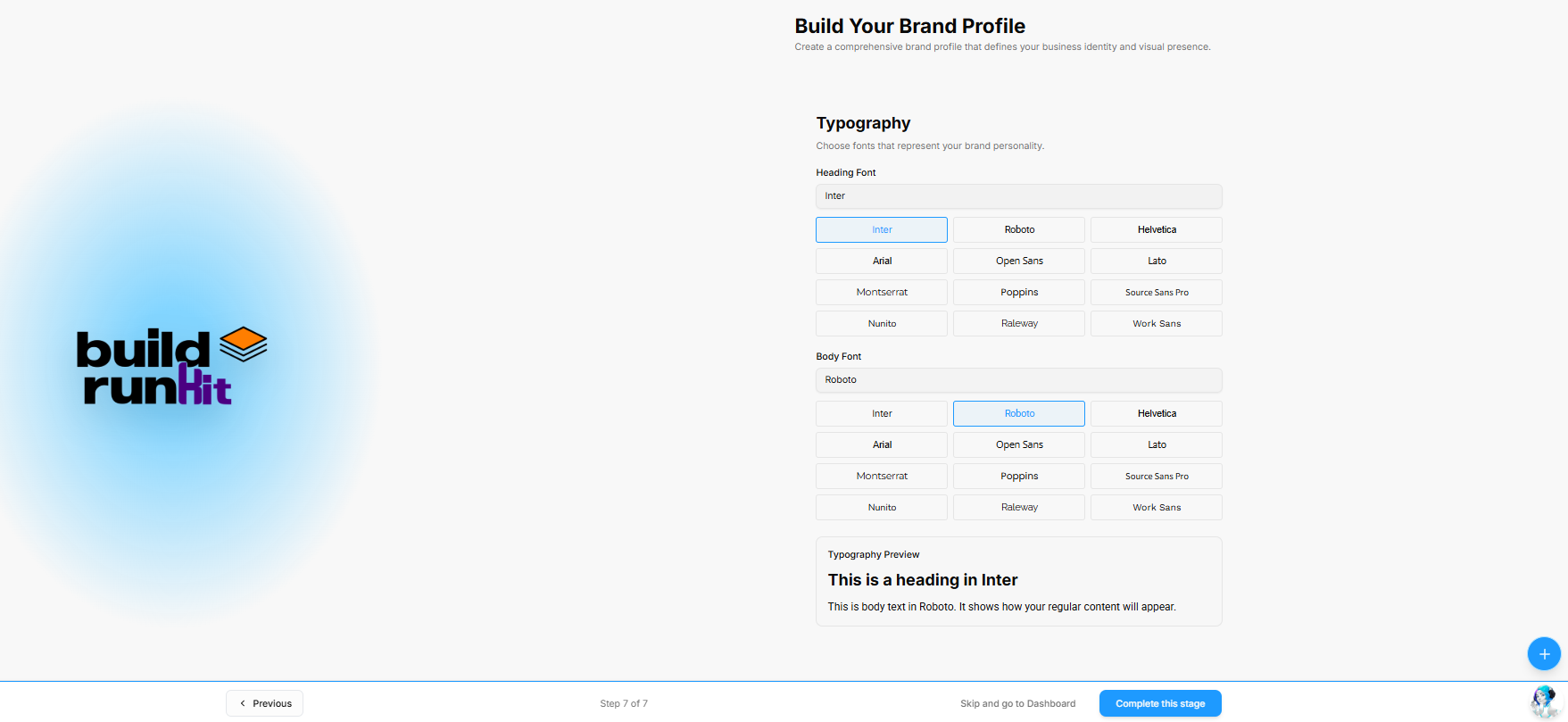
Step 7 of the **Build Your Brand Profile** onboarding wizard establishes the typographic identity for your headers and body copy.
#### **What You Need**
- Preferred primary font styles for your brand headings and body content
#### **How to Set Up Your Typography**
1. **Heading Font**: Click a font card to select your primary heading font (*e.g., Inter, Roboto, Helvetica, Arial, Open Sans, Lato, Montserrat, Poppins, Source Sans Pro, Nunito, Raleway, Work Sans*).
2. **Body Font**: Click a font card to select your primary body font (*e.g., Roboto*).
3. **Typography Preview**: Review the live preview box at the bottom to see how your selected **Heading Font** and **Body Font** render together.
4. **Navigation & Completion**:
- Click **Complete this stage** at the bottom right to finalize and save your entire brand profile.
- Click **< Previous** at the bottom left to return to Step 6 and modify your color palette.
- **Skip Option**: Click **Skip and go to Dashboard** at the bottom of the screen to enter your workspace without saving font preferences.
### **Initial Onboarding & Role-Based Dashboards**
**[](https://library.buildrunkit.com/uploads/images/gallery/2026-09/screenshot-2026-09-17-103613.png)**
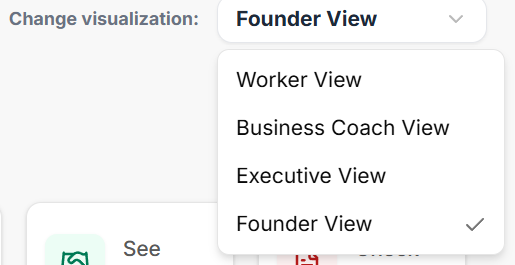
After completing initial account setup, BuildRunKit provides 4 role-based dashboard architectures (**Founder View**, **Executive View**, **Business Coach View**, and **Worker View**). Each view filters workspace metrics to match specific operational roles.
#### **Role View Switcher & Universal Shortcuts**
- **Change Visualization Dropdown**: Located at the top right of the dashboard (*e.g., set to Founder View*), allowing users to switch views on demand.
- **Where To Now? (Shortcuts Bar)**: Quick action navigation tiles:
- **Finish Onboarding**: Directly access pending profile setup steps.
- **Manage Workspaces**: Switch or edit organization environments.
- **Subscription**: View and update billing or tier details.
- **Your Brands**: Jump directly to configured brand assets.
- **See Deals**: View active sales pipeline items in the CRM.
- **Check Invoices**: Inspect billing and client payments.
### **Founder Dashboard Breakdown**
**[](https://library.buildrunkit.com/uploads/images/gallery/2026-09/screenshot-2026-09-17-103246.png)**
#### **Recent Activity & Your Brands Panels**
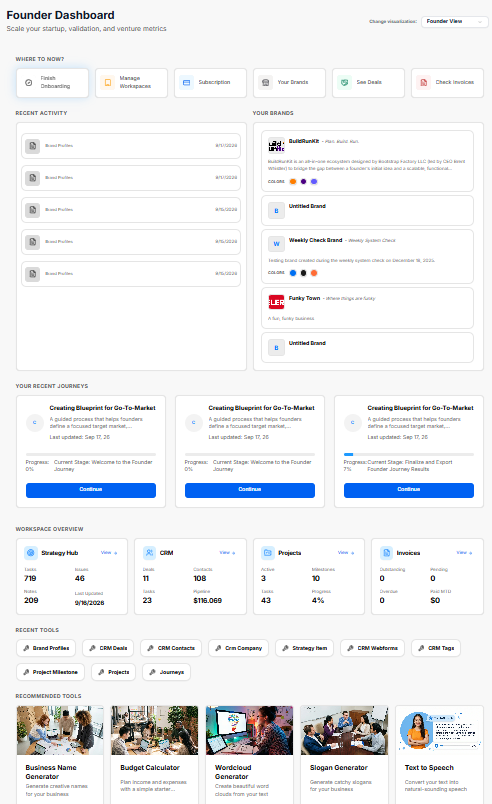
- **Recent Activity**: Stream showing recently generated outputs, brand profile edits, or stage logs with timestamps (*e.g., Sep 15, 2026*).
- **Your Brands**: Quick overview cards displaying active brand profiles (*e.g., BuildRunKit, Untitled Brand, Funky Town*) along with associated taglines, descriptions, and color swatches.
#### **Your Recent Journeys**
- **Journey Cards**: Progress cards displaying active strategic tracks (*e.g., Creating Blueprint for Go-To-Market*), last updated dates, stage completion percentages, current stage names (*e.g., Welcome to the Founder Journey*), and blue **Continue** action buttons.
#### **Workspace Overview Metrics**
- **Strategy Hub**: Displays key counts for active **Tasks** (*719*), **Issues** (*46*), **Notes** (*209*), and last updated dates.
- **CRM**: Displays real-time sales pipeline numbers: **Deals** (*11*), **Contacts** (*108*), **Tasks** (*23*), and total **Pipeline** value (*$116,069*).
- **Projects**: Tracks active operational progress: **Active** projects (*3*), **Milestones** (*10*), total **Tasks** (*43*), and **Progress** percentage (*4%*).
- **Invoices**: Summary of financial status: **Outstanding** (0), **Pending** (0), **Overdue** (0), and **Paid MTD** (*$0*).
#### **Recent & Recommended Tools**
- **Recent Tools**: One-click quick-launch buttons for frequently accessed features (*e.g., Brand Profiles, CRM Deals, CRM Contacts, CRM Company, Strategy Item, CRM Webforms, CRM Tags, Project Milestone, Projects, Journeys*).
- **Recommended Tools**: Feature cards with direct launch buttons for platform utilities (*e.g., Business Name Generator, Budget Calculator, Wordcloud Generator, Slogan Generator, Text to Speech*).
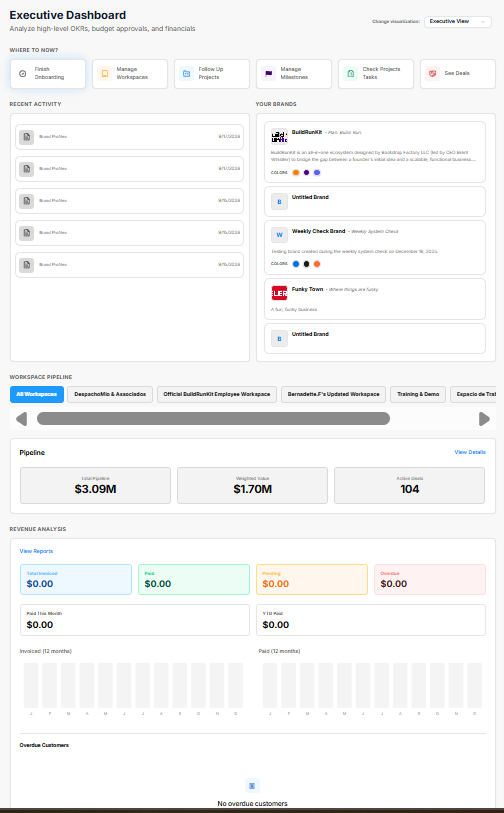
### **Executive Overview Breakdown**
**[](https://library.buildrunkit.com/uploads/images/gallery/2026-09/screenshot-2026-09-17-103805.png)**
**[](https://library.buildrunkit.com/uploads/images/gallery/2026-09/screenshot-2026-09-17-104011.png)**
The **Executive Dashboard** is tailored for corporate leadership to analyze high-level OKRs, budget approvals, pipeline health, and overall organization financials.
#### **Role View Switcher & Executive Shortcuts**
- **Change Visualization Dropdown**: Positioned at the top right (*set to Executive View*) to switch role-based dashboard views.
- **Where To Now? (Shortcuts Bar)**: Quick navigation tiles for executive actions:
- **Finish Onboarding**: Complete any remaining setup tasks.
- **Manage Workspaces**: Access and configure organizational workspaces.
- **Follow Up Projects**: Direct link to monitor project progress.
- **Manage Milestones**: View key deadlines and deliverable goals.
- **Check Projects Tasks**: Drill into specific project tasks.
- **See Deals**: Review active sales pipeline deals.
#### **Recent Activity & Brand Assets**
- **Recent Activity**: Timestamped log of recent updates, brand profile edits, or system entries (*e.g., Sep 15, 2026*).
- **Your Brands**: Overview cards highlighting active company profiles (*e.g., BuildRunKit, Untitled Brand, Weekly Check Brand, Funky Town*) complete with descriptions and visual color palettes.
#### **Workspace Pipeline**
- **Workspace Selector Tab Bar**: Filter pipeline data across specific accounts (*e.g., All Workspaces, DespachoMio & Asociados, Official BuildRunKit Employee Workspace, Bernadette.F's Updated Workspace, Training & Demo*).
- **Pipeline Summary**: High-level deal metrics showing **Total Pipeline** (*$3.09M*), **Weighted Value** (*$1.70M*), and **Active Deals** (*104*), with a **View Details** link for deeper reporting.
#### **Revenue Analysis**
- **Financial Status Cards**: Real-time billing metrics including **Total Invoiced** (*$0.00*), **Paid** (*$0.00*), **Pending** (*$0.00*), and **Overdue** (*$0.00*).
- **Period Highlights**: Tracks **Paid This Month** (*$0.00*) and **YTD Paid** (*$0.00*).
- **Comparative Charts**: 12-month visual breakdown charts for **Invoiced** and **Paid** trends.
- **Overdue Customers**: Dedicated status area highlighting accounts requiring collection follow-ups (*currently showing No overdue customers*).
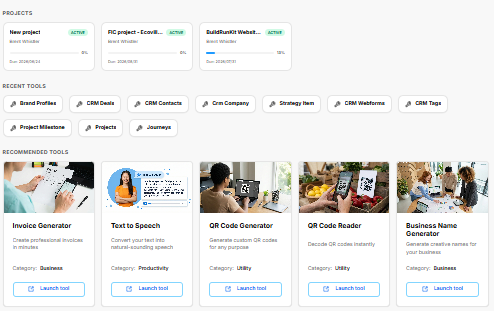
#### **Projects, Recent & Recommended Tools**
- **Projects**: Active status cards displaying project names (*e.g., New project, FIC project - Ecovill..., BuildRunKit Websit...*), owner names (*Brent Whistler*), progress indicators, and due dates.
- **Recent Tools**: One-click quick links to key features (*e.g., Brand Profiles, CRM Deals, CRM Contacts, Crm Company, Strategy Item, CRM Webforms, CRM Tags, Project Milestone, Projects, Journeys*).
- **Recommended Tools**: Dedicated utility cards with direct **Launch tool** buttons (*e.g., Invoice Generator, Text to Speech, QR Code Generator, QR Code Reader, Business Name Generator*).
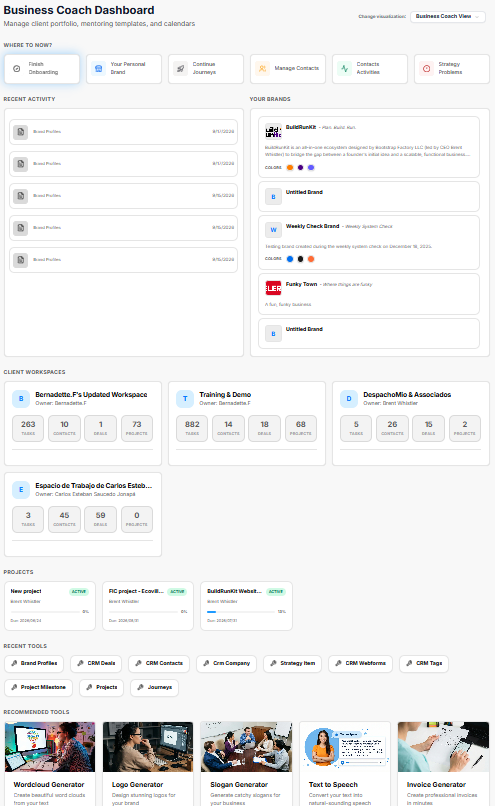
### **Business Coach Overview Breakdown**
**[](https://library.buildrunkit.com/uploads/images/gallery/2026-09/screenshot-2026-09-17-104351.png)**
The **Business Coach Dashboard** is structured for mentorship tracking, client portfolio management, coaching templates, and strategic calendar overviews.
#### **Role View Switcher & Coaching Shortcuts**
- **Change Visualization Dropdown**: Positioned at the top right (*set to Business Coach View*) to easily switch between user role perspectives.
- **Where To Now? (Shortcuts Bar)**: Direct shortcut links tailored for coaching workflows:
- **Finish Onboarding**: Complete profile or brand setup.
- **Your Personal Brand**: Jump directly to personal or agency brand configurations.
- **Continue Journeys**: Resume active coaching and strategy programs.
- **Manage Contacts**: Access the client directory.
- **Contacts Activities**: Track client communications and engagements.
- **Strategy Problems**: Review strategic roadblocks and action items.
- **Recent Activity**: Stream logging recent updates, client edits, and profile actions with timestamps (*e.g., Sep 15, 2026*).
- **Your Brands**: Overview cards highlighting managed brand identities (*e.g., BuildRunKit, Untitled Brand, Weekly Check Brand, Funky Town*) along with associated taglines, descriptions, and color palettes.
- **Bernadette.F's Updated Workspace** *(Owner: Bernadette.F)*: **263** Tasks, **10** Contacts, **1** Deal, **73** Projects.
- **Training & Demo** *(Owner: Bernadette.F)*: **882** Tasks, **14** Contacts, **18** Deals, **68** Projects.
- **DespachoMio & Associados** *(Owner: Brent Whistler)*: **5** Tasks, **26** Contacts, **15** Deals, **2** Projects.
- **Projects**: Active status overview cards (*e.g., New project, FIC project - Ecovill..., BuildRunKit Websit...*) displaying owner names (*Brent Whistler*), progress indicators, and due dates.
- **Recent Tools**: One-click launcher buttons for frequently used modules (*e.g., Brand Profiles, CRM Deals, CRM Contacts, Crm Company, Strategy Item, CRM Webforms, CRM Tags, Project Milestone, Projects, Journeys*).
- **Recommended Tools**: Feature cards with direct **Launch tool** action links (*e.g., Wordcloud Generator, Logo Generator, Slogan Generator, Text to Speech, Invoice Generator*).
- **Change Visualization Dropdown**: Located at the top right (*set to Worker View*) to switch role-based dashboard perspectives.
- **Where To Now? (Shortcuts Bar)**: Navigation buttons optimized for daily operational tasks:
- **Finish Onboarding**: Complete profile or initial setup steps.
- **Continue Journeys**: Jump directly into active strategic or onboarding workflows.
- **Check Projects Tasks**: View assigned project action items and deliverables.
- **Manage Contacts**: Access and update CRM customer records.
- **Check Invoices**: Review current billing and payment statuses.
- **Add New Invoices Items**: Quickly create new billable line items or invoices.
- **Recent Activity**: Real-time log showing recent workspace edits, stage updates, and profile activity with timestamps (*e.g., Sep 15, 2026*).
- **Your Brands**: Managed brand cards (*e.g., BuildRunKit, Untitled Brand, Weekly Check Brand, Funky Town*) featuring brand summaries, visual swatches, and taglines.
- **Strategy Hub**: High-level execution board metrics tracking **Tasks** (*719*), **Issues** (*46*), **Notes** (*209*), and last updated timestamps (*9/16/2026*).
- **CRM**: Real-time record summary showing **Deals** (*11*), **Contacts** (*108*), **Tasks** (*23*), and **Pipeline** total (*$11,606.91*).
- **Projects**: Operations progress overview tracking **Active** projects (*3*), **Milestones** (*10*), **Tasks** (*43*), and **Progress** completion percentage (*4%*).
- **Invoices**: Financial snapshot displaying **Outstanding** (0), **Pending** (0), **Overdue** (0), and **Paid MTD** (*$0*).