# Founder Tools

# Startup Launch Journey

## Startup Launch Journey: Initial Navigation
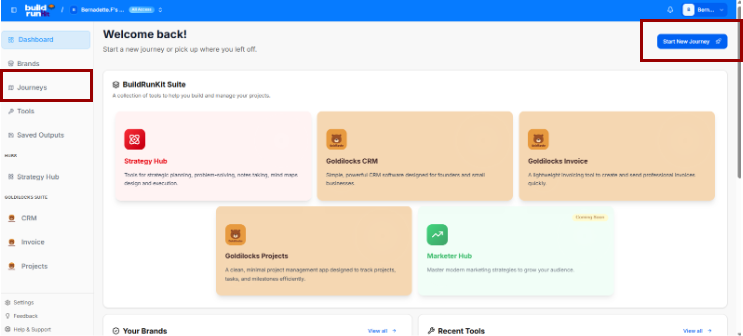
<div drawio-diagram="350"><img src="https://library.buildrunkit.com/uploads/images/drawio/2026-05/drawing-4-1779363856.png" alt=""/></div>

To begin your startup journey, use the primary dashboard area to navigate to the designated workspace:

- Accessing Journeys: Locate the left-hand sidebar menu under the main navigation group and click on Journeys to enter the startup launch tracking panel.
- Alternative Quick Launch: You can also initiate a fresh track directly from the top right corner of the Welcome back! main dashboard by clicking the blue Start New Journey button featuring a rocket ship icon.

### Startup Launch Journey: Journeys Directory

The Journeys module enables you to track active entrepreneurial roadmaps or launch a new guided path tailored to your business goals.

### Managing Journeys

[![Screenshot 2026-05-21 134519.png](https://library.buildrunkit.com/uploads/images/gallery/2026-05/scaled-1680-/screenshot-2026-05-21-134519.png)](https://library.buildrunkit.com/uploads/images/gallery/2026-05/screenshot-2026-05-21-134519.png)

When you enter the Journeys module, you are presented with a global directory table of your active tracking environments:

<div _ngcontent-ng-c2170363542="" class="container" id="bkmrk-creating-a-journey%3A-"><div _ngcontent-ng-c1323015604="" aria-busy="false" aria-live="polite" class="markdown markdown-main-panel enable-updated-hr-color" dir="ltr" inline-copy-host="">- Creating a Journey: Click the blue Start New Journey button at the top right to open the startup selection layout.
- Searching and Filtering:
    
    
    - Use the Search journeys... text field above the table to filter your active paths by their specific title text.
    - Use the Filter by title... search field next to it to narrow down directory rows by matching exact title terms.
- Journey Directory Table: Track active spaces across several parameters:
    
    
    - Title: The name of the roadmap (e.g., *Founder Journey*).
    - Description: A short outline summary detailing the scope of the path.
    - Journey Type: Identifies the framework category classification (e.g., *Founder*).
    - Brand: Logs any specific internal company asset or brand associated with the tracking environment.
    - Created By: Displays the user profile who initiated the roadmap.
    - Created At: Tracks the initial date the tracking module was opened.
- Columns Visibility Tool: Click the Columns dropdown tool above the table to toggle parameters visible or hidden via checkmarks (Title, Description, Journey\_type, Brand, Created\_by, Created\_at, or Actions).
- Selection Summary: A tracking counter at the bottom left logs your selected table rows (e.g., *0 of 2 row(s) selected.*).

</div></div>### Select a Journey Menu

[![Screenshot 2026-05-21 134802.png](https://library.buildrunkit.com/uploads/images/gallery/2026-05/scaled-1680-/screenshot-2026-05-21-134802.png)](https://library.buildrunkit.com/uploads/images/gallery/2026-05/screenshot-2026-05-21-134802.png)

Clicking the Start New Journey button triggers a dropdown menu panel titled SELECT A JOURNEY TO START, prompting you to select from five guided track environments:

<div _ngcontent-ng-c2170363542="" class="container" id="bkmrk-build-and-grow-your-"><div _ngcontent-ng-c1323015604="" aria-busy="false" aria-live="polite" class="markdown markdown-main-panel enable-updated-hr-color" dir="ltr" inline-copy-host="">- Build and grow your startup from idea to success (Blue Rocket Icon): The active primary track focused on complete end-to-end business execution.
- Develop strategic plans and execute them effectively (Purple Target Icon): A strategic planning track.
- Create powerful marketing campaigns and build your brand (Green Trend Icon): A marketing and brand growth track.
- Conduct thorough research and gather valuable insights (Orange Magnifying Glass Icon): A research and market analysis track.
- Manage human resources and build great teams (Pink Team Icon): An operations and team management framework track.

</div></div>### Brand Association Modal

When you select a track type to start a new journey, a modal window explicitly titled Brand Association appears, prompting you to decide how to link your new journey to a business entity.

#### Option 1: Use an Existing Brand

[![Screenshot 2026-05-21 141121.png](https://library.buildrunkit.com/uploads/images/gallery/2026-05/scaled-1680-/screenshot-2026-05-21-141121.png)](https://library.buildrunkit.com/uploads/images/gallery/2026-05/screenshot-2026-05-21-141121.png)

Selecting the Use an existing brand radio button configures the modal with the following fields:

- Select a brand Dropdown: A selection menu field (e.g., defaulted to Untitled Brand) where you can click to choose from your already established business profiles.
- Title: A text field to input the specific name or title for this new journey setup (Enter a title for the journey).
- Description: A multi-line text block to add descriptive details or goals for this specific roadmap path (Enter a description for the journey).

#### Option 2: Create Journey Without a Brand

[![Screenshot 2026-05-21 141358.png](https://library.buildrunkit.com/uploads/images/gallery/2026-05/scaled-1680-/screenshot-2026-05-21-141358.png)](https://library.buildrunkit.com/uploads/images/gallery/2026-05/screenshot-2026-05-21-141358.png)

Switching to the Create journey without a brand radio button alters the modal layout by removing the brand selector dropdown and replacing it with an informational alert:

- System Information Banner: A light blue notification box appears with a clear message stating: “You can create a brand profile during the journey.”
- Title: The standard text input field remains to name your journey environment (Enter a title for the journey).
- Description: The multi-line text block remains available to record your initial pathway notes (Enter a description for the journey).

#### Modal Actions (Both Views)

Regardless of the radio selection, two control items sit at the bottom right corner to finalize the form:

- Cancel: A text link button to abort the journey creation process and return to the main dashboard menu.
- Continue: A solid blue button to save your brand preferences and load into your new journey canvas space.

### The Founder Journey Roadmap

<span class="citation-1 citation-end-1">The Founder Journey is a structured, interactive roadmap designed to guide entrepreneurs from an initial idea to a full market launch.<sup class="superscript" data-turn-source-index="1"></sup></span> The journey is divided into seven major operational stages, each containing sequential sub-stages that must be completed to progress.

### The Journey Stages Sidebar (Left Panel)

The left sidebar acts as the primary navigation hub. Users can expand each major stage to reveal and access the actionable sub-stages within:

1. Orientation Stage (Current)
2. Discovery Stage
3. Market Research Stage
4. Brand Foundations &amp; Brand Kit Stage
5. Admin and Operations Stage
6. Go-to-Market Stage
7. Finalize and Export Stage

<div _ngcontent-ng-c2170363542="" class="container" id="bkmrk--6"></div><div _ngcontent-ng-c2170363542="" class="container" id="bkmrk--7"><div _ngcontent-ng-c1323015604="" aria-busy="false" aria-live="polite" class="markdown markdown-main-panel enable-updated-hr-color" dir="ltr" id="bkmrk--8" inline-copy-host=""></div></div>

# Orientation Stage

## **Orientation Stage**

**[![Screenshot 2026-05-21 143630.png](https://library.buildrunkit.com/uploads/images/gallery/2026-05/scaled-1680-/screenshot-2026-05-21-143630.png)](https://library.buildrunkit.com/uploads/images/gallery/2026-05/screenshot-2026-05-21-143630.png)**

The Orientation Stage is the introductory phase of the roadmap, broken down into four distinct sequential sub-stages accessed via the left-hand sidebar dropdown:

- Sub-Stage 1: Welcome to the Founder Journey
    
    
    - This is the initial onboarding landing view that provides context, introductory media, and directional cues before operational work begins.
- Sub-Stage 2: Stages Information
    
    
    - The second item listed within the orientation sequence. (Content details pending system view selection).
- Sub-Stage 3: Basic Information
    
    
    - The third item listed within the orientation sequence. (Content details pending system view selection).
- Sub-Stage 4: Export Orientation Results
    
    
    - The final technical milestone within the initial phase, concluding the orientation sequence before transition parameters unlock. (Content details pending system view selection).

### Stage Controls

- Next Button: A blue Next → link utility centered at the bottom of the active frame allows the user to save current progress or cycle sequentially to the next sub-stage item.

### Sub-Stage 1: Welcome to the Founder Journey

[![Screenshot 2026-05-21 143945.png](https://library.buildrunkit.com/uploads/images/gallery/2026-05/scaled-1680-/screenshot-2026-05-21-143945.png)](https://library.buildrunkit.com/uploads/images/gallery/2026-05/screenshot-2026-05-21-143945.png)

This is the initial onboarding sub-stage screen that gives users their first introductory look, informational context, and directional clues before moving forward into the deeper stages of the roadmap.

#### Canvas Layout &amp; Workspace Components

- Main Workspace Title: Prominently displays "Welcome to the Founder Journey" alongside a helpful subtitle: “This stage will help you understand the journey ahead and how to navigate it effectively.”
- Orientation Media Panel: Features a large central multimedia layout titled Introduction &amp; Orientation, featuring an introductory layout badged directly with the official buildrunkit brand logo.
- Introductory Information Cards: A vertical stack of five expandable accordion style rows sits directly to the right of the media panel. These are designed to give users a quick clue about the roadmap's purpose before starting:
    
    
    - What this journey is about?: Explains that whether starting from zero or with prior business experience, this acts as a companion to guide you, record your progress, and compile your choices into a final document.
    - The core transformation/benefit: Clarifies the goal is to ensure you consider every necessary step to get a product out the door, bringing documentation and peace of mind that major decisions are locked in.
    - Who it's for?: Notes the track is built for aspiring founders, active founders, or existing business owners looking to optimize or tune up their operational gaps.
    - How long it usually takes?: Sets a realistic timeframe warning that it can take anywhere from 45 minutes to two weeks or more depending on how thoroughly you step through the phases.
    - What the outcome will be?: Confirms that completing the journey builds a comprehensive summary PDF detailing your discovery process, business structure choices, brand kits, targeted market research, financial/legal steps, and market strategies.

#### Navigation Controls

- Next Button: A bright blue Next → button is anchored perfectly in the center-bottom footer of the screen. Clicking this advances the user past this introductory screen and moves them directly to the next sequential sub-stage.

### Sub-Stage 2: Stages Information

[![Screenshot 2026-05-21 144340.png](https://library.buildrunkit.com/uploads/images/gallery/2026-05/scaled-1680-/screenshot-2026-05-21-144340.png)](https://library.buildrunkit.com/uploads/images/gallery/2026-05/screenshot-2026-05-21-144340.png)

This sub-stage screen provides a complete structural map of the seven core phases that build a business identity and strategy, combined with platform navigation tips.

#### Canvas Layout &amp; Workspace Components

- Main Workspace Title: Displays "Stages Information" with the introductory subtitle: “Here are some tips and the stages we'll take you through for this journey.”
- Journey Architecture Overview Panel: A large centralized block explicitly detailing the framework structure: “This Journey is composed of seven stages that will guide you through the process of building a business identity and strategy”.
- The Seven Stage Cards:
    
    
    - Stage 1: Orientation: Get acquainted with BuildRunKit, the Founder's journey and how to navigate it.
    - Stage 2: Discovery: Explore your business idea and validate your concept.
    - Stage 3: Market Research: Understand your target market and competition.
    - Stage 4: Brand Foundations &amp; Brand Kit: Create your brand identity and messaging.
    - Stage 5: Admin and Operations: Set up business structure and operations.
    - Stage 6: Go-to-market Planning: Plan your launch and marketing strategy.
    - Stage 7: Finalize and Export: Complete the journey and export your business plan.

#### Platform Guidance Cards (Bottom Panel)

Three distinct vertical layout columns sit at the bottom of the interface to guide data entry behaviors:

- How to Navigate (Green Card):
    
    
    - Explains that users are free to skip around or skip ahead to return later if information is missing.
    - Advises founders not to let pending meetings slow progress down, prompting: “don't be afraid to mark a stage complete.”
    - Explicitly reminds users they can navigate and hop around at any point using the sidebar navigation.
- Optional vs Required (Orange Card):
    
    
    - Highlights platform freedom: “We're not the boss of you. Nothing is required!”
    - Warns that quality suffers if steps are skipped without accurate context data.
    - Emphasizes data collection standards with a foundational reminder: “Garbage in, garbage out!”
- Save Progress (Blue Card):
    
    
    - Confirms system state tracking: “We know where you were when you navigate the journey!”
    - Explains that marking a stage complete helps track overall roadmap velocity while providing a progress dopamine hit to maintain operational momentum.

#### Navigation Controls

- Next Button: A blue Next → navigation block is anchored at the bottom right corner of the window to commit updates and advance to Sub-Stage 3.

### Sub-Stage 3: Basic Information

[![Screenshot 2026-05-21 144728.png](https://library.buildrunkit.com/uploads/images/gallery/2026-05/scaled-1680-/screenshot-2026-05-21-144728.png)](https://library.buildrunkit.com/uploads/images/gallery/2026-05/screenshot-2026-05-21-144728.png)

This sub-stage screen functions as an initial onboarding intake form, collecting foundational context from the founder to tailor the rest of the strategic journey.

#### Canvas Layout &amp; Workspace Components

<div _ngcontent-ng-c2170363542="" class="container" id="bkmrk-main-workspace-title-2"><div _ngcontent-ng-c1323015604="" aria-busy="false" aria-live="polite" class="markdown markdown-main-panel enable-updated-hr-color" dir="ltr" inline-copy-host="">- Main Workspace Title: Displays "Basic Information" with an introductory promise statement: “If you will just answer a few things we will promise to try to benefit from the knowledge and tailor your journey accordingly.”
- Question 1: Objective Tracking:
    
    
    - Label: "1. What's your biggest goal for this journey?"
    - Input Field: A multi-line text container with the placeholder instruction: “Share your primary objective or what you hope to achieve...”
- Question 2: Pain Point Analysis:
    
    
    - Label: "2. What specific challenges are you hoping to solve?"
    - Input Field: A multi-line text container with the placeholder instruction: “Describe the main obstacles or problems you're facing...”
- Question 3: Operational Status Identification:
    
    
    - Label: "3. Are you starting from scratch or already in motion?"
    - Input Field: A multi-line text container with the placeholder instruction: “Tell us about your current stage in the business journey...”

</div></div>#### Navigation Controls

<div _ngcontent-ng-c2170363542="" class="container" id="bkmrk-next-button%3A-a-blue--2"><div _ngcontent-ng-c1323015604="" aria-busy="false" aria-live="polite" class="markdown markdown-main-panel enable-updated-hr-color" dir="ltr" inline-copy-host="">- Next Button: A blue Next → button is anchored at the bottom right corner of the window to log the text input parameters and transition forward to the final orientation sub-stage (Export Orientation Results).

</div></div>### Sub-Stage 4: Export Orientation Results

[![Screenshot 2026-05-21 145143.png](https://library.buildrunkit.com/uploads/images/gallery/2026-05/scaled-1680-/screenshot-2026-05-21-145143.png)](https://library.buildrunkit.com/uploads/images/gallery/2026-05/screenshot-2026-05-21-145143.png)

This is the final sub-stage milestone of the Orientation Stage, providing a comprehensive audit log of the user's initial onboarding actions, input parameters, and platform documentation options before unlocking the next major journey stage.

#### Canvas Layout &amp; Workspace Components

<div _ngcontent-ng-c2170363542="" class="container" id="bkmrk-main-workspace-title-3"><div _ngcontent-ng-c1323015604="" aria-busy="false" aria-live="polite" class="markdown markdown-main-panel enable-updated-hr-color" dir="ltr" inline-copy-host="">- Main Workspace Title: Displays "Export Orientation Results" with the dynamic header subtitle: “This is a summary of what you learned and shared with us during the orientation stage.”
- Document Generation Panel: A stylized light-blue callout card spanning the top of the workspace labeled Orientation Stage Results:
    
    
    - Description: Prompts the user to “Download a comprehensive PDF report containing all your orientation findings”.
    - Action Button: Features a centered blue Generate PDF Report action key accompanied by a download icon.
- Sub-Stage Completion Logs (Split Grid): Two parallel tracking blocks display completion verifications for the introductory screens:
    
    
    - Orientation Welcome Block: Titled “Introduction video and Journey overview.” It presents a green status alert bar confirming: `✓ Welcome substage completed successfully.`
    - Journey Info Block: Titled “Journey content and navigation tips.” It displays a secondary system notification indicator reading: `✓ No information provided.`

</div></div>#### Basic Information Summary Hub

A unified response panel titled Basic Information presents a read-only historical overview of the data insights entered by the founder during Sub-Stage 3 (Overview of your orientation stage responses and insights.):

<div _ngcontent-ng-c2170363542="" class="container" id="bkmrk-goal-audit-row%3A-labe"><div _ngcontent-ng-c1323015604="" aria-busy="false" aria-live="polite" class="markdown markdown-main-panel enable-updated-hr-color" dir="ltr" inline-copy-host="">1. Goal Audit Row:
    
    
    - Label: `✓ What's your biggest goal for this journey?`
    - Data Block: Displays the captured multi-line text block entry summarizing primary objectives.
2. Challenge Audit Row:
    
    
    - Label: `✓ What specific challenges are you hoping to solve?`
    - Data Block: Displays the captured multi-line text block entry mapping core business obstacles.
3. Status Audit Row:
    
    
    - Label: `✓ Are you starting from scratch or already in motion?`
    - Data Block: Displays the captured multi-line text block entry noting current operational standing.

</div></div>#### Navigation Controls

<div _ngcontent-ng-c2170363542="" class="container" id="bkmrk-next-button%3A-a-blue--3"><div _ngcontent-ng-c1323015604="" aria-busy="false" aria-live="polite" class="markdown markdown-main-panel enable-updated-hr-color" dir="ltr" id="bkmrk-next-button%3A-a-blue--4" inline-copy-host="">- Next Button: A blue Next → navigation action button is anchored at the bottom right corner of the window to commit all orientation findings and transition past Stage 1 into the Discovery Stage directory list.

</div></div><div _ngcontent-ng-c2170363542="" class="container" id="bkmrk--5"><div _ngcontent-ng-c1323015604="" aria-busy="false" aria-live="polite" class="markdown markdown-main-panel enable-updated-hr-color" dir="ltr" id="bkmrk--6" inline-copy-host=""></div></div><div _ngcontent-ng-c2170363542="" class="container" id="bkmrk--7"><div _ngcontent-ng-c1323015604="" aria-busy="false" aria-live="polite" class="markdown markdown-main-panel enable-updated-hr-color" dir="ltr" id="bkmrk--8" inline-copy-host=""></div></div>

# Discovery Stage

## **Discovery Stage**

**[![Screenshot 2026-05-21 145426.png](https://library.buildrunkit.com/uploads/images/gallery/2026-05/scaled-1680-/screenshot-2026-05-21-145426.png)](https://library.buildrunkit.com/uploads/images/gallery/2026-05/screenshot-2026-05-21-145426.png)**

The Discovery Stage is the conceptual exploration phase of the roadmap, broken down into five distinct sequential sub-stages accessed via the left-hand sidebar dropdown:

- Sub-Stage 1: Welcome to the Discovery Stage
    
    
    - This is the initial onboarding landing view that provides foundational context, introductory media, and initial guidance before discovery operations begin.
- Sub-Stage 2: Core Concept
    
    
    - The second item within the sequence, focusing on defining and documenting your startup's core business idea, problem statement, and proposed solution.
- Sub-Stage 3: Market Size &amp; Opportunity
    
    
    - The third item within the sequence, dedicated to mapping out early high-level market evaluations and identifying the overall landscape potential.
- Sub-Stage 4: Industry Benchmarks
    
    
    - The fourth item within the sequence, outlining standard operational baselines, key sector metrics, and common industry performance indicators.
- Sub-Stage 5: Export Discovery Results
    
    
    - The final technical milestone within this phase, presenting a read-only data audit overview alongside an export tool to save your comprehensive discovery findings as a PDF report.

### Stage Controls

- Next Button: A blue Next → link utility centered below the active canvas area or anchored in the footer line allows users to log conceptual selections and advance sequentially into the active business planning steps.

### Sub-Stage 1: Welcome to the Discovery Stage

[![Screenshot 2026-05-21 145742.png](https://library.buildrunkit.com/uploads/images/gallery/2026-05/scaled-1680-/screenshot-2026-05-21-145742.png)](https://library.buildrunkit.com/uploads/images/gallery/2026-05/screenshot-2026-05-21-145742.png)

This sub-stage screen serves as the introductory gateway to the concept validation phase, helping founders gauge their current level of idea commitment before proceeding to deeper analysis.

#### Canvas Layout &amp; Workspace Components

<div _ngcontent-ng-c2170363542="" class="container" id="bkmrk-main-workspace-title"><div _ngcontent-ng-c1323015604="" aria-busy="false" aria-live="polite" class="markdown markdown-main-panel enable-updated-hr-color" dir="ltr" inline-copy-host="">- Main Workspace Title: Displays "Welcome to the Discovery Stage" accompanied by a clear instructional subtitle: “Get an overview of the Discovery process and learn how this stage will help you explore and validate your startup ideas.”
- Discovery Media Panel: Features a large graphic or video workspace element explicitly labeled Discovery on the top-left and badged with the official buildrunkit brand logo on the top-right.
- Concept Validation Selector: Located directly to the right of the media panel, this interactive component prompts users to define their starting point:
    
    
    - Field Label: "Do you already have a business idea you're excited about?"
    - Dropdown Selector: Clicking the "Select an option" box expands a menu containing three distinct choices to categorize the user's current stance:
        
        
        1. Yes, I have one
        2. I want to explore new ideas
        3. I have a few and want help picking

</div></div>#### Navigation Controls

<div _ngcontent-ng-c2170363542="" class="container" id="bkmrk-next-button%3A-a-blue--1"><div _ngcontent-ng-c1323015604="" aria-busy="false" aria-live="polite" class="markdown markdown-main-panel enable-updated-hr-color" dir="ltr" inline-copy-host="">- Next Button: A blue Next → action key is centered at the bottom of the workspace to log the selected ideation baseline and transition forward to Sub-Stage 2 (Founder Fit Scan).

</div></div>### Sub-Stage 2: Founder Fit Scan

[![Screenshot 2026-05-21 150749.png](https://library.buildrunkit.com/uploads/images/gallery/2026-05/scaled-1680-/screenshot-2026-05-21-150749.png)](https://library.buildrunkit.com/uploads/images/gallery/2026-05/screenshot-2026-05-21-150749.png)

[![Screenshot 2026-05-21 150958.png](https://library.buildrunkit.com/uploads/images/gallery/2026-05/scaled-1680-/screenshot-2026-05-21-150958.png)](https://library.buildrunkit.com/uploads/images/gallery/2026-05/screenshot-2026-05-21-150958.png)

This sub-stage functions as an extensive personality, skill-set, and professional mapping environment. It allows founders to log their personal traits and context to ensure the selected startup concept aligns with their foundational strengths.

#### Canvas Layout &amp; Workspace Components

<div _ngcontent-ng-c2170363542="" class="container" id="bkmrk-main-workspace-title-1"><div _ngcontent-ng-c1323015604="" aria-busy="false" aria-live="polite" class="markdown markdown-main-panel enable-updated-hr-color" dir="ltr" inline-copy-host="">- Main Workspace Title: Displays "Founder Fit Scan" with the explicit header instruction: “Reflect on your skills, interests, and motivations to ensure your startup idea aligns with your personal strengths and goals.”
- Founder Fit Analysis Context Card: A full-width text container block positioned at the top of the canvas layout:
    
    
    - Header: Founder Fit Analysis
    - Subtitle Text: “To help us provide a more tailored founder fit analysis, please share any additional context about your background, goals, or specific areas of interest.”
    - Input Area: A text entry field labeled “Your Background, Goals and Interests” with the inside placeholder prompt: “Additional context and information about your background, goals, or specific areas of interest for this journey”.
    - Action Button: A solid blue button centered below the entry field labeled Generate Founder Fit Analysis.

</div></div>#### The Core Profiling Matrices

The workspace splits into four distinct quadrant-style logging containers across the page views to capture targeted tags. Selected items display a distinct blue border framework containing a checkmark:

<div _ngcontent-ng-c2170363542="" class="container" id="bkmrk-your-strengths-matri"><div _ngcontent-ng-c1323015604="" aria-busy="false" aria-live="polite" class="markdown markdown-main-panel enable-updated-hr-color" dir="ltr" inline-copy-host="">- Your Strengths Matrix: A multi-selectable grid of behavioral traits:
    
    
    - Pre-populated Grid Items: Leadership (Selected), Communication, Problem Solving, Adaptability, Creativity, Teamwork, Analytical Thinking, Time Management, Technical Skills, Customer Focus, Strategic Planning, and Negotiation.
    - Custom Data Field: An input bar at the bottom labeled “Add a strength and press Enter” alongside an Add button.
- Your Skills Matrix: A grid mapping technical and professional operational abilities:
    
    
    - Pre-populated Grid Items: Project Management (Selected), Software Development, UI/UX Design, Data Analysis, Marketing, Sales, Customer Support, Content Creation, SEO, Social Media Management, Business Development, and Financial Management.
    - Custom Data Field: An input bar at the bottom labeled “Add a skill and press Enter” alongside an Add button.
- Your Values Matrix: A grid tracking core cultural and ethical operational drivers:
    
    
    - Pre-populated Grid Items: Innovation (Selected), Integrity, Excellence, Collaboration, Sustainability, Transparency, Creativity, Empathy, Resilience, Accountability, Passion, and Diversity.
    - Custom Data Field: An input bar at the bottom labeled “Add a value and press Enter” alongside an Add button.
- Your Experience Matrix: A grid mapping historical professional domains:
    
    
    - Pre-populated Grid Items: Leadership (Selected), Project Management, Customer Service, Conflict Resolution, Team Collaboration, Sales and Marketing, Technical Support, Data Analysis, Software Development, UI/UX Design, Content Creation, and Financial Management.
    - Custom Data Field: An input bar at the bottom labeled “Add experience and press Enter” alongside an Add button.

</div></div>#### Navigation Controls

<div _ngcontent-ng-c2170363542="" class="container" id="bkmrk-next-button%3A-a-blue--2"><div _ngcontent-ng-c1323015604="" aria-busy="false" aria-live="polite" class="markdown markdown-main-panel enable-updated-hr-color" dir="ltr" inline-copy-host="">- Next Button: A blue Next → navigation action option key is anchored at the absolute bottom right margin of the pane to lock down selected attribute parameters and progress forward to Sub-Stage 3 (Idea Generation and Selection).

</div></div>### Sub-Stage 3: Idea Generation and Selection

[![Screenshot 2026-05-21 151552.png](https://library.buildrunkit.com/uploads/images/gallery/2026-05/scaled-1680-/screenshot-2026-05-21-151552.png)](https://library.buildrunkit.com/uploads/images/gallery/2026-05/screenshot-2026-05-21-151552.png)

This sub-stage serves as the brainstorming and filtering hub of the Discovery Stage. It relies directly on the data points submitted during the previous phase to produce custom, personalized startup pathways.

#### Canvas Layout &amp; Workspace Components

- Main Workspace Title: Displays "Idea Generation and Selection" with an explanatory subtitle: “Based on your founder fit analysis, here are personalized business ideas. You can add your own ideas and then select one to continue.”
- Dynamic Ideas Panel: A large central interface area where generated startup options populate based on user profile inputs.
    
    
    - Empty State Alert: If a user proceeds to this step without fully configuring or running the preceding profile evaluation card, the platform shows a centered "No Ideas Found" message container.
    - System Instruction: Displays the fallback prompt: “Please complete the Founder Fit analysis in the previous step to generate ideas.”
    - Populated State (Expected Behavior): When the Founder Fit Scan is completed, this container populates with interactive business concept options that the founder can review, add to, and select as their core venture track.

#### Navigation Controls

- Next Button: A blue Next → action element is anchored in the lower right-hand corner of the workspace to save the chosen business option and advance to Sub-Stage 4 (Working Name + NAICS).

### Sub-Stage 4: Working Name + NAICS

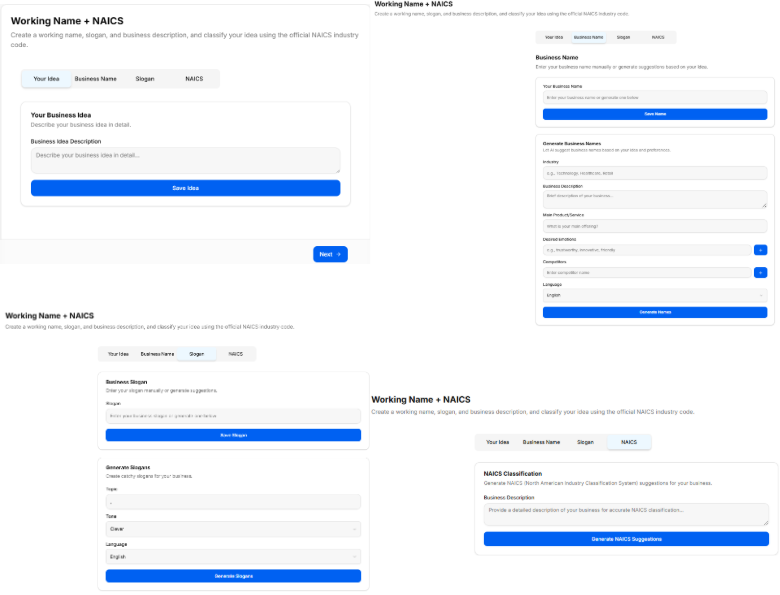
<div drawio-diagram="366"><img src="https://library.buildrunkit.com/uploads/images/drawio/2026-05/drawing-4-1779369974.png" alt=""/></div>

This sub-stage screen focuses on defining the company's preliminary market presence and legal classification. It features tools to generate and log business names, tone-specific slogans, and industry taxonomy codes.

#### Canvas Layout &amp; Workspace Components

<div _ngcontent-ng-c2170363542="" class="container" id="bkmrk-main-workspace-title-3"><div _ngcontent-ng-c1323015604="" aria-busy="false" aria-live="polite" class="markdown markdown-main-panel enable-updated-hr-color" dir="ltr" inline-copy-host="">- Main Workspace Title: Displays "Working Name + NAICS" with an introductory subtitle: “Let's define what your business will be called, its slogan and its formal industry classification.”
- Business Concept Recap Banner: A light gray full-width contextual alert box summarizing the selected track:
    
    
    - Text: “You have chosen to pursue the business idea: An AI assistant that helps virtual assistants optimize their workflow and automate administrative tasks.”

</div></div>#### The Core Data-Intake Sections

##### 1. Business Name Generation Hub

<div _ngcontent-ng-c2170363542="" class="container" id="bkmrk-field-label%3A-%221.-wha"><div _ngcontent-ng-c1323015604="" aria-busy="false" aria-live="polite" class="markdown markdown-main-panel enable-updated-hr-color" dir="ltr" inline-copy-host="">- Field Label: "1. What is the working name of your business?"
- Input Box: A text entry field populated with a live placeholder or typed entry.
- AI Tool Integration: Features a solid blue Suggest Business Names action button to auto-generate creative naming variations directly underneath if the founder requires inspiration.

</div></div>##### 2. Slogan Configuration Console (Tone &amp; Language Options)

<div _ngcontent-ng-c2170363542="" class="container" id="bkmrk-field-label%3A-%222.-wha"><div _ngcontent-ng-c1323015604="" aria-busy="false" aria-live="polite" class="markdown markdown-main-panel enable-updated-hr-color" dir="ltr" inline-copy-host="">- Field Label: "2. What is the slogan or tagline of your business?"
- Input Box: A text entry field with the directional placeholder text: “Enter your business slogan or tagline...”
- AI Slogan Generation Parameter Filters: Founders can customize the automated generation tool by adjusting specific behavioral selectors:
    
    
    - Slogan Tone Dropdown: Sets the branding attitude. Clicking the menu reveals four distinct choices:
        
        
        1. Clever
        2. Funny
        3. Serious
        4. Informative
    - Language Dropdown: Sets the output translation. Clicking the menu reveals two standard options:
        
        
        1. English
        2. Spanish
- Action Trigger: Features a solid blue Suggest Slogans action button to generate list options matching the targeted tone and language configuration.

</div></div>##### 3. NAICS Industry Classification Hub

<div _ngcontent-ng-c2170363542="" class="container" id="bkmrk-field-label%3A-%223.-wha"><div _ngcontent-ng-c1323015604="" aria-busy="false" aria-live="polite" class="markdown markdown-main-panel enable-updated-hr-color" dir="ltr" inline-copy-host="">- Field Label: "3. What is the NAICS code for your business?"
- Input Box: A specialized input box displaying a search placeholder: “Search NAICS code...”
- AI Classification Integration: Features a solid blue Suggest NAICS Code action button that leverages the concept description to locate matching industrial classification codes from the North American Industry Classification System database.
- Sector Search Dropdown: A secondary interactive drawer element populated with standard macroeconomic parent groupings to help narrow down industry categorization manually:
    
    
    - Agriculture, Forestry, Fishing and Hunting
    - Mining, Quarrying, and Oil and Gas Extraction
    - Utilities
    - Construction
    - Manufacturing

</div></div>#### Navigation Controls

<div _ngcontent-ng-c2170363542="" class="container" id="bkmrk-next-button%3A-a-blue--4"><div _ngcontent-ng-c1323015604="" aria-busy="false" aria-live="polite" class="markdown markdown-main-panel enable-updated-hr-color" dir="ltr" inline-copy-host="">- Next Button: A blue Next → navigation utility link is anchored at the bottom right corner of the window frame to submit name selections, tagline logs, and regulatory NAICS codes, advancing directly to Sub-Stage 5 (Early Market Signal Check).

</div></div>### Sub-Stage 5: Early Market Signal Check

[![Screenshot 2026-05-21 152708.png](https://library.buildrunkit.com/uploads/images/gallery/2026-05/scaled-1680-/screenshot-2026-05-21-152708.png)](https://library.buildrunkit.com/uploads/images/gallery/2026-05/screenshot-2026-05-21-152708.png)

This sub-stage screen functions as an initial quantitative and qualitative validation check. It enables founders to test their business concept against preliminary market indicators to gauge demand, identify industry trends, and gather strategic insights before committing capital or deep operational resources.

#### Canvas Layout &amp; Workspace Components

<div _ngcontent-ng-c2170363542="" class="container" id="bkmrk-main-workspace-title-4"><div _ngcontent-ng-c1323015604="" aria-busy="false" aria-live="polite" class="markdown markdown-main-panel enable-updated-hr-color" dir="ltr" inline-copy-host="">- Main Workspace Title: Displays "Early Market Signal Check" alongside a descriptive subtitle mapping its core objective: “Test your idea against early market signals to validate demand and gather insights before investing more resources.”
- Market Insights Generation Console: A stylized data intake card centered on the workspace canvas, titled "Generate comprehensive market insights based on your business description and NAICS classification."

</div></div>##### The Input Validation Fields

<div _ngcontent-ng-c2170363542="" class="container" id="bkmrk-naics-code-field%3A-la"><div _ngcontent-ng-c1323015604="" aria-busy="false" aria-live="polite" class="markdown markdown-main-panel enable-updated-hr-color" dir="ltr" inline-copy-host="">- NAICS Code Field:
    
    
    - Label: "NAICS Code"
    - Input Box: A text field with the placeholder instruction: “Enter your NAICS code”. This links directly with the industrial classification chosen in the previous sub-stage.
- Business Description Field:
    
    
    - Label: "Business Description"
    - Input Box: A multi-line text container with the inside placeholder prompt: “Provide a detailed description of your business...”

</div></div>##### Analysis Trigger

<div _ngcontent-ng-c2170363542="" class="container" id="bkmrk-action-button%3A-featu"><div _ngcontent-ng-c1323015604="" aria-busy="false" aria-live="polite" class="markdown markdown-main-panel enable-updated-hr-color" dir="ltr" inline-copy-host="">- Action Button: Features a solid blue, full-width action bar positioned at the bottom of the card reading "Generate Market Insights". Clicking this processes the NAICS taxonomy parameters and text entries to deliver real-world validation data, competitor trends, and target audience feedback indicators directly on screen.

</div></div>#### Navigation Controls

<div _ngcontent-ng-c2170363542="" class="container" id="bkmrk-next-button%3A-a-blue--5"><div _ngcontent-ng-c1323015604="" aria-busy="false" aria-live="polite" class="markdown markdown-main-panel enable-updated-hr-color" dir="ltr" inline-copy-host="">- Next Button: A blue Next → utility key is anchored at the absolute bottom right-hand margin of the window footer area. Clicking this locks in your validation data points and transitions the user forward to Sub-Stage 6 (Export Discovery Results), completing the entire Discovery phase sequence.

</div></div>### Sub-Stage 6: Export Discovery Results

[![Screenshot 2026-05-21 153011.png](https://library.buildrunkit.com/uploads/images/gallery/2026-05/scaled-1680-/screenshot-2026-05-21-153011.png)](https://library.buildrunkit.com/uploads/images/gallery/2026-05/screenshot-2026-05-21-153011.png)

[![Screenshot 2026-05-21 153049.png](https://library.buildrunkit.com/uploads/images/gallery/2026-05/scaled-1680-/screenshot-2026-05-21-153049.png)](https://library.buildrunkit.com/uploads/images/gallery/2026-05/screenshot-2026-05-21-153049.png)

This final checkpoint compiles all inputs, selections, and AI-generated outputs from the Discovery Stage into an organized audit summary. It offers a clean, read-only historical review alongside export capabilities before the user transitions into the next strategic phase of development.

#### Canvas Layout &amp; Workspace Components

- Main Workspace Title: Displays "Export Discovery Results" with an introductory descriptive subtitle: “This is an overview of what you told us in the discovery stage, you can also export a brief summary of your findings as a pdf file.”
- Document Generation Panel: A full-width light-blue callout banner labeled Discovery Stage Results positioned at the top of the workspace:
    
    
    - Description: Instructs the user to “Download a comprehensive PDF report containing all your discovery findings”.
    - Action Button: Centered within the panel is a blue Generate PDF Report action key complete with a download tray icon.

#### Discovery Summary Grid (Upper Panel)

The top half of the results interface uses a balanced two-column grid framework to show core branding and indexing parameters:

- Business Name Card:
    
    
    - Label: “The name you've chosen for your business”
    - Data Field: Displays the confirmed name of the business venture.
- Business Idea Card:
    
    
    - Label: “The core idea behind your business”
    - Data Field: Displays the selected startup concept track.
- Slogan Card:
    
    
    - Label: “Your business slogan or tagline”
    - Data Field: Displays the generated brand slogan or tagline.
- NAICS Classification Card:
    
    
    - Label: “Industry classification based on NAICS code”
    - Data Rows: Divided into two tracking points:
        
        
        - Code: Displays the selected regulatory classification code.
        - Industry: Displays the formal industry sector title.

#### Strategic Analysis Summaries (Lower Panel)

The bottom section handles the deep conceptual evaluations and contextual research data compiled throughout the phase:

- Founder Fit Summary Block:
    
    
    - Header Title: Founder Fit Summary
    - Label: “Analysis of how well you fit with your business idea into the market”
    - Data Field: Displays the complete alignment analysis text based on the strengths and skills assessment.
- Market Insights Summary Block:
    
    
    - Header Title: Market Insights Summary
    - Label: “Key insights about your target market, trends, and competitors”
    - Main Summary Field: Displays the captured analysis results and qualitative market landscape breakdown.
    - Granular Insight Footers: Split into two side-by-side indicator data targets:
        
        
        - Market Trends (Graph Icon): Displays the logged macroeconomic development paths and growth curves.
        - Competitors (Flag Icon): Displays the verified industry player benchmarking details.

#### Navigation Controls

- Next Button: A high-visibility blue Next → navigation element is anchored at the bottom right-hand margin of the window footer to seal the Discovery logs and open up the main stage menu for Stage 3: Market Research.

<div _ngcontent-ng-c2170363542="" class="container" id="bkmrk--10"><div _ngcontent-ng-c1323015604="" aria-busy="false" aria-live="polite" class="markdown markdown-main-panel enable-updated-hr-color" dir="ltr" id="bkmrk--11" inline-copy-host=""></div></div><div _ngcontent-ng-c2170363542="" class="container" id="bkmrk--12"><div _ngcontent-ng-c1323015604="" aria-busy="false" aria-live="polite" class="markdown markdown-main-panel enable-updated-hr-color" dir="ltr" id="bkmrk--13" inline-copy-host=""></div></div><div _ngcontent-ng-c2170363542="" class="container" id="bkmrk--14"><div _ngcontent-ng-c1323015604="" aria-busy="false" aria-live="polite" class="markdown markdown-main-panel enable-updated-hr-color" dir="ltr" id="bkmrk--15" inline-copy-host=""></div></div><div _ngcontent-ng-c2170363542="" class="container" id="bkmrk--16"><div _ngcontent-ng-c1323015604="" aria-busy="false" aria-live="polite" class="markdown markdown-main-panel enable-updated-hr-color" dir="ltr" id="bkmrk--17" inline-copy-host=""></div></div>

# Market Research Stage

## **Market Research Stage**

**[![Screenshot 2026-05-21 153730.png](https://library.buildrunkit.com/uploads/images/gallery/2026-05/scaled-1680-/screenshot-2026-05-21-153730.png)](https://library.buildrunkit.com/uploads/images/gallery/2026-05/screenshot-2026-05-21-153730.png)**

The Market Research Stage is the data and validation phase of the roadmap, broken down into nine distinct sequential sub-stages accessed via the left-hand sidebar dropdown:

- Sub-Stage 1: Welcome to the Market Research Stage
    
    
    - This is the initial onboarding landing view that provides context, introductory media, and directional cues before validation work begins.
- Sub-Stage 2: Market Type
    
    
    - The second item within the sequence, focusing on choosing your market entry strategy (Existing, New, Resegmented, or Clone) to define your positioning rules.
- Sub-Stage 3: Ideal Persona
    
    
    - The third item within the sequence, dedicated to building target customer demographical and psychographical target profiles.
- Sub-Stage 4: Market Research Questions
    
    
    - The fourth item within the sequence, organizing core informational queries used to vet market assumptions and gather structural feedback.
- Sub-Stage 5: Trends &amp; Insights
    
    
    - The fifth item within the sequence, analyzing macro trends, industrial opportunities, market headwinds, and technological shifts.
- Sub-Stage 6: Market Statistics
    
    
    - The sixth item within the sequence, delivering a quantitative sizing breakdown (TAM, SAM, SOM) along with industry growth percentages and acquisition baselines.
- Sub-Stage 7: Competitive Analysis
    
    
    - The seventh item within the sequence, functioning as an intelligence matrix to profile direct rivals, map features, and assess competitive pricing strategies.
- Sub-Stage 8: Moat
    
    
    - The eighth item within the sequence, identifying key competitive advantages, operational switching costs, barriers to entry, and network effects.
- Sub-Stage 9: Export Marketing Research Results
    
    
    - The final technical milestone within this phase, presenting a read-only data audit layout alongside a generator tool to export an official summary PDF report.

### Stage Controls

- Next Button: A blue Next → link utility centered below the active canvas or anchored in the footer line allows users to log current metrics and advance sequentially through the data validation journey.

### Sub-Stage 1: Welcome to the Marketing Research Stage

[![Screenshot 2026-05-21 153900.png](https://library.buildrunkit.com/uploads/images/gallery/2026-05/scaled-1680-/screenshot-2026-05-21-153900.png)](https://library.buildrunkit.com/uploads/images/gallery/2026-05/screenshot-2026-05-21-153900.png)

This sub-stage screen serves as the introductory gateway to the market analysis phase, ensuring the founder has clear instructional media and overview tools before deep-diving into target consumer metrics.

#### Canvas Layout &amp; Workspace Components

<div _ngcontent-ng-c2170363542="" class="container" id="bkmrk-main-workspace-title-1"><div _ngcontent-ng-c1323015604="" aria-busy="false" aria-live="polite" class="markdown markdown-main-panel enable-updated-hr-color" dir="ltr" inline-copy-host="">- Main Workspace Title: Displays "Welcome to the Marketing Research Stage" accompanied by a directional subtitle: “Get an overview of the Market Research process and learn how this stage will help you identify your target market, trends, and competitors.”
- Market Research Media Panel: Features a large central workspace graphic or video element titled Market Research on the top-left and branded directly with the official buildrunkit logo on the top-right.
- Onboarding Information Drawer (Right Panel): A structured information block or layout component sits to the right of the media display to outline immediate objectives before the founder begins editing data entries.

</div></div>#### Navigation Controls

<div _ngcontent-ng-c2170363542="" class="container" id="bkmrk-next-button%3A-a-blue--1"><div _ngcontent-ng-c1323015604="" aria-busy="false" aria-live="polite" class="markdown markdown-main-panel enable-updated-hr-color" dir="ltr" inline-copy-host="">- Next Button: A blue Next → link utility button is centered at the bottom of the interface window to save the initialization state and advance the user directly to Sub-Stage 2 (Confirm Business Details).

</div></div>### Sub-Stage 2: Confirm Business Details

[![Screenshot 2026-05-21 154129.png](https://library.buildrunkit.com/uploads/images/gallery/2026-05/scaled-1680-/screenshot-2026-05-21-154129.png)](https://library.buildrunkit.com/uploads/images/gallery/2026-05/screenshot-2026-05-21-154129.png)

This sub-stage serves as a data verification screen where the user reviews and confirms the foundational business parameters established during the Discovery Stage before launching deep market research operations.

#### Canvas Layout &amp; Workspace Components

- Main Workspace Title: Displays "Confirm Business Details" accompanied by a clear instructional subtitle: “Please confirm your business details to ensure the market research is tailored accurately to your concept.”
- Core Business Configuration Panel: A unified data entry card containing three structured verification fields:
    
    
    - 1\. Business Working Name:
        
        
        - Label: “Working Name”
        - Input Box: A text container designed to dynamically pull forward or allow editing of the company name.
    - 2\. Business Slogan:
        
        
        - Label: “Slogan”
        - Input Box: A secondary text container showing the established tagline or brand hook.
    - 3\. Business Core Description:
        
        
        - Label: “Description”
        - Input Box: A multi-line text container mapping out the specific workflow, target users, and key offerings of the business concept.

#### Navigation Controls

- Next Button: A blue Next → action utility button is anchored at the bottom right-hand margin of the page to lock down the verified data and transition directly forward to Sub-Stage 3 (Market Type).

### Sub-Stage 3: Market Type

[![Screenshot 2026-05-21 154359.png](https://library.buildrunkit.com/uploads/images/gallery/2026-05/scaled-1680-/screenshot-2026-05-21-154359.png)](https://library.buildrunkit.com/uploads/images/gallery/2026-05/screenshot-2026-05-21-154359.png)

This sub-stage screen helps the founder identify, define, and select their foundational market entry strategy. Categorizing the market type changes how the system configures customer acquisition metrics, scaling speeds, and competitive positioning strategies later in the roadmap.

#### Canvas Layout &amp; Workspace Components

<div _ngcontent-ng-c2170363542="" class="container" id="bkmrk-main-workspace-title-3"><div _ngcontent-ng-c1323015604="" aria-busy="false" aria-live="polite" class="markdown markdown-main-panel enable-updated-hr-color" dir="ltr" inline-copy-host="">- Main Workspace Title: Displays "Market Type" accompanied by a targeted operational subtitle: “Identify the type of market you are entering to better understand consumer behaviors, regulatory barriers, and market dynamics.”
- Market Type Matrix Selection: A collection of four large, interactive option cards arranged across the canvas. Each strategy type features a distinctive heading title and description block:
    
    
    - Existing Market:
        
        
        - Description: Entering an existing market with well-defined product categories, established competitors, and known customer requirements. The primary operational goal here is stealing market share from current incumbents.
    - New Market:
        
        
        - Description: Creating an entirely new market category where a product or service solves a problem that customers didn't realize they had. This path features no direct initial competitors but requires massive consumer education efforts.
    - Resegmented Market (Niche / Low Cost):
        
        
        - Description: Finding a specific group of customers in an existing market whose needs are currently ignored or underserved by massive industry giants. This relies on targeting a specific niche or leveraging a low-cost pricing strategy.
    - Clone Market:
        
        
        - Description: Taking an incredibly successful, proven business model from a foreign or distinct market and completely replicating it within a local region or unserved geographic area.

</div></div>#### Navigation Controls

<div _ngcontent-ng-c2170363542="" class="container" id="bkmrk-next-button%3A-a-blue--3"><div _ngcontent-ng-c1323015604="" aria-busy="false" aria-live="polite" class="markdown markdown-main-panel enable-updated-hr-color" dir="ltr" inline-copy-host="">- Next Button: A blue Next → action link utility button is anchored at the bottom right corner of the footer frame to lock down the chosen entry strategy and transition directly into Sub-Stage 4 (Ideal Persona).

</div></div>### Sub-Stage 4: Ideal Persona

[![Screenshot 2026-05-21 154538.png](https://library.buildrunkit.com/uploads/images/gallery/2026-05/scaled-1680-/screenshot-2026-05-21-154538.png)](https://library.buildrunkit.com/uploads/images/gallery/2026-05/screenshot-2026-05-21-154538.png)

This sub-stage screen functions as a comprehensive buyer persona development center. It uses the verified business description and market choices to generate deep biographical profiles of the business's ideal targets, mapping their behaviors, professional constraints, and software requirements.

#### Canvas Layout &amp; Workspace Components

- Main Workspace Title: Displays "Ideal Persona" accompanied by a tactical user-experience subtitle: “Define your target audience profiles or user personas to deeply understand their backgrounds, key pain points, and specific needs.”
- Persona Generation Control Card: A full-width configuration banner positioned at the top of the canvas layout:
    
    
    - Header: Generate Ideal Persona
    - Subtitle Text: “Generate an ideal user persona based on your business description and market choices to target the right customers.”
    - Action Button: A solid blue button centered below the descriptive text labeled Generate Ideal Persona. Clicking this parses the cumulative journey parameters to build targeted consumer case studies across the grid below.

#### The Generated Persona Matrix Grid

Once populated, the workspace layout organizes user attributes into four distinct, easy-to-read qualitative profiling blocks:

- 1\. Profile &amp; Demographics (User Icon):
    
    
    - Label: "1. Profile &amp; Demographics"
    - Data Field: Displays the persona's core bio traits, including typical age brackets, job titles, daily professional environments, educational backgrounds, and income ranges.
- 2\. Psychographics &amp; Behaviors (Heart Icon):
    
    
    - Label: "2. Psychographics &amp; Behaviors"
    - Data Field: Maps internal driving values, technology adoption habits, buying motivations, brand loyalties, and preferred digital communication channels.
- 3\. Pain Points &amp; Challenges (Warning Icon):
    
    
    - Label: "3. Pain Points &amp; Challenges"
    - Data Field: Identifies critical friction points, systemic workplace bottlenecks, financial leaks, and personal operational frustrations the consumer actively seeks to solve.
- 4\. Goals &amp; Desired Outcomes (Target Icon):
    
    
    - Label: "4. Goals &amp; Desired Outcomes"
    - Data Field: Highlights definition-of-success metrics, core productivity targets, long-term personal milestones, and specific software performance desires.

#### Navigation Controls

- Next Button: A blue Next → navigation action button is anchored at the bottom right corner of the window frame to log the generated customer profiles and advance to Sub-Stage 5 (Trends &amp; Insights from Market Reports).

### Sub-Stage 5: Trends &amp; Insights from Market Reports

[![Screenshot 2026-05-21 154754.png](https://library.buildrunkit.com/uploads/images/gallery/2026-05/scaled-1680-/screenshot-2026-05-21-154754.png)](https://library.buildrunkit.com/uploads/images/gallery/2026-05/screenshot-2026-05-21-154754.png)

This sub-stage screen serves as an advanced trend analysis module. It processes the confirmed business details and industry vertical classifications to generate comprehensive reports mapping out macro market shifts, growth directions, and technical disruptions.

#### Canvas Layout &amp; Workspace Components

- Main Workspace Title: Displays "Trends &amp; Insights from Market Reports" accompanied by a research-driven subtitle: “Generate comprehensive market trends and insights based on your business description and market choices to stay ahead of the competition.”
- Trends Generation Control Card: A full-width specialized action container placed at the top of the workspace:
    
    
    - Header: Generate Trends &amp; Insights
    - Subtitle Text: “Generate market trends and insights from industry reports to uncover growth opportunities and key market dynamics.”
    - Action Button: A solid blue button centered below the instructions labeled Generate Trends &amp; Insights. Clicking this runs the analysis engine to populate the thematic data grids below.

#### The Generated Strategic Insights Grid

The research engine categorizes industry macro data into four distinct quadrant-style information panels across the canvas layout:

- 1\. Market Trends (Graph Line Icon):
    
    
    - Label: "1. Market Trends"
    - Data Field: Details shifting industry directions, overall sector momentum, emergent business models, and adoption velocities within the targeted industrial landscape.
- 2\. Market Insights (Lightbulb Icon):
    
    
    - Label: "2. Market Insights"
    - Data Field: Delivers deeper qualitative breakthroughs, hidden workflow demands, under-the-radar sector anomalies, and strategic takeaways relevant to the concept.
- 3\. Opportunities (Star Icon):
    
    
    - Label: "3. Opportunities"
    - Data Field: Flags immediate operational gaps, niche market expansions, unserved customer segments, and high-growth spaces left open by existing market competitors.
- 4\. Threats &amp; Challenges (Shield/Warning Icon):
    
    
    - Label: "4. Threats &amp; Challenges"
    - Data Field: Maps incoming systemic barriers, pricing drops, changing regulatory standards, technological risks, and defensive moves from large industry incumbents.

#### Navigation Controls

- Next Button: A blue Next → navigation utility link is anchored at the bottom right-hand corner of the workspace to save the generated report parameters and progress sequentially into Sub-Stage 6 (Market Statistics).

### Sub-Stage 6: Market Statistics

[![Screenshot 2026-05-21 154957.png](https://library.buildrunkit.com/uploads/images/gallery/2026-05/scaled-1680-/screenshot-2026-05-21-154957.png)](https://library.buildrunkit.com/uploads/images/gallery/2026-05/screenshot-2026-05-21-154957.png)

This sub-stage delivers a quantitative breakdown of the industry landscape. It processes the venture's target profile and NAICS industry classification to calculate addressable market sizes, industry growth percentages, and baseline customer acquisition metrics.

#### Canvas Layout &amp; Workspace Components

- Main Workspace Title: Displays "Market Statistics" accompanied by a metrics-focused subtitle: “View key market statistics and metrics to understand the scale, growth potential, and financial dynamics of your target industry.”
- Statistics Generation Control Card: A full-width calculation container situated at the top of the workspace area:
    
    
    - Header: Generate Market Statistics
    - Subtitle Text: “Generate data-driven market statistics, including market sizing, growth rates, and average industry metrics to back your business strategy.”
    - Action Button: A solid blue button centered within the container labeled Generate Market Statistics. Clicking this runs the financial modeling engine to populate the quantitative panels below.

#### The Generated Market Metrics Grid

The reporting suite arranges the calculated industry benchmarks into four clear data visualization panels across the page layout:

- 1\. Market Sizing (TAM, SAM, SOM) (Pie Chart Icon):
    
    
    - Label: "1. Market Sizing (TAM, SAM, SOM)"
    - Data Field: Pulls dynamic calculations for Total Addressable Market (TAM), Serviceable Addressable Market (SAM), and Serviceable Obtainable Market (SOM) to illustrate the absolute scale of the revenue opportunity.
- 2\. Growth Rates &amp; Projections (Bar Chart Icon):
    
    
    - Label: "2. Growth Rates &amp; Projections"
    - Data Field: Tracks Compound Annual Growth Rate (CAGR) percentages, historical momentum, and five-year industrial trajectory forecasts.
- 3\. Key Industry Metrics (Analytics Icon):
    
    
    - Label: "3. Key Industry Metrics"
    - Data Field: Outlines core operational baselines unique to the sector, such as standard profit margins, transaction volumes, and asset utilization averages.
- 4\. Customer Acquisition Metrics (User Funnel Icon):
    
    
    - Label: "4. Customer Acquisition Metrics"
    - Data Field: Details industry standard Customer Acquisition Costs (CAC), expected Customer Lifetime Value (LTV) ratios, and average sales cycle lengths.

#### Navigation Controls

- Next Button: A blue Next → navigation action button is anchored at the bottom right-hand margin of the footer to lock down the statistical models and advance directly to Sub-Stage 7 (Competitive Analysis).

### Sub-Stage 7: Competitive Analysis

[![Screenshot 2026-05-21 155153.png](https://library.buildrunkit.com/uploads/images/gallery/2026-05/scaled-1680-/screenshot-2026-05-21-155153.png)](https://library.buildrunkit.com/uploads/images/gallery/2026-05/screenshot-2026-05-21-155153.png)

This sub-stage functions as an automated and manual benchmarking hub. It processes the company's core concept description and targeted market choices to systematically track direct and indirect market competitors.

#### Canvas Layout &amp; Workspace Components

<div _ngcontent-ng-c2170363542="" class="container" id="bkmrk-main-workspace-title-7"><div _ngcontent-ng-c1323015604="" aria-busy="false" aria-live="polite" class="markdown markdown-main-panel enable-updated-hr-color" dir="ltr" inline-copy-host="">- Main Workspace Title: Displays "Competitive Analysis" accompanied by a positioning subtitle: “Identify and analyze your competitors to understand their strengths, weaknesses, and market positioning.”
- Competitor Generation Control Card: A full-width intelligence container positioned at the top of the canvas workspace:
    
    
    - Header: Generate Competitive Analysis
    - Subtitle Text: “Generate a comprehensive competitive analysis, profiling major competitors, their market share, strategies, and features.”
    - Action Button: A solid blue button centered within the container labeled Generate Competitive Analysis. Clicking this runs the analysis to populate the matrix blocks below.

</div></div>#### The Generated Competitive Intelligence Grid

The system populates and segments competitive landscaping metrics into four standard tracking containers across the page layout:

<div _ngcontent-ng-c2170363542="" class="container" id="bkmrk-1.-top-competitors-p"><div _ngcontent-ng-c1323015604="" aria-busy="false" aria-live="polite" class="markdown markdown-main-panel enable-updated-hr-color" dir="ltr" inline-copy-host="">- 1\. Top Competitors Profile (Users Icon):
    
    
    - Label: "1. Top Competitors Profile"
    - Data Field: Displays the profiles and market data of primary competitors.
- 2\. Competitor Strengths &amp; Weaknesses (Shield Icon):
    
    
    - Label: "2. Competitor Strengths &amp; Weaknesses"
    - Data Field: Displays the core strengths and critical weaknesses identified for each competitor.
- 3\. Feature Comparison Matrix (Sliders/Settings Icon):
    
    
    - Label: "3. Feature Comparison Matrix"
    - Data Field: Displays a detailed breakdown of features across different market players.
- 4\. Pricing &amp; Market Positioning (Dollar Tag Icon):
    
    
    - Label: "4. Pricing &amp; Market Positioning"
    - Data Field: Displays the pricing tiers and strategic market positioning of competitors.

</div></div>#### Navigation Controls

<div _ngcontent-ng-c2170363542="" class="container" id="bkmrk-next-button%3A-a-blue--7"><div _ngcontent-ng-c1323015604="" aria-busy="false" aria-live="polite" class="markdown markdown-main-panel enable-updated-hr-color" dir="ltr" inline-copy-host="">- Next Button: A blue Next → navigation action button is anchored at the bottom right-hand margin of the footer. Clicking this locks in the competitor tracking data and advances directly to Sub-Stage 8 (Moat).

</div></div>### Sub-Stage 8: Moat

[![Screenshot 2026-05-21 155613.png](https://library.buildrunkit.com/uploads/images/gallery/2026-05/scaled-1680-/screenshot-2026-05-21-155613.png)](https://library.buildrunkit.com/uploads/images/gallery/2026-05/screenshot-2026-05-21-155613.png)

This sub-stage focusing on identifying and developing your venture's competitive advantages or "moat". Defining these core barriers helps secure your market position and protects your startup concept from being easily replicated by competitors.

#### Canvas Layout &amp; Workspace Components

<div _ngcontent-ng-c2170363542="" class="container" id="bkmrk-main-workspace-title-8"><div _ngcontent-ng-c1323015604="" aria-busy="false" aria-live="polite" class="markdown markdown-main-panel enable-updated-hr-color" dir="ltr" inline-copy-host="">- Main Workspace Title: Displays "Moat" accompanied by a protective strategy subtitle: “Identify and define your competitive advantages or 'moat' to protect your business from competitors and sustain long-term success.”
- Moat Generation Control Card: A full-width strategic planning container positioned at the top of the canvas workspace:
    
    
    - Header: Generate Moat
    - Subtitle Text: “Generate a comprehensive moat analysis, profiling major barriers to entry, switching costs, and network effects.”
    - Action Button: A solid blue button centered within the container labeled Generate Moat. Clicking this runs the analysis to populate the defensive strategic blocks below.

</div></div>#### The Generated Moat Analysis Grid

The system populates and segments your defensive market structures into four standard tracking containers across the page layout:

<div _ngcontent-ng-c2170363542="" class="container" id="bkmrk-1.-barriers-to-entry"><div _ngcontent-ng-c1323015604="" aria-busy="false" aria-live="polite" class="markdown markdown-main-panel enable-updated-hr-color" dir="ltr" inline-copy-host="">- 1\. Barriers to Entry (Shield Icon):
    
    
    - Label: "1. Barriers to Entry"
    - Data Field: Displays the structural roadblocks and startup challenges that prevent new players from easily entering your space.
- 2\. Switching Costs (Arrows Icon):
    
    
    - Label: "2. Switching Costs"
    - Data Field: Displays the calculated operational, financial, or psychological costs customers face if they try to leave your platform for a competitor.
- 3\. Network Effects (Network/Nodes Icon):
    
    
    - Label: "3. Network Effects"
    - Data Field: Displays how your product or service naturally becomes more valuable to existing users as your total customer base grows.
- 4\. Cost Advantages (Trending Down Bar Chart Icon):
    
    
    - Label: "4. Cost Advantages"
    - Data Field: Displays the unique operational efficiencies, scale economics, or proprietary processes that allow you to maintain lower costs than rivals.

</div></div>#### Navigation Controls

<div _ngcontent-ng-c2170363542="" class="container" id="bkmrk-next-button%3A-a-blue--8"><div _ngcontent-ng-c1323015604="" aria-busy="false" aria-live="polite" class="markdown markdown-main-panel enable-updated-hr-color" dir="ltr" inline-copy-host="">- Next Button: A blue Next → navigation action button is anchored at the bottom right-hand margin of the footer. Clicking this saves your competitive advantage profiles and advances directly to Sub-Stage 9 (Export Marketing Research Results).

</div></div>### Sub-Stage 9: Export Marketing Research Results

[![Screenshot 2026-05-21 155825.png](https://library.buildrunkit.com/uploads/images/gallery/2026-05/scaled-1680-/screenshot-2026-05-21-155825.png)](https://library.buildrunkit.com/uploads/images/gallery/2026-05/screenshot-2026-05-21-155825.png)

[![Screenshot 2026-05-21 155937.png](https://library.buildrunkit.com/uploads/images/gallery/2026-05/scaled-1680-/screenshot-2026-05-21-155937.png)](https://library.buildrunkit.com/uploads/images/gallery/2026-05/screenshot-2026-05-21-155937.png)

This final checkpoint compiles all inputs, strategy selections, and AI-generated analysis grids from the Market Research Stage into a centralized audit layout. It provides a read-only historical overview alongside comprehensive export features before unlocking progress into the next stage of development.

#### Canvas Layout &amp; Workspace Components

- Main Workspace Title: Displays "Export Marketing Research Results" accompanied by an instructional subtitle: “This is an overview of what you told us in the marketing research stage, you can also export a brief summary of your findings as a pdf file.”
- Document Generation Panel: A full-width light-blue callout container positioned at the top of the canvas:
    
    
    - Description: Instructs the user to “Download a comprehensive PDF report containing all your marketing research findings”.
    - Action Button: Features a centered blue Generate PDF Report action key with an integrated download tray icon.

#### Core Market Settings Summary Grid (Upper Panel)

The top half of the summary layout utilizes a two-column grid framework to display foundational strategic choices:

- Business Details Card:
    
    
    - Label: “Your confirmed business details”
    - Data Rows: Displays the verified company working name, brand slogan, and core concept description.
- Market Type Card:
    
    
    - Label: “The market type classification for your business”
    - Data Field: Displays the chosen market entry strategy (e.g., Existing, New, Resegmented, or Clone).
- Ideal Persona Card:
    
    
    - Label: “The target customer profile or user persona”
    - Data Field: Displays the generated customer demographic and psychographic profiles.

#### Deep Research Analysis Summaries (Lower Panel)

The bottom section handles the complex data models, industry trend forecasts, and competitive positioning metrics logged throughout the phase:

- Trends &amp; Insights Summary Block:
    
    
    - Header Title: Trends &amp; Insights Summary
    - Label: “Key trends, insights, opportunities, and threats from industry reports”
    - Data Field: Displays the compiled macro-market directions and risk profiles.
- Market Statistics Summary Block:
    
    
    - Header Title: Market Statistics Summary
    - Label: “Data-driven market statistics including sizing, growth rates, and metrics”
    - Data Field: Displays the quantitative industry benchmarks, size estimates, and growth calculations.
- Competitive Analysis Summary Block:
    
    
    - Header Title: Competitive Analysis Summary
    - Label: “Profiles, strengths, weaknesses, and features of your top competitors”
    - Data Field: Displays the competitive intelligence profiles and positioning comparisons.
- Moat Summary Block:
    
    
    - Header Title: Moat Summary
    - Label: “Your competitive advantages, barriers to entry, and network effects”
    - Data Field: Displays the identified defensive strategic barriers and switching cost advantages.

#### Navigation Controls

- Next Button: A blue Next → navigation action button is anchored at the bottom right-hand margin of the footer. Clicking this seals your market research audit logs and advances the system into Stage 4 of the startup journey.

<div _ngcontent-ng-c2170363542="" class="container" id="bkmrk--11"><div _ngcontent-ng-c1323015604="" aria-busy="false" aria-live="polite" class="markdown markdown-main-panel enable-updated-hr-color" dir="ltr" id="bkmrk--12" inline-copy-host=""></div></div><div _ngcontent-ng-c2170363542="" class="container" id="bkmrk--13"><div _ngcontent-ng-c1323015604="" aria-busy="false" aria-live="polite" class="markdown markdown-main-panel enable-updated-hr-color" dir="ltr" id="bkmrk--14" inline-copy-host=""></div></div><div _ngcontent-ng-c2170363542="" class="container" id="bkmrk--15"><div _ngcontent-ng-c1323015604="" aria-busy="false" aria-live="polite" class="markdown markdown-main-panel enable-updated-hr-color" dir="ltr" id="bkmrk--16" inline-copy-host=""></div></div><div _ngcontent-ng-c2170363542="" class="container" id="bkmrk--17"><div _ngcontent-ng-c1323015604="" aria-busy="false" aria-live="polite" class="markdown markdown-main-panel enable-updated-hr-color" dir="ltr" id="bkmrk--18" inline-copy-host=""></div></div>

# Brand Foundations & Brand Kit Stage

## **Brand Foundations &amp; Brand Kit Stage**

**[![Screenshot 2026-05-22 100841.png](https://library.buildrunkit.com/uploads/images/gallery/2026-05/scaled-1680-/screenshot-2026-05-22-100841.png)](https://library.buildrunkit.com/uploads/images/gallery/2026-05/screenshot-2026-05-22-100841.png)**

The Brand Foundations &amp; Brand Kit Stage is the creative identity phase of the roadmap, broken down into seven distinct sequential sub-stages accessed via the left-hand sidebar dropdown:

- Sub-Stage 1: Welcome to the Brand Foundations &amp; Brand Kit Stage
    
    
    - This is the initial onboarding landing view that provides context, a core introduction video, and foundational directions before branding work begins.
- Sub-Stage 2: Brand Basics
    
    
    - The second item within the sequence, focusing on uploading a company logo, setting basic brand details, selecting baseline communication styles, and inputting your industry classification code.
- Sub-Stage 3: Core Values
    
    
    - The third item within the sequence, helping founders select or customize three to five key company tenets that define organizational culture and align marketing practices.
- Sub-Stage 4: Target Audience
    
    
    - The fourth item within the sequence, allowing creators to select or manually describe primary target audience segments to ensure visual branding connects with the right market.
- Sub-Stage 5: Fonts
    
    
    - The fifth item within the sequence, dedicated to testing, previewing, and assigning official typography configurations for both primary headlines and paragraph text.
- Sub-Stage 6: Color Palette
    
    
    - The sixth item within the sequence, focusing on selecting predefined themes or customizing individual hex codes to lock down a primary, secondary, and accent color palette.
- Sub-Stage 7: Export Brand Foundations &amp; Brand Kit Results
    
    
    - The final technical milestone within this phase, presenting a read-only historical review layout of all branding asset selections with a tool to generate an exportable summary PDF report.

### Stage Controls

- Next Button: A blue Next → link utility centered below the active canvas or anchored in the footer line allows users to save active configurations and cycle sequentially through the branding lifecycle steps.

### Sub-Stage 1: Welcome to the Brand Foundations &amp; Brand Kit Stage

[![Screenshot 2026-05-22 101312.png](https://library.buildrunkit.com/uploads/images/gallery/2026-05/scaled-1680-/screenshot-2026-05-22-101312.png)](https://library.buildrunkit.com/uploads/images/gallery/2026-05/screenshot-2026-05-22-101312.png)

This sub-stage screen serves as the formal onboarding gateway for the branding phase, introducing the founder to identity creation and visual asset generation.

#### Canvas Layout &amp; Workspace Components

- Main Workspace Title: Displays "Welcome to the Brand Foundations &amp; Brand Kit Stage".
- Instructional Subtitle: “This stage will help you confirm and generate your business details and generate your brand kit.”
- Branding Foundations Media Panel: Features a large, central display graphic or video asset set in an office hallway. The media asset displays the title text "Branding Foundations" on the upper-left area and features the official buildrunkit logo badge on the upper-right corner.

#### Navigation Controls

- Next Button: A blue Next → utility button is centered directly below the main media card workspace to lock down the introductory state and advance smoothly to Sub-Stage 2 (Brand Basics).

### Sub-Stage 2: Brand Basics

[![Screenshot 2026-05-22 101503.png](https://library.buildrunkit.com/uploads/images/gallery/2026-05/scaled-1680-/screenshot-2026-05-22-101503.png)](https://library.buildrunkit.com/uploads/images/gallery/2026-05/screenshot-2026-05-22-101503.png)

This sub-stage screen focuses on defining your brand's foundational identity parameters. It establishes core visual traits, essential baseline information, and conversational values that dictate how your brand communicates with your audience.

#### Canvas Layout &amp; Workspace Components

<div _ngcontent-ng-c1763992342="" class="container" id="bkmrk-main-workspace-title-2"><div _ngcontent-ng-c2382537432="" aria-busy="false" aria-live="polite" class="markdown markdown-main-panel enable-updated-hr-color" dir="ltr" inline-copy-host="">- Main Workspace Title: Displays "Brand Basics" accompanied by a clear setup subtitle: “Define your brand's core identity including brand name, tagline, voice and logo.”
- Brand Logo Upload Panel: A structured block dedicated to media configuration on the upper left:
    
    
    - Header: Brand Logo (accompanied by an image icon)
    - Subtitle: “Upload or update your brand logo”
    - Upload Trigger: Features a clear blue border Select Image button.
    - File Constraints Label: Specifies “Upload your logo. Max size: 5MB. Supported formats: JPG, PNG, GIF, WebP.”
- Basic Information Form Panel: A structured data input layout placed on the upper right side:
    
    
    - Header: Basic Information (accompanied by a clock/target icon)
    - Subtitle: “Define your brand's core identity”
    - Brand Name Input Field: A text entry field designated with a required indicator labeled \*“Brand Name ” and displaying placeholder text “Enter your brand name”.
    - Tagline Input Field: A text entry container labeled “Tagline” with a placeholder reading “A memorable tagline for your brand”.
    - Brand Description Input Area: A larger, multi-line text input block labeled “Brand Description” showing placeholder text “Describe what your brand represents and stands for”.

</div></div>#### Brand Voice &amp; Tone Configuration Suite

A wide, centralized setting segment located below the foundational data inputs allows creators to define market messaging styles:

<div _ngcontent-ng-c1763992342="" class="container" id="bkmrk-header%3A-brand-voice-"><div _ngcontent-ng-c2382537432="" aria-busy="false" aria-live="polite" class="markdown markdown-main-panel enable-updated-hr-color" dir="ltr" inline-copy-host="">- Header: Brand Voice &amp; Tone (accompanied by a microphone icon)
- Instructional Guide: “How does your brand communicate with your audience?”
- Preset Tone Selector Blocks: Displays five interactive presets arranged in a layout grid to capture your brand positioning:
    
    
    - Friendly: “Casual and approachable tone”
    - Professional: “Formal and authoritative tone”
    - Innovative: “Creative and forward-thinking tone”
    - Luxurious: “High-end and exclusive tone”
    - Playful: “Fun and light-hearted tone”
- Custom Tone Utility: Features a text box field labeled “Your unique brand voice” alongside an interactive Add button, enabling users to register their own communication values manually.

</div></div>#### Industry Classification Component

<div _ngcontent-ng-c1763992342="" class="container" id="bkmrk-header%3A-industry-cla"><div _ngcontent-ng-c2382537432="" aria-busy="false" aria-live="polite" class="markdown markdown-main-panel enable-updated-hr-color" dir="ltr" inline-copy-host="">- Header: Industry Classification (accompanied by a building icon)
- Label Text: “Your NAICS code for industry classification”
- NAICS Code Field: Provides a standard numerical text entry layout container labeled “NAICS Code” with placeholder text “e.g., 541511”.

</div></div>#### Navigation Controls

<div _ngcontent-ng-c1763992342="" class="container" id="bkmrk-next-button%3A-a-blue--2"><div _ngcontent-ng-c2382537432="" aria-busy="false" aria-live="polite" class="markdown markdown-main-panel enable-updated-hr-color" dir="ltr" inline-copy-host="">- Next Button: A blue Next → navigation utility button is located at the lower right margin of the footer line to save your brand basics profile data and advance straight to Sub-Stage 3 (Core Values).

</div></div>### Sub-Stage 3: Core Values

[![Screenshot 2026-05-22 101721.png](https://library.buildrunkit.com/uploads/images/gallery/2026-05/scaled-1680-/screenshot-2026-05-22-101721.png)](https://library.buildrunkit.com/uploads/images/gallery/2026-05/screenshot-2026-05-22-101721.png)

This sub-stage centers on identifying and articulating the core foundational values that guide your business choices, shape your organizational culture, and keep your marketing messages clear and consistent.

#### Canvas Layout &amp; Workspace Components

- Main Workspace Title: Displays "Core Values" with a guiding subtitle: “Identify and articulate up to core values that guide your business decisions and culture.”
- Educational Information Panel: A full-width light-blue callout container positioned at the top of the workspace:
    
    
    - Header: Why Core Values Matter
    - Bullet Points:
        
        
        - Guide decision-making and business practices
        - Help attract customers who share your values
        - Create consistency in your brand messaging
        - Build trust and authenticity with your audience
        - Define your company culture and hiring practices

#### Core Values Selection Suite

A comprehensive configuration area below the educational panel allows founders to choose and build out their cultural anchors:

- Selection Header: Select Your Core Values (accompanied by a target/compass icon)
- Instructional Label: “Choose 3-5 values that represent what your brand stands for. These will guide your decisions and communication.”
- Preset Values Grid: Twelve modular select buttons arranged in a clean, three-column layout:
    
    
    - Innovation | Integrity | Excellence
    - Collaboration | Sustainability | Transparency
    - Creativity | Empathy | Resilience
    - Accountability | Passion | Diversity
- Custom Core Value Utility: Includes an input field labeled “Add a custom core value” with an adjacent Add button, allowing users to define specific individual tenets that might not be captured by the defaults.

#### Navigation Controls

- Next Button: A blue Next → navigation action button sits at the lower right-hand corner of the workspace footer. Clicking this locks in your selections and moves directly forward to Sub-Stage 4 (Target Audience).

### Sub-Stage 4: Target Audience

[![Screenshot 2026-05-22 102103.png](https://library.buildrunkit.com/uploads/images/gallery/2026-05/scaled-1680-/screenshot-2026-05-22-102103.png)](https://library.buildrunkit.com/uploads/images/gallery/2026-05/screenshot-2026-05-22-102103.png)

This sub-stage centers on refining and defining your primary target audience based on your market research insights. Selecting these audience tags ensures your upcoming visual identity and messaging connect with the right groups.

#### Canvas Layout &amp; Workspace Components

<div _ngcontent-ng-c1763992342="" class="container" id="bkmrk-main-workspace-title-4"><div _ngcontent-ng-c2382537432="" aria-busy="false" aria-live="polite" class="markdown markdown-main-panel enable-updated-hr-color" dir="ltr" inline-copy-host="">- Main Workspace Title: Displays "Target Audience" accompanied by an instructional subtitle: “Refine and define your primary target audience based on insights from your market research.”
- Educational Information Panel: A full-width blue callout container positioned at the top of the workspace canvas:
    
    
    - Header: How to choose your target audience
    - Bullet Points:
        
        
        - Consider demographics such as age, gender, location, and income level
        - Think about psychographics like interests, values, and lifestyle
        - Analyze your competitors' target audiences for gaps and opportunities
        - Reflect on who would benefit most from your product or service
        - Use customer personas to visualize and understand your ideal audience

</div></div>#### Primary Target Audience Selection Suite

A wide configuration panel below the guide area allows creators to segment their primary user profiles:

<div _ngcontent-ng-c1763992342="" class="container" id="bkmrk-selection-header%3A-pr"><div _ngcontent-ng-c2382537432="" aria-busy="false" aria-live="polite" class="markdown markdown-main-panel enable-updated-hr-color" dir="ltr" inline-copy-host="">- Selection Header: Primary Target Audience
- Preset Audience Tags Grid: Twelve interactive selection options organized neatly into a two-column layout:
    
    
    - Entrepreneurs | Small Business Owners
    - Startup Founders | Marketing Professionals
    - Freelancers | Consultants
    - Tech Professionals | Young Professionals
    - Decision Makers | Innovators
    - Service Providers | E-commerce Owners
- Custom Audience Utility: Includes a manual text entry line labeled “Describe your specific target audience” paired with an adjacent Add button to register unique user segments.

</div></div>#### Navigation Controls

<div _ngcontent-ng-c1763992342="" class="container" id="bkmrk-next-button%3A-a-blue--4"><div _ngcontent-ng-c2382537432="" aria-busy="false" aria-live="polite" class="markdown markdown-main-panel enable-updated-hr-color" dir="ltr" inline-copy-host="">- Next Button: A blue Next → action button is positioned at the lower right-hand edge of the footer line. Clicking this locks in your selected audience criteria and moves directly to Sub-Stage 5 (Fonts).

</div></div>### Sub-Stage 5: Fonts

[![Screenshot 2026-05-22 102546.png](https://library.buildrunkit.com/uploads/images/gallery/2026-05/scaled-1680-/screenshot-2026-05-22-102546.png)](https://library.buildrunkit.com/uploads/images/gallery/2026-05/screenshot-2026-05-22-102546.png)

[![Screenshot 2026-05-22 102629.png](https://library.buildrunkit.com/uploads/images/gallery/2026-05/scaled-1680-/screenshot-2026-05-22-102629.png)](https://library.buildrunkit.com/uploads/images/gallery/2026-05/screenshot-2026-05-22-102629.png)

[![Screenshot 2026-05-22 102748.png](https://library.buildrunkit.com/uploads/images/gallery/2026-05/scaled-1680-/screenshot-2026-05-22-102748.png)](https://library.buildrunkit.com/uploads/images/gallery/2026-05/screenshot-2026-05-22-102748.png)

[![Screenshot 2026-05-22 102845.png](https://library.buildrunkit.com/uploads/images/gallery/2026-05/scaled-1680-/screenshot-2026-05-22-102845.png)](https://library.buildrunkit.com/uploads/images/gallery/2026-05/screenshot-2026-05-22-102845.png)

This sub-stage workspace lets founders select, preview, and assign their platform's official typography pairing, defining separate font styles for core marketing headlines and general readable body content.

#### Canvas Layout &amp; Workspace Components

<div _ngcontent-ng-c1763992342="" class="container" id="bkmrk-main-workspace-title-5"><div _ngcontent-ng-c2382537432="" aria-busy="false" aria-live="polite" class="markdown markdown-main-panel enable-updated-hr-color" dir="ltr" inline-copy-host="">- Main Workspace Title: Displays "Fonts".
- Instructional Subtitle: “Select your brand typography including heading and body families.”
- Typography Preview Card: A sticky vertical container docked on the right side of the workspace to display real-time configuration changes:
    
    
    - Header Title: Typography Preview (accompanied by an eye icon).
    - Live Render Content: Displays a sample layout structure reading: “Your Brand Name — Welcome to Our Brand — This is how your main content will appear to your audience. Supporting text and captions will use your body font to maintain consistency across all touchpoints.”

</div></div>#### Font Selection &amp; Discovery Tools

The workspace details three main interaction methods to browse and assign typography choices:

<div _ngcontent-ng-c1763992342="" class="container" id="bkmrk-1.-curated-font-comb"><div _ngcontent-ng-c2382537432="" aria-busy="false" aria-live="polite" class="markdown markdown-main-panel enable-updated-hr-color" dir="ltr" inline-copy-host="">- 1\. Curated Font Combinations Suite (Upper Left):
    
    
    - Header: Font Combinations (accompanied by a palette icon).
    - Description: “Choose from these curated font pairings or customize your own”.
    - Preset Pairing Choices: Six pre-packaged design blocks are available for quick selection:
        
        
        - Modern &amp; Clean: Heading Font / Body text example using Inter.
        - Professional: Heading Font / Body text example using Roboto.
        - Editorial: Heading Font / Body text example using Source Sans Pro.
        - Tech &amp; Innovation: Heading Font / Body text example using Space Grotesk.
        - Friendly &amp; Approachable: Heading Font / Body text example using Nunito.
        - Classic &amp; Timeless: Heading Font / Body text example using Open Sans.
- 2\. Browse Heading Fonts Catalog (Middle Panel):
    
    
    - Header: Browse Heading Fonts (accompanied by a large "H" letter icon).
    - Description: “Click a font to apply it to your headings and see an instant preview”.
    - Font Library Grid: Displays 15 selectable heading options, showing typography styling for options like Archivo Black, Anton, Oswald, Bebas Neue, Poppins, Montserrat, Rubik, Raleway, Nunito, Black Han Sans, Playfair Display, Merriweather, Work Sans, Pacifico, and Inter.
- 3\. Browse Body Fonts Catalog (Lower Panel):
    
    
    - Header: Browse Body Fonts (accompanied by a document text icon).
    - Description: “Click a font to apply it to body text and see an instant preview”.
    - Font Library Grid: Offers the same 15 selectable style options optimized for paragraphs, long descriptions, and readable layouts.

</div></div>#### Final Font Assignment Matrix (Bottom Canvas)

Once specific options are selected from the menus above, the system locks them into the primary setup inputs:

<div _ngcontent-ng-c1763992342="" class="container" id="bkmrk-heading-font-selecti"><div _ngcontent-ng-c2382537432="" aria-busy="false" aria-live="polite" class="markdown markdown-main-panel enable-updated-hr-color" dir="ltr" inline-copy-host="">- Heading Font Selection Card:
    
    
    - Details: “For titles, headlines, and primary text”.
    - Selection Field: Required dropdown menu labeled Font Family \* (e.g., displaying Inter).
- Body Font Selection Card:
    
    
    - Details: “For paragraphs, descriptions, and content”.
    - Selection Field: Required dropdown menu labeled Font Family \* (e.g., displaying Inter).

</div></div>#### Navigation Controls

<div _ngcontent-ng-c1763992342="" class="container" id="bkmrk-next-button%3A-a-blue--5"><div _ngcontent-ng-c2382537432="" aria-busy="false" aria-live="polite" class="markdown markdown-main-panel enable-updated-hr-color" dir="ltr" inline-copy-host="">- Next Button: A blue Next → navigation utility button is located at the lower right margin of the footer. Clicking this saves your assigned font configuration preferences and routes directly to Sub-Stage 6 (Color Palette).

</div></div>### Sub-Stage 6: Color Palette

[![Screenshot 2026-05-22 104830.png](https://library.buildrunkit.com/uploads/images/gallery/2026-05/scaled-1680-/screenshot-2026-05-22-104830.png)](https://library.buildrunkit.com/uploads/images/gallery/2026-05/screenshot-2026-05-22-104830.png)

This sub-stage workspace allows founders to design and implement a cohesive brand color system. By selecting primary, secondary, and accent colors, creators establish a visual hierarchy that ensures consistency across all digital and physical brand touchpoints.

#### Canvas Layout &amp; Workspace Components

- Main Workspace Title: Displays "Color Palette".
- Instructional Subtitle: “Design your brand’s color system including primary, secondary, and accent colors.”
- Brand Application Preview Card: A sticky vertical container docked on the right side of the workspace to demonstrate real-time color application:
    
    
    - Header Title: Brand Application Preview (accompanied by a palette icon).
    - Live Render Content: Shows how the selected palette applies to a sample interface, including the brand name, descriptive text, and a primary action button labeled "Get Started Today".

#### Color Selection &amp; Customization Suite

The workspace provides multiple ways to discover and lock in the brand's color identity:

- 1\. Predefined Color Palettes (Top Left):
    
    
    - Description: A grid of eight professionally curated color schemes designed for different brand personalities:
        
        
        - Skybound, MindShift, NoirGlow, PastelBloom, ArcticWave, CitrusGrid, Oceanic, and SlateMist.
    - Interaction: Clicking a palette automatically updates the primary, secondary, and accent fields below.
- 2\. Automated Generation:
    
    
    - Action Button: A "Generate Random Palette" utility button centered above the customization fields for rapid ideation.
- 3\. Color Specification Matrix (Bottom Canvas):
    
    
    - A row of three interactive color-configuration blocks:
        
        
        - Primary Color (Blue Icon): Labeled for usage in “Buttons, links, and main elements.” Includes a Hex Color Code input (e.g., #0263fb) and a Lock toggle.
        - Secondary Color (Navy Icon): Labeled for usage in “Icons, borders, and subtle elements.” Includes a Hex Color Code input (e.g., #1e293b) and a Lock toggle.
        - Accent Color (Yellow Icon): Labeled for usage in “Highlights and call-to-action.” Includes a Hex Color Code input (e.g., #f5b02b) and a Lock toggle.

#### Navigation Controls

- Next Button: A blue Next → navigation utility button is located at the lower right margin of the footer. Clicking this saves the finalized color system and advances to the final sub-stage of this phase, Sub-Stage 7 (Export Brand Foundations &amp; Brand Kit Results).

### Sub-Stage 7: Export Brand Foundations &amp; Brand Kit Results

[![Screenshot 2026-05-22 110020.png](https://library.buildrunkit.com/uploads/images/gallery/2026-05/scaled-1680-/screenshot-2026-05-22-110020.png)](https://library.buildrunkit.com/uploads/images/gallery/2026-05/screenshot-2026-05-22-110020.png)

[![Screenshot 2026-05-22 110054.png](https://library.buildrunkit.com/uploads/images/gallery/2026-05/scaled-1680-/screenshot-2026-05-22-110054.png)](https://library.buildrunkit.com/uploads/images/gallery/2026-05/screenshot-2026-05-22-110054.png)

This final checkpoint compiles all inputs, selections, and chosen brand identity assets from the Brand Foundations phase into a centralized review layout. It offers a read-only historical overview alongside file export features before finalizing the stage.

#### Canvas Layout &amp; Workspace Components

- Main Workspace Title: Displays "Export Brand Foundations &amp; Brand Kit Results" accompanied by an instructional subtitle: “This is an overview of what you told us in the brand foundations &amp; brand kit stage, you can also export a brief summary of your findings as a pdf file.”
- Document Generation Panel: A full-width light-blue callout container positioned at the top of the canvas:
    
    
    - Description: Instructs the user to “Download a comprehensive PDF report containing all your brand foundations &amp; brand kit findings”.
    - Action Button: Features a centered blue Generate PDF Report action key with an integrated download tray icon.

#### Core Identity Settings Summary Grid (Upper Panel)

The top half of the summary layout utilizes a two-column grid framework to display foundational identity selections:

- Brand Basics Card:
    
    
    - Label: “Your brand basics details”
    - Data Rows: Displays the confirmed brand name, tagline, description, chosen brand tone, and industry NAICS code classification.
- Core Values Card:
    
    
    - Label: “The core values for your brand”
    - Data Field: Displays the list of selected cultural anchors and operational principles.
- Target Audience Card:
    
    
    - Label: “The target audience classification for your brand”
    - Data Field: Displays the chosen audience segments and primary user profiles.

#### Visual Brand Kit Summaries (Lower Panel)

The bottom section tracks the visual assets, color systems, and typographic pairings logged throughout the creative development phase:

- Fonts Summary Block:
    
    
    - Header Title: Fonts Summary
    - Label: “Your chosen typography families for heading and body text”
    - Data Field: Displays the locked-in heading and body text font family designations.
- Color Palette Summary Block:
    
    
    - Header Title: Color Palette Summary
    - Label: “Your designed brand color system including primary, secondary, and accent colors”
    - Data Field: Displays the verified primary, secondary, and accent hexadecimal color codes.

#### Navigation Controls

- Next Button: A blue Next → navigation action button is anchored at the bottom right-hand margin of the footer. Clicking this seals your brand identity logs and advances the system into Stage 5 of the startup roadmap.

<div _ngcontent-ng-c1763992342="" class="container" id="bkmrk--12"><div _ngcontent-ng-c2382537432="" aria-busy="false" aria-live="polite" class="markdown markdown-main-panel enable-updated-hr-color" dir="ltr" id="bkmrk--13" inline-copy-host=""></div></div><div _ngcontent-ng-c1763992342="" class="container" id="bkmrk--14"><div _ngcontent-ng-c2382537432="" aria-busy="false" aria-live="polite" class="markdown markdown-main-panel enable-updated-hr-color" dir="ltr" id="bkmrk--15" inline-copy-host=""></div></div><div _ngcontent-ng-c1763992342="" class="container" id="bkmrk--16"><div _ngcontent-ng-c2382537432="" aria-busy="false" aria-live="polite" class="markdown markdown-main-panel enable-updated-hr-color" dir="ltr" id="bkmrk--17" inline-copy-host=""></div></div>

# Admin & Operations Stage

## **Admin &amp; Operations Stage**

**[![Screenshot 2026-05-22 125726.png](https://library.buildrunkit.com/uploads/images/gallery/2026-05/scaled-1680-/screenshot-2026-05-22-125726.png)](https://library.buildrunkit.com/uploads/images/gallery/2026-05/screenshot-2026-05-22-125726.png)**

The Admin and Operations Stage is the operational phase of the roadmap, broken down into eight distinct sequential sub-stages accessed via the left-hand sidebar dropdown:

Sub-Stage 1: Welcome to the Admin &amp; Operations Stage This is the initial onboarding landing view that provides corporate setup context, introductory media, and operational overviews before legal structural work begins.

Sub-Stage 2: Legal Setup The second item listed within the administrative sequence, focusing on legal entity formats, registration requirements, and liability rules.

Sub-Stage 3: Banking &amp; Finance The third item listed within the administrative sequence, tracking institutional business banking setups, EIN tax identity keys, accounting methods, and integrated financial management tools.

Sub-Stage 4: CRM &amp; Customer Data The fourth item listed within the administrative sequence, managing client relationship platforms, tracking incoming lead sources, and setting operational follow-up cadences.

Sub-Stage 5: Project &amp; Task Management The fifth item listed within the administrative sequence, evaluating project spaces, configuring workflow methodologies, and defining day-to-day task trackers.

Sub-Stage 6: Document Management The sixth item listed within the administrative sequence, establishing secure cloud storage solutions, folder hierarchy standards, and data access policies.

Sub-Stage 7: Strategy and Planning The seventh item listed within the administrative sequence, mapping short-term execution goals, long-term visions, and foundational organizational roadmap milestones.

Sub-Stage 8: Compliance and Risk The eighth item listed within the administrative sequence, addressing data privacy standards, liability insurance safeguards, operational risk audits, and mitigation strategies.

Sub-Stage 9: Export Admin &amp; Operations Results The final technical milestone within this phase, concluding the operational documentation sequence before next stage parameters unlock.

Stage Controls Next Button: A blue Next → link utility centered at the bottom of the active frame allows the user to save current progress or cycle sequentially to the next sub-stage item.

### Stage Controls

- Next Button: A blue Next → link utility centered at the bottom of the active workspace layout card allows the user to log introductory configurations and cycle sequentially into the business layout configuration sub-stages.

### Sub-Stage 1: Welcome to the Admin &amp; Operations Stage

[![Screenshot 2026-05-22 130009.png](https://library.buildrunkit.com/uploads/images/gallery/2026-05/scaled-1680-/screenshot-2026-05-22-130009.png)](https://library.buildrunkit.com/uploads/images/gallery/2026-05/screenshot-2026-05-22-130009.png)

This sub-stage serves as the welcome landing screen for the administrative and operational setup phase. It establishes an overview of the core legal, financial, and procedural steps required to construct a firm corporate infrastructure.

#### Canvas Layout &amp; Workspace Components

<div _ngcontent-ng-c1763992342="" class="container" id="bkmrk-main-workspace-title"><div _ngcontent-ng-c2382537432="" aria-busy="false" aria-live="polite" class="markdown markdown-main-panel enable-updated-hr-color" dir="ltr" inline-copy-host="">- Main Workspace Title: Displays "Welcome to the Admin &amp; Operations Stage".
- Instructional Subtitle: “Get an overview of the Admin &amp; Operations process and learn how this stage will help you set up your business structure, legal requirements, and operational workflows.”
- Operations Launch Media Panel: Features a full-width workspace graphic or video element set in an open modern office environment. The media layout showcases the clean title card text "Admin &amp; Operations" on the upper-left section and incorporates the official buildrunkit logo badge on the upper-right corner.

</div></div>#### Navigation Controls

<div _ngcontent-ng-c1763992342="" class="container" id="bkmrk-next-button%3A-a-solid"><div _ngcontent-ng-c2382537432="" aria-busy="false" aria-live="polite" class="markdown markdown-main-panel enable-updated-hr-color" dir="ltr" inline-copy-host="">- Next Button: A solid blue Next → navigation action button is centered directly below the primary media display card to lock in the stage preview and proceed smoothly to Sub-Stage 2 (Legal Setup).

</div></div>### Sub-Stage 2: Legal Setup

[![Screenshot 2026-05-22 131733.png](https://library.buildrunkit.com/uploads/images/gallery/2026-05/scaled-1680-/screenshot-2026-05-22-131733.png)](https://library.buildrunkit.com/uploads/images/gallery/2026-05/screenshot-2026-05-22-131733.png)

[![Screenshot 2026-05-22 131433.png](https://library.buildrunkit.com/uploads/images/gallery/2026-05/scaled-1680-/screenshot-2026-05-22-131433.png)](https://library.buildrunkit.com/uploads/images/gallery/2026-05/screenshot-2026-05-22-131433.png)

This sub-stage workspace guides founders through selecting their legal business structure, registering their formal business entity name, and completing foundational regulatory checkboxes required to establish operations legally.

#### Canvas Layout &amp; Workspace Components

- Main Workspace Title: Displays "Legal Setup".
- Instructional Subtitle: “Choose your business structure, register your business name, and complete the necessary legal requirements to set up your entity.”

#### Legal Configuration Panels

The workspace organizes entity structure and registration across three specific modular cards:

- 1\. Business Structure (Top Left):
    
    
    - Instructional Label: “Select your business structure entity option.”
    - Entity Options Grid: Features four interactive choice cards arranged in a 2x2 grid:
        
        
        - Sole Proprietorship
        - Partnership
        - Limited Liability Company (LLC)
        - C-Corporation
- 2\. Business Registration Details (Top Right):
    
    
    - Instructional Label: “Define your business structure registration details.”
    - Registration Form Field: Contains a text entry block labeled Registered Business Name \* displaying the placeholder text: “Enter your registered business name”.
- 3\. Legal Requirements (Bottom Left):
    
    
    - Instructional Label: “Select your business structure legal requirement details.”
    - Compliance Checklist: Provides five distinct interactive checkboxes to track mandatory legal milestones:
        
        
        - Register Business Name
        - Apply for EIN / Tax ID
        - Obtain Business Licenses
        - Open Business Bank Account
        - Register for State Taxes

#### Navigation Controls

- Next Button: A blue Next → navigation action button is anchored at the bottom right-hand margin of the footer line. Clicking this locks in your legal setup entries and advances the workspace sequentially to Sub-Stage 3 (Banking &amp; Finance).

### Sub-Stage 3: Banking &amp; Finance

[![Screenshot 2026-05-22 131915.png](https://library.buildrunkit.com/uploads/images/gallery/2026-05/scaled-1680-/screenshot-2026-05-22-131915.png)](https://library.buildrunkit.com/uploads/images/gallery/2026-05/screenshot-2026-05-22-131915.png)

[![Screenshot 2026-05-22 132002.png](https://library.buildrunkit.com/uploads/images/gallery/2026-05/scaled-1680-/screenshot-2026-05-22-132002.png)](https://library.buildrunkit.com/uploads/images/gallery/2026-05/screenshot-2026-05-22-132002.png)

This sub-stage workspace focuses on setting up your business's financial infrastructure, including managing institutional banking relationships, establishing tax identifiers, and selecting integrated software solutions for accounting and invoicing.

#### Canvas Layout &amp; Workspace Components

- Main Workspace Title: Displays "Banking &amp; Finance".
- Instructional Subtitle: “Set up your financial infrastructure including business banking, employer identification numbers, and accounting frameworks.”

#### Financial Configuration Panels

The workspace organizes primary details across four modular selection and text entry cards:

- 1\. Business Banking (Top Left):
    
    
    - Instructional Label: “Define your business structure banking option.”
    - Banking Options Grid: Features four interactive choice cards for major commercial banking platforms arranged in a 2x2 grid:
        
        
        - Chase
        - Bank of America
        - Wells Fargo
        - Mercury
- 2\. Identification Details (Top Right):
    
    
    - Instructional Label: “Define your business structure tax identity numbers.”
    - Tax Identifier Form Field: Contains a text entry block labeled EIN / Tax ID Number \* displaying the placeholder text: “Enter your EIN / Tax ID number”.

#### Tools Suite Selection

- Section Title: "Choose Your Tools"
- 1\. Accounting Software: Features three selectable configuration choices:
    
    
    - QuickBooks Online (Industry Standard): The most popular choice. Every accountant knows how to use it, but it can be expensive and complex.
    - Wave (Free / Simple): Great free option for very small businesses, though features are limited compared to QuickBooks.
    - Xero (User Friendly): Strong competitor to QuickBooks with a cleaner interface.
- 2\. Invoicing Solution: Features three integrated billing choices:
    
    
    - Goldilocks Invoices (Ecosystem Choice): Integrated directly with your BuildRunKit ecosystem. Keeps your invoicing separate from your complex accounting software to keep books clean. Simplify your books by keeping invoicing separate.
    - Stripe Invoicing
    - Freshbooks

#### Strategy &amp; Summary Documentation

- 3\. Decision &amp; Outcome:
    
    
    - Form Field: A large text block labeled Final Banking &amp; Finance Strategy \* where the user outlines their selected operational path.
    - Optional Field: A secondary text input labeled Additional Notes (Optional) for supplemental documentation.

#### Navigation Controls

- Next Button: A blue Next → navigation action button is anchored at the bottom right-hand margin of the footer line. Clicking this saves your banking choices, accounting and invoicing configurations, and final text logs, advancing the user directly to Sub-Stage 4 (Budget &amp; Planning).

### Sub-Stage 4: Budget &amp; Planning

[![Screenshot 2026-05-22 132724.png](https://library.buildrunkit.com/uploads/images/gallery/2026-05/scaled-1680-/screenshot-2026-05-22-132724.png)](https://library.buildrunkit.com/uploads/images/gallery/2026-05/screenshot-2026-05-22-132724.png)

This sub-stage workspace guides founders through projecting their startup's financial path, analyzing crucial operational costs, establishing runway metrics, and defining final strategic spending choices.

#### Canvas Layout &amp; Workspace Components

- Main Workspace Title: Displays "Budget &amp; Planning".
- Instructional Subtitle: “Plan your business finances, project your startup cost, and estimate your runway.”

#### Financial Planning &amp; Strategy Sections

The workspace relies on explicit text logs to document financial trajectories and notes:

- 1\. Financial Planning &amp; Strategy:
    
    
    - Instructional Label: “Define your business structure budget option.”
    - Form Field: A required text entry block labeled Final Budget &amp; Planning Strategy \* displaying the placeholder text: “Enter your final budget &amp; planning strategy”.
    - Optional Field: A large text container labeled Additional Notes (Optional) displaying the placeholder text: “Enter your additional notes”.

#### Navigation Controls

- Next Button: A blue Next → navigation utility button is located at the lower right margin of the footer line. Clicking this locks in your budget plans and advances the workspace sequentially to Sub-Stage 5 (CRM &amp; Customer Data).

### Sub-Stage 4: CRM &amp; Customer Data

[![Screenshot 2026-05-22 132935.png](https://library.buildrunkit.com/uploads/images/gallery/2026-05/scaled-1680-/screenshot-2026-05-22-132935.png)](https://library.buildrunkit.com/uploads/images/gallery/2026-05/screenshot-2026-05-22-132935.png)

[![Screenshot 2026-05-22 133606.png](https://library.buildrunkit.com/uploads/images/gallery/2026-05/scaled-1680-/screenshot-2026-05-22-133606.png)](https://library.buildrunkit.com/uploads/images/gallery/2026-05/screenshot-2026-05-22-133606.png)

This sub-stage workspace helps founders choose how to track leads, customers, and follow-ups to keep their business organized and consistent.

#### Canvas Layout &amp; Workspace Components

- Main Workspace Title: Displays "CRM &amp; Customer Data".
- Instructional Subtitle: “Choose how you'll track leads, customers, and follow-ups to stay organized and consistent.”

#### CRM Selection Panels

The primary section allows founders to evaluate and select their CRM software:

- Section Title: "Select Your CRM Solution"
- CRM Options Grid: Features four interactive options with specific pricing and feature details:
    
    
    - Goldilocks CRM (The 'Just Right' Solution / BuildRunKit Choice / Recommended): Built specifically for the BuildRunKit ecosystem. Seamlessly integrates with your invoicing and project tools without the bloat of enterprise software.
        
        
        - Bullet features: Native integration with your current setup; Simple, clean interface for founders; One login for everything.
        - Tag: Included / Bundle.
    - Pipedrive (Sales-Focused CRM): A visual sales pipeline tool loved by deal-makers.
        
        
        - Bullet features: Excellent visual pipeline; Strong mobile app; Great for pure sales teams.
        - Tag: Paid ($15-30/mo).
    - Notion (Template) (The DIY Option): Flexible and customizable, but requires manual setup and maintenance.
        
        
        - Bullet features: Infinite flexibility; Good for documentation + data; Likely free if you already use Notion.
        - Tag: Free / Low cost.
    - HubSpot (The Enterprise Giant): Powerful marketing and sales suite. Starts free, but gets expensive very quickly.
        
        
        - Bullet features: Industry standard; Huge marketing automation features.
        - Tag: Freemium (Expensive upgrades).

#### Data Strategy Parameters

- Section Title: "Define Your Data Strategy"
- Lead Source Input: An open text field labeled “Where will your leads primarily come from?” with placeholder text “e.g., Website contact form, LinkedIn cold outreach, Referrals...”
- Key Data Checkboxes: A multi-select area asking “What key data must you capture for every lead?” containing options for:
    
    
    - Name &amp; Email
    - Company Name
    - Estimated Budget
    - Phone Number
    - Job Title
    - Timeline / Urgency
- Follow-up Cadence: A dropdown menu component labeled Follow-up Cadence Strategy with the placeholder text “Choose your follow-up approach...”

#### Strategy Summary &amp; Notes

- Section Title: "Your CRM Strategy Summary"
- Selected Solution Display: Dynamically shows the chosen platform based on the user's selection (e.g., Goldilocks CRM—Included / Bundle) along with its brief operational description.
- Final Decision Summary: A structured input block titled Final Decision Summary with the placeholder “Summarize your CRM implementation plan and next steps...”
- Additional Notes: A secondary text container labeled Additional Notes with the placeholder “Any additional context, concerns, or implementation notes...”

#### Navigation Controls

- Next Button: A blue Next → action utility button is anchored in the bottom right-hand margin of the page footer. Clicking this locks in your CRM strategy records and advances the workflow sequentially to Project &amp; Task Management.

### Sub-Stage 5: Project &amp; Task Management

[![Screenshot 2026-05-22 133741.png](https://library.buildrunkit.com/uploads/images/gallery/2026-05/scaled-1680-/screenshot-2026-05-22-133741.png)](https://library.buildrunkit.com/uploads/images/gallery/2026-05/screenshot-2026-05-22-133741.png)

[![Screenshot 2026-05-22 133836.png](https://library.buildrunkit.com/uploads/images/gallery/2026-05/scaled-1680-/screenshot-2026-05-22-133836.png)](https://library.buildrunkit.com/uploads/images/gallery/2026-05/screenshot-2026-05-22-133836.png)

This sub-stage workspace guides founders through evaluating, choosing, and establishing their workflow tracking systems to keep daily operational tasks and milestone delivery structured.

#### Canvas Layout &amp; Workspace Components

- Main Workspace Title: Displays "Project &amp; Task Management".
- Instructional Subtitle: “Choose how you'll manage your tasks, projects, and team workflows to stay execution-focused.”

#### Platform Selection Panels

The workspace provides an options matrix for evaluating project management tools:

- Section Title: "Select Your Project Management Tool"
- Tool Options Grid: Features four interactive choices with explicit ecosystem relevance and operational characteristics:
    
    
    - Goldilocks Projects (The 'Just Right' Workspace / BuildRunKit Choice / Recommended): Built directly into your BuildRunKit ecosystem. Connect tasks directly to your CRM leads and client invoices without jumping between open tabs.
        
        
        - Bullet features: Native ecosystem integration; Zero configuration required; Task-to-invoice tracking.
        - Tag: Included / Bundle.
    - Trello (Simple Kanban Boards): A visual card-based system great for simple linear workflows.
        
        
        - Bullet features: Extremely easy to learn; Great visual card layout; Free tier covers basics.
        - Tag: Freemium.
    - Asana (Team &amp; Timeline Focused): Structured project maps with list, board, and timeline views.
        
        
        - Bullet features: Powerful subtask management; Built-in team workloads; Great for collaboration.
        - Tag: Paid ($10-25/mo).
    - ClickUp (The Everything App): Highly customizable with massive features, though learning curves are steep.
        
        
        - Bullet features: Dozens of custom view types; Built-in docs and goals; Highly customizable dashboards.
        - Tag: Freemium (Feature complex).

#### Workflow Parameters

- Section Title: "Define Your Internal Workflow"
- Methodology Dropdown: A selector field labeled Primary Methodology with the placeholder text “Choose your methodology approach...”
- Task Management Checkboxes: A multi-select area asking “What project elements will you track here?” featuring the options:
    
    
    - Internal Tasks
    - Client Deliverables
    - Product Roadmap
    - Content Calendar
    - Bug / Issue Tracking
    - Team Availability
- Meeting Cadence Input: An open text entry field labeled “What is your team meeting / review cadence?” containing the placeholder text “e.g., Daily standup, Weekly sprint planning, Bi-weekly retrospectives...”

#### Strategy Summary &amp; Notes

- Section Title: "Your Workspace Strategy Summary"
- Selected Solution Display: Dynamically displays the user's active choice (e.g., Goldilocks Projects—Included / Bundle) alongside its operational summary text.
- Final Decision Summary: A required, structured text block labeled Final Decision Summary \* with the placeholder “Summarize your task management implementation plan and sprint setup...”
- Additional Notes: An open text block labeled Additional Notes (Optional) with the placeholder “Any additional workflow context, custom statuses, or onboarding steps...”

#### Navigation Controls

- Next Button: A blue Next → navigation action button is anchored at the bottom right-hand margin of the footer line. Clicking this logs your project management choices and advances the workspace sequentially to Sub-Stage 6: Document Management.

### Sub-Stage 6: Document Management

[![Screenshot 2026-05-22 134250.png](https://library.buildrunkit.com/uploads/images/gallery/2026-05/scaled-1680-/screenshot-2026-05-22-134250.png)](https://library.buildrunkit.com/uploads/images/gallery/2026-05/screenshot-2026-05-22-134250.png)

[![Screenshot 2026-05-22 134322.png](https://library.buildrunkit.com/uploads/images/gallery/2026-05/scaled-1680-/screenshot-2026-05-22-134322.png)](https://library.buildrunkit.com/uploads/images/gallery/2026-05/screenshot-2026-05-22-134322.png)

[![Screenshot 2026-05-22 134404.png](https://library.buildrunkit.com/uploads/images/gallery/2026-05/scaled-1680-/screenshot-2026-05-22-134404.png)](https://library.buildrunkit.com/uploads/images/gallery/2026-05/screenshot-2026-05-22-134404.png)

This sub-stage workspace guides founders through setting up their company's document storage system, choosing file organization frameworks, and implementing basic data security protocols to keep critical business data secure and accessible.

#### Canvas Layout &amp; Workspace Components

- Main Workspace Title: Displays "Document Management".
- Instructional Subtitle: “Choose where you'll store files, how you'll organize them, and how you'll keep your business data safe.”

#### Platform Selection Panels

The workspace provides an options matrix for evaluating cloud storage solutions:

- Section Title: "Select Your Document Storage Solution"
- Storage Options Grid: Features four interactive choices with explicit ecosystem relevance and operational characteristics:
    
    
    - Goldilocks Drive (Ecosystem Integration / BuildRunKit Choice / Recommended): Secure storage built directly into your dashboard. Best for linking contract PDFs and operational assets directly to your client profiles.
        
        
        - Bullet features: Native ecosystem file linking; Zero external accounts needed; Automatic client folder creation.
        - Tag: Included / Bundle.
    - Google Drive (Collaboration Focused): Excellent real-time editing and collaboration through Google Workspace docs.
        
        
        - Bullet features: Best-in-class live document editing; Powerful internal search tools; Ubiquitous platform familiarity.
        - Tag: Free / Part of Workspace.
    - Microsoft OneDrive (Enterprise Integration): Deep integration with desktop Office applications and corporate Windows setups.
        
        
        - Bullet features: Perfect sync with desktop Word/Excel; Strong enterprise security controls; Part of Microsoft 365.
        - Tag: Free / Part of M365.
    - Dropbox (Pure Storage &amp; Sync): Reliable file synchronization engine with advanced shared folder link features.
        
        
        - Bullet features: Fast, bulletproof file syncing; Advanced link sharing permissions; Great standalone storage tool.
        - Tag: Freemium ($10-20/mo).

#### Security &amp; Folder Strategy Parameters

- Section Title: "Define Your File Strategy"
- Folder Structure Dropdown: A selector field labeled Folder Structure Framework with the placeholder text “Choose your organization approach...”
- Security &amp; Access Checkboxes: A multi-select area asking “What security practices will you implement?” featuring the options:
    
    
    - Enforce 2FA on Storage Accounts
    - Restricted Client Data Access
    - Regular Backup Cadence
    - Standardized File Naming Rules
    - NDA Requirements for Team Share
- Retention Policy Input: An open text entry field labeled “What is your document retention / archive policy?” containing the placeholder text “e.g., Keep financial records for 7 years, Archive inactive client folders after 12 months...”

#### Strategy Summary &amp; Notes

- Section Title: "Your Storage Strategy Summary"
- Selected Solution Display: Dynamically displays the user's active choice (e.g., Goldilocks Drive—Included / Bundle) alongside its operational summary text.
- Final Decision Summary: A required, structured text block labeled Final Decision Summary \* with the placeholder “Summarize your document management implementation plan, naming conventions, and security rules...”
- Additional Notes: An open text block labeled Additional Notes (Optional) with the placeholder “Any additional storage context, third-party backup tools, or onboarding notes...”

#### Navigation Controls

- Next Button: A blue Next → navigation action button is anchored at the bottom right-hand margin of the footer line. Clicking this logs your document storage configurations and advances the workspace sequentially to Sub-Stage 7: Strategy and Planning.

### Sub-Stage 7: Strategy and Planning

[![0edb9be6-560b-4be5-b607-b1c69fec94cc.png](https://library.buildrunkit.com/uploads/images/gallery/2026-05/scaled-1680-/0edb9be6-560b-4be5-b607-b1c69fec94cc.png)](https://library.buildrunkit.com/uploads/images/gallery/2026-05/0edb9be6-560b-4be5-b607-b1c69fec94cc.png)

[![Screenshot 2026-05-22 134926.png](https://library.buildrunkit.com/uploads/images/gallery/2026-05/scaled-1680-/screenshot-2026-05-22-134926.png)](https://library.buildrunkit.com/uploads/images/gallery/2026-05/screenshot-2026-05-22-134926.png)

This sub-stage workspace serves as the master planning canvas where founders define their high-level business strategy, align on execution milestones, and establish clear operational frameworks to steer long-term growth.

#### Canvas Layout &amp; Workspace Components

- Main Workspace Title: Displays "Strategy and Planning".
- Instructional Subtitle: “Define your high-level business strategy, execution roadmap, and long-term planning frameworks.”

#### Operational Roadmap Panels

The layout organizes strategic alignment across three major structured sections:

- 1\. Define Strategy Framework (Top Left):
    
    
    - Instructional Label: “Define your business structure strategy option.”
    - Strategic Focus Area Dropdown: A structural selection menu labeled Strategic Focus Area with the active placeholder text: “Choose your strategic focus approach...”
    - Execution Framework Checkboxes: A multi-select area asking “What execution elements will you prioritize?” containing five key organizational options:
        
        
        - Milestone Tracking
        - Resource Allocation
        - Risk Mitigation
        - Growth Metrics
        - Timeline Alignment
- 2\. Core Business Strategy Logs (Top Right):
    
    
    - Instructional Label: “Outline your main strategy goals and operational roadmap milestones.”
    - Strategy Plan Inputs: Provides two large, structured text entry forms:
        
        
        - Short-Term Goals (Next 90 Days) \*: A mandatory field with the placeholder text: “Enter your short-term operational goals...”
        - Long-Term Vision (1-3 Years) \*: A mandatory field with the placeholder text: “Enter your long-term business vision...”
- 3\. Strategy Summary &amp; Documentation (Lower Section):
    
    
    - Section Title: "Your Strategy Summary"
    - Strategic Path Detail Block: A wide input block labeled Final Strategy &amp; Planning Strategy \* displaying the placeholder text: “Enter your final strategy &amp; planning strategy”.
    - Supplemental Context Block: A large text container labeled Additional Notes (Optional) displaying the placeholder text: “Enter your additional notes”.

#### Navigation Controls

- Next Button: A blue Next → navigation action link utility is anchored at the bottom right-hand margin of the footer line. Clicking this logs all execution parameters, goal texts, and strategy notes, advancing the user directly to Sub-Stage 8: Compliance &amp; Risk.

### Sub-Stage 8: Compliance &amp; Risk

[![Screenshot 2026-05-22 135256.png](https://library.buildrunkit.com/uploads/images/gallery/2026-05/scaled-1680-/screenshot-2026-05-22-135256.png)](https://library.buildrunkit.com/uploads/images/gallery/2026-05/screenshot-2026-05-22-135256.png)

[![Screenshot 2026-05-22 135349.png](https://library.buildrunkit.com/uploads/images/gallery/2026-05/scaled-1680-/screenshot-2026-05-22-135349.png)](https://library.buildrunkit.com/uploads/images/gallery/2026-05/screenshot-2026-05-22-135349.png)

This sub-stage workspace provides founders with a structured environment to evaluate organizational exposure, establish clear compliance policies, check off liability safeguards, and document their overall risk mitigation strategy.

#### Canvas Layout &amp; Workspace Components

- Main Workspace Title: Displays "Compliance &amp; Risk".
- Instructional Subtitle: “Identify potential risks, establish compliance protocols, and ensure your business is protected against legal and operational vulnerabilities.”

#### Risk Mitigation &amp; Policy Panels

The workspace divides regulatory safety and policy formulation into three targeted modular layout cards:

- 1\. Define Compliance Framework (Top Left):
    
    
    - Instructional Label: “Define your business structure compliance option.”
    - Risk Level Dropdown: A menu component labeled Risk Level Assessment displaying the active placeholder text: “Choose your risk level approach...”
    - Mitigation Checkboxes: A multi-select area asking “What compliance protocols will you implement?” containing five operational options:
        
        
        - Data Privacy Compliance (GDPR/CCPA)
        - Workplace Safety Policies
        - Intellectual Property Protection
        - Regular Audits Cadence
        - Liability Insurance Coverage
- 2\. Core Compliance Strategy Logs (Top Right):
    
    
    - Instructional Label: “Outline your main compliance goals and risk mitigation milestones.”
    - Compliance Inputs: Provides two large text entry blocks for descriptive documentation:
        
        
        - Key Operational Risks \*: A mandatory field with the placeholder text: “Enter your key operational risks...”
        - Mitigation Plan \*: A mandatory field with the placeholder text: “Enter your risk mitigation plan...”
- 3\. Compliance Summary &amp; Documentation (Lower Section):
    
    
    - Section Title: "Your Compliance Summary"
    - Final Strategy Detail Block: A wide input area labeled Final Compliance &amp; Risk Strategy \* displaying the placeholder text: “Enter your final compliance &amp; risk strategy”.
    - Supplemental Context Block: A large text container labeled Additional Notes (Optional) displaying the placeholder text: “Enter your additional notes”.

#### Navigation Controls

- Next Button: A blue Next → navigation action utility link is anchored at the bottom right-hand margin of the page footer. Clicking this logs your compliance selections, liability fields, and strategic notes, advancing the workspace sequentially to Sub-Stage 9: Export Admin &amp; Operations Results.

<div _ngcontent-ng-c1763992342="" class="container" id="bkmrk--18"><div _ngcontent-ng-c2382537432="" aria-busy="false" aria-live="polite" class="markdown markdown-main-panel enable-updated-hr-color" dir="ltr" id="bkmrk-next-button%3A-a-solid-1" inline-copy-host=""></div></div><div _ngcontent-ng-c1763992342="" class="container" id="bkmrk--19"><div _ngcontent-ng-c2382537432="" aria-busy="false" aria-live="polite" class="markdown markdown-main-panel enable-updated-hr-color" dir="ltr" id="bkmrk--20" inline-copy-host=""></div></div>