BuildRunKit Strategy Hub
- BuildRunKit Strategy Hub: Strategy Dashboard
- Strategy Tasks Sub-Section
- BuildRunKit Strategy Hub: Problems Sub-Section
- Strategy Hub: Strategy Whiteboard Sub-Section
- Strategy Relationship Sub-Section
- Strategy Mind Maps Sub-Section
- Strategy Simple Notes Sub-Section
BuildRunKit Strategy Hub: Strategy Dashboard
BuildRunKit Strategy Hub: Strategy Dashboard
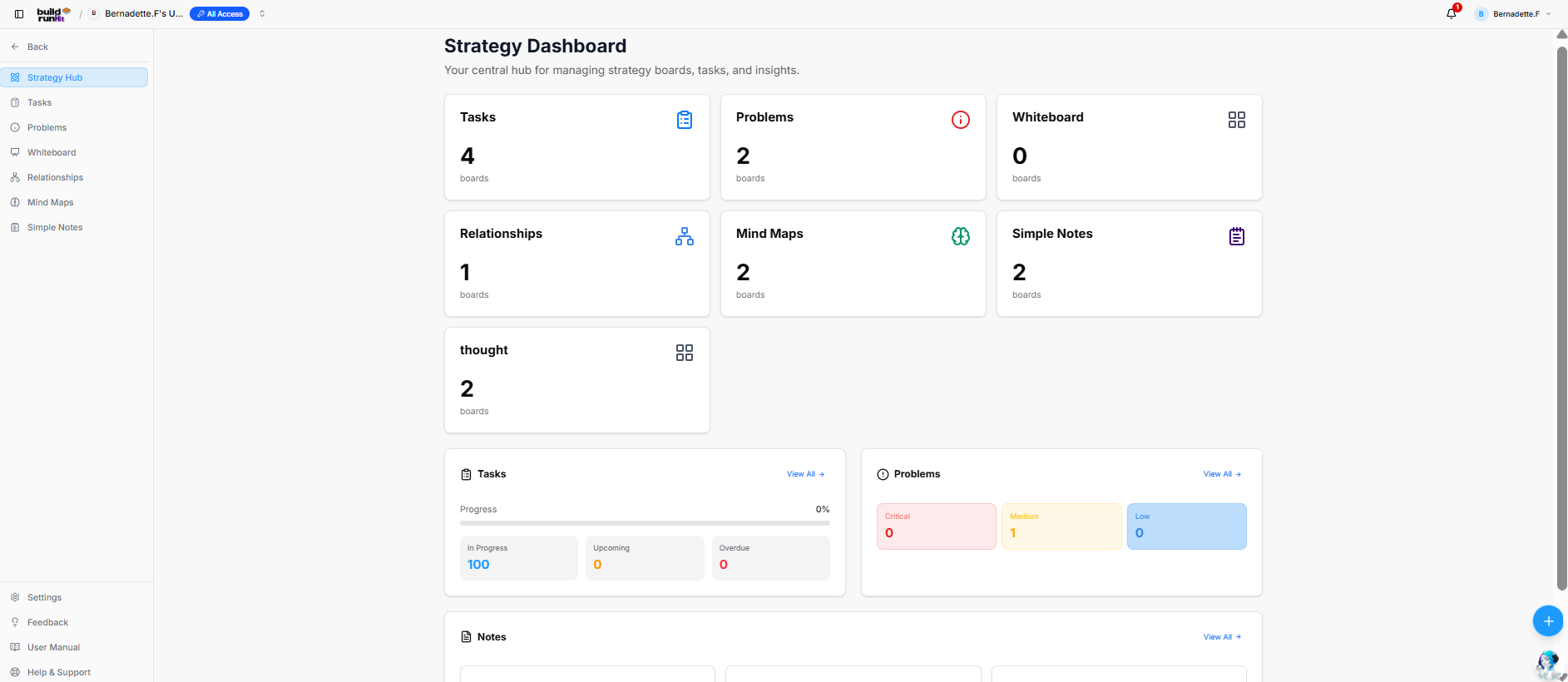
The Strategy Dashboard serves as the central hub for managing strategy boards, task tracking, problem mapping, and documentation insights across projects.
Strategy Board Cards
Top metrics cards display the total active boards configured for each category:
-
Tasks: Total task boards (e.g.,
4 boards). -
Problems: Total problem mapping boards (e.g.,
2 boards). -
Whiteboard: Total whiteboard canvas boards (e.g.,
0 boards). -
Relationships: Total relationship mapping boards (e.g.,
1 boards). -
Mind Maps: Total mind map boards (e.g.,
2 boards). -
Simple Notes: Total simple note collection boards (e.g.,
2 boards). -
thought: Total thought collection boards (e.g.,
2 boards).
Activity & Status Summary Panels
-
Tasks Panel:
-
View All ->: Navigation link to the main Tasks directory.
-
Progress Bar: Overall task completion tracking percentage (e.g.,
0%). -
Status Counters: Breaks down active tasks by operational state (In Progress:
100, Upcoming:0, Overdue:0).
-
-
Problems Panel:
-
View All ->: Navigation link to the main Problems directory.
-
Severity Indicators: Tracks tracked issues by priority level (Critical:
0, Medium:1, Low:0).
-
-
Notes Panel:
-
View All ->: Navigation link to view all simple notes and documentation entries.
-
Header & Quick Actions
-
Page Title: Strategy Dashboard
-
Sub-description: "Your central hub for managing strategy boards, tasks, and insights."
-
Quick Create (+): Floating action button to instantly add new strategy items or boards.
Strategy Tasks Sub-Section
Strategy Tasks Sub-Section
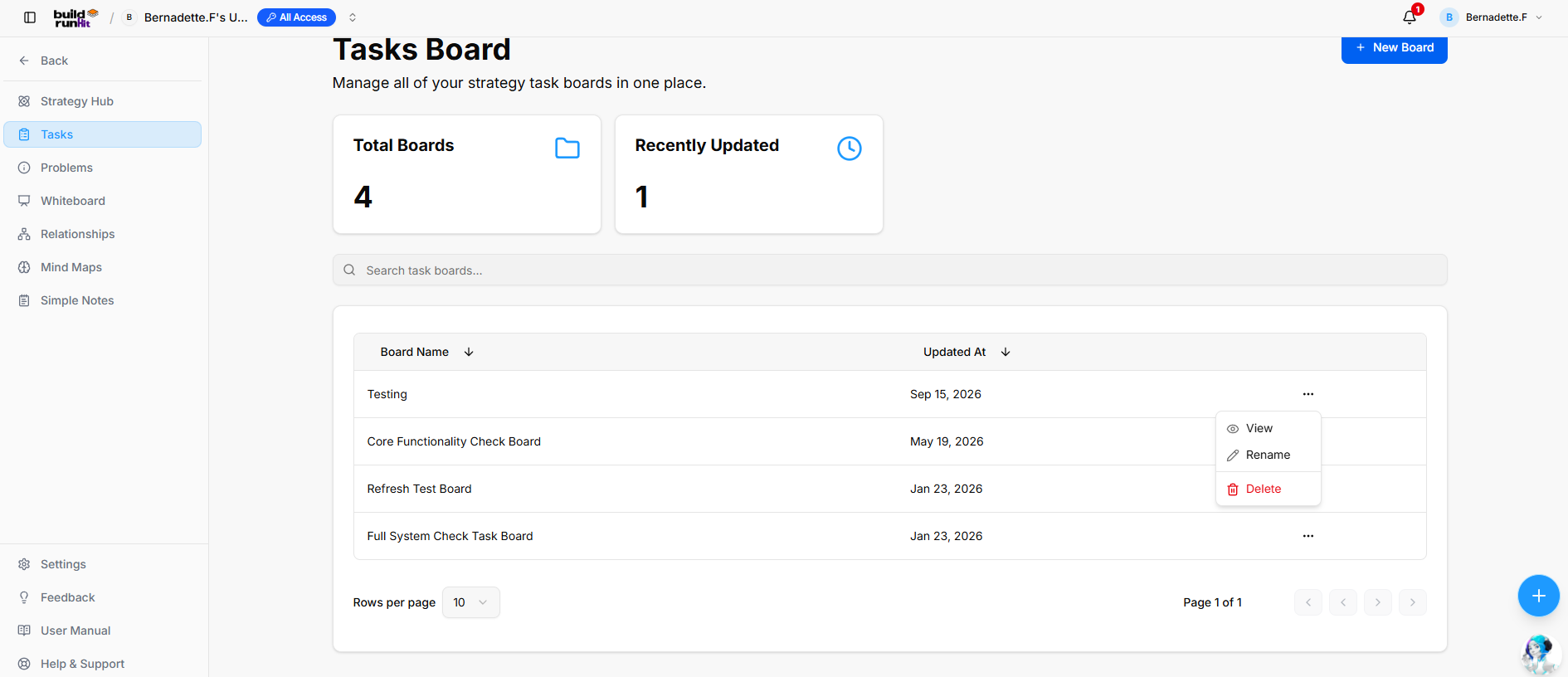
The Strategy Tasks sub-section provides an interactive canvas for managing tasks within a specific board, organizing workflows across status columns, tracking completion progress, and filtering action items.
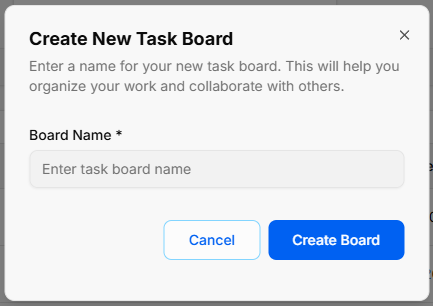
Create New Task Board
-
Open Modal: Click the blue + New Board button in the top right of the main directory screen, or select + Create new board from the board switcher dropdown menu.
-
Enter Board Name: Type your title into the required Board Name * input field (Enter task board name).
-
Confirm Creation: Click Create Board to generate your new workspace canvas, or click Cancel to close the modal.
Board Header & Progress Overview
-
Board Title: Displays the name of the active board along with breadcrumb navigation back to the main Strategy Hub directory.
-
Progress Bar: Visual progress indicator showing the percentage of completed tasks relative to total board items.
-
Status Metrics: High-level counters tracking tasks across operational states (e.g., In Progress, Upcoming, Overdue, Completed).
Board Controls & View Options
-
Search Tasks: Text input field to instantly filter tasks on the board by title or keywords.
-
View Switcher: Options to toggle between different workflow representations (e.g., Kanban Board, List View, or Grid View).
-
Filter & Sort: Dropdown controls to group or filter tasks by priority, assignee, or due date.
Kanban Workflow Columns & Task Cards
-
Columns: Custom or default status stages (e.g., To Do, In Progress, Review, Done) used to structure project workflows.
-
Task Cards: Individual task items displaying key meta-information, including title, priority badge, assigned owner, due date, and sub-task checklists.
-
Card Quick Menu (
...): Context menu on individual cards for viewing details, editing information, changing status, or deleting the item.
Header & Action Buttons
-
+ New Task: Direct button within columns or the header to add a new task card to the board.
-
Board Actions: Dropdown menu options to rename the board, export task data, or adjust board settings.
Strategy Tasks
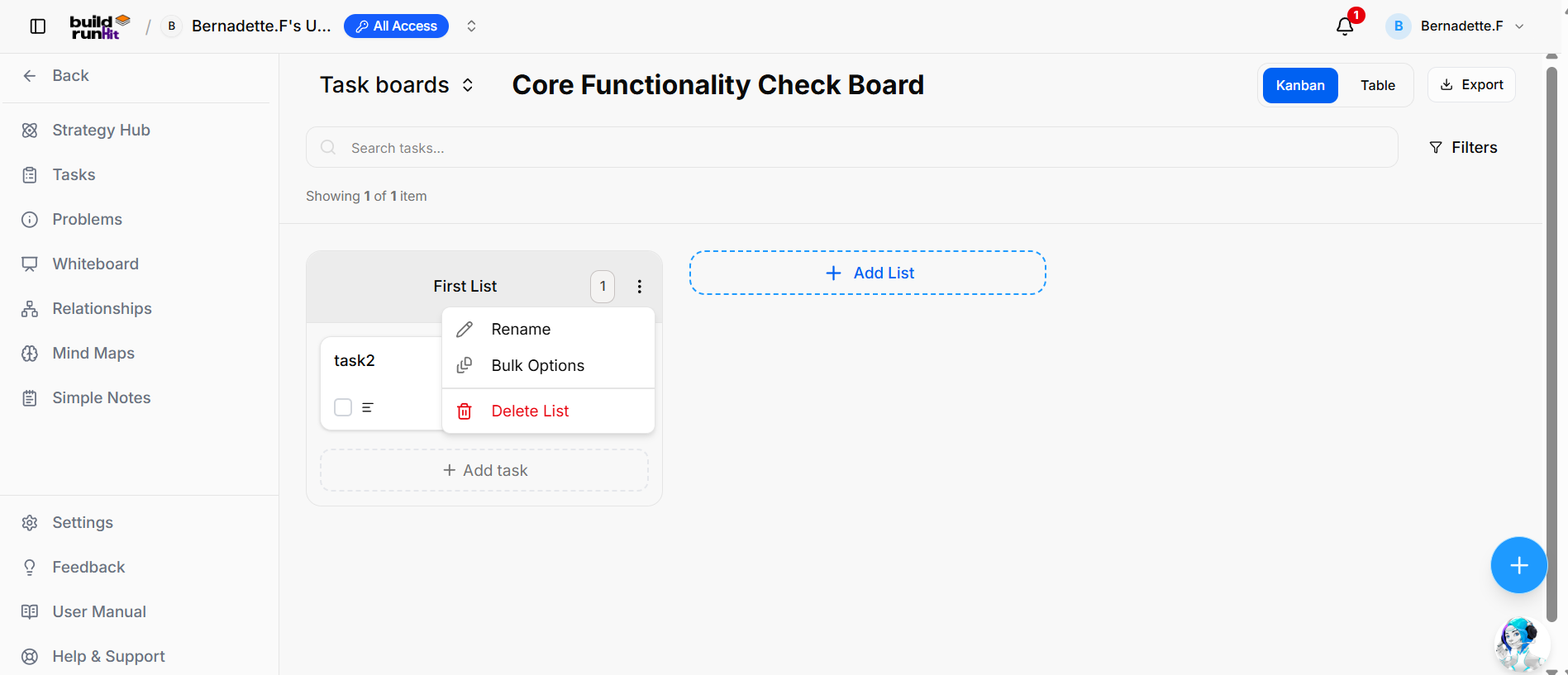
The Strategy Tasks sub-section provides an interactive canvas for creating lists, tracking task progression, filtering work items, and switching between task boards.
Header Controls & Board Selection
-
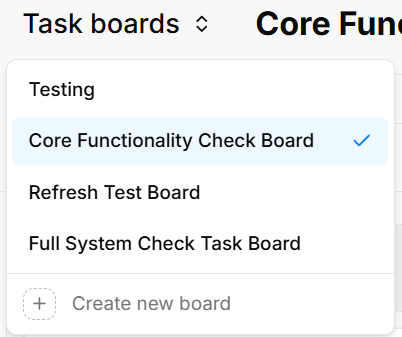
Task boards Selector: Dropdown selector displaying the current board name (e.g., Core Functionality Check Board) with options to switch directly between available boards (Testing, Refresh Test Board, Full System Check Task Board) or select + Create new board.
-
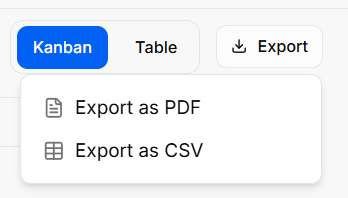
View Switcher: Toggle options to display items in either Kanban or Table view.
-
Export Menu: Action button to download task data, offering options to Export as PDF or Export as CSV.
-
Search & Filters: Search input bar (Search tasks...) with a Filters action button to refine displayed tasks.
List Management & Workflow Columns
-
List Container: Named status columns (e.g., First List) displaying total contained items in a numerical badge.
-
List Quick Menu (
...): Context menu on list headers containing:-
Rename: Edits the list name.
-
Bulk Options: Applies batch operations to tasks within the list.
-
Delete List: Removes the entire list column from the board.
-
-
+ Add List: Action card button to generate a new column on the board canvas.
-
+ Add task: Dashed button at the bottom of lists to insert a new task card.
Task Cards & Options
-
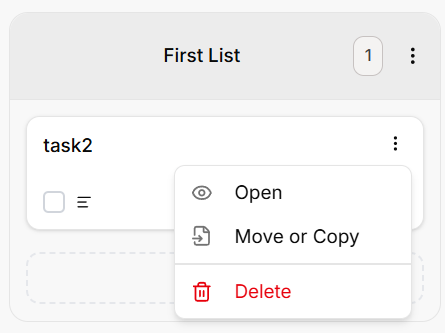
Task Card: Card displaying the task title (e.g., task2) alongside completion status indicators and item details.
-
Task Quick Menu (
...): Dropdown actions for individual task cards:-
Open: Opens full task details modal.
-
Move or Copy: Relocates or duplicates the task card across lists or boards.
-
Delete: Removes the task card from the board.
-
Strategy Hub: How to Create and Edit Tasks
Creating a New Task
-
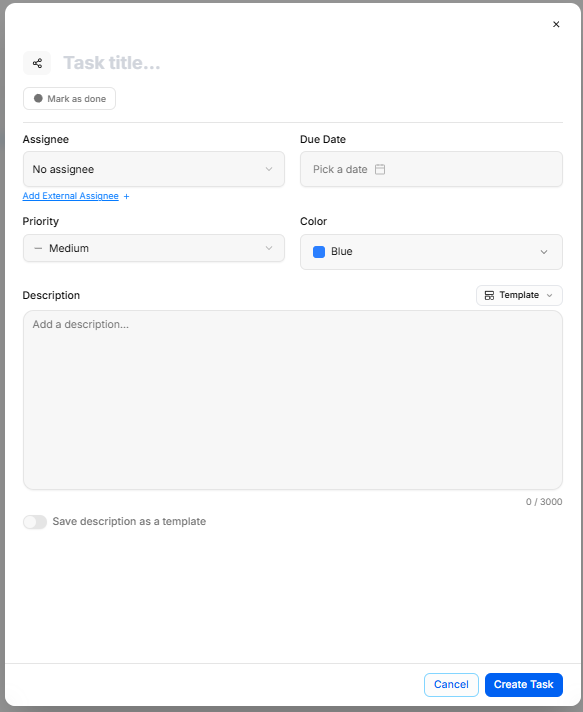
Open the Task Modal: Select the dashed + Add task button at the bottom of any status column on your board canvas.
-
Enter Basic Info: Type your task title in the Task title... field and set an optional deadline using Due Date.
-
Assign & Tag: Choose team members from the Assignee dropdown (or use Add External Assignee +) and categorize the item using Priority and Color tags.
-
Write Description: Add details into the text area. You can apply pre-made templates via the Template dropdown or enable Save description as a template to reuse your text later.
-
Finalize: Click Create Task to post the new card to your board, or toggle Mark as done if the task is already finished.
Editing Task Details
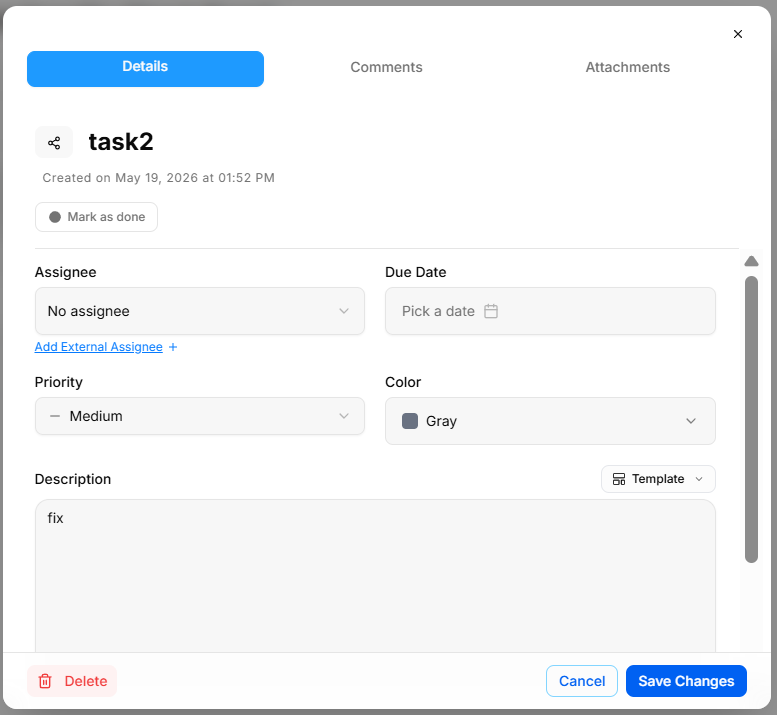
-
Access Edit View: Click any task card or select Open from the card's action menu (
...) to open the task modal. -
Update Properties: Modify titles, assignees, dates, priority levels, or descriptions directly within the Details tab.
-
Save Updates: Select Save Changes to apply your edits, or click Delete in the bottom corner to remove the task completely.
Adding Comments & Attachments
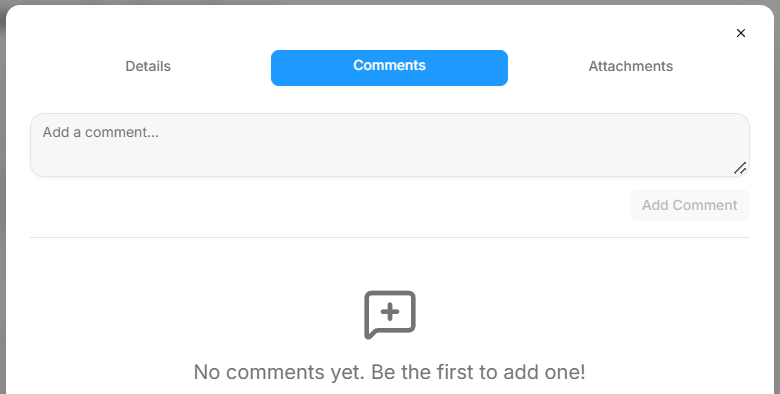
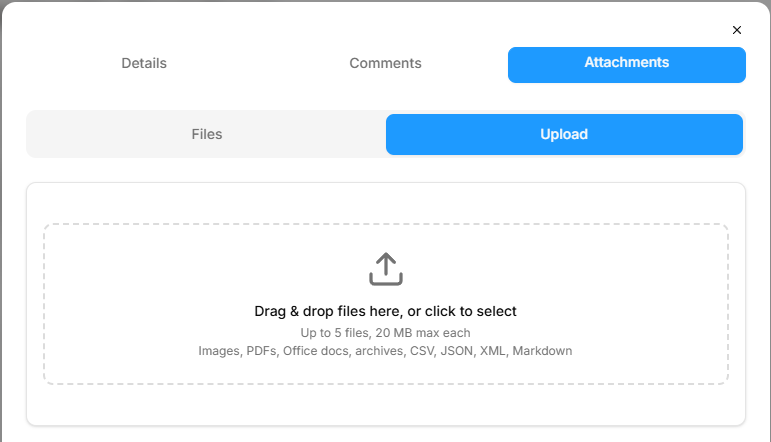
-
Discussion: Switch to the Comments tab to post updates or leave notes for team members in the comment box.
-
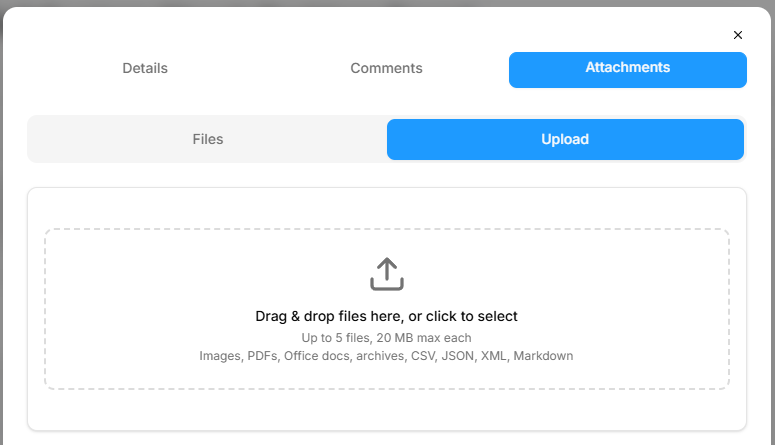
File Sharing: Switch to the Attachments tab to drag and drop supporting assets (up to 5 files, max 20 MB each; supports PDFs, images, Office docs, CSV, JSON, and Markdown).
BuildRunKit Strategy Hub: Problems Sub-Section
BuildRunKit Strategy Hub: Problems Sub-Section
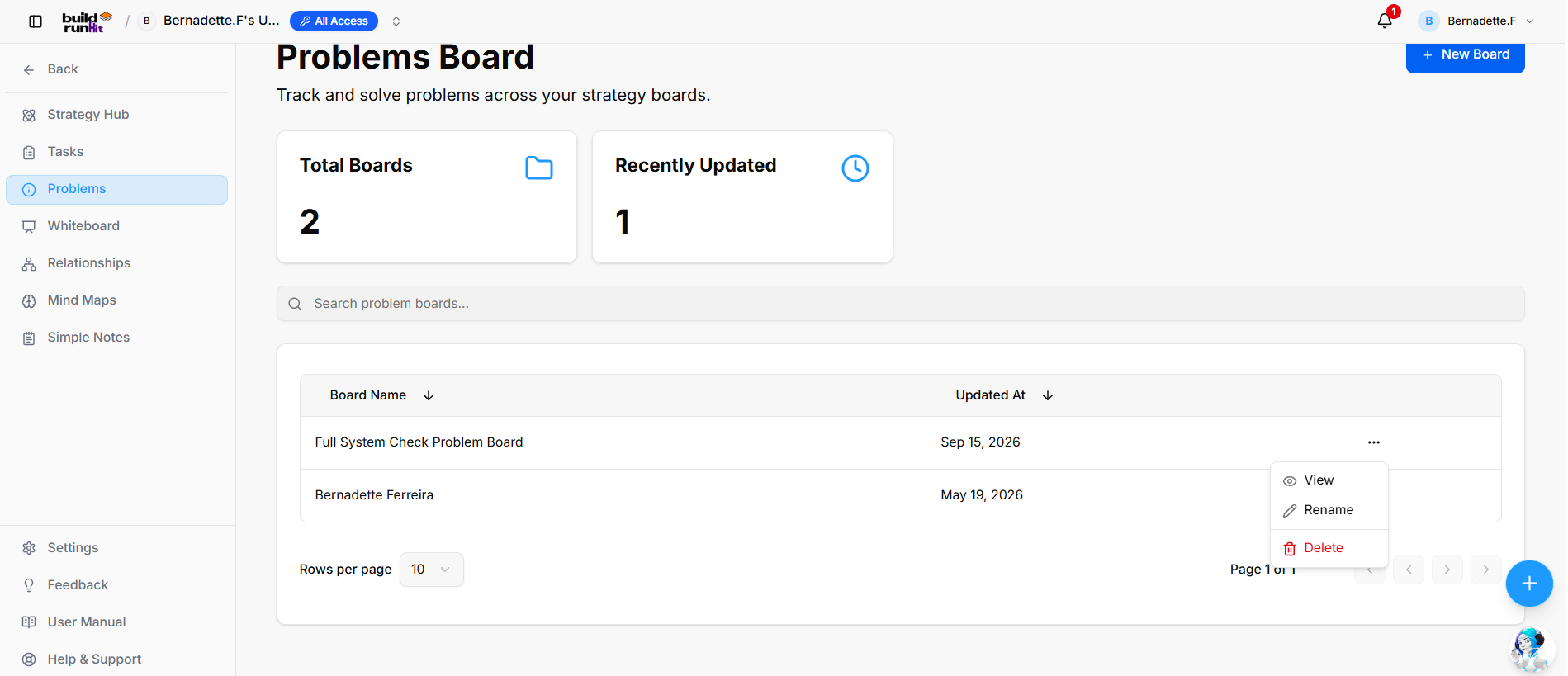
The Strategy Problems sub-section offers a dedicated board layout for organizing, tracking, and resolving operational roadblocks across your workspace.
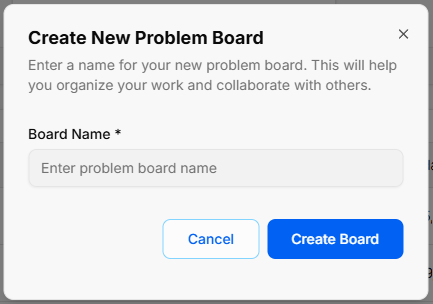
Create New Problem Board
-
Open Modal: Click the blue + New Board button at the top right of the main directory view, or select + Create new board from the board selector dropdown menu.
-
Enter Board Name: Type your desired title into the required Board Name * input field (Enter problem board name).
-
Confirm Creation: Click Create Board to generate your new board canvas, or select Cancel to exit without saving.
Summary Metrics
Top KPI cards highlight board counts and recent activity:
-
Total Boards: Tracks the overall number of created problem boards (e.g.,
2). -
Recently Updated: Counts problem boards with recent activity or modifications (e.g.,
1).
Directory Controls & Search
-
Search problem boards...: Global filter input for locating boards by name.
-
Rows per page: Dropdown selector to set board density per page (e.g.,
10). -
Pagination: Directional controls to step through board directory pages (e.g., Page 1 of 1).
Problems Table Data Columns
-
Board Name: Title assigned to the problem board (e.g., Full System Check Problem Board, Bernadette Ferreira). Includes a sort arrow.
-
Updated At: Date of the most recent changes (e.g., Sep 15, 2026, May 19, 2026). Includes a sort arrow.
Row Actions Menu (...)
Clicking the three dots icon on any board row displays quick options:
-
View: Opens the selected problem board workspace.
-
Rename: Displays an inline input to update the board title.
-
Delete: Removes the problem board record from the system.
Header & Action Buttons
-
+ New Board: Primary blue action button to open the problem board setup interface.
Strategy Problems
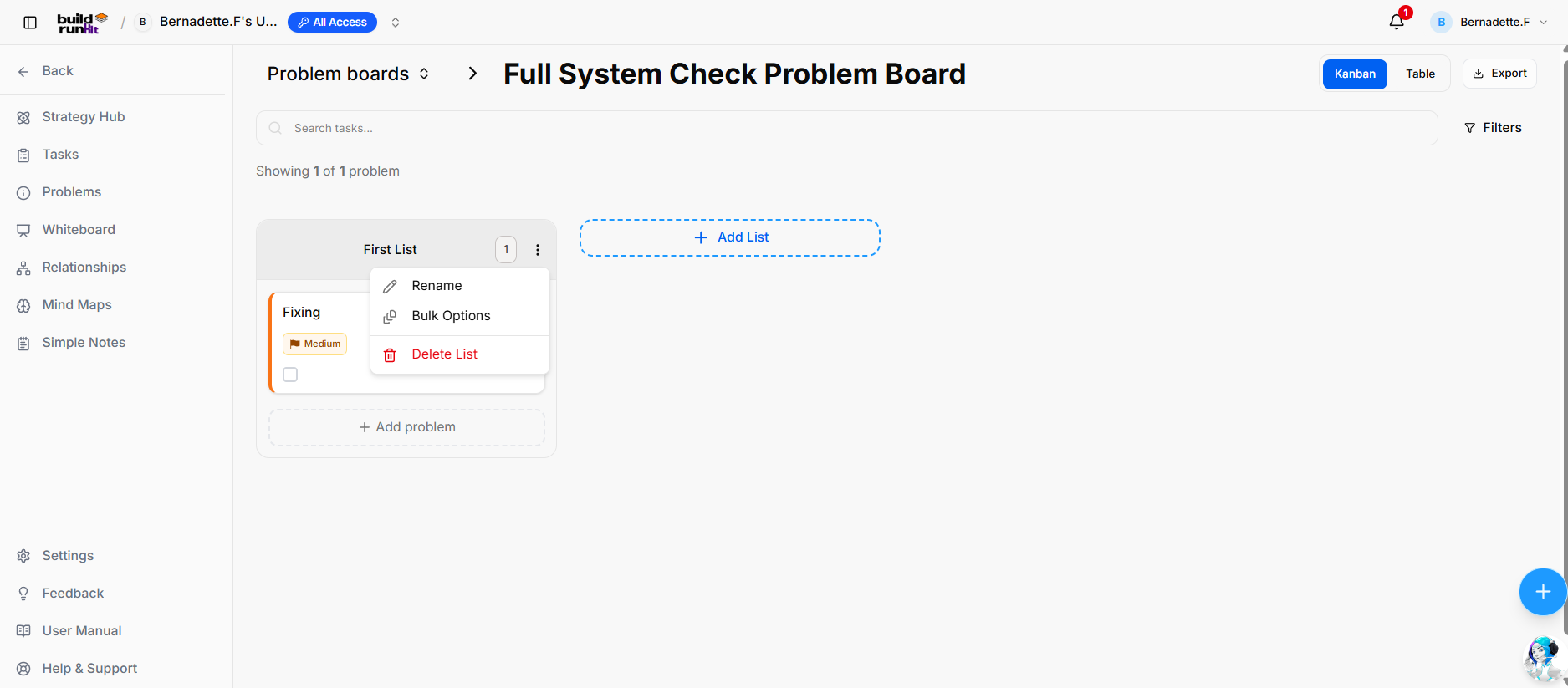
The Strategy Problems sub-section offers a dedicated board layout for organizing, tracking, and resolving operational roadblocks across your workspace.
Header Controls & Board Selection
-
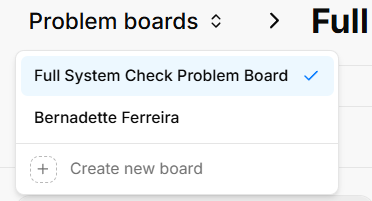
Problem Boards Selector: Dropdown menu showing the active board name (Full System Check Problem Board) with options to switch between available boards (Bernadette Ferreira) or click + Create new board.
-
View Switcher: Toggle options to switch the canvas layout between Kanban view and Table view.
-
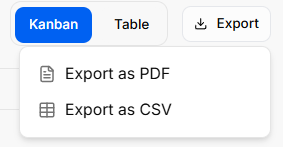
Export Menu: Action button to download problem items, offering options to Export as PDF or Export as CSV.
-
Search & Filters: Input field (Search tasks...) with a Filters button to narrow down displayed problem cards.
List Management & Status Columns
-
List Container: Custom status columns (e.g., First List) displaying total contained items in a numerical badge (e.g.,
1). -
List Quick Menu (
...): Context menu on column headers with options to:-
Rename: Change the list title.
-
Bulk Options: Apply batch updates across all problems in the column.
-
Delete List: Remove the entire column from the active board.
-
-
+ Add List: Dashed action box to generate new workflow columns.
-
+ Add problem: Dashed button at the bottom of lists to log a new problem item.
Problem Cards & Quick Actions
-
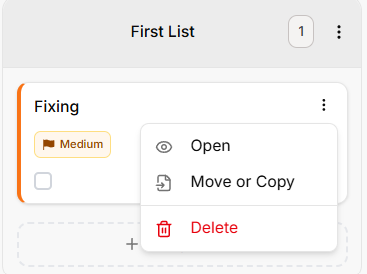
Problem Card: Visual card showing the title (e.g., Fixing), priority tag (e.g., Medium), and completion status.
-
Card Quick Menu (
...): Options accessible directly on individual cards:-
Open: Launch full problem details, discussion comments, and attachments.
-
Move or Copy: Re-assign the card across different lists or boards.
-
Delete: Permanently remove the problem item from the board.
-
Strategy Hub: How to Create and Edit Problems
Creating a New Problem
-
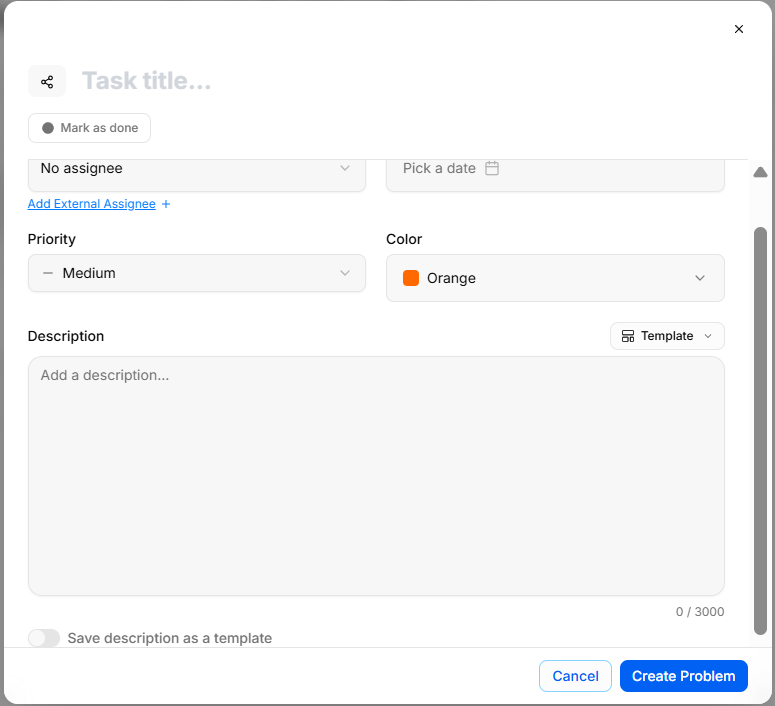
Open Create Modal: Click the dashed + Add problem button at the bottom of any column on your problem board canvas.
-
Enter Problem Title: Type the name of the issue into the Task title... field at the top of the modal.
-
Assign & Classify: Select team members via the Assignee dropdown (or use Add External Assignee +), set a Due Date, and assign a Priority level and Color tag (e.g., Orange).
-
Add Description & Details: Input notes into the Description field, apply a layout via the Template menu, or enable Save description as a template for future issue logging.
-
Save Problem: Select Create Problem to add the card to your board, or click Mark as done if the issue is already resolved.
Editing Problem Details
-
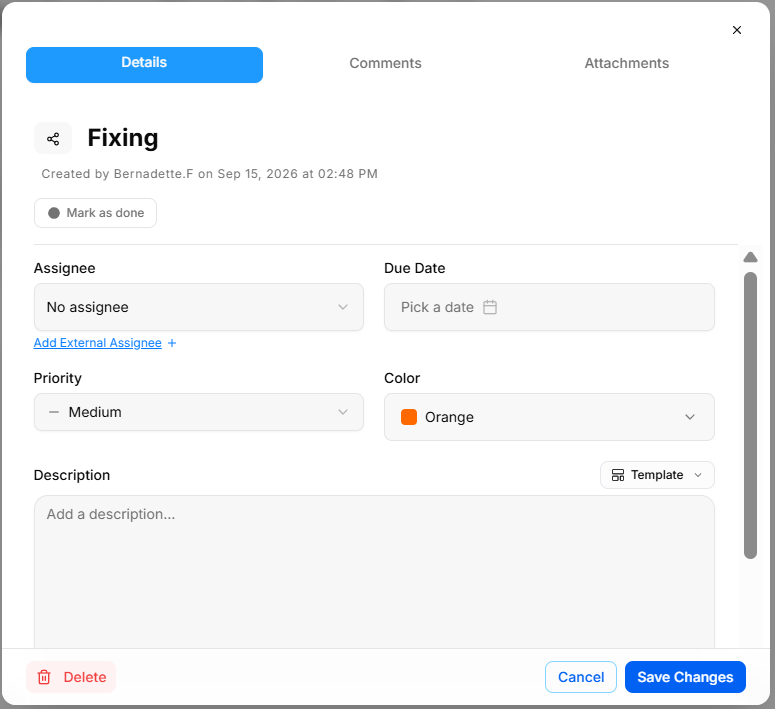
Open Edit View: Click any problem card or select Open from the card's action menu (
...) to display the modal tabs. -
Update Properties: Edit fields within the Details tab, such as title, assignee, deadline, priority, or description.
-
Save or Remove: Select Save Changes to preserve updates, or click Delete in the bottom corner to remove the problem card completely.
Adding Comments & Attachments
-
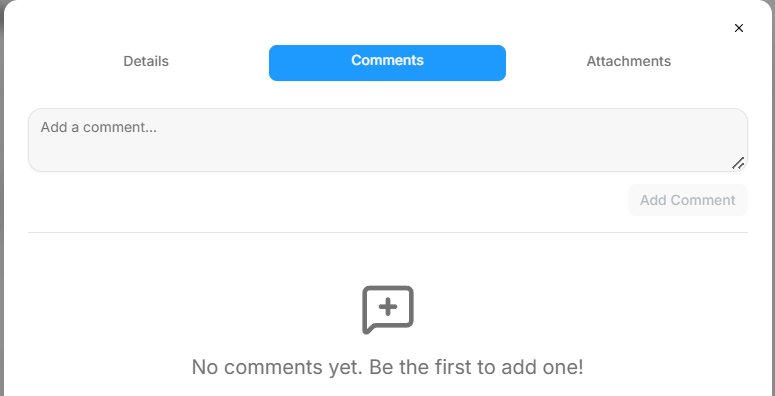
Post Updates: Switch to the Comments tab to type notes in the text box and select Add Comment to keep team members informed.
-
Upload Files: Switch to the Attachments tab under Upload to drag and drop supporting files (up to 5 files, 20 MB max each; accepts images, PDFs, Office docs, archives, CSV, JSON, XML, and Markdown) or view existing uploads under Files.
Strategy Hub: Strategy Whiteboard Sub-Section
Strategy Hub: Strategy Whiteboard Sub-Section
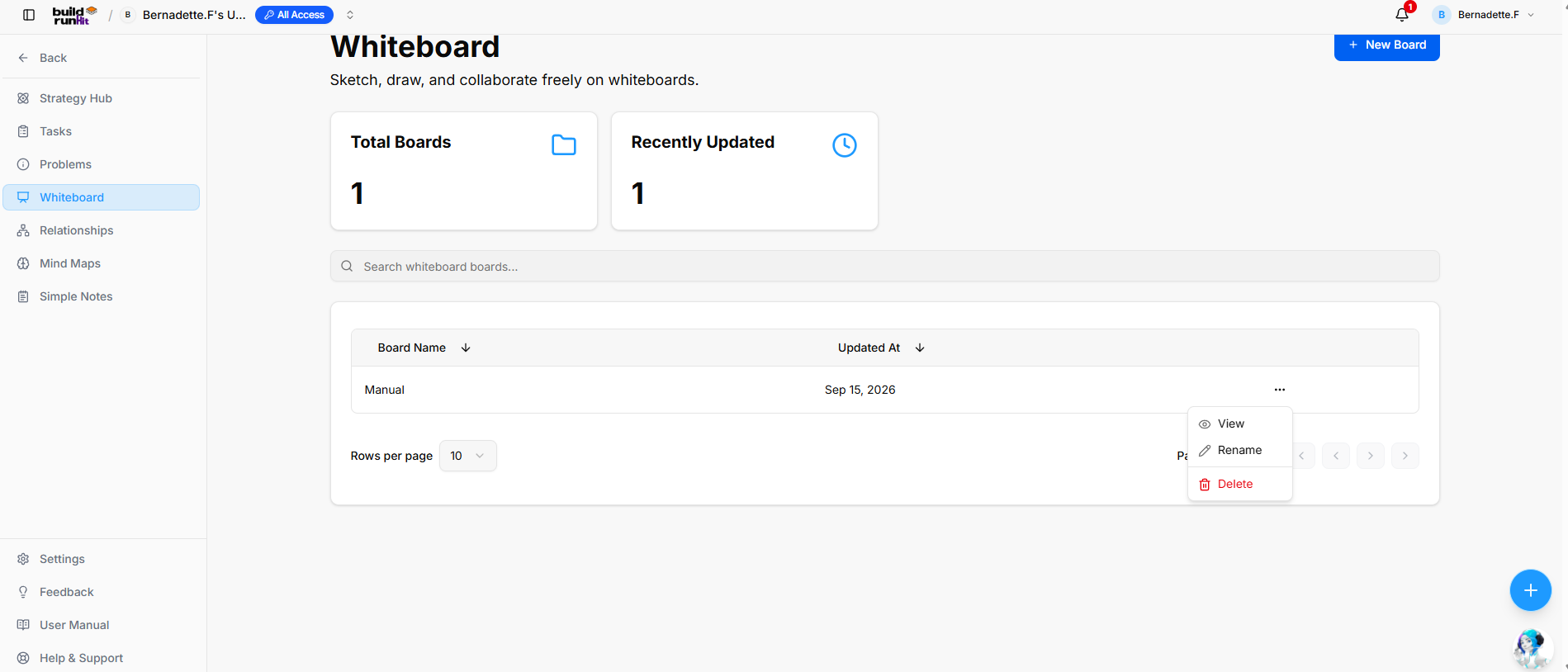
The Strategy Whiteboard sub-section provides a freeform canvas to sketch, draw, and collaborate visually with your team.
Create New Whiteboard Board
-
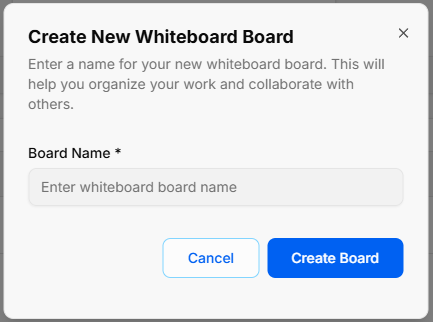
Open Modal: Click the blue + New Board button at the top right of the main directory view.
-
Enter Board Name: Type your desired title into the required Board Name * field (Enter whiteboard board name).
-
Confirm Creation: Click Create Board to generate your canvas, or select Cancel to close the pop-up without saving.
Overview Metrics & Search
-
Total Boards: Displays the total count of existing whiteboard boards in your workspace.
-
Recently Updated: Displays the number of board canvases updated recently.
-
Search Bar: Input field (Search whiteboard boards...) to filter boards by title.
Board Directory Table
-
Table Columns: Organizes saved canvases under Board Name and Updated At headers (both support column sorting).
-
Row Quick Menu (
...): Options accessible directly on individual board rows:-
View: Open the selected whiteboard canvas.
-
Rename: Update the whiteboard board title.
-
Delete: Permanently remove the whiteboard board.
-
-
Pagination Controls: Adjust items shown via Rows per page dropdown or step through pages using the navigation arrows.
Strategy Whiteboard
Top Navigation & Canvas Controls
Floating Main Toolbar & Shortcuts
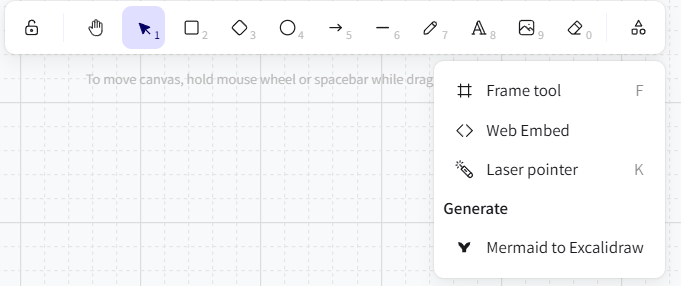
-
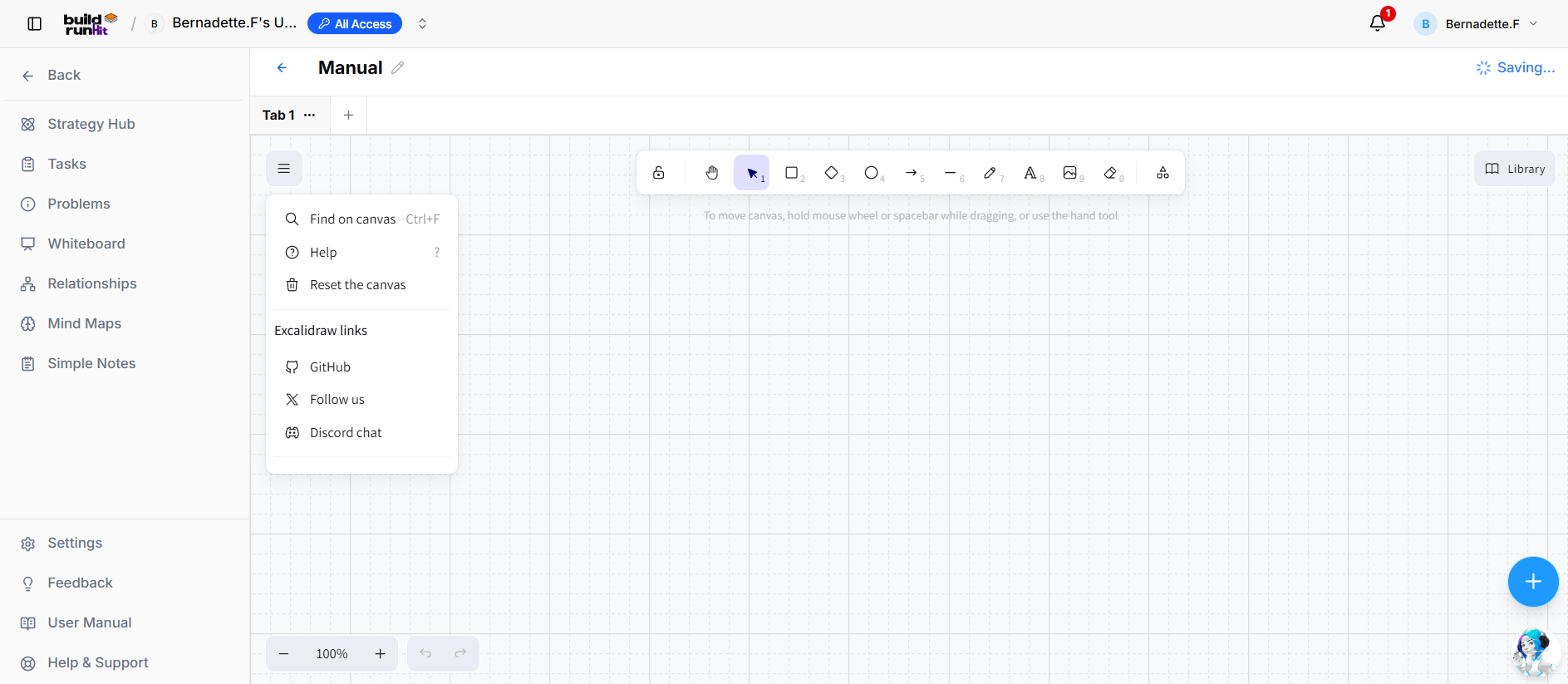
Keep Selected Tool Active: Lock icon to maintain tool selection after drawing.
-
Hand (Panning Tool) (
H): Click and drag to move freely around the canvas layout. -
Selection (
Vor1): Select, move, and edit elements. -
Rectangle (
Ror2): Draw square and rectangular shapes. -
Diamond (
Dor3): Draw diamond and decision shapes. -
Ellipse (
Oor4): Draw circles and ovals. -
Arrow (
Aor5): Connect elements with directional arrows. -
Line (
Lor6): Draw straight connecting lines. -
Draw (
Por7): Freehand sketching and drawing pencil. -
Text (
Tor8): Insert text fields directly on the board. -
Insert Image (
9): Upload image files onto the canvas. -
Eraser (
Eor0): Click or drag to delete canvas elements. -
More Tools: Access additional drawing tools:
-
Frame tool (
F): Group elements inside labeled frames. -
Web Embed: Embed external web content or media directly onto the board.
-
Laser pointer (
K): Highlight areas during live presentations. -
Mermaid to Excalidraw: Generate visual diagrams from Mermaid syntax.
-
Library Panel
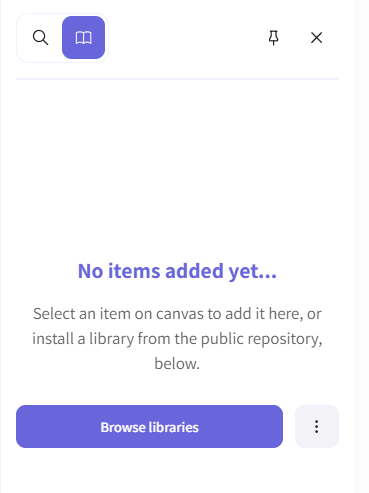
-
Library Toggle: Open the sidebar panel to access reusable components and shapes.
-
Browse Libraries: Search and import asset packages from the public repository.
-
Pin / Unpin: Keep the library panel fixed or floating on the canvas.
Strategy Relationship Sub-Section
Strategy Relationship Sub-Section
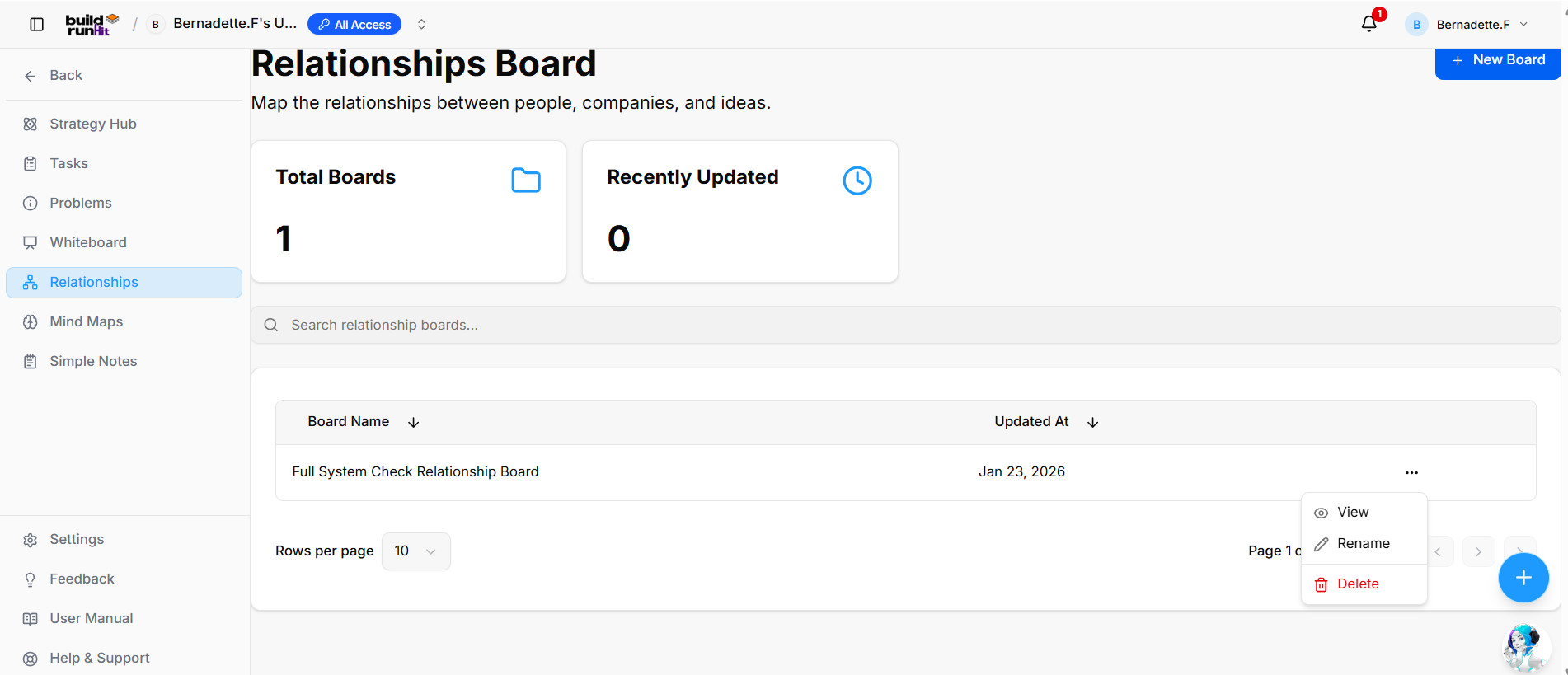
The Strategy Relationship sub-section allows you to map connections between people, companies, and ideas across your workspace.
Create New Relationship Board
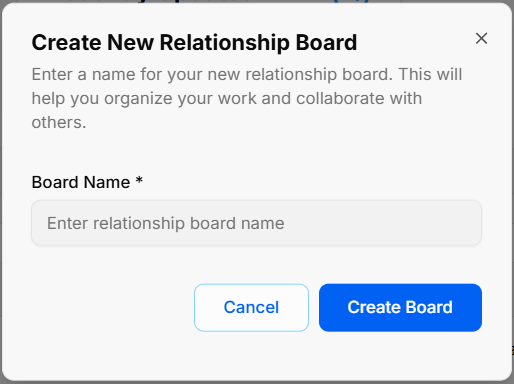
-
Open Modal: Click the blue + New Board button at the top right of the directory view.
-
Enter Board Name: Type your title into the required Board Name * field (Enter relationship board name).
-
Confirm Creation: Click Create Board to generate your board canvas, or select Cancel to close without saving.
Overview Metrics & Search
-
Total Boards: Displays the total count of relationship boards created in your workspace.
-
Recently Updated: Displays the number of relationship boards recently updated.
-
Search Bar: Input field (Search relationship boards...) to filter boards by name.
Board Directory Table
-
Table Columns: Displays existing boards organized under Board Name and Updated At headers (with sorting arrows).
-
Row Quick Menu (
...): Context menu on board rows providing options to:-
View: Open the selected relationship board.
-
Rename: Change the title of the relationship board.
-
Delete: Permanently remove the relationship board.
-
-
Pagination Controls: Adjust items displayed per page via the Rows per page dropdown or step through pages using the pagination arrows.
Strategy Relationship
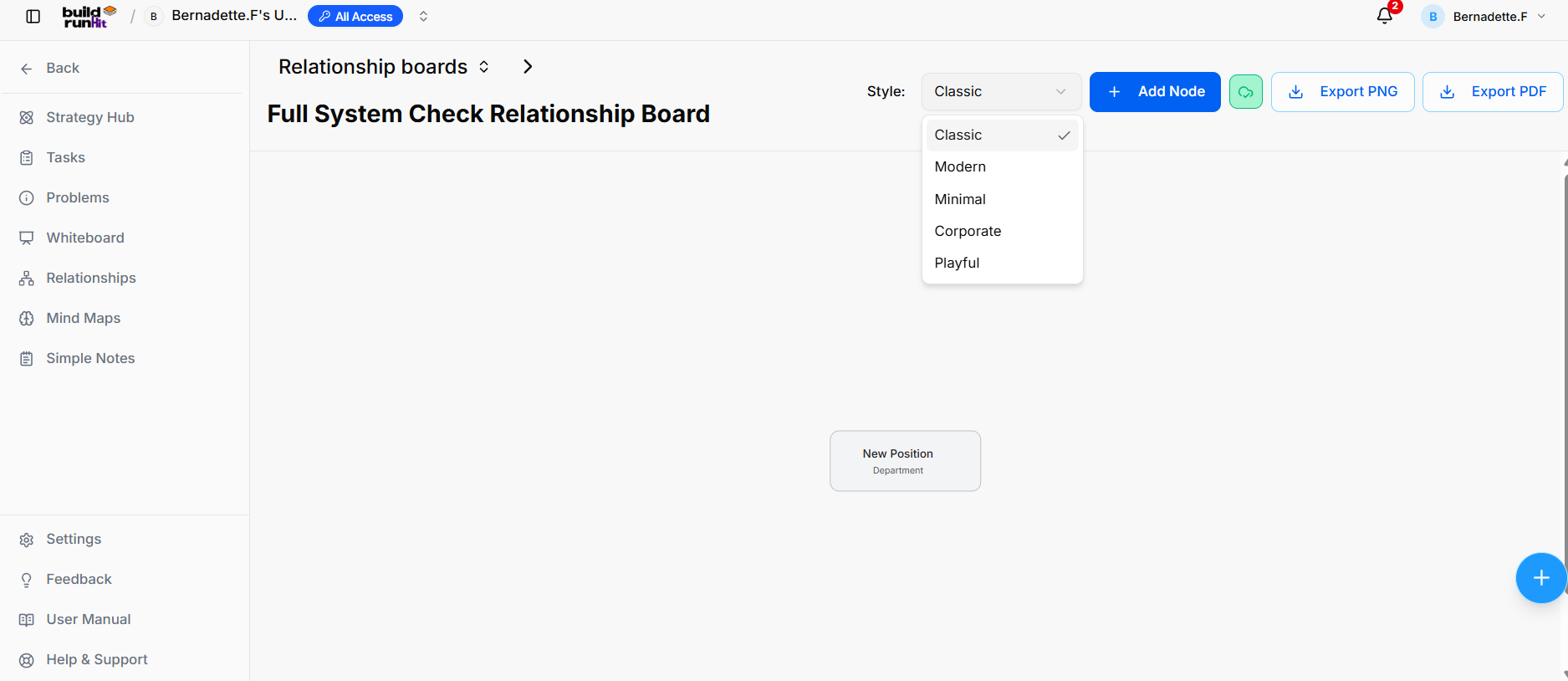
Board Header & Controls
-
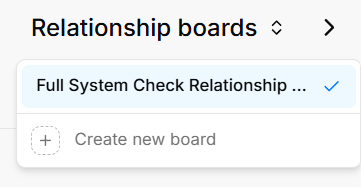
Relationship Boards Selector: Dropdown menu displaying the current active board (Full System Check Relationship Board), with an option to select + Create new board.
-
Style Selector: Dropdown menu to customize the visual theme of the diagram (Classic, Modern, Minimal, Corporate, Playful).
-
+ Add Node: Primary button to add a standalone position or entity card to the canvas.
-
Export Options: Action buttons to download the relationship diagram as Export PNG or Export PDF.
Node Elements & Action Controls
-
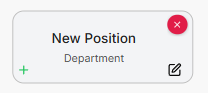
Position Card: Represents individual entities, displaying a title (New Position) and subtitle (Department).
-
Delete Node (
×): Red button at the top right of a node card to remove the item from the canvas. -
Edit Node (Pencil Icon): Located at the bottom right of a node card to update position and department labels.
-
Add Child Node (
+): Green plus icon at the bottom left of a node card to attach nested or subordinate nodes directly underneath.
Strategy Mind Maps Sub-Section
Strategy Mind Maps Sub-Section
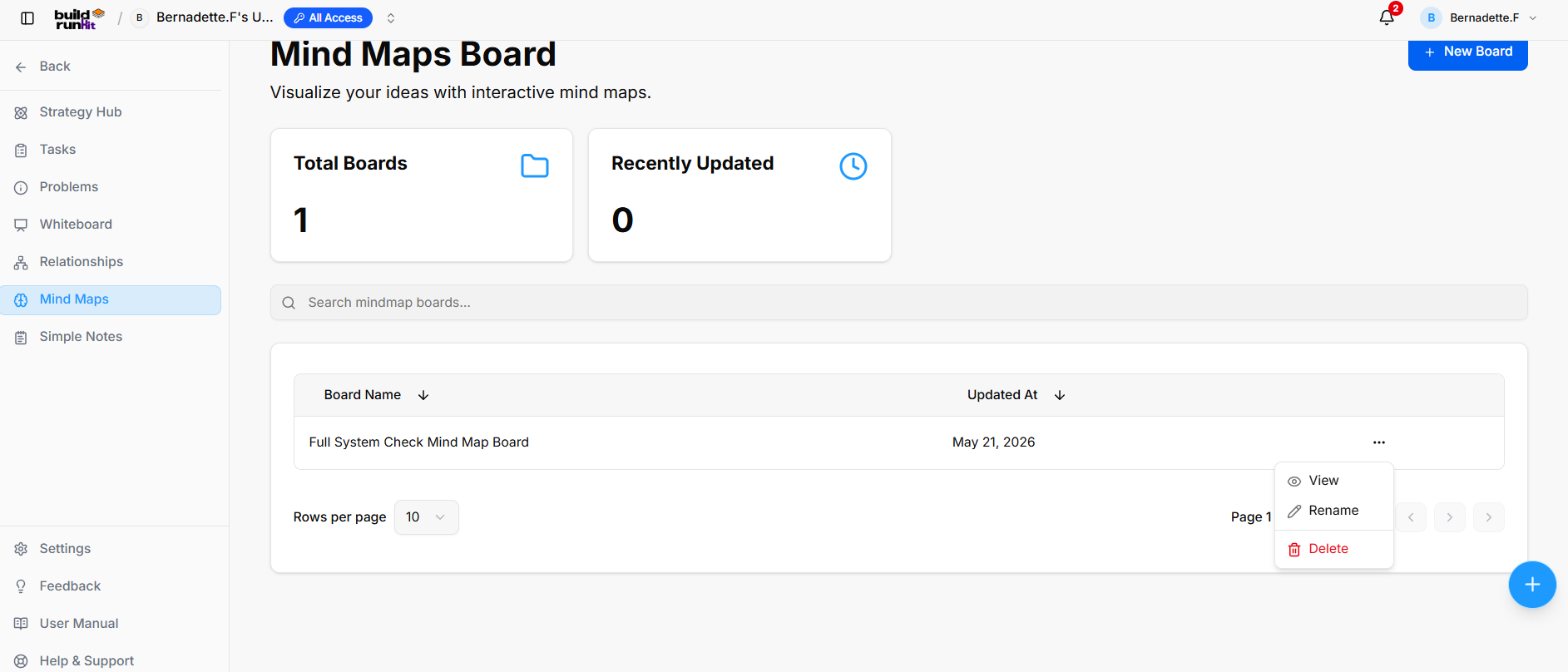
The Strategy Mind Maps sub-section provides a directory and visual workspace for brainstorming and mapping out ideas interactively.
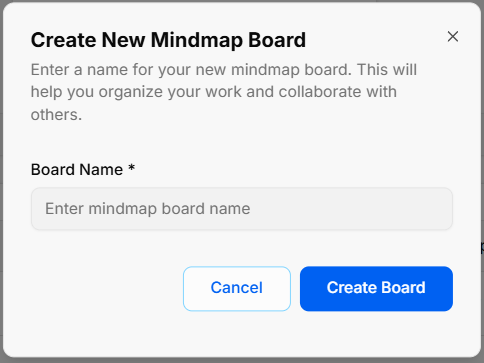
Create New Mindmap Board
-
Open Modal: Click the blue + New Board button at the top right of the main directory view.
-
Enter Board Name: Type your title into the required Board Name * field (Enter mindmap board name).
-
Confirm Creation: Click Create Board to generate your new mind map canvas, or select Cancel to close without saving.
Overview Metrics & Search
-
Total Boards: Displays the total count of mind map boards available in your workspace.
-
Recently Updated: Displays the number of mind map boards modified recently.
-
Search Bar: Input field (Search mindmap boards...) to filter boards by title.
Board Directory Table
-
Table Columns: Displays existing boards organized under Board Name and Updated At headers (with sorting arrows).
-
Row Quick Menu (
...): Context menu on board rows providing options to:-
View: Open the selected mind map canvas.
-
Rename: Change the title of the mind map board.
-
Delete: Permanently remove the mind map board.
-
-
Pagination Controls: Adjust items displayed per page using the Rows per page dropdown or step through pages using the navigation arrows.
Strategy Mind Maps
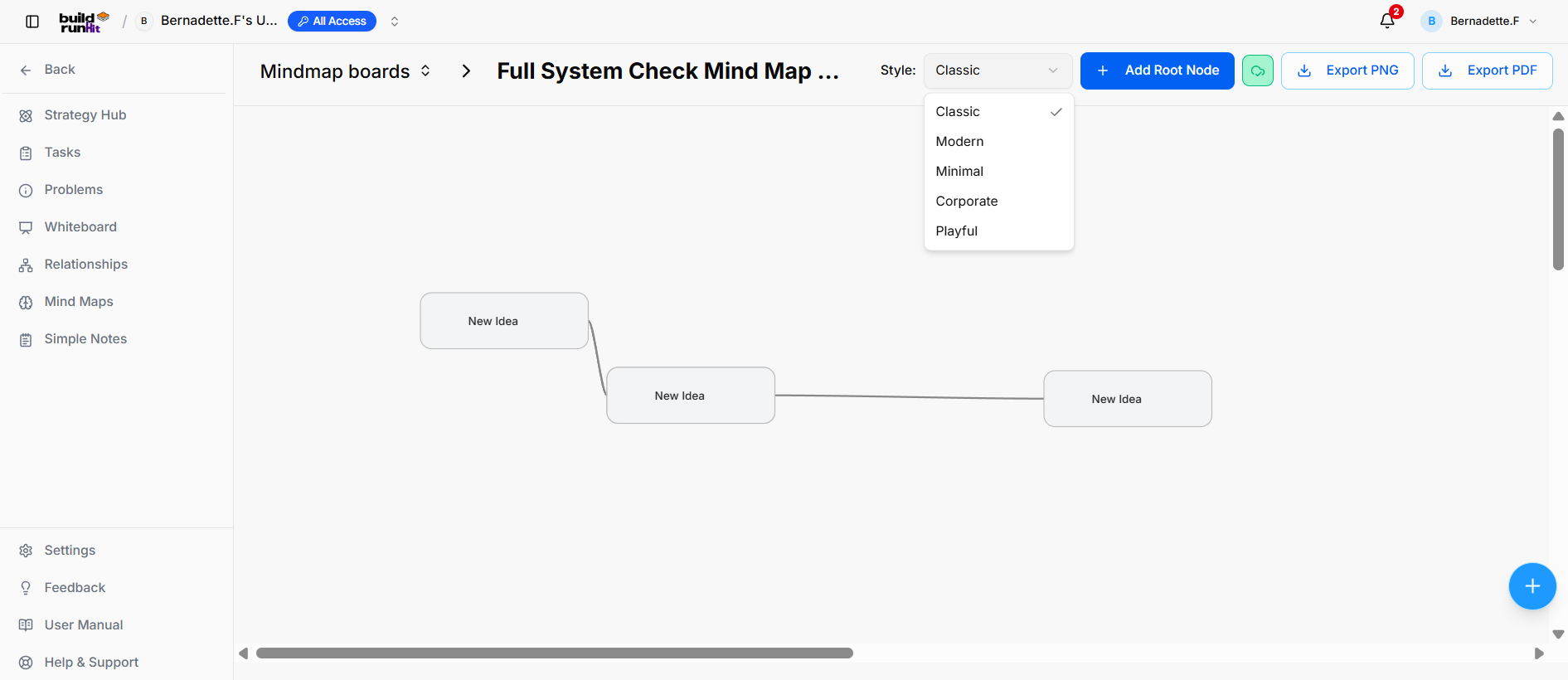
Board Header & Workspace Controls
-
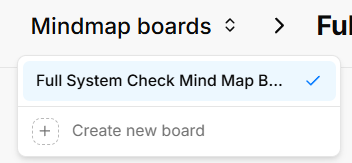
Mindmap Boards Selector: Dropdown menu displaying the active board name (Full System Check Mind Map Board) with options to switch between existing boards or click + Create new board.
-
Style Selector: Dropdown menu to customize board themes (Classic, Modern, Minimal, Corporate, Playful).
-
+ Add Root Node: Primary action button to create a main central idea node on the canvas.
-
Export Options: Action buttons to download the mind map as Export PNG or Export PDF.
Node Elements & Action Controls
-
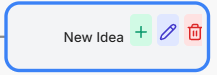
Idea Node: Visual card container representing individual concepts (New Idea).
-
Add Child Node (
+): Green button with a plus sign to extend a new sub-node directly connected to the parent node. -
Edit Node (Pencil Icon): Blue/purple button with a pencil icon to modify the node text label.
-
Delete Node (Trash Icon): Red button with a trash icon to remove the selected node from the canvas layout.
Strategy Simple Notes Sub-Section
Strategy Simple Notes Sub-Section
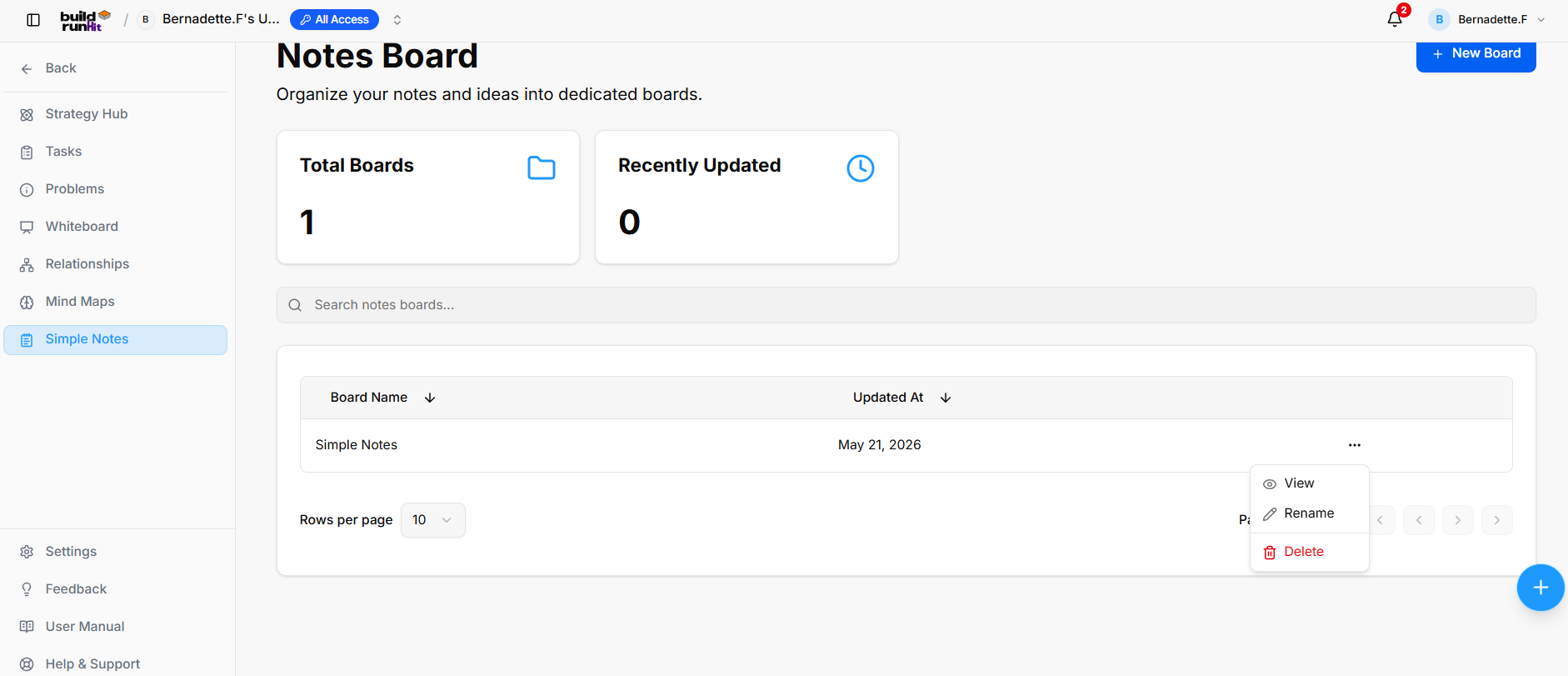
The Strategy Simple Notes sub-section provides a directory and workspace for creating, organizing, and managing dedicated note boards to capture strategic ideas and documentation.
Create New Notes Board
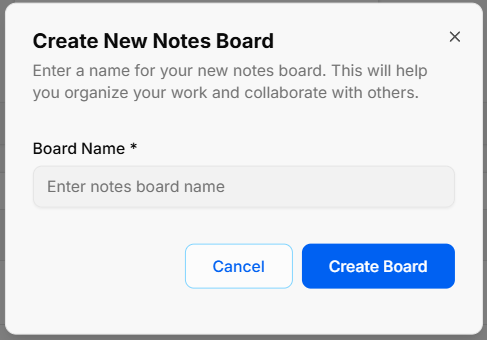
-
Open Modal: Click the blue + New Board button at the top right of the screen.
-
Enter Board Name: Type the title in the required Board Name * field (Enter notes board name).
-
Confirm Creation: Click Create Board to build the new collection, or select Cancel to discard.
Overview Metrics & Search Controls
-
Total Boards: Displays the total number of notes boards in the directory.
-
Recently Updated: Displays the number of notes boards updated recently.
-
Search Bar: Input field (Search notes boards...) to filter boards by title.
Directory Table & Board Management
-
Table Columns: Displays existing collections under Board Name and Updated At headers (with sorting arrows).
-
Row Quick Menu (
...): Accesses additional board actions:-
View: Opens the selected notes board canvas.
-
Rename: Updates the board's display name.
-
Delete: Permanently removes the board.
-
-
Pagination: Use the Rows per page dropdown or navigation arrows to step through board entries.
Strategy Simple Notes
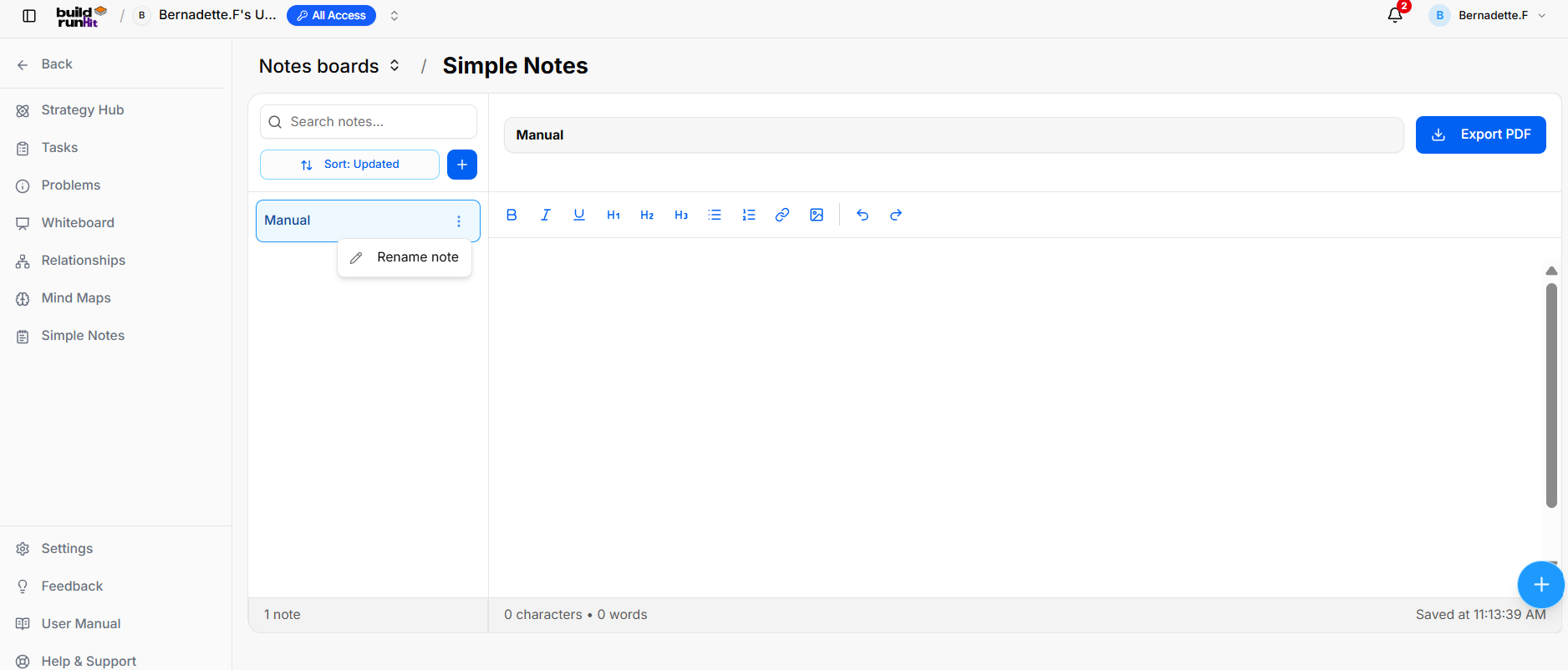
The Notes Board Canvas provides a dedicated text editor environment to write, format, and organize notes within a selected board.
Board Header Controls
-
Notes Boards Selector: Dropdown menu showing the active board (Simple Notes), allowing you to switch boards or select + Create new board.
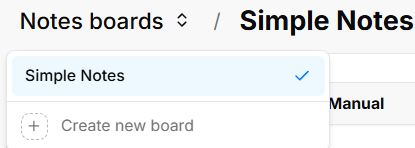
Left Sidebar & Note Management
-
Search Notes: Input field (Search notes...) to filter notes in the active board by title.
-
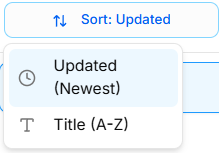
Sort Dropdown: Sort notes list by Updated (Newest) or Title (A-Z).
Formatting Toolbar & Editor Workspace

-
B (Bold): Applies bold styling (
Ctrl + B). -
I (Italic): Applies italic styling (
Ctrl + I). -
U (Underline): Applies underline styling (
Ctrl + U). -
H1 / H2 / H3: Formats text as Heading 1, Heading 2, or Heading 3.
-
Bullet List: Inserts a bulleted list.
-
Numbered List: Inserts a numbered list.
-
Insert Link (Chain Link Icon): Inserts a hyperlink.
-
Insert Image (Image Icon): Embeds an image into the document.
-
Undo / Redo (Arrows): Undo (
Ctrl + Z) or Redo (Ctrl + Y) recent edits.