BuildRunKit - Account and core features
- BuildRunKit Account Setup and Overview
- BuildRunKit Brands Module Sub-Section
- BuildRunKit Saved Outcomes Sub-section
- BuildRunKit Tools Directory Sub-section
- BuildRunKit Settings Overview Sub-section
- Feedback, Help & Support Navigation Sub-section
BuildRunKit Account Setup and Overview
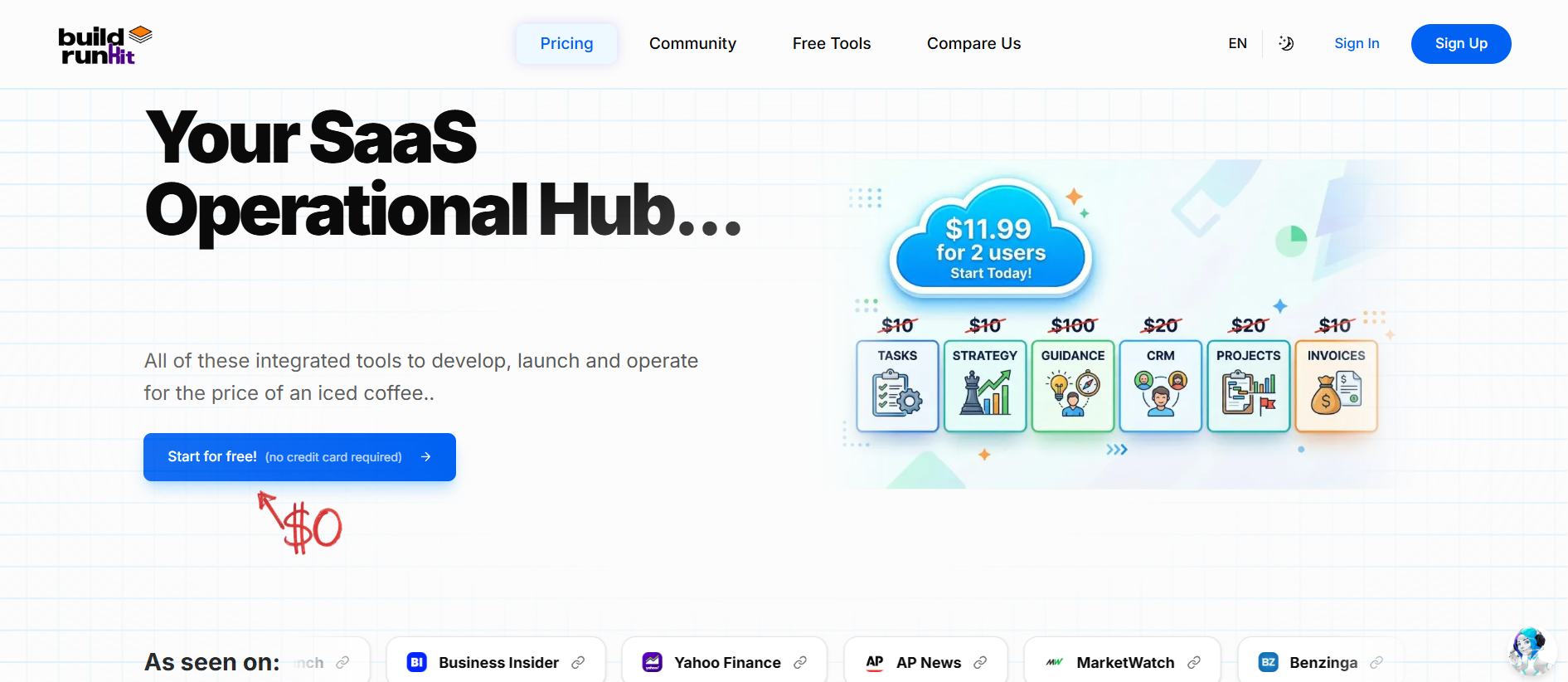
BuildRunKit is an all-in-one business operating system designed for founders, entrepreneurs, and growing teams. It bridges the gap between high-level strategy and daily execution by providing a unified workspace for planning, building, and running every aspect of a modern business.
Landing Page Controls & Hero Callouts
Creating Your Account
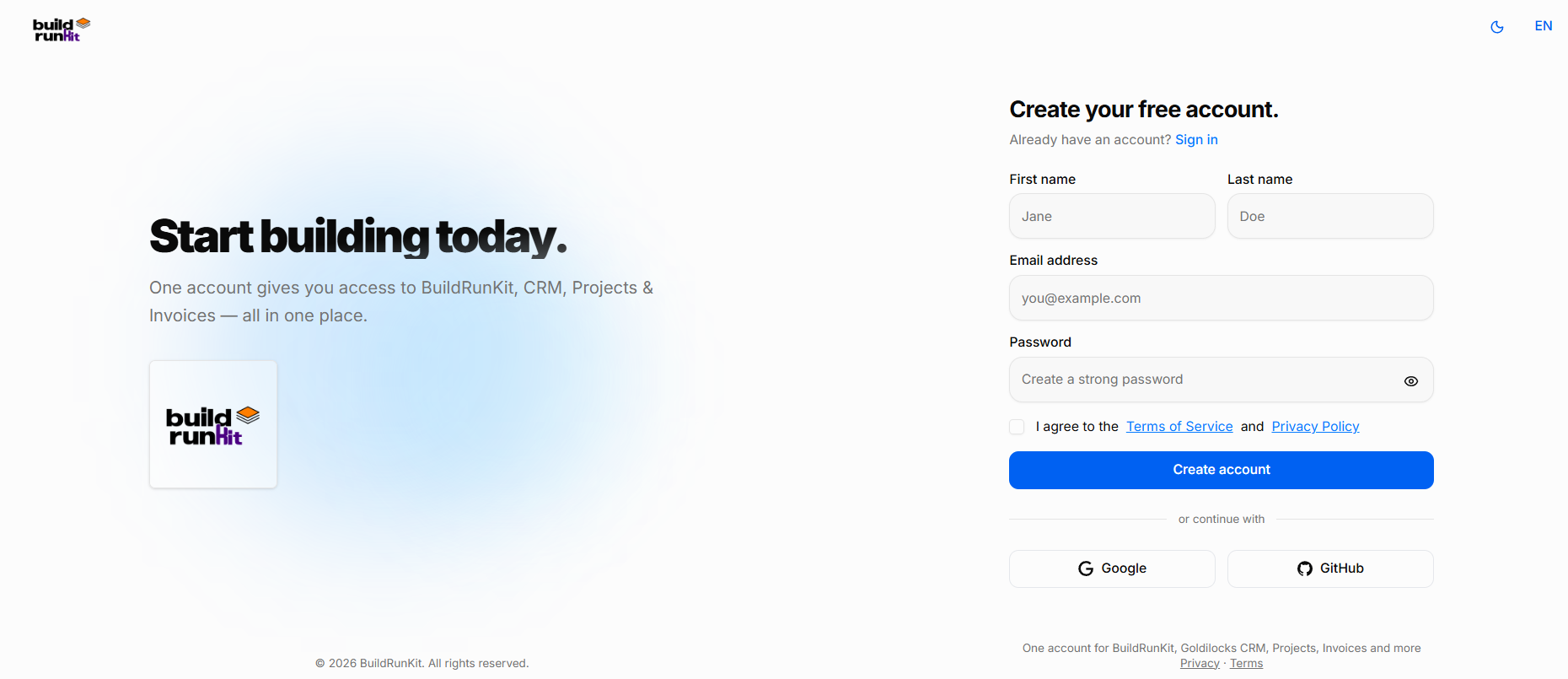
Setting up your account with BuildRunKit is quick and easy. Follow these steps to register and access your workspace:
What You Need
-
A valid email address
-
A secure password of your choice
-
Agreement to the platform Terms of Service and Privacy Policy
How to Sign Up
-
Enter Personal Details: Type your First name and Last name in the top fields.
-
Email Address: Enter your primary email address in the Email address field.
-
Create a Password: Type a strong, secure password into the Password field. Click the eye icon on the right to double-check your typing.
-
Terms & Privacy: Review the Terms of Service and Privacy Policy, then check the box next to "I agree to the Terms of Service and Privacy Policy". This step is required to proceed.
-
Complete Registration: Click the blue Create account button to finish setting up your profile.
Alternative Registration Options
-
Single Sign-On (SSO): Click either the Google or GitHub button at the bottom of the form to register instantly using your existing accounts.
Already Have an Account?
-
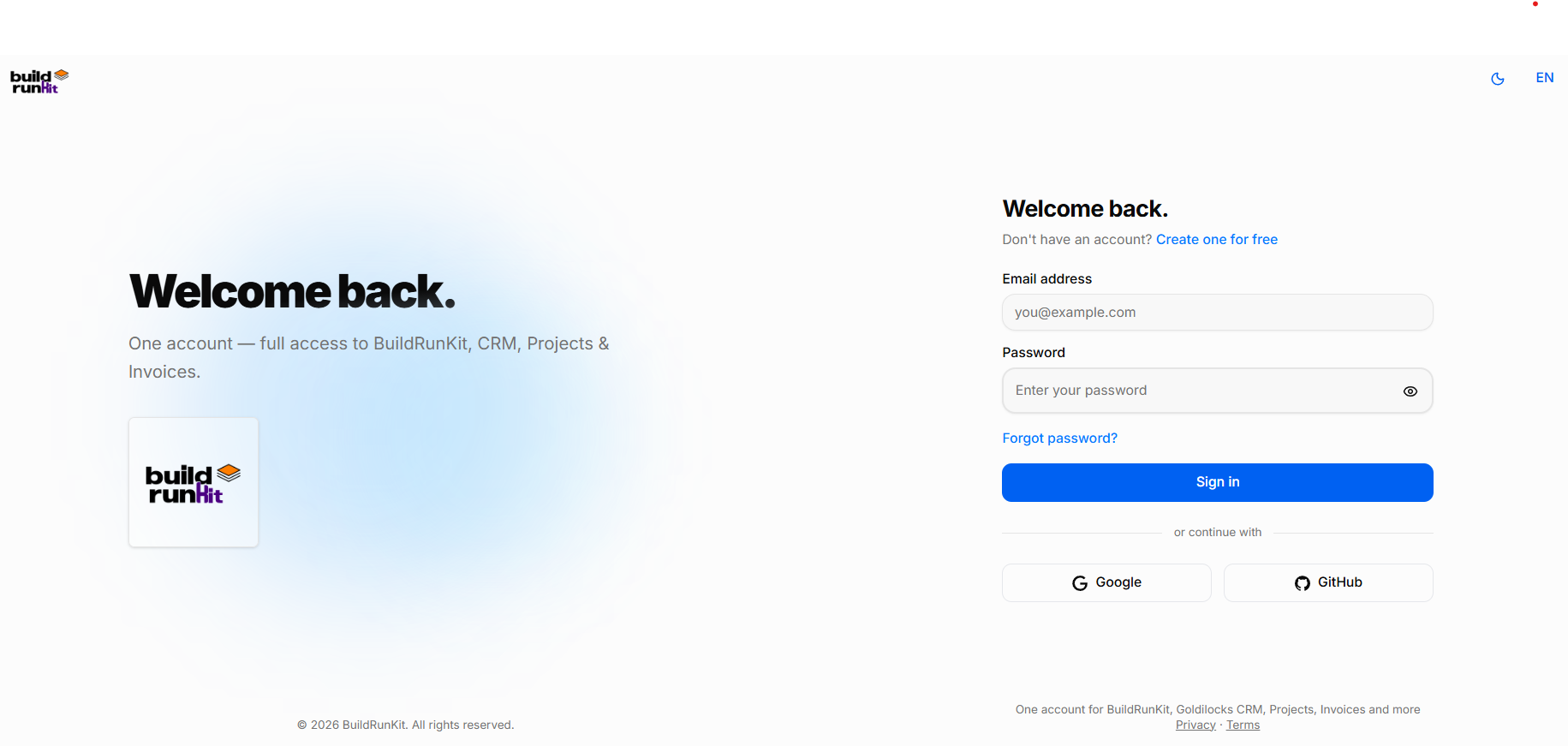
If you already have a profile, click the Sign in link at the top or bottom of the page to return to the standard login screen.
Accessing Your Workspace
Logging in to BuildRunKit gives you immediate access to your entire integrated tool suite. Follow these steps to sign in:
What You Need
-
Your registered email address
-
Your account password (or connected Google/GitHub account)
How to Sign In
-
Email Address: Enter your registered email address in the Email address field.
-
Password: Type your account password in the Password field. Click the eye icon on the right to toggle password visibility and verify your typing.
-
Submit Credentials: Click the blue Sign in button to access your workspace.
Alternative Sign-In Options
-
Single Sign-On (SSO): Click either the Google or GitHub button under the "or continue with" section to log in instantly using your connected third-party credentials.
Troubleshooting & New Users
-
Forgot Password: If you cannot remember your password, click the Forgot password? link directly above the Sign in button to trigger a password reset link via email.
-
New Users: If you do not have an account yet, click the Create one for free link located next to "Don't have an account?" at the top right of the form to switch to the registration page.
Initial Brand Onboarding Setup
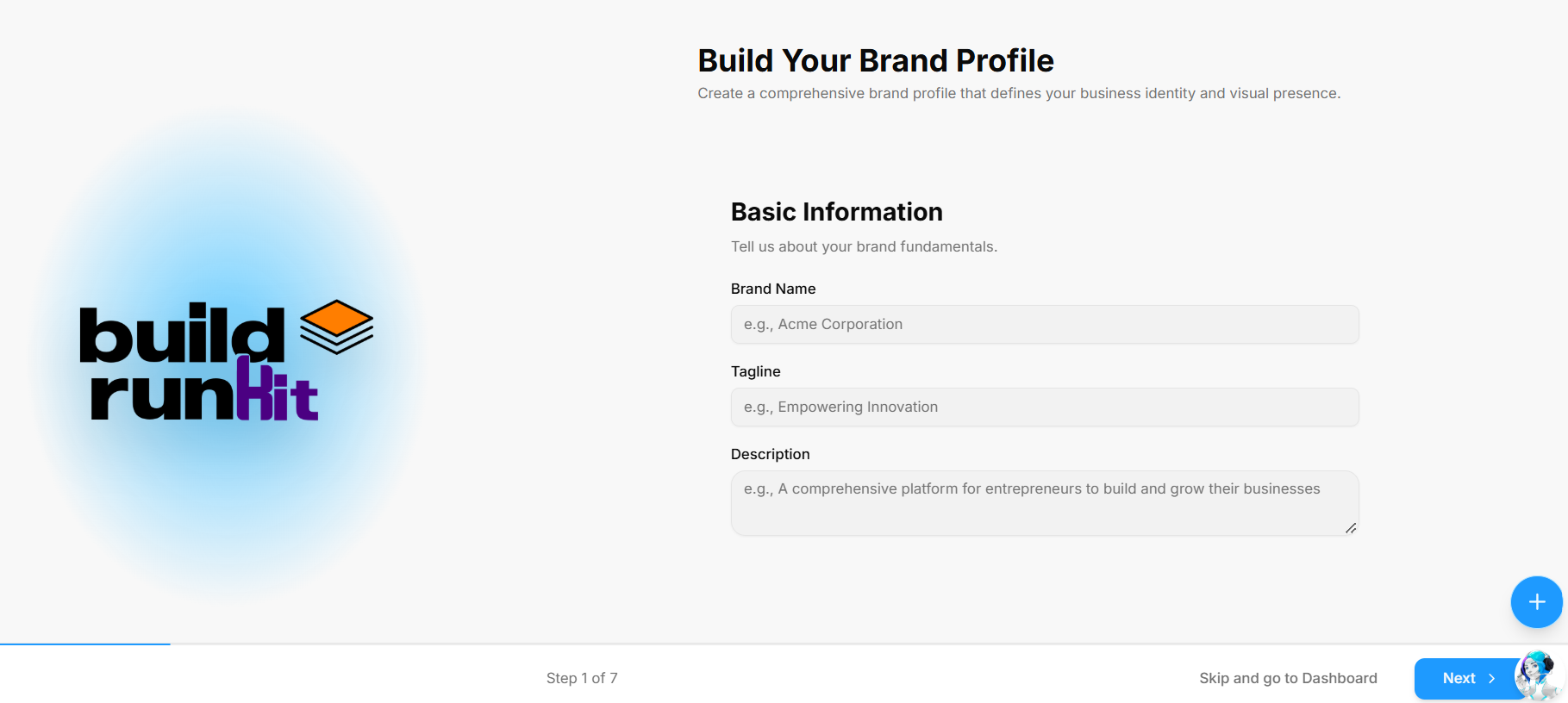
After signing up or logging in for the first time, you are guided through the multi-step Build Your Brand Profile onboarding wizard to define your business identity.
What You Need
-
Your company or project name
-
A short catchy tagline (optional)
-
A brief summary or mission statement describing your business
Step 1: Basic Information
-
Brand Name: Enter your official business or project name in the Brand Name field (e.g., Acme Corporation).
-
Tagline: Enter your primary catchphrase or slogan in the Tagline field (e.g., Empowering Innovation).
-
Description: Provide a summary of what your business does in the Description text box (e.g., A comprehensive platform for entrepreneurs to build and grow their businesses).
-
Navigation & Submission:
-
Click Next > at the bottom right to save your details and advance to Step 2.
-
Skip Option: If you prefer to set up your brand details later, click Skip and go to Dashboard at the bottom of the screen to head straight to your workspace.
-
Step 2: Brand Voice
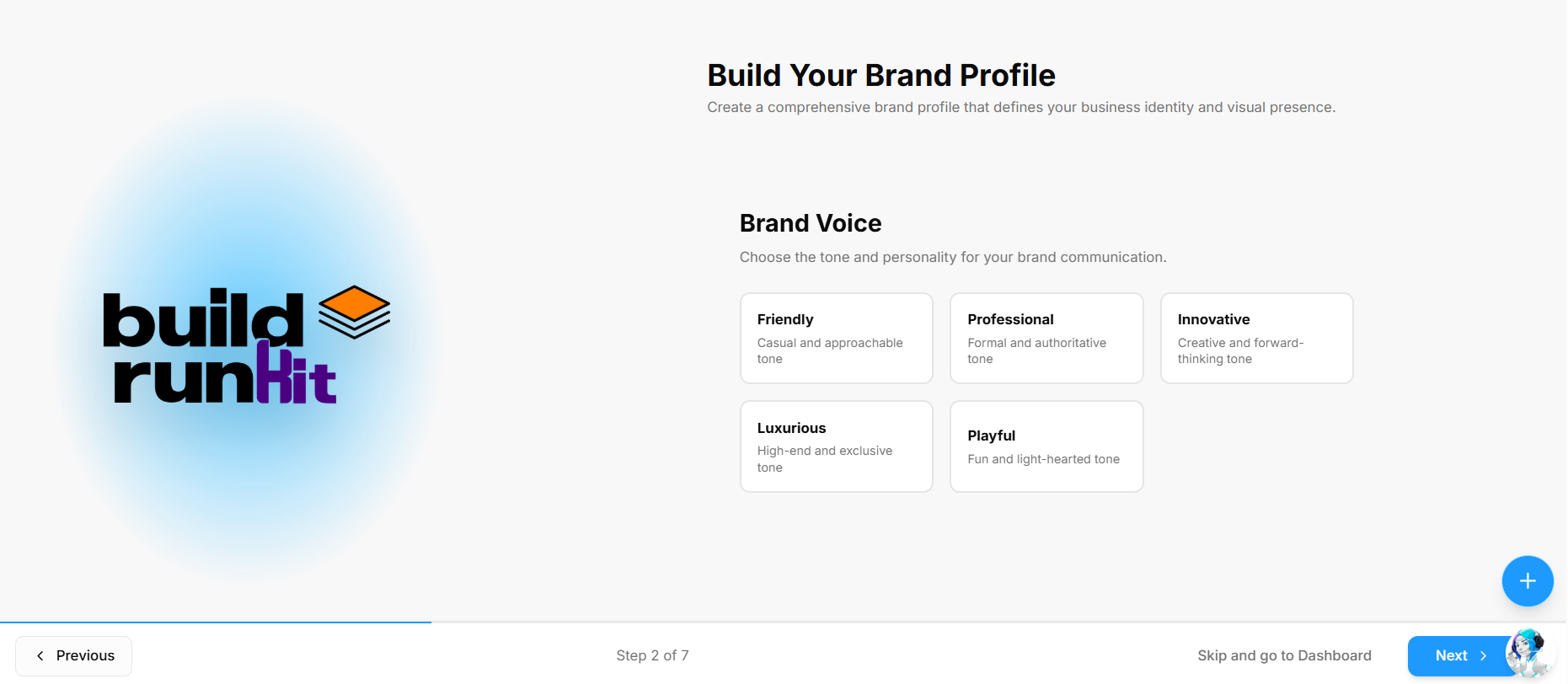
Step 2 of the Build Your Brand Profile onboarding wizard helps define the overall tone and communication style of your brand.
What You Need
-
A clear idea of the communication style and personality that best aligns with your target audience
How to Select Your Brand Voice
-
Choose a Personality Card: Click one of the preset tone options to set your primary brand voice:
-
Friendly: Casual and approachable tone.
-
Professional: Formal and authoritative tone.
-
Innovative: Creative and forward-thinking tone.
-
Luxurious: High-end and exclusive tone.
-
Playful: Fun and light-hearted tone.
-
-
Navigation Controls:
-
Click Next > at the bottom right to save your selection and advance to Step 3.
-
Click < Previous at the bottom left to return to Step 1 and edit your basic details.
-
Skip Option: Click Skip and go to Dashboard at the bottom of the screen to bypass setup and enter your workspace immediately.
-
Step 3: Target Audience
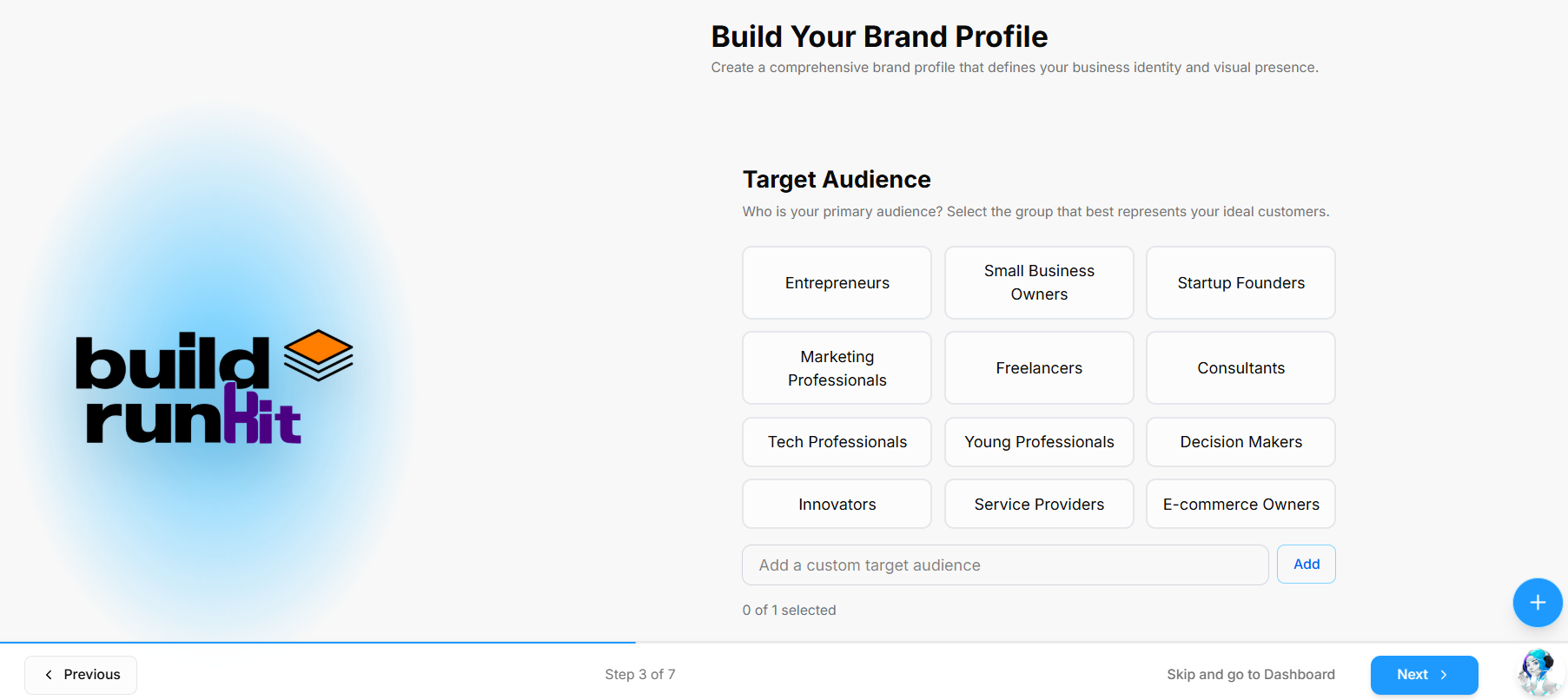
Step 3 of the Build Your Brand Profile onboarding wizard defines the primary group that best represents your ideal customers.
What You Need
-
An understanding of your primary audience segment or ideal buyer persona
How to Select Your Target Audience
-
Choose Preset Audience Categories: Click one of the preset options to select your primary target group:
-
Entrepreneurs
-
Small Business Owners
-
Startup Founders
-
Marketing Professionals
-
Freelancers
-
Consultants
-
Tech Professionals
-
Young Professionals
-
Decision Makers
-
Innovators
-
Service Providers
-
E-commerce Owners
-
-
Add Custom Target Audience: If your specific customer demographic is not listed, type your custom audience into the Add a custom target audience field and click Add.
-
Verify Selection: Check the counter below the input field (e.g., 0 of 1 selected) to ensure your chosen target group is applied.
-
Navigation Controls:
-
Click Next > at the bottom right to save your selection and advance to Step 4.
-
Click < Previous at the bottom left to return to Step 2 and adjust your brand voice choices.
-
Skip Option: Click Skip and go to Dashboard at the bottom of the screen to enter your workspace immediately.
-
Step 4: Core Values
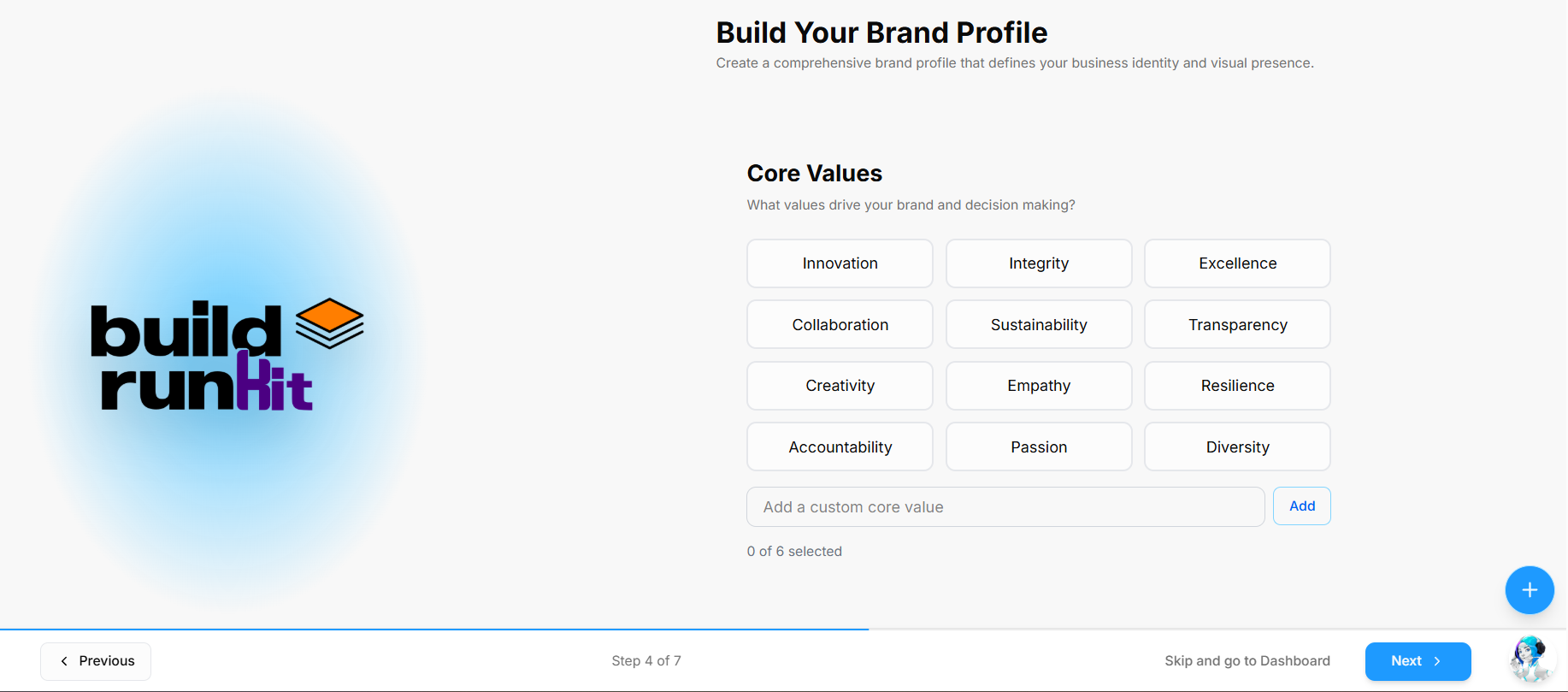
Step 4 of the Build Your Brand Profile onboarding wizard defines the core principles and values that drive your brand and decision-making.
What You Need
-
The foundational principles and values that represent your business operations and company culture
How to Select Your Core Values
-
Choose Preset Core Values: Click the options that represent your brand principles (up to 5 values):
-
Innovation
-
Integrity
-
Excellence
-
Collaboration
-
Sustainability
-
Transparency
-
Creativity
-
Empathy
-
Resilience
-
Accountability
-
Passion
-
Diversity
-
-
Add Custom Core Values: If a specific value is missing, enter it into the Add a custom core value field and click Add.
-
Verify Selection: Review the counter below the input box (e.g., 0 of 5 selected) to track your chosen principles.
-
Navigation Controls:
-
Click Next > at the bottom right to save your selections and advance to Step 5.
-
Click < Previous at the bottom left to return to Step 3 and modify your target audience options.
-
Skip Option: Click Skip and go to Dashboard at the bottom of the screen to enter your workspace immediately.
-
Step 5: Visual Identity
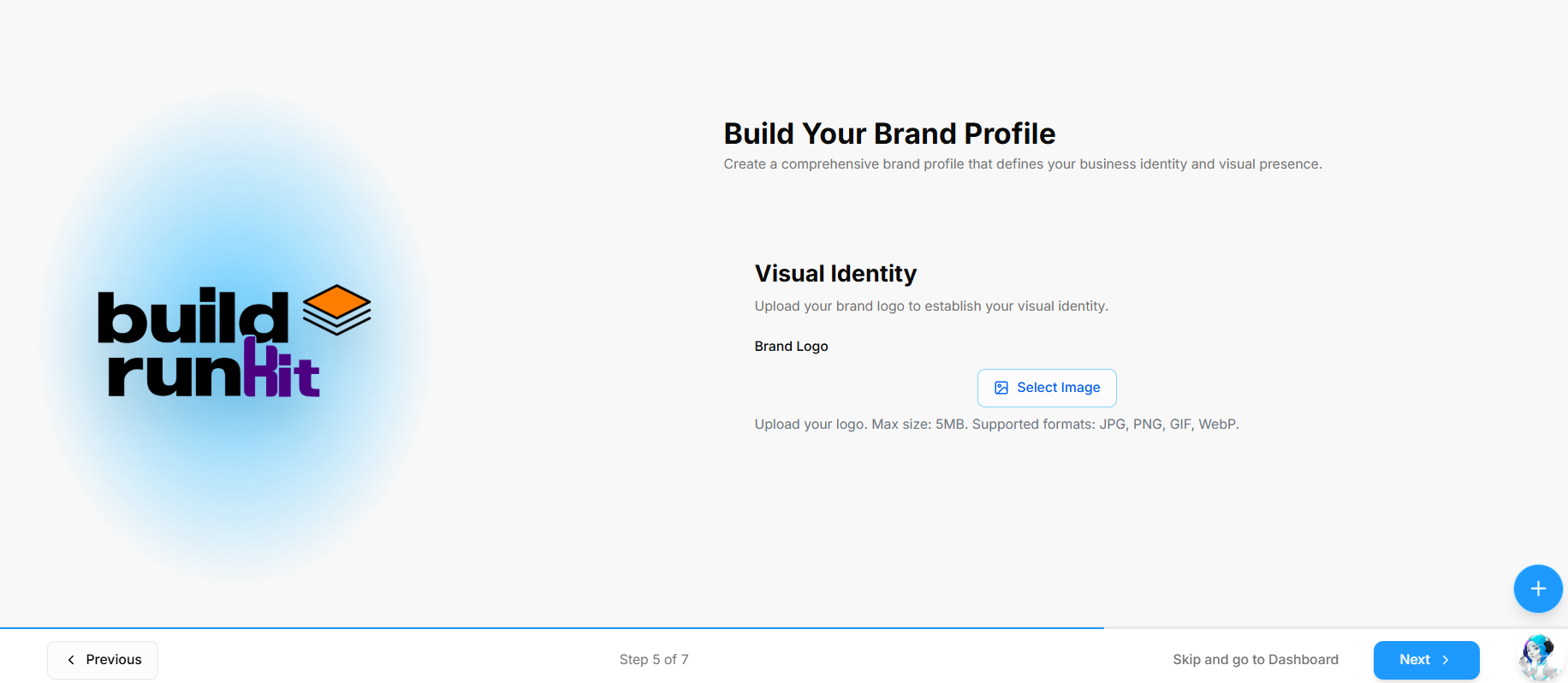
Step 5 of the Build Your Brand Profile onboarding wizard establishes your visual branding by uploading your official brand logo.
What You Need
-
An image file of your brand logo (JPG, PNG, GIF, or WebP format, max 5MB)
How to Set Up Your Visual Identity
-
Upload Brand Logo: Click the Select Image button to open your device file browser and select your logo graphic.
-
Review Image Requirements: Ensure your image meets the supported format specifications (JPG, PNG, GIF, WebP) and file size limit (5MB max).
-
Navigation Controls:
-
Click Next > at the bottom right to upload your asset and advance to Step 6.
-
Click < Previous at the bottom left to return to Step 4 and adjust your core values choices.
-
Skip Option: Click Skip and go to Dashboard at the bottom of the screen to enter your workspace immediately.
-
Step 6: Brand Colors
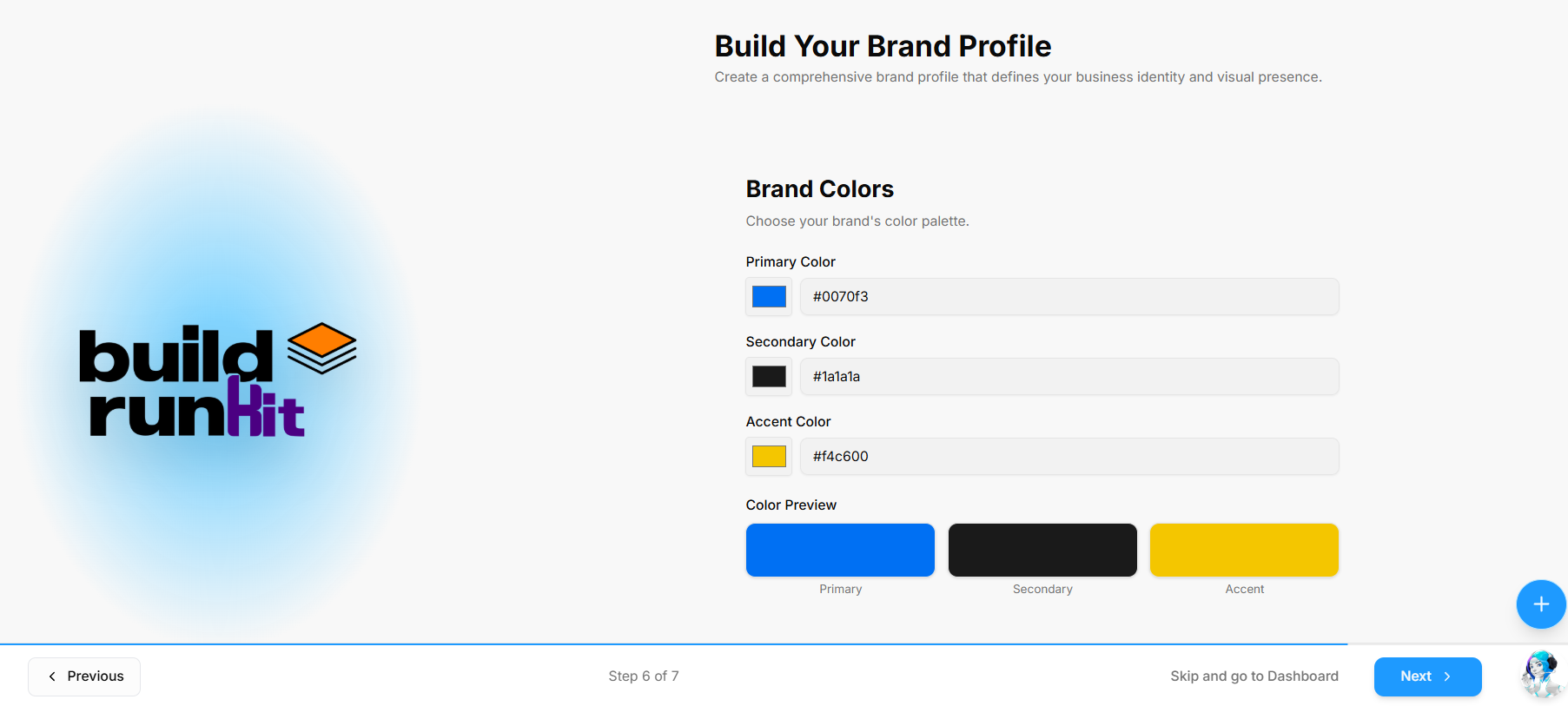
Step 6 of the Build Your Brand Profile onboarding wizard defines your visual palette across primary, secondary, and accent colors.
What You Need
-
Hex color codes for your brand's primary, secondary, and accent shades
How to Set Up Your Brand Colors
-
Primary Color: Click the color picker box or type a hex code into the Primary Color field (e.g.,
#0070f3). -
Secondary Color: Select a color or enter a hex code in the Secondary Color field (e.g.,
#1a1a1a). -
Accent Color: Select a color or enter a hex code in the Accent Color field (e.g.,
#f4c600). -
Color Preview: Review the real-time Color Preview blocks below the fields to verify how your Primary, Secondary, and Accent colors look side by side.
-
Navigation Controls:
-
Click Next > at the bottom right to save your color palette and advance to Step 7.
-
Click < Previous at the bottom left to return to Step 5 and update your visual identity assets.
-
Skip Option: Click Skip and go to Dashboard at the bottom of the screen to enter your workspace immediately.
-
Step 7: Typography
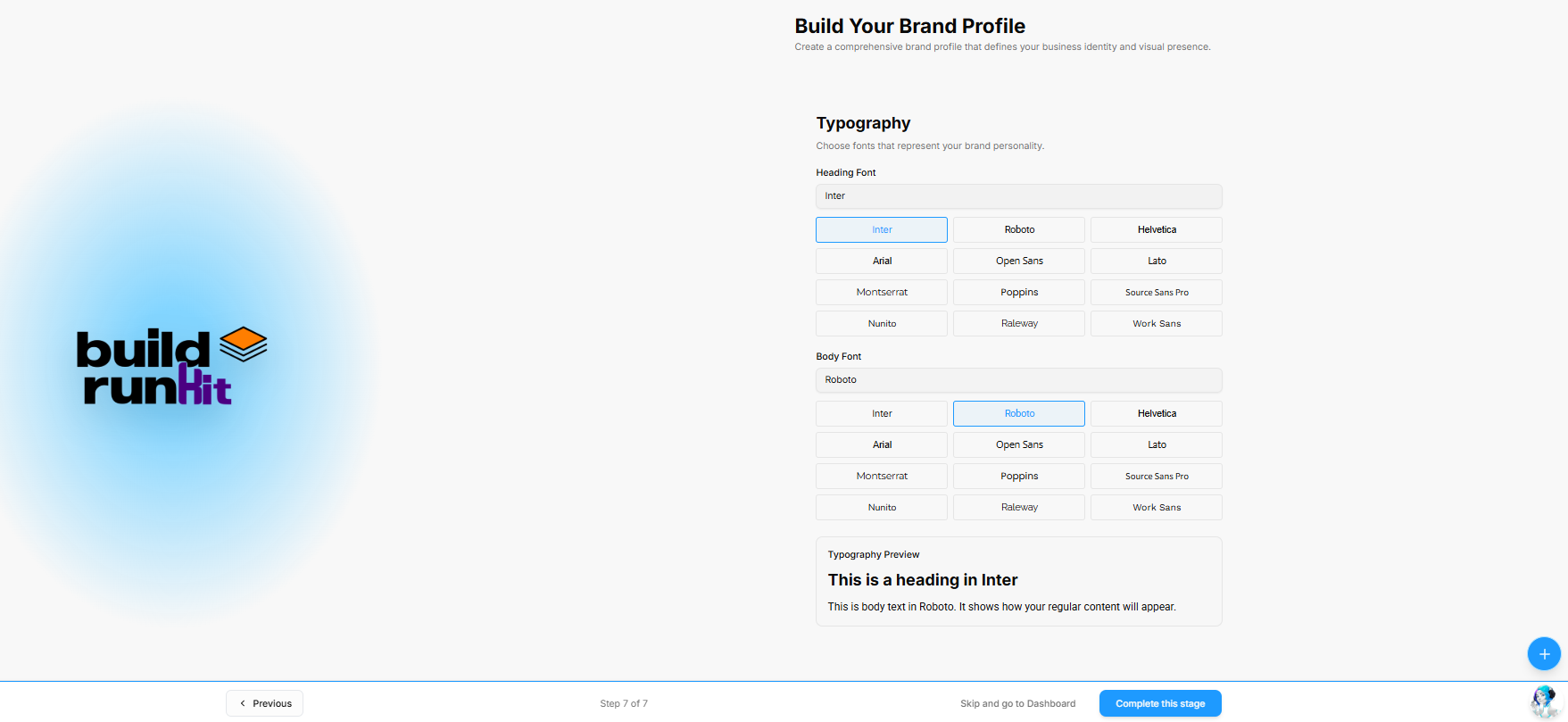
Step 7 of the Build Your Brand Profile onboarding wizard establishes the typographic identity for your headers and body copy.
What You Need
-
Preferred primary font styles for your brand headings and body content
How to Set Up Your Typography
-
Heading Font: Click a font card to select your primary heading font (e.g., Inter, Roboto, Helvetica, Arial, Open Sans, Lato, Montserrat, Poppins, Source Sans Pro, Nunito, Raleway, Work Sans).
-
Body Font: Click a font card to select your primary body font (e.g., Roboto).
-
Typography Preview: Review the live preview box at the bottom to see how your selected Heading Font and Body Font render together.
-
Navigation & Completion:
-
Click Complete this stage at the bottom right to finalize and save your entire brand profile.
-
Click < Previous at the bottom left to return to Step 6 and modify your color palette.
-
Skip Option: Click Skip and go to Dashboard at the bottom of the screen to enter your workspace without saving font preferences.
-
Initial Onboarding & Role-Based Dashboards
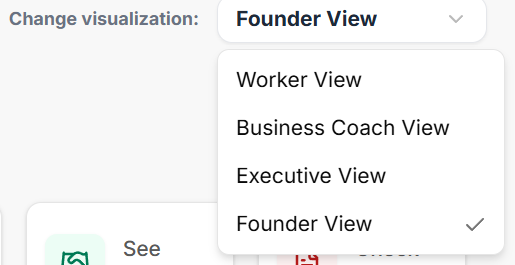
After completing initial account setup, BuildRunKit provides 4 role-based dashboard architectures (Founder View, Executive View, Business Coach View, and Worker View). Each view filters workspace metrics to match specific operational roles.
Role View Switcher & Universal Shortcuts
-
Change Visualization Dropdown: Located at the top right of the dashboard (e.g., set to Founder View), allowing users to switch views on demand.
-
Where To Now? (Shortcuts Bar): Quick action navigation tiles:
-
Finish Onboarding: Directly access pending profile setup steps.
-
Manage Workspaces: Switch or edit organization environments.
-
Subscription: View and update billing or tier details.
-
Your Brands: Jump directly to configured brand assets.
-
See Deals: View active sales pipeline items in the CRM.
-
Check Invoices: Inspect billing and client payments.
-
Founder Dashboard Breakdown
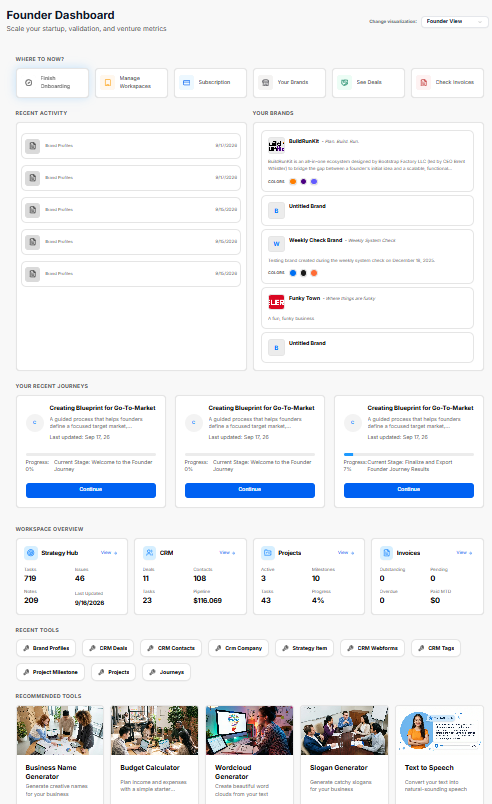
Recent Activity & Your Brands Panels
-
Recent Activity: Stream showing recently generated outputs, brand profile edits, or stage logs with timestamps (e.g., Sep 15, 2026).
-
Your Brands: Quick overview cards displaying active brand profiles (e.g., BuildRunKit, Untitled Brand, Funky Town) along with associated taglines, descriptions, and color swatches.
Your Recent Journeys
-
Journey Cards: Progress cards displaying active strategic tracks (e.g., Creating Blueprint for Go-To-Market), last updated dates, stage completion percentages, current stage names (e.g., Welcome to the Founder Journey), and blue Continue action buttons.
Workspace Overview Metrics
-
Strategy Hub: Displays key counts for active Tasks (719), Issues (46), Notes (209), and last updated dates.
-
CRM: Displays real-time sales pipeline numbers: Deals (11), Contacts (108), Tasks (23), and total Pipeline value ($116,069).
-
Projects: Tracks active operational progress: Active projects (3), Milestones (10), total Tasks (43), and Progress percentage (4%).
-
Invoices: Summary of financial status: Outstanding (0), Pending (0), Overdue (0), and Paid MTD ($0).
Recent & Recommended Tools
-
Recent Tools: One-click quick-launch buttons for frequently accessed features (e.g., Brand Profiles, CRM Deals, CRM Contacts, CRM Company, Strategy Item, CRM Webforms, CRM Tags, Project Milestone, Projects, Journeys).
-
Recommended Tools: Feature cards with direct launch buttons for platform utilities (e.g., Business Name Generator, Budget Calculator, Wordcloud Generator, Slogan Generator, Text to Speech).
Executive Overview Breakdown
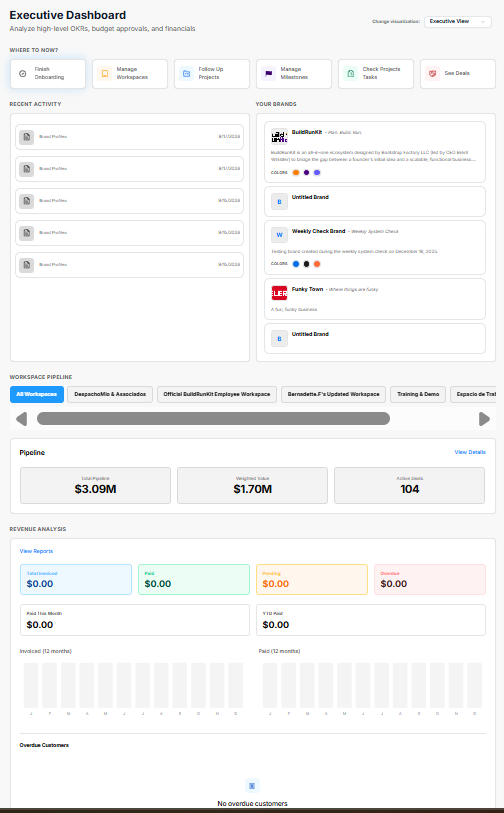
The Executive Dashboard is tailored for corporate leadership to analyze high-level OKRs, budget approvals, pipeline health, and overall organization financials.
Role View Switcher & Executive Shortcuts
-
Change Visualization Dropdown: Positioned at the top right (set to Executive View) to switch role-based dashboard views.
-
Where To Now? (Shortcuts Bar): Quick navigation tiles for executive actions:
-
Finish Onboarding: Complete any remaining setup tasks.
-
Manage Workspaces: Access and configure organizational workspaces.
-
Follow Up Projects: Direct link to monitor project progress.
-
Manage Milestones: View key deadlines and deliverable goals.
-
Check Projects Tasks: Drill into specific project tasks.
-
See Deals: Review active sales pipeline deals.
-
Recent Activity & Brand Assets
-
Recent Activity: Timestamped log of recent updates, brand profile edits, or system entries (e.g., Sep 15, 2026).
-
Your Brands: Overview cards highlighting active company profiles (e.g., BuildRunKit, Untitled Brand, Weekly Check Brand, Funky Town) complete with descriptions and visual color palettes.
Workspace Pipeline
-
Workspace Selector Tab Bar: Filter pipeline data across specific accounts (e.g., All Workspaces, DespachoMio & Asociados, Official BuildRunKit Employee Workspace, Bernadette.F's Updated Workspace, Training & Demo).
-
Pipeline Summary: High-level deal metrics showing Total Pipeline ($3.09M), Weighted Value ($1.70M), and Active Deals (104), with a View Details link for deeper reporting.
Revenue Analysis
-
Financial Status Cards: Real-time billing metrics including Total Invoiced ($0.00), Paid ($0.00), Pending ($0.00), and Overdue ($0.00).
-
Period Highlights: Tracks Paid This Month ($0.00) and YTD Paid ($0.00).
-
Comparative Charts: 12-month visual breakdown charts for Invoiced and Paid trends.
-
Overdue Customers: Dedicated status area highlighting accounts requiring collection follow-ups (currently showing No overdue customers).
Projects, Recent & Recommended Tools
-
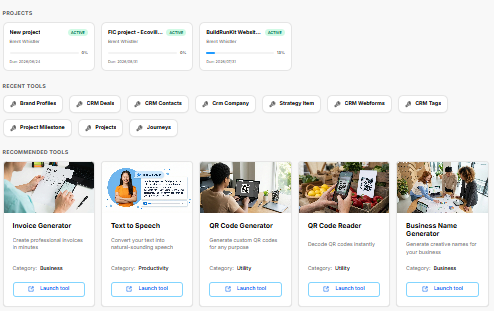
Projects: Active status cards displaying project names (e.g., New project, FIC project - Ecovill..., BuildRunKit Websit...), owner names (Brent Whistler), progress indicators, and due dates.
-
Recent Tools: One-click quick links to key features (e.g., Brand Profiles, CRM Deals, CRM Contacts, Crm Company, Strategy Item, CRM Webforms, CRM Tags, Project Milestone, Projects, Journeys).
-
Recommended Tools: Dedicated utility cards with direct Launch tool buttons (e.g., Invoice Generator, Text to Speech, QR Code Generator, QR Code Reader, Business Name Generator).
Business Coach Overview Breakdown
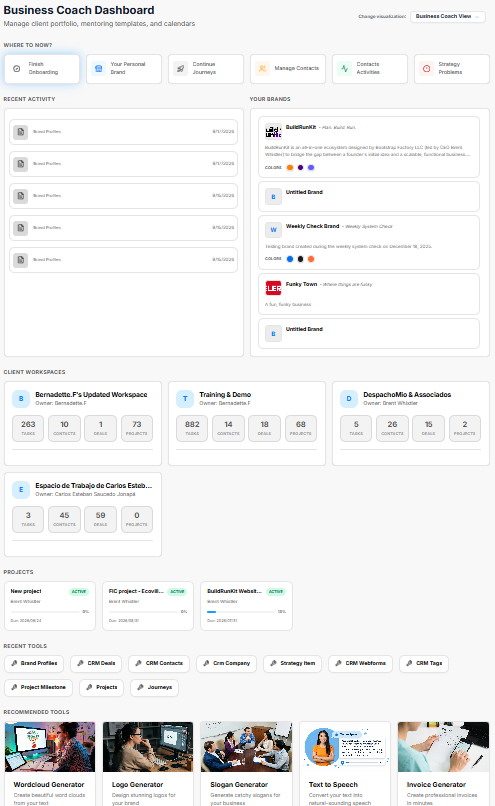
The Business Coach Dashboard is structured for mentorship tracking, client portfolio management, coaching templates, and strategic calendar overviews.
Role View Switcher & Coaching Shortcuts
-
Change Visualization Dropdown: Positioned at the top right (set to Business Coach View) to easily switch between user role perspectives.
-
Where To Now? (Shortcuts Bar): Direct shortcut links tailored for coaching workflows:
-
Finish Onboarding: Complete profile or brand setup.
-
Your Personal Brand: Jump directly to personal or agency brand configurations.
-
Continue Journeys: Resume active coaching and strategy programs.
-
Manage Contacts: Access the client directory.
-
Contacts Activities: Track client communications and engagements.
-
Strategy Problems: Review strategic roadblocks and action items.
-
Recent Activity & Your Brands
-
Recent Activity: Stream logging recent updates, client edits, and profile actions with timestamps (e.g., Sep 15, 2026).
-
Your Brands: Overview cards highlighting managed brand identities (e.g., BuildRunKit, Untitled Brand, Weekly Check Brand, Funky Town) along with associated taglines, descriptions, and color palettes.
Client Workspaces
Dedicated client cards summarizing cross-account operational metrics for active coaching cohorts:
-
Bernadette.F's Updated Workspace (Owner: Bernadette.F): 263 Tasks, 10 Contacts, 1 Deal, 73 Projects.
-
Training & Demo (Owner: Bernadette.F): 882 Tasks, 14 Contacts, 18 Deals, 68 Projects.
-
DespachoMio & Associados (Owner: Brent Whistler): 5 Tasks, 26 Contacts, 15 Deals, 2 Projects.
Projects, Recent & Recommended Tools
-
Projects: Active status overview cards (e.g., New project, FIC project - Ecovill..., BuildRunKit Websit...) displaying owner names (Brent Whistler), progress indicators, and due dates.
-
Recent Tools: One-click launcher buttons for frequently used modules (e.g., Brand Profiles, CRM Deals, CRM Contacts, Crm Company, Strategy Item, CRM Webforms, CRM Tags, Project Milestone, Projects, Journeys).
-
Recommended Tools: Feature cards with direct Launch tool action links (e.g., Wordcloud Generator, Logo Generator, Slogan Generator, Text to Speech, Invoice Generator).
Worker Workspace Breakdown
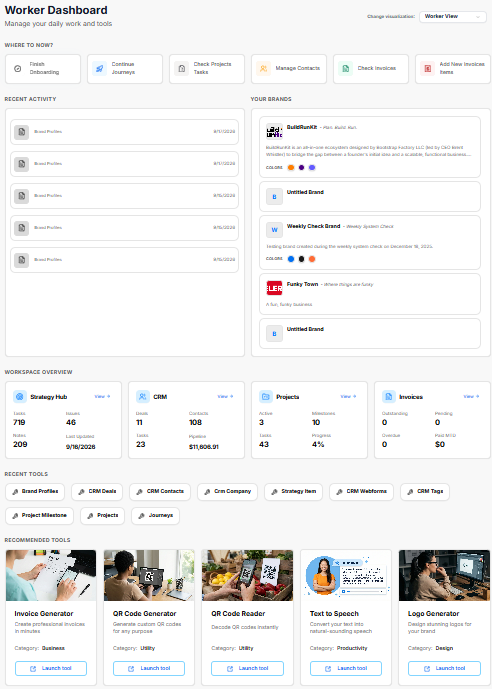
The Worker Dashboard is focused on day-to-day task execution, direct workflows, individual assignments, and immediate operational access.
Role View Switcher & Execution Shortcuts
-
Change Visualization Dropdown: Located at the top right (set to Worker View) to switch role-based dashboard perspectives.
-
Where To Now? (Shortcuts Bar): Navigation buttons optimized for daily operational tasks:
-
Finish Onboarding: Complete profile or initial setup steps.
-
Continue Journeys: Jump directly into active strategic or onboarding workflows.
-
Check Projects Tasks: View assigned project action items and deliverables.
-
Manage Contacts: Access and update CRM customer records.
-
Check Invoices: Review current billing and payment statuses.
-
Add New Invoices Items: Quickly create new billable line items or invoices.
-
Recent Activity & Your Brands
-
Recent Activity: Real-time log showing recent workspace edits, stage updates, and profile activity with timestamps (e.g., Sep 15, 2026).
-
Your Brands: Managed brand cards (e.g., BuildRunKit, Untitled Brand, Weekly Check Brand, Funky Town) featuring brand summaries, visual swatches, and taglines.
Workspace Overview Metrics
-
Strategy Hub: High-level execution board metrics tracking Tasks (719), Issues (46), Notes (209), and last updated timestamps (9/16/2026).
-
CRM: Real-time record summary showing Deals (11), Contacts (108), Tasks (23), and Pipeline total ($11,606.91).
-
Projects: Operations progress overview tracking Active projects (3), Milestones (10), Tasks (43), and Progress completion percentage (4%).
-
Invoices: Financial snapshot displaying Outstanding (0), Pending (0), Overdue (0), and Paid MTD ($0).
Recent & Recommended Tools
-
Recent Tools: Quick-launch shortcut buttons for daily application tools (e.g., Brand Profiles, CRM Deals, CRM Contacts, Crm Company, Strategy Item, CRM Webforms, CRM Tags, Project Milestone, Projects, Journeys).
-
Recommended Tools: Execution utility cards with direct Launch tool action links (e.g., Invoice Generator, QR Code Generator, QR Code Reader, Text to Speech, Logo Generator).
BuildRunKit Brands Module Sub-Section
Brands Module Sub-Section
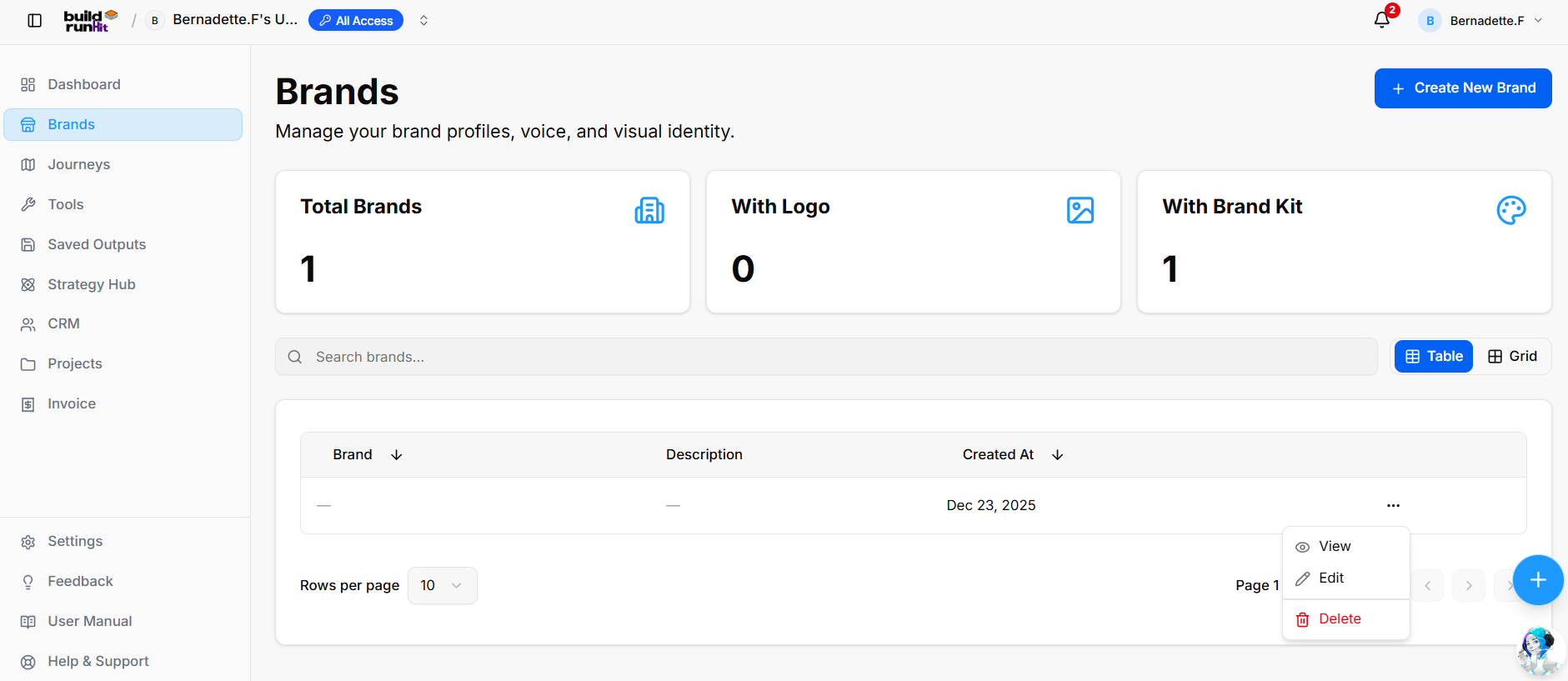
The Brands module allows users to establish, manage, and maintain brand profiles, tone of voice guidelines, and visual identity assets across their business projects.
Metrics Summary Cards
-
Total Brands: Displays the total number of created brand profiles (e.g., 1).
-
With Logo: Tracks brand profiles containing an uploaded logo image (e.g., 0).
-
With Brand Kit: Tracks profiles configured with a complete visual style kit (e.g., 1).
Search & Layout Controls
-
Create New Brand Button: Opens the creation wizard to set up a new brand identity.
-
Search Input Field: Real-time filter to search brand profiles (e.g., "Search brands...").
-
View Toggles: Switches data display between Table view and Grid view.
Brand Profiles List
-
Brand Column: Displays the brand name.
-
Description Column: Displays the short summary or mission statement.
-
Created At Column: Timestamp showing when the profile was generated (e.g., Dec 23, 2025).
-
Action Menu: Context menu (
...) offering profile management choices: View, Edit, and Delete.
Create New Brand Form Configuration
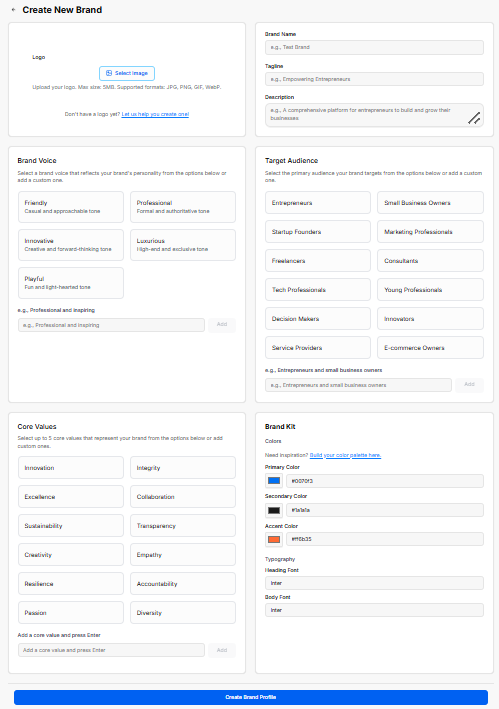
-
Logo Upload: Image upload area supporting JPG, PNG, GIF, and WebP formats (max 5MB), plus a link to assist with logo creation.
-
Basic Information: Form fields for Brand Name, Tagline, and a detailed Description.
-
Brand Voice: Selectable personality cards (Friendly, Professional, Innovative, Luxurious, Playful) or custom voice input field.
-
Target Audience: Multi-select tags for audience groups (e.g., Entrepreneurs, Small Business Owners, Startup Founders, Marketing Professionals) or custom audience entry.
-
Core Values: Selection cards for up to 5 core principles (e.g., Innovation, Integrity, Excellence, Sustainability, Creativity) or custom value inputs.
-
Brand Kit: Color palette fields (Primary, Secondary, Accent Color with integrated color picker links) and typography settings (Heading Font and Body Font).
-
Create Brand Profile Button: Submits and saves the fully configured brand identity.
Viewing Brand Profile Details
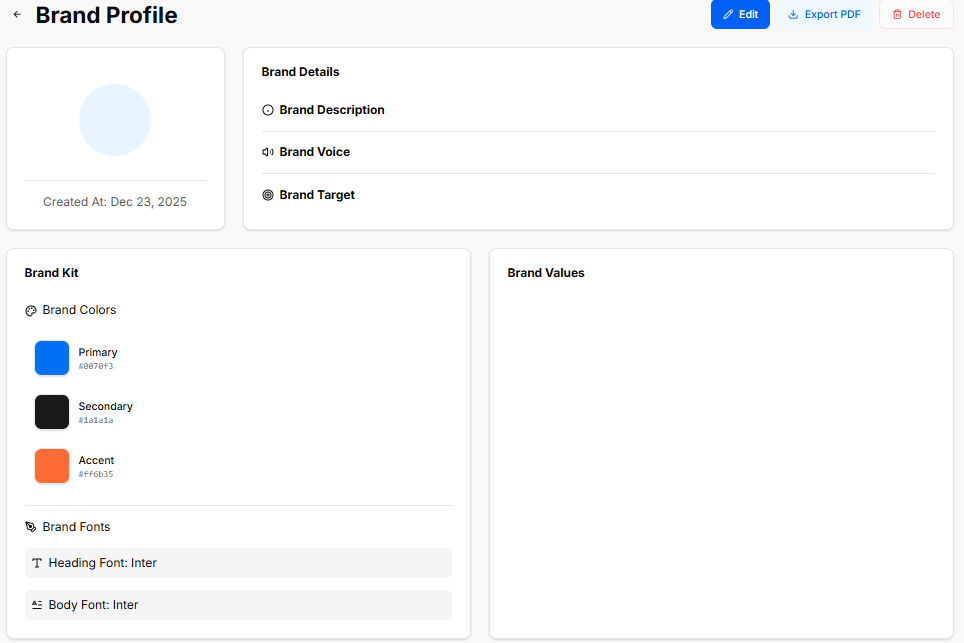
When selecting View from a brand's action menu, the Brand Profile detailed view displays the saved identity assets and configuration:
-
Header Actions: Action buttons to Edit the profile, Export PDF for brand guideline sharing, or Delete the profile.
-
Logo & Timestamp Card: Displays the uploaded brand logo image alongside the creation timestamp (e.g., Created At: Dec 23, 2025).
-
Brand Details Panel: Summarizes key strategic messaging:
-
Brand Description: Overview of the business background and mission.
-
Brand Voice: Selected tone guidelines for marketing and communication.
-
Brand Target: Defined target audience and buyer personas.
-
-
Brand Kit Panel: Outlines visual design standards:
-
Brand Colors: Visual color swatches with exact Hex codes (e.g., Primary #0070F3, Secondary #1A1A1A, Accent #FF6B35).
-
Brand Fonts: Typography guidelines showing designated Heading Font (e.g., Inter) and Body Font (e.g., Inter).
-
-
Brand Values Panel: Dedicated section listing the saved core brand values and operational principles.
Editing a Brand Profile
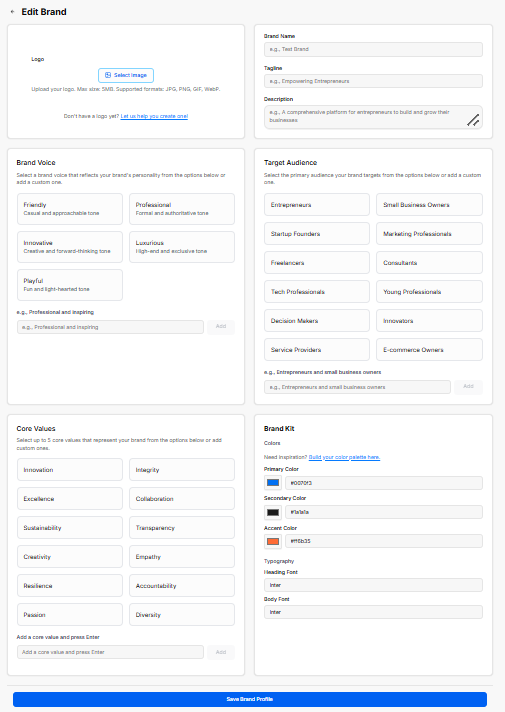
Clicking Edit from either the brand action menu or the Brand Profile header opens the Edit Brand interface, pre-populated with existing brand parameters for updates:
-
Logo Update Area: Option to upload a new logo image file or generate one using the external link.
-
Basic Information: Editable fields for Brand Name, Tagline, and Description.
-
Brand Voice & Audience Adjustments: Selectable buttons and input fields to update tone options or refine target audience categories.
-
Core Values & Visual Kit: Modify core brand value tags, color hex values (Primary, Secondary, Accent), and typography selections (Heading Font, Body Font).
-
Save Brand Profile Button: Blue action button at the bottom of the page to commit and save all updated changes.
BuildRunKit Saved Outcomes Sub-section
Saved Outcomes Sub-section
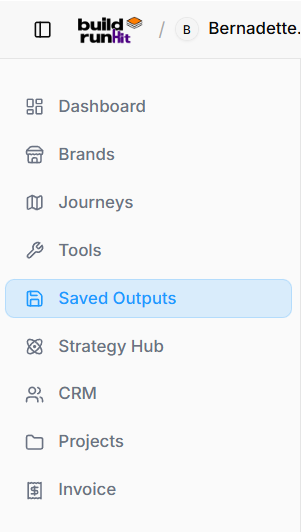
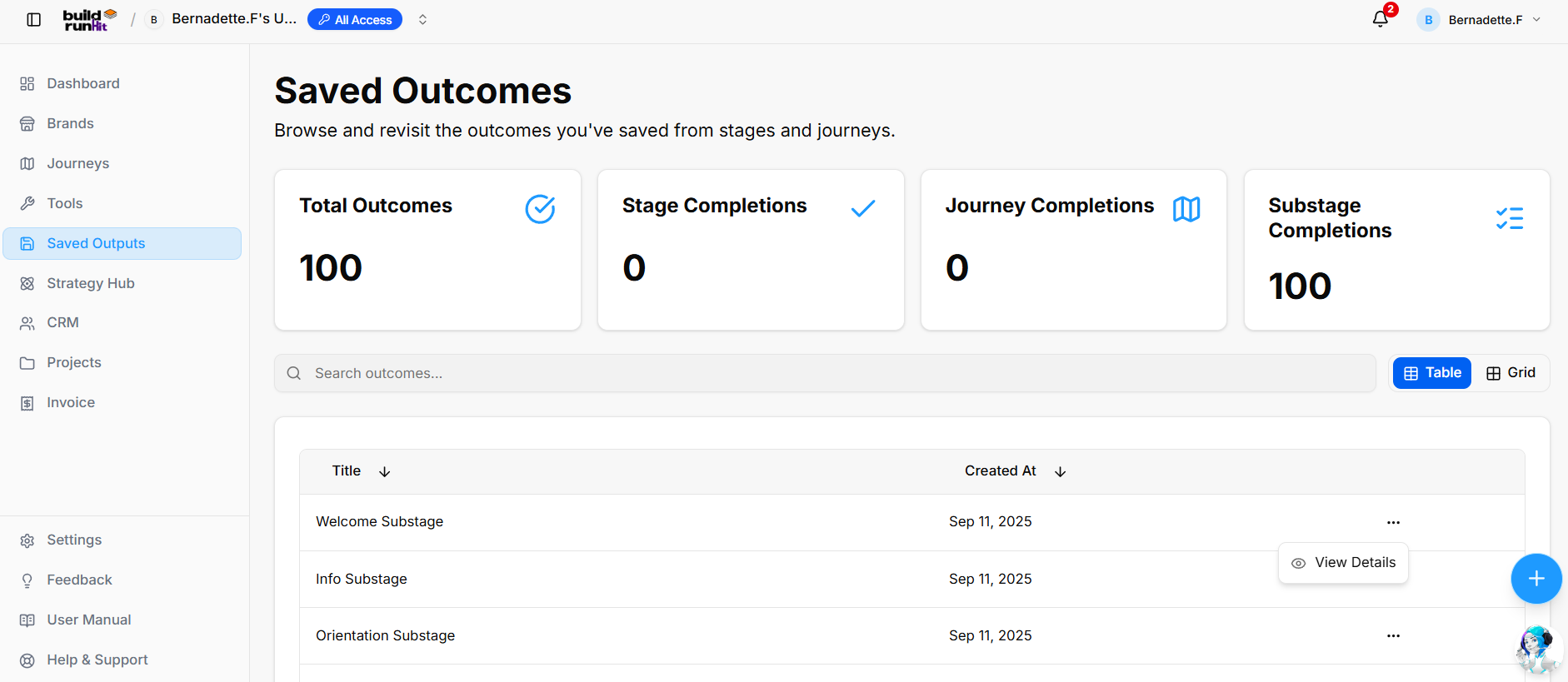
The Saved Outputs module (displayed as Saved Outcomes) tracks two core elements of your progress: Founder Journey Sub-Stage Completions and saved Output Subsections. It serves as a central log showing what steps you completed, when they were finished, and the exact outputs or documents generated during each sub-stage.
Metrics Summary Cards
-
Total Outcomes: Displays the aggregate count of all completed sub-stages and saved outputs (e.g., 100).
-
Stage Completions: Tracks fully completed main journey stages (e.g., 0).
-
Journey Completions: Tracks end-to-end finished founder journeys (e.g., 0).
-
Substage Completions: Tracks completed founder journey sub-stages and their associated outputs (e.g., 100).
Search & View Controls
-
Search Input Field: Real-time search bar to quickly filter completed sub-stages or saved output subsections by keyword (e.g., "Search outcomes...").
-
View Toggles: Switch layout between Table view and Grid view.
Sub-Stage Progress & Saved Outputs Log
-
Title Column: Shows the specific completed founder journey sub-stage or saved output subsection (e.g., Welcome Substage, Info Substage, Orientation Substage).
-
Created At Column: Displays the timestamp recording when the sub-stage was completed and saved (e.g., Sep 11, 2025).
-
Action Menu: Context menu (
...) with options to View Details, allowing you to inspect the full saved output, responses, or generated content for that specific sub-stage.
Viewing Outcome Details
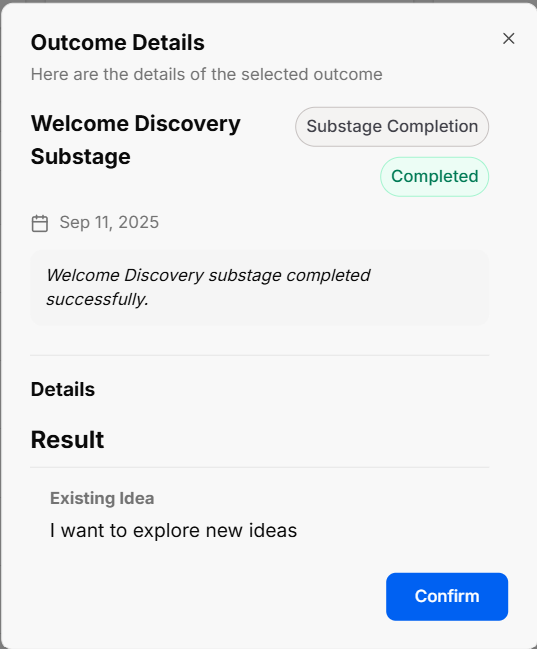
When clicking View Details from the action menu on any log entry, an Outcome Details modal window opens to show full sub-stage information and recorded results:
-
Substage Title & Metadata: Displays the sub-stage title (e.g., Welcome Discovery Substage), entry category (e.g., Substage Completion), status (e.g., Completed), and timestamp (e.g., Sep 11, 2025).
-
Confirmation Message: Callout box confirming successful completion (e.g., "Welcome Discovery substage completed successfully.").
-
Details & Result Section: Displays saved user inputs, selected choices, or prompt responses recorded during the sub-stage (e.g., Existing Idea: "I want to explore new ideas").
-
Confirm Button: Blue action button to acknowledge and close the modal view.
BuildRunKit Tools Directory Sub-section
Tools Directory Sub-section
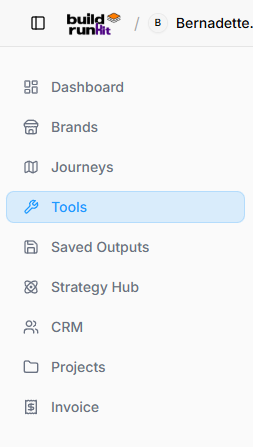
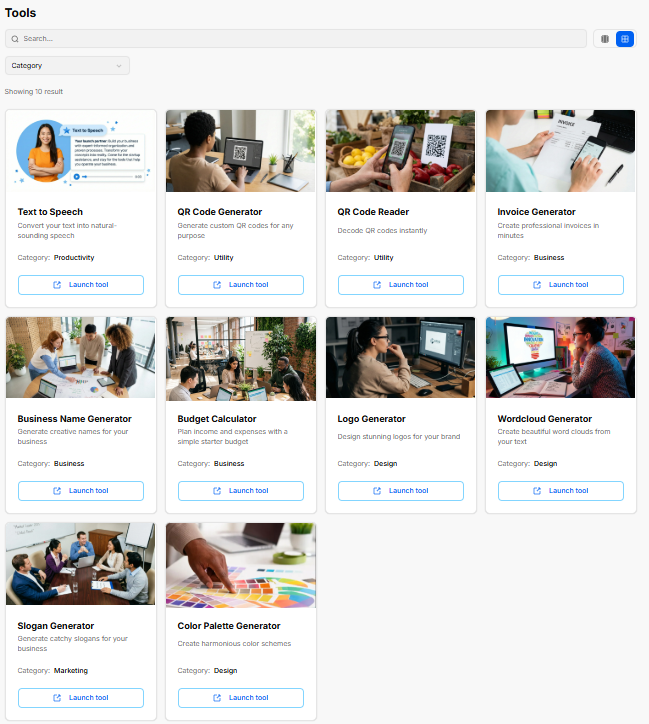
The Tools section acts as a central library for built-in utilities designed to streamline content generation, branding, productivity, and financial calculations.
Navigation & Filtering Controls
-
Search Bar: Quick filter field to search for specific tools by name.
-
Category Dropdown: Allows filtering tools by functional area (e.g., Productivity, Utility, Business, Design, Marketing).
-
View Switcher: Toggles display between card grid view and list view.
Available Built-In Tools Overview
-
Text to Speech (Productivity): Converts written text into natural-sounding speech audio files.
-
QR Code Generator (Utility): Generates custom QR codes for web links, contact details, or media.
-
QR Code Reader (Utility): Scans and decodes existing QR codes directly within the workspace.
-
Invoice Generator (Business): Quick utility to draft and export professional invoices on the fly.
-
Business Name Generator (Business): Generates creative business name suggestions based on brand prompts.
-
Budget Calculator (Business): Helps map income, operational costs, and initial starter budgets.
-
Logo Generator (Design): Creates initial logo design concepts for brand setup.
-
Wordcloud Generator (Design): Builds visual word clouds from input text or dataset keywords.
-
Slogan Generator (Marketing): Creates marketing taglines and catchy slogans for products or services.
-
Color Palette Generator (Design): Generates complementary color schemes for brand aesthetics.
-
Launch Tool Button: Opens the selected tool interface in full view.
Text to Speech Generator Tool Sub-Section
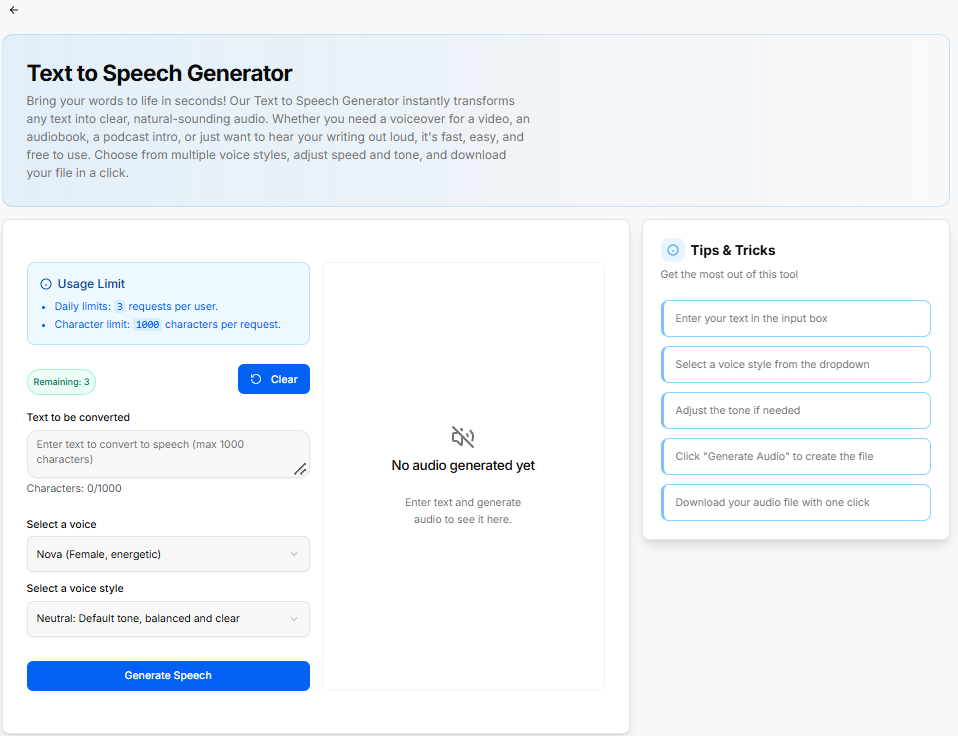
The Text to Speech Generator transforms typed content into natural-sounding speech audio files for voiceovers, podcasts, or audiobooks.
Usage Limits & Parameters
-
Usage Limit Notice: Displays active daily restrictions (3 requests per user) and character limits (1000 characters per request).
-
Remaining Indicator: Shows remaining available requests for the session (e.g., Remaining: 3).
Configuration Controls
-
Text to be converted: Input text area accepting up to 1000 characters with an active character counter (e.g., Characters: 0/1000).
-
Clear Button: Resets the text input box.
-
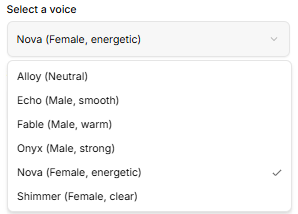
Select a voice: Dropdown menu to select preferred speaker profiles:
-
-
Alloy: Neutral tone.
-
Echo: Male, smooth tone.
-
Fable: Male, warm tone.
-
Onyx: Male, strong tone.
-
Nova: Female, energetic tone.
-
Shimmer: Female, clear tone.
-
-
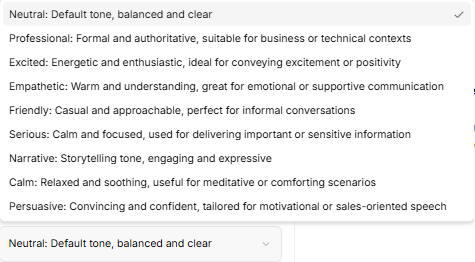
Select a voice style: Dropdown menu to adjust delivery tone:
-
-
Neutral: Default tone, balanced and clear.
-
Professional: Formal and authoritative, suitable for business or technical contexts.
-
Excited: Energetic and enthusiastic, ideal for conveying excitement or positivity.
-
Empathetic: Warm and understanding, great for emotional or supportive communication.
-
Friendly: Casual and approachable, perfect for informal conversations.
-
Serious: Calm and focused, used for delivering important or sensitive information.
-
Narrative: Storytelling tone, engaging and expressive.
-
Calm: Relaxed and soothing, useful for meditative or comforting scenarios.
-
Persuasive: Convincing and confident, tailored for motivational or sales-oriented speech.
-
-
Generate Speech Button: Processes the input text and generates the audio file.
Audio Preview & Output
-
Audio Player Display: Center panel showing generated audio playback controls (displays "No audio generated yet" before processing).
Tips & Tricks Sidebar
-
Step 1: Enter your text in the input box.
-
Step 2: Select a voice and voice style from the dropdowns.
-
Step 3: Adjust the tone if needed.
-
Step 4: Click "Generate Audio" to create the file.
-
Step 5: Download your audio file with one click.
QR Code Generator Tool Sub-Section
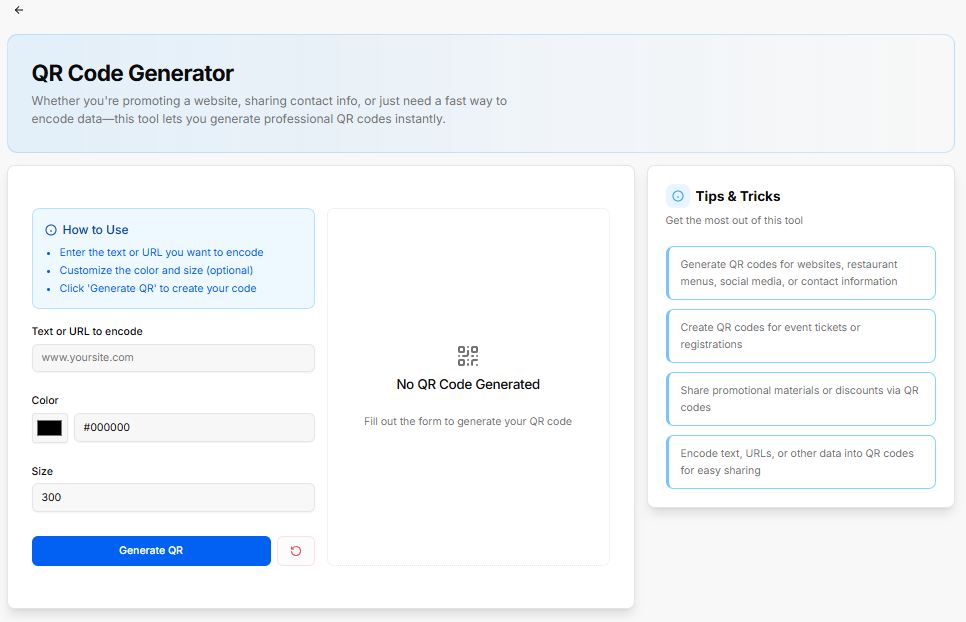
The QR Code Generator allows users to instantly encode text, web links, contact details, or promotional data into custom downloadable QR codes.
How to Use Panel
-
Step 1: Enter the text or URL you want to encode.
-
Step 2: Customize the color and size (optional).
-
Step 3: Click 'Generate QR' to create your code.
Configuration Controls
-
Text or URL to encode: Input field to specify destination web address or raw text (e.g., www.yoursite.com).
-
Color: Color selector and hex code input field to set custom QR code accent colors (defaults to #000000).
-
Size: Numeric input field specifying image dimension in pixels (defaults to 300).
-
Generate QR Button: Processes inputs and creates the rendered code image.
-
Reset Button: Red icon button to clear form settings.
Preview Panel
-
QR Output Display: Center panel showing generated code preview (displays "No QR Code Generated" before processing).
Tips & Tricks Sidebar
-
Tip 1: Generate QR codes for websites, restaurant menus, social media, or contact information.
-
Tip 2: Create QR codes for event tickets or registrations.
-
Tip 3: Share promotional materials or discounts via QR codes.
-
Tip 4: Encode text, URLs, or other data into QR codes for easy sharing.
QR Reader Tool Sub-Section
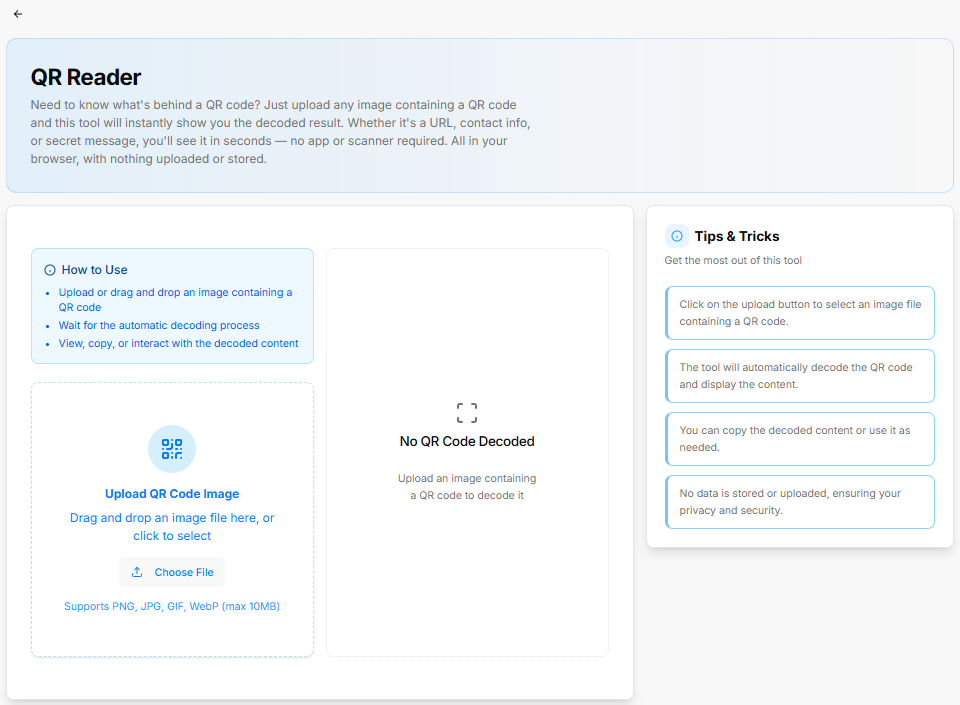
The QR Reader utility decodes uploaded QR code images directly within the browser without storing or transmitting personal data.
How to Use Panel
-
Step 1: Upload or drag and drop an image containing a QR code.
-
Step 2: Wait for the automatic decoding process.
-
Step 3: View, copy, or interact with the decoded content.
Upload & File Controls
-
Upload Area: Drag and drop region with file browser trigger ("Drag and drop an image file here, or click to select").
-
Choose File Button: Opens the local file selector window.
-
Supported Formats Notice: Highlights accepted file types (Supports PNG, JPG, GIF, WebP - max 10MB).
Decoded Output Panel
-
Result Display: Center area showing the decoded text or link output (displays "No QR Code Decoded" before an image is selected).
Tips & Tricks Sidebar
-
Tip 1: Click on the upload button to select an image file containing a QR code.
-
Tip 2: The tool will automatically decode the QR code and display the content.
-
Tip 3: You can copy the decoded content or use it as needed.
-
Tip 4: No data is stored or uploaded, ensuring your privacy and security.
Invoice Generator Tool Sub-Section
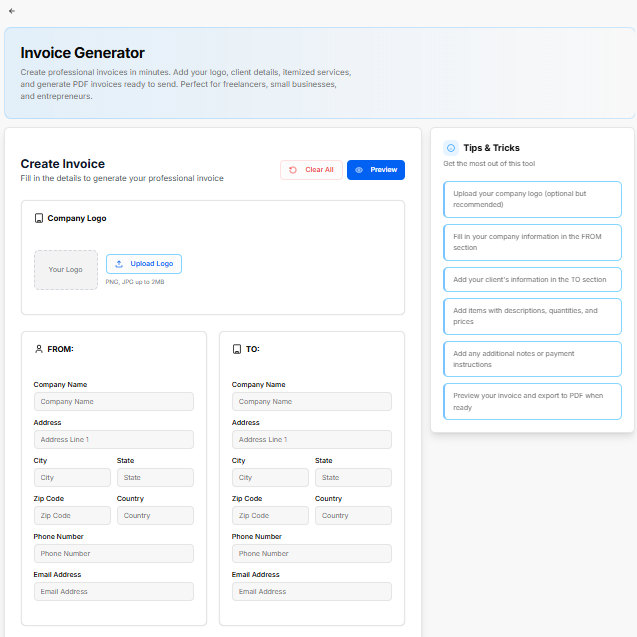
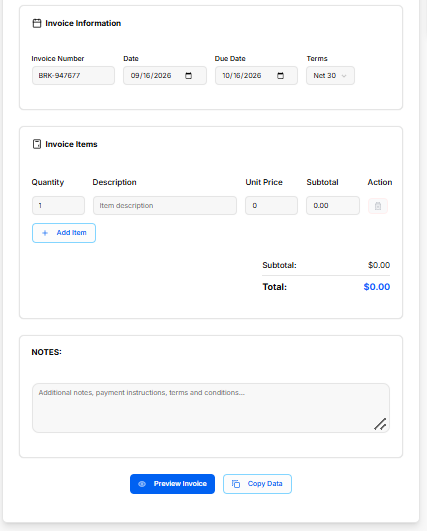
The Invoice Generator tool allows users to quickly draft, preview, and generate PDF invoices with custom branding, sender/client contact details, line items, and payment notes.
Header Actions
-
Clear All Button: Resets all form fields and line items across the entire tool.
-
Preview Button: Opens the formatted PDF preview window.
Company Logo Panel
-
Upload Logo Button: Opens local file selector to attach company branding (Supports PNG, JPG up to 2MB).
Sender & Recipient Details
-
FROM Panel: Form fields to specify sender contact details including Company Name, Address, City, State, Zip Code, Country, Phone Number, and Email Address.
-
TO Panel: Form fields to specify client billing details including Company Name, Address, City, State, Zip Code, Country, Phone Number, and Email Address.
Invoice Information Panel
-
Invoice Number: Auto-generated identifier string (e.g., BRK-947677).
-
Date: Calendar selector to set the issuance date.
-
Due Date: Calendar selector to set the payment deadline date.
-
Terms: Dropdown menu to select payment terms (e.g., Net 30).
Invoice Items Panel
-
Itemized Line Form: Table row fields for Quantity, Description, Unit Price, and calculated Subtotal.
-
Action Column: Red trash icon to remove an individual line item.
-
Add Item Button: Appends a new blank row to the invoice table.
-
Calculated Totals: Displays real-time Subtotal and final Total amounts.
Notes & Final Controls
-
NOTES Box: Multiline text area for adding payment instructions, bank details, or terms and conditions.
-
Preview Invoice Button: Generates the final formatted document layout.
-
Copy Data Button: Copies input data to clipboard for quick reuse.
Tips & Tricks Sidebar
-
Step 1: Upload your company logo (optional but recommended).
-
Step 2: Fill in your company information in the FROM section.
-
Step 3: Add your client's information in the TO section.
-
Step 4: Add items with descriptions, quantities, and prices.
-
Step 5: Add any additional notes or payment instructions.
-
Step 6: Preview your invoice and export to PDF when ready.
Business Name Generator Tool Sub-Section
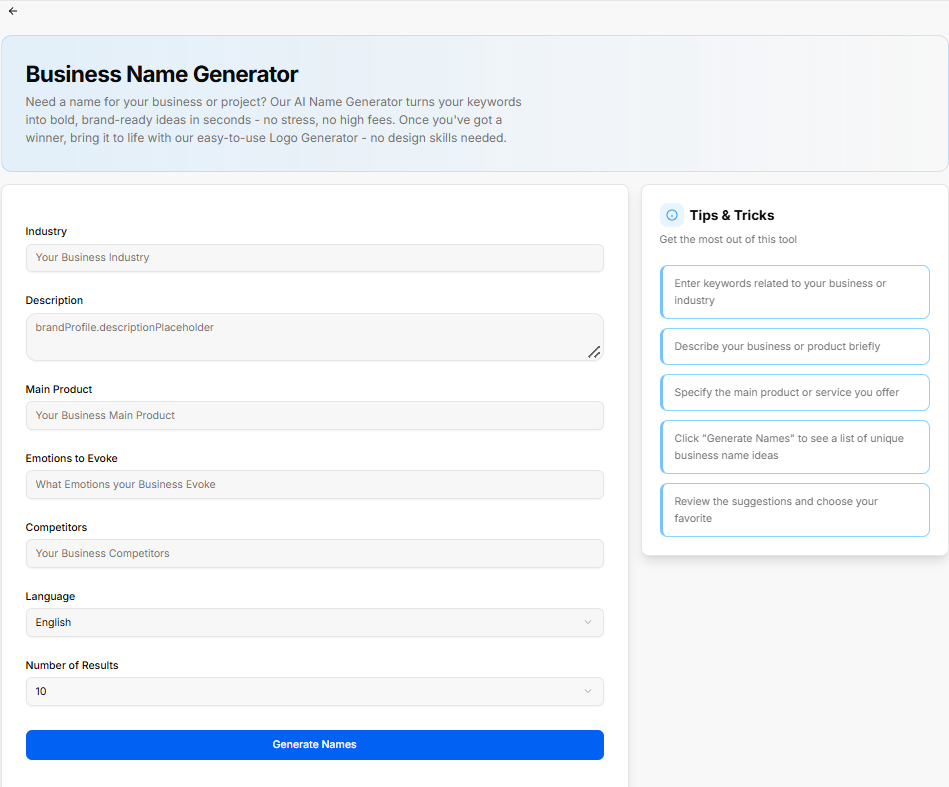
The Business Name Generator tool uses AI to transform keywords, business descriptions, and industry positioning into brand-ready business name ideas.
Configuration Controls
-
Industry: Text input field to enter the target business domain (e.g., Your Business Industry).
-
Description: Multiline text input field to summarize the company overview and offerings (placeholder displays default variable label).
-
Main Product: Input field to specify the primary product or service offered (e.g., Your Business Main Product).
-
Emotions to Evoke: Field to define target feelings or brand impression (e.g., What Emotions your Business Evoke).
-
Competitors: Input field to list key industry competitors for comparative naming context (e.g., Your Business Competitors).
-
Language: Dropdown selector to choose output language (defaults to English).
-
Number of Results: Dropdown menu to set total name suggestions generated (defaults to 10).
-
Generate Names Button: Triggers the AI model to output name suggestions based on specified inputs.
Tips & Tricks Sidebar
-
Step 1: Enter keywords related to your business or industry.
-
Step 2: Describe your business or product briefly.
-
Step 3: Specify the main product or service you offer.
-
Step 4: Click "Generate Names" to see a list of unique business name ideas.
-
Step 5: Review the suggestions and choose your favorite.
Budget Calculator Tool Sub-Section
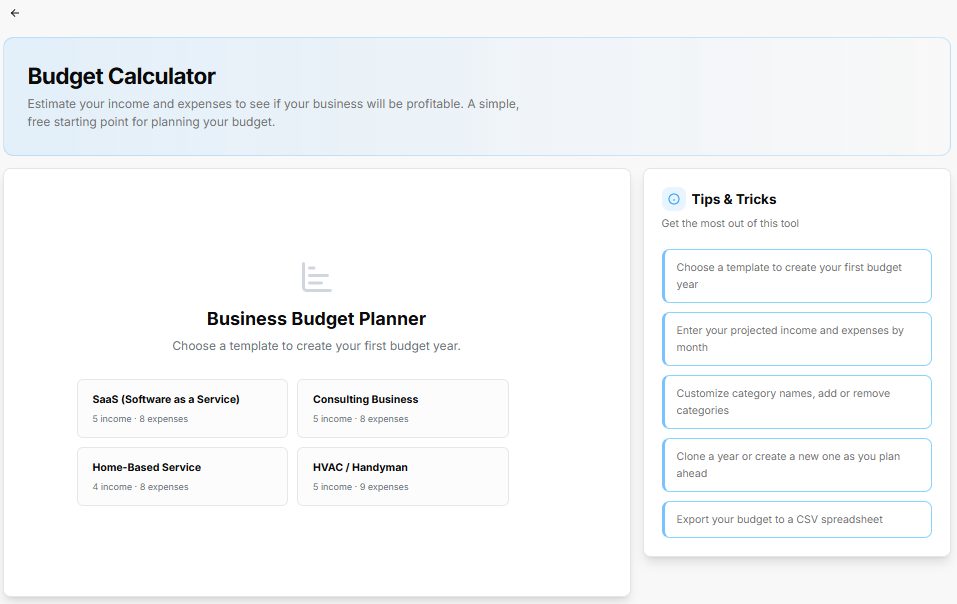
The Budget Calculator helps users estimate revenue, operational expenses, and profitability using pre-configured industry templates or custom financial structures.
Business Budget Planner Templates
-
SaaS (Software as a Service): Includes 5 income streams and 8 default expense categories.
-
Consulting Business: Includes 5 income streams and 8 default expense categories.
-
Home-Based Service: Includes 4 income streams and 8 default expense categories.
-
HVAC / Handyman: Includes 5 income streams and 9 default expense categories.
Tips & Tricks Sidebar
-
Step 1: Choose a template to create your first budget year.
-
Step 2: Enter your projected income and expenses by month.
-
Step 3: Customize category names, add or remove categories.
-
Step 4: Clone a year or create a new one as you plan ahead.
-
Step 5: Export your budget to a CSV spreadsheet.
Logo Generator Tool Sub-Section
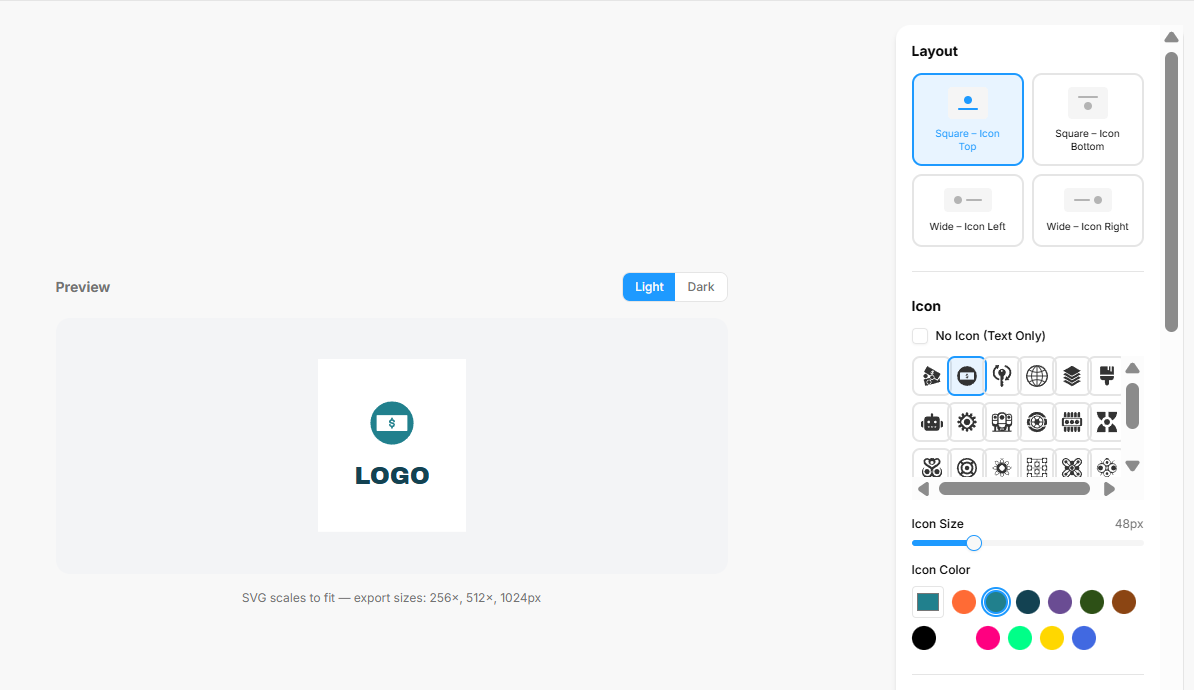
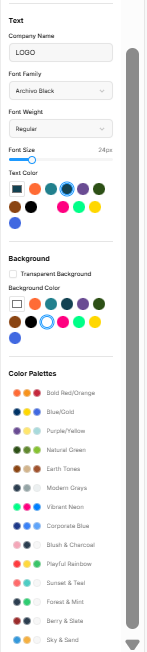
The Logo Generator allows users to create, customize, and export vector logos with adjustable icon arrangements, typography, color palettes, and canvas backgrounds.
Preview Canvas Controls
-
Preview Theme Toggle: Switches canvas display between Light and Dark background modes.
-
SVG Export Sizes: Renders resizable SVG graphics supporting export dimensions at 256×, 512×, and 1024px.
Layout Options
-
Square – Icon Top: Arranges icon centered directly above company text.
-
Square – Icon Bottom: Arranges icon centered directly below company text.
-
Wide – Icon Left: Positions icon to the left of company text.
-
Wide – Icon Right: Positions icon to the right of company text.
Icon Settings
-
No Icon (Text Only): Checkbox to remove symbol graphics for wordmark designs.
-
Icon Selection Matrix: Grid picker with scrollable categories of vector icons.
-
Icon Size Slider: Adjustable range slider setting pixel dimension (e.g., 48px).
-
Icon Color Swatches: Palette buttons to apply primary colors to the selected icon.
Text Settings
-
Company Name: Input text field to set displayed brand name (e.g., LOGO).
-
Font Family: Dropdown menu to select typography (e.g., Archivo Black).
-
Font Weight: Dropdown menu to adjust font weight (e.g., Regular).
-
Font Size Slider: Range slider setting font dimensions in pixels (e.g., 24px).
-
Text Color Swatches: Palette choices for company name lettering.
Background Settings
-
Transparent Background: Checkbox to remove canvas fill for transparent PNG/SVG exports.
-
Background Color Swatches: Palette choices for solid canvas background colors.
Color Palettes
-
Preset Themes: Pre-configured palette combinations including Bold Red/Orange, Blue/Gold, Purple/Yellow, Natural Green, Earth Tones, Modern Grays, Vibrant Neon, Corporate Blue, Blush & Charcoal, Playful Rainbow, Sunset & Teal, Forest & Mint, Berry & Slate, and Sky & Sand.
Word Cloud Generator Tool Sub-Section
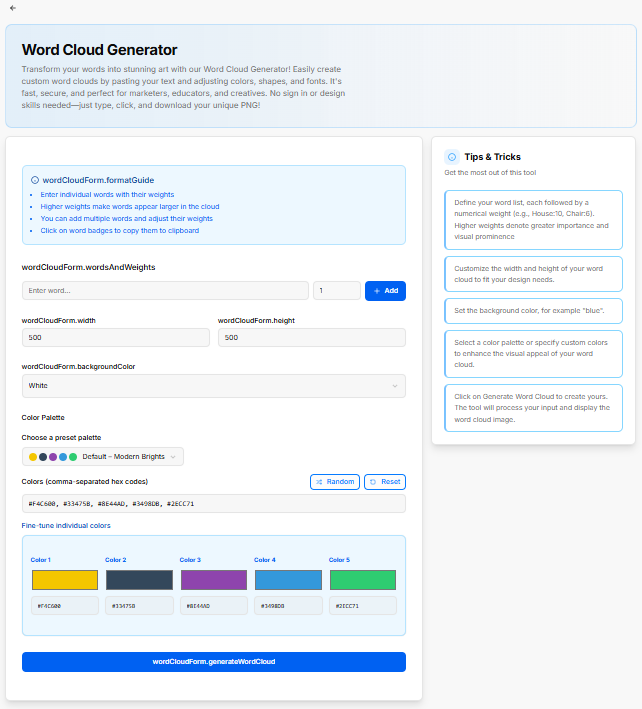
The Word Cloud Generator allows users to transform word lists and assigned numerical weights into custom downloadable word cloud artwork.
Format Guide Panel
-
Step 1: Enter individual words with their weights.
-
Step 2: Higher weights make words appear larger in the cloud.
-
Step 3: You can add multiple words and adjust their weights.
-
Step 4: Click on word badges to copy them to clipboard.
Configuration Controls
-
Words & Weights Entry: Input fields for word entry ("Enter word...") and numerical weight assignment (defaults to 1), alongside an + Add button to commit terms to the list.
-
Dimensions: Numeric input fields for canvas Width (defaults to 500) and Height (defaults to 500).
-
Background Color: Dropdown menu to select canvas background styling (defaults to White).
Color Customization
-
Choose a preset palette: Dropdown menu offering pre-configured color schemes (e.g., Default – Modern Brights).
-
Colors (comma-separated hex codes): Text field accepting direct hex color codes (e.g., #F4C600, #33475B, #8E44AD, #3498DB, #2ECC71).
-
Random Button: Shuffles hex values to generate random color combinations.
-
Reset Button: Restores default palette settings.
-
Fine-tune individual colors: Swatch controls to manually adjust individual color slots (Color 1 through Color 5) using color pickers or hex inputs.
-
Generate Word Cloud Button: Triggers canvas rendering based on active terms, weights, and color settings.
Tips & Tricks Sidebar
-
Tip 1: Define your word list, each followed by a numerical weight (e.g., House:10, Chair:6). Higher weights denote greater importance and visual prominence.
-
Tip 2: Customize the width and height of your word cloud to fit your design needs.
-
Tip 3: Set the background color, for example "blue".
-
Tip 4: Select a color palette or specify custom colors to enhance the visual appeal of your word cloud.
-
Tip 5: Click on Generate Word Cloud to create yours. The tool will process your input and display the word cloud image.
Slogan Generator Tool Sub-Section
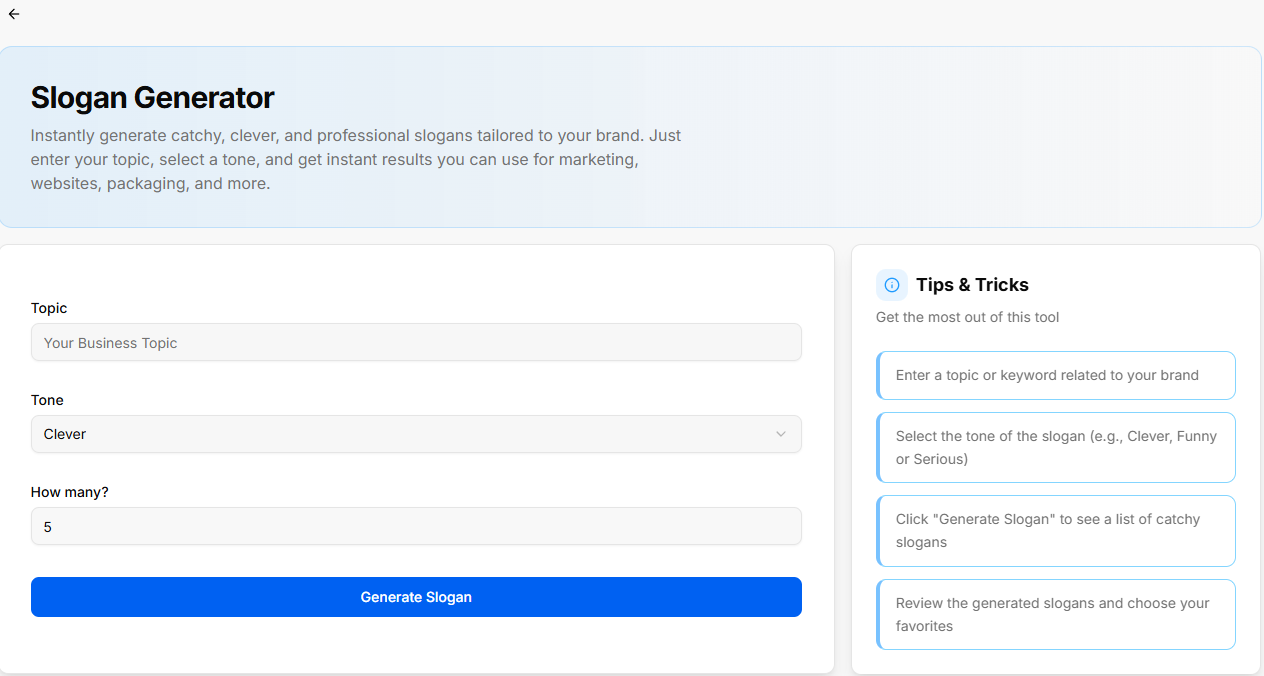
The Slogan Generator tool instantly creates catchy, professional slogans tailored to your brand for marketing, websites, packaging, and more.
Configuration Controls
-
Topic: Text input field to specify the brand topic or keywords (e.g., Your Business Topic).
-
Tone: Dropdown menu to select the delivery style (defaults to Clever).
-
How many?: Numeric input field to specify the total number of slogans generated (defaults to 5).
-
Generate Slogan Button: Triggers the generation process based on specified inputs.
Tips & Tricks Sidebar
-
Step 1: Enter a topic or keyword related to your brand.
-
Step 2: Select the tone of the slogan (e.g., Clever, Funny or Serious).
-
Step 3: Click "Generate Slogan" to see a list of catchy slogans.
-
Step 4: Review the generated slogans and choose your favorites.
Color Palette Generator Tool Sub-Section
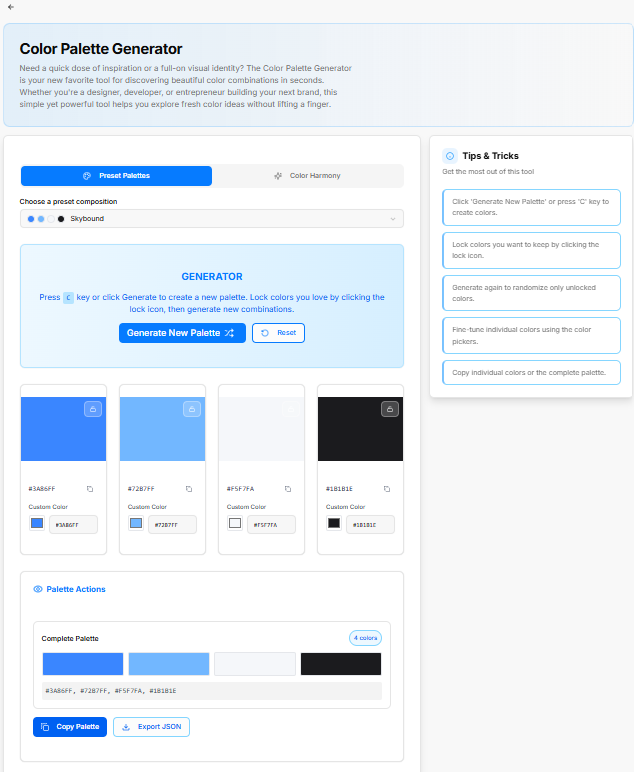
The Color Palette Generator helps designers, developers, and founders discover, fine-tune, and export cohesive color schemes using presets or color harmony rules.
Generator Mode Tabs
-
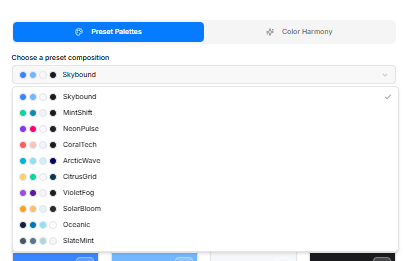
Preset Palettes: Select from curated multi-color brand combinations.
-
Choose a preset composition: Dropdown menu offering pre-built compositions: Skybound, MintShift, NeonPulse, CoralTech, ArcticWave, CitrusGrid, VioletFog, SolarBloom, Oceanic, and SlateMint.
-
-
Color Harmony: Generate combinations based on formal color wheel relationships.
-
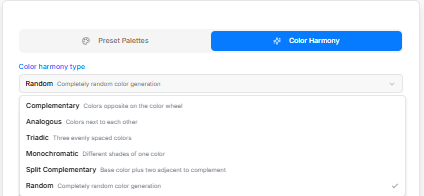
Color harmony type: Dropdown menu to select harmony rules:
-
Complementary: Colors opposite on the color wheel.
-
Analogous: Colors next to each other on the color wheel.
-
Triadic: Three evenly spaced colors on the color wheel.
-
Monochromatic: Different shades of a single color.
-
Split Complementary: Base color plus two colors adjacent to its complement.
-
Random: Completely random color generation.
-
-
Generator Controls & Cards
-
Generate New Palette Button: Creates a new color combination (or press key C).
-
Reset Button: Restores initial default colors.
-
Color Swatch Cards: Individual cards showing generated hex values (e.g., #3A86FF, #7287FF, #F5F7FA, #18181E):
-
Lock Icon: Locks individual swatches so they remain unchanged during subsequent randomizations.
-
Copy Hex Icon: Copies the specific hex code to clipboard.
-
Custom Color Input: Color picker and hex text input box for direct manual edits.
-
Palette Actions Panel
-
Complete Palette Preview: Summary bar displaying all generated colors together with item count indicator (e.g., 4 colors).
-
Copy Palette Button: Copies all comma-separated hex codes to clipboard (e.g., #3A86FF, #7287FF, #F5F7FA, #18181E).
-
Export JSON Button: Downloads palette configuration as a structured JSON file.
Tips & Tricks Sidebar
-
Tip 1: Click 'Generate New Palette' or press 'C' key to create colors.
-
Tip 2: Lock colors you want to keep by clicking the lock icon.
-
Tip 3: Generate again to randomize only unlocked colors.
-
Tip 4: Fine-tune individual colors using the color pickers.
-
Tip 5: Copy individual colors or the complete palette.
BuildRunKit Settings Overview Sub-section
Settings Overview Sub-section

The Settings section manages user profile details, workspace management, security credentials, subscription billing, and module preferences through a dedicated secondary sidebar navigation menu.
Settings Menu Navigation
-
Profile: View and update account credentials, contact information, and security settings.
-
Team & Workspace: Manage workspace settings, team members, and access roles.
-
Modules & Features: Toggle application modules and platform feature settings.
-
Billing & Plan: Manage account subscription plans, view invoices, and update payment methods.
-
Personal Brand: Configure personal branding defaults and assets.
-
Notifications: Set notification preferences and alert triggers.
-
CRM: Manage customer relationship management module settings.
-
Projects: Configure project management defaults and workflows.
-
Invoice: Adjust invoicing templates and billing parameters.
-
Preferences: Set global UI and account localization preferences.
Profile Settings
User Settings Card
-
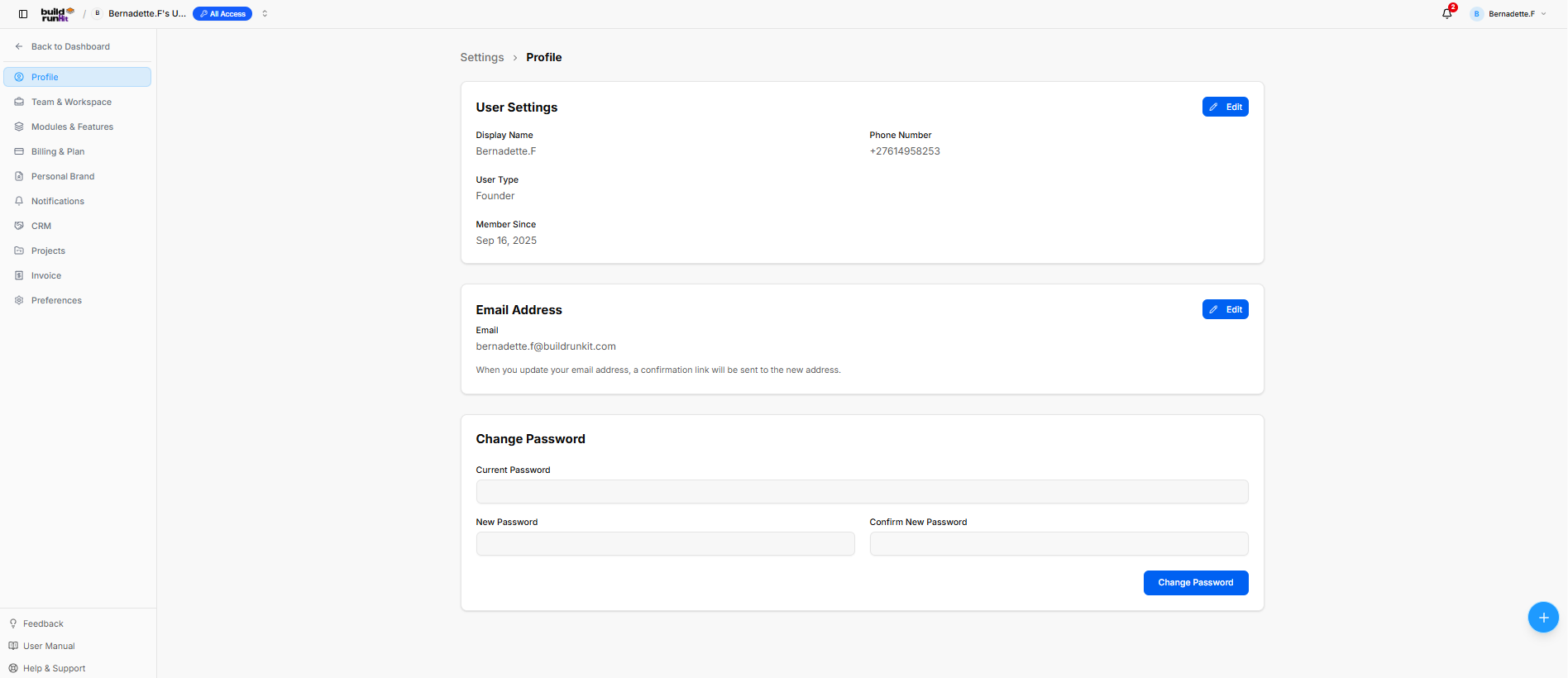
Displayed Fields: Shows Display Name (Bernadette.F), Phone Number (+27614958253), User Type (Founder), and account creation date under Member Since (Sep 16, 2025).
-
Edit Button: Blue action button at the top right to update user details.
Email Address Card
-
Displayed Email: Shows current account email (bernadette.f@buildrunkit.com).
-
Edit Button: Blue action button at the top right to update the email address (triggers a confirmation link).
Change Password Card
-
Password Fields: Contains input fields for Current Password, New Password, and Confirm New Password.
-
Change Password Button: Blue submission button at the bottom right to apply new login security credentials.
Team & Workspace Settings Sub-Section
The Team & Workspace settings section manages workspace creation, workspace switching, user memberships, and collaborator invitations across team environments.
Active Workspace Controls
-
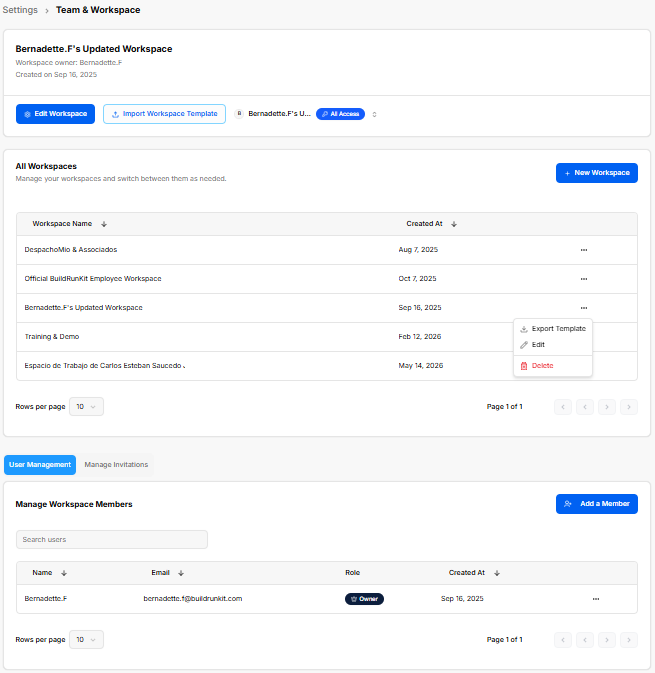
Active Workspace Header: Displays current workspace details (Bernadette.F's Updated Workspace), owner name (Bernadette.F), and creation date (Sep 16, 2025).
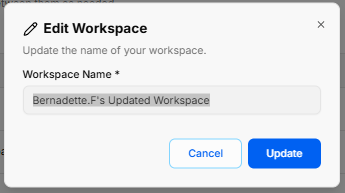
-
Edit Workspace Button: Opens a modal to update the current workspace title.
-
Import Workspace Template Button: Allows importing workspace configurations from a template file.
-
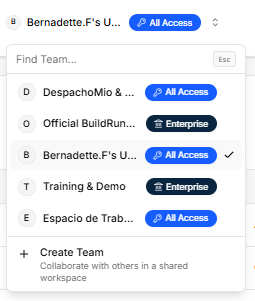
Workspace Switcher Dropdown (Top Navigation Bar): Click the active workspace pill to search existing teams, view subscription tiers (All Access, Enterprise), or click + Create Team to set up a shared environment.
Workspace Directory & Management
-
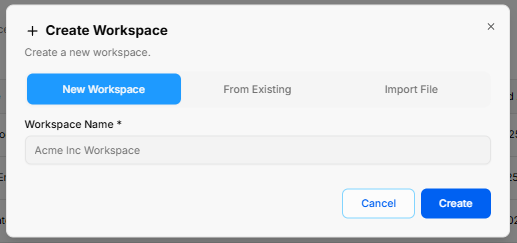
+ New Workspace: Opens the Create Workspace modal with three options:
-
New Workspace Tab: Enter a required Workspace Name * (e.g., Acme Inc Workspace) and click Create.
-
From Existing Tab: Duplicate settings from an active workspace.
-
Import File Tab: Upload workspace configuration files.
-
-
All Workspaces Table: Lists workspaces by Workspace Name and Created At.
-
Row Context Menu (
...):-
Export Template: Downloads the workspace structure.
-
Edit: Opens the Edit Workspace modal to update the name.
-
Delete: Removes the workspace.
-
User Management Tab
-
Manage Workspace Members Table: Displays active members by Name, Email, Role (Owner, Member), and Created At.
-
Search Users: Filters the member directory by name or email.
-
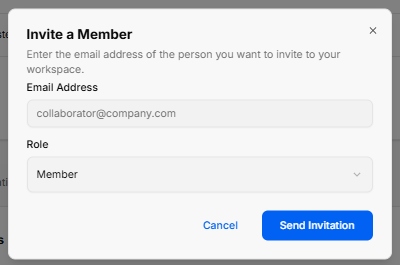
+ Add a Member: Opens the Invite a Member modal to enter an Email Address (collaborator@company.com), assign a Role (Member), and click Send Invitation.
-
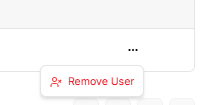
Member Action (
...): Click to select Remove User and revoke workspace access.
Manage Invitations Tab
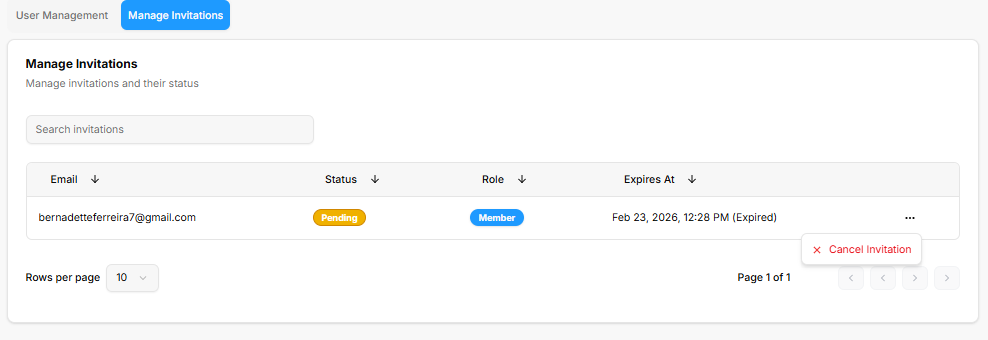
-
Search Invitations: Input field to filter sent invitations.
-
Invitations Table: Lists sent invites by Email, Status (Pending), assigned Role, and Expires At timestamp.
-
Invitation Action (
...): Select Cancel Invitation to revoke pending access.
Modules & Features Settings Sub-Section
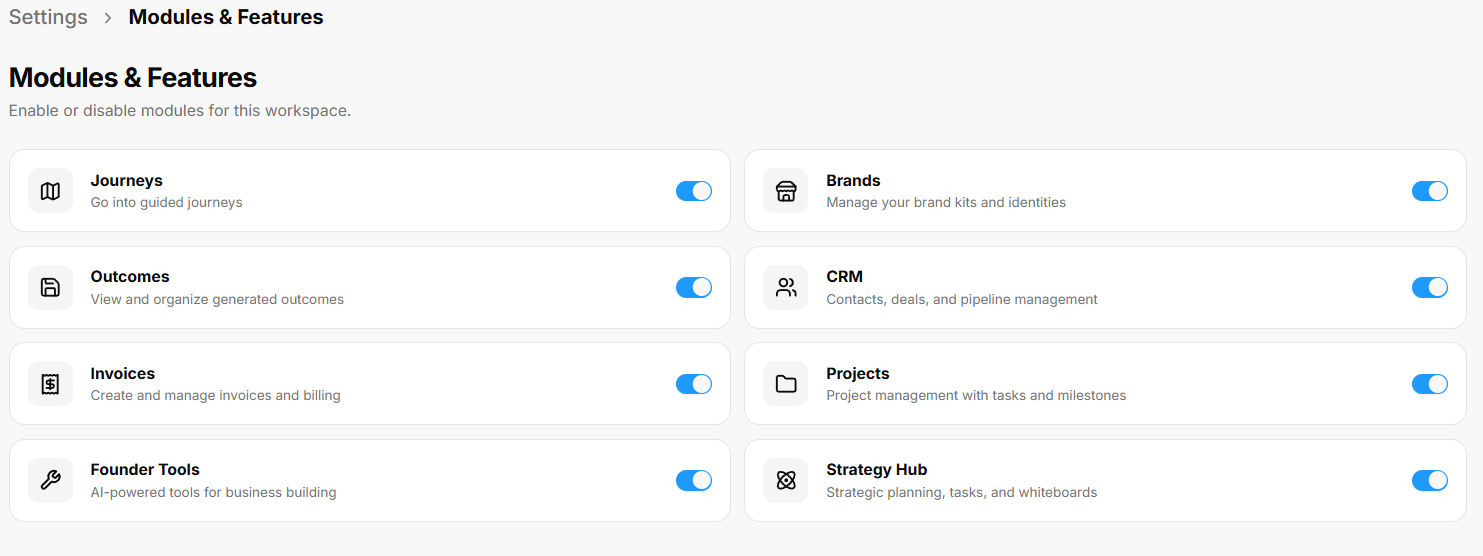
The Modules & Features settings section enables workspace owners to toggle specific tools and navigation options on or off to customize the active workspace sidebar layout.
Available Workspace Modules
-
Journeys (Map Icon): Toggle on/off guided paths (Go into guided journeys).
-
Brands (Storefront Icon): Toggle on/off brand kit tools (Manage your brand kits and identities).
-
Outcomes (Save Icon): Toggle on/off generated output storage (View and organize generated outcomes).
-
CRM (People Icon): Toggle on/off contact and sales tools (Contacts, deals, and pipeline management).
-
Invoices (Dollar Ticket Icon): Toggle on/off billing tools (Create and manage invoices and billing).
-
Projects (Folder Icon): Toggle on/off task tracking (Project management with tasks and milestones).
-
Founder Tools (Wrench Icon): Toggle on/off founder startup journeys.
-
Strategy Hub (Atom Icon): Toggle on/off strategic planning features (Strategic planning, tasks, and whiteboards).
Billing & Plan Settings Sub-Section
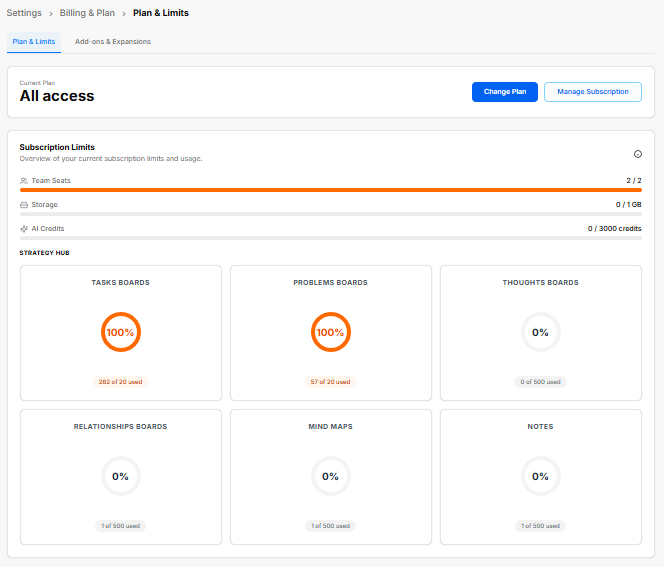
The Billing & Plan settings section provides visibility into active subscription tiers, core resource limits, usage metrics, and expansion add-ons across the workspace.
Plan & Limits Overview
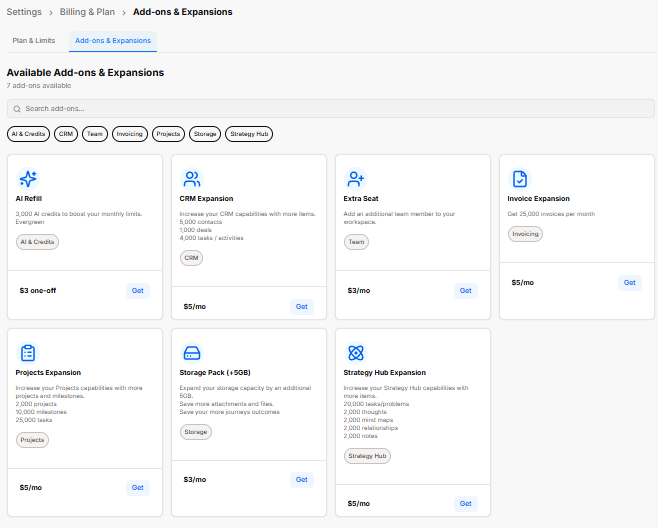
Add-ons & Expansions
-
Category Filters: Quick-filter available expansions by tag (AI & Credits, CRM, Team, Invoicing, Projects, Storage, Strategy Hub).
-
Add-on Marketplace:
-
AI Refill: Adds 3,000 evergreen AI credits ($3 one-off).
-
CRM Expansion: Increases CRM capacity to 5,000 contacts, 1,000 deals, and 4,000 tasks ($5/mo).
-
Extra Seat: Adds an additional user seat to the workspace ($3/mo).
-
Invoice Expansion: Increases limit to 25,000 invoices per month ($5/mo).
-
Projects Expansion: Increases capacity to 2,000 projects, 10,000 milestones, and 25,000 tasks ($5/mo).
-
Storage Pack (+5GB): Expands file storage capacity by 5 GB ($3/mo).
-
Strategy Hub Expansion: Increases limits to 20,000 tasks/problems, 2,000 thoughts, 2,000 mind maps, 2,000 relationships, and 2,000 notes ($5/mo).
-
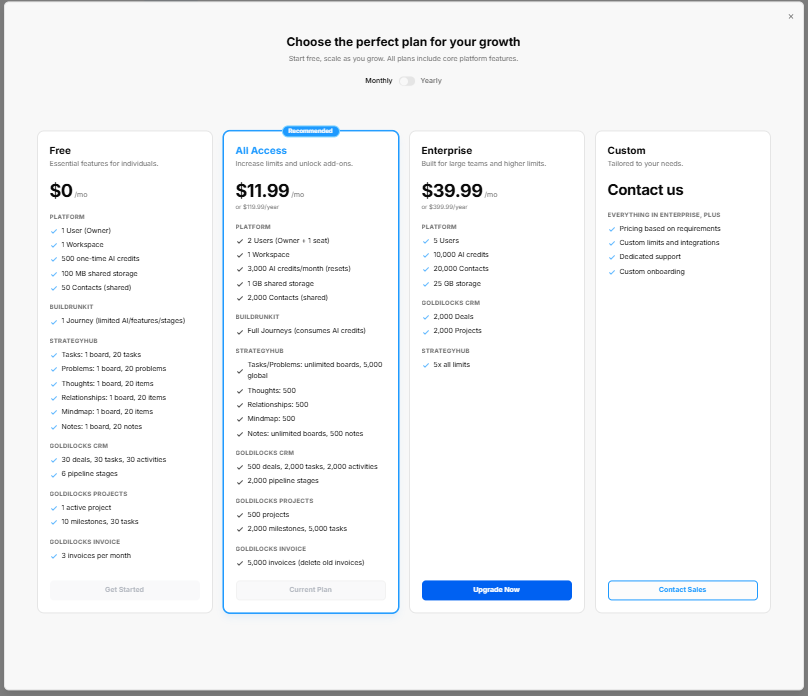
Subscription Tiers Comparison Modal
-
Billing Toggle: Switch between Monthly and Yearly billing cycles.
-
Tier Options:
-
Free: $0/mo for individual essentials (1 User, 1 Workspace, 500 AI credits, 100 MB storage).
-
All Access (Recommended): $11.99/mo ($119.99/year) including 2 Users, 3,000 AI credits/mo, 1 GB storage, full Journeys, and expanded CRM/Project limits.
-
Enterprise: $39.99/mo ($399.99/year) including 5 Users, 10,000 AI credits/mo, 25 GB storage, 20,000 contacts, and 5x Strategy Hub limits.
-
Custom: Contact Sales for enterprise onboarding, dedicated support, and custom limits.
-
Personal Brand Settings Sub-Section
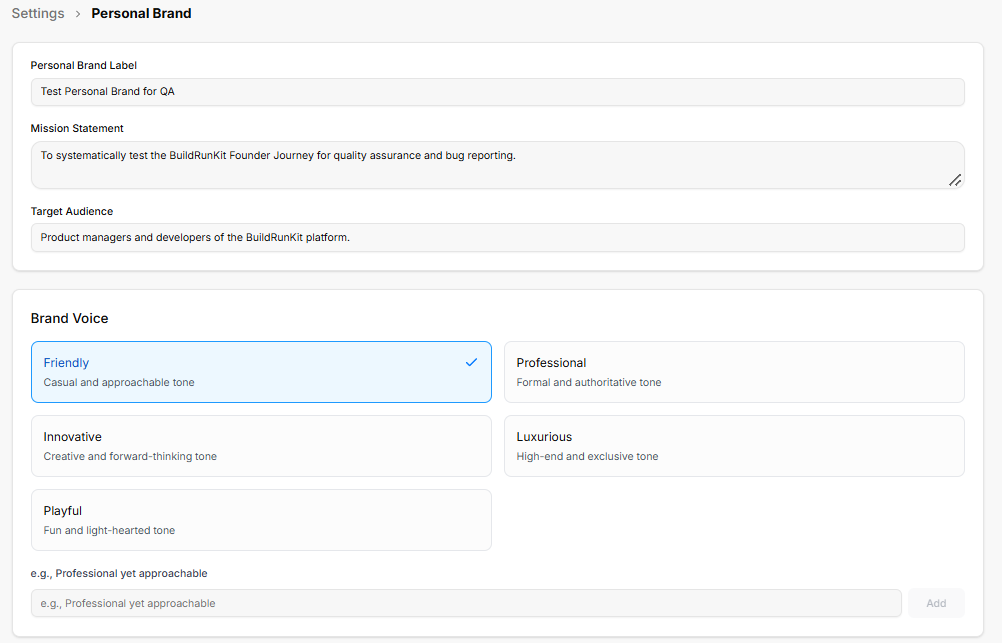
The Personal Brand settings section configures core messaging, target demographics, tone of voice, and professional attributes used across platform-generated content and journeys.
Identity & Positioning
-
Personal Brand Label: Text input defining the brand title (e.g., Test Personal Brand for QA).
-
Mission Statement: Multiline text area defining overall purpose (e.g., To systematically test the BuildRunKit Founder Journey for quality assurance and bug reporting.).
-
Target Audience: Text input specifying primary demographic targets (e.g., Product managers and developers of the BuildRunKit platform.).
Brand Voice Configuration
-
Preset Voice Options: Selectable tone tiles to define content style:
-
Friendly: Casual and approachable tone.
-
Professional: Formal and authoritative tone.
-
Innovative: Creative and forward-thinking tone.
-
Luxurious: High-end and exclusive tone.
-
Playful: Fun and light-hearted tone.
-
-
Custom Voice Input: Field to type custom tone descriptors (e.g., Professional yet approachable) and click Add.
Core Attributes & Expertise
-
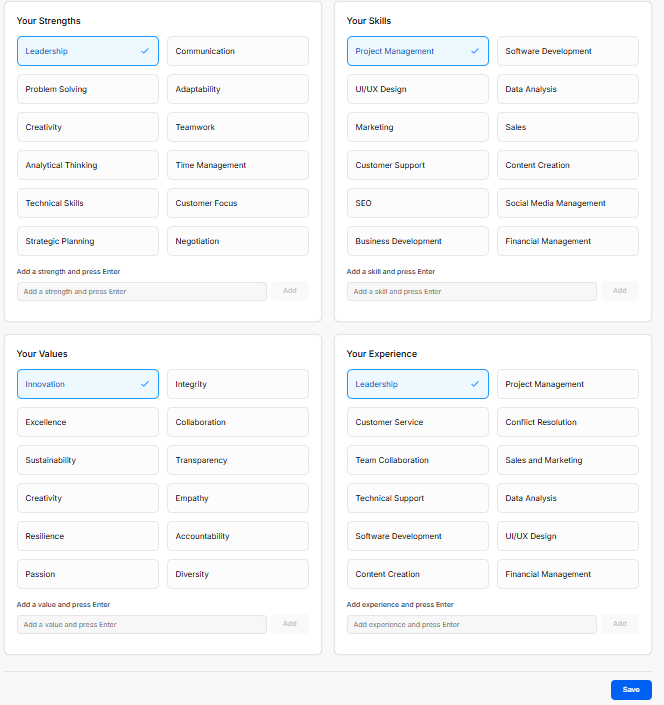
Your Strengths: Selectable badges (Leadership, Communication, Problem Solving, Adaptability, Creativity, Teamwork, Analytical Thinking, Time Management, Technical Skills, Customer Focus, Strategic Planning, Negotiation). Includes custom input to type a strength and click Add.
-
Your Skills: Selectable badges (Project Management, Software Development, UI/UX Design, Data Analysis, Marketing, Sales, Customer Support, Content Creation, SEO, Social Media Management, Business Development, Financial Management). Includes custom input to type a skill and click Add.
-
Your Values: Selectable badges (Innovation, Integrity, Excellence, Collaboration, Sustainability, Transparency, Creativity, Empathy, Resilience, Accountability, Passion, Diversity). Includes custom input to type a value and click Add.
-
Your Experience: Selectable badges (Leadership, Project Management, Customer Service, Conflict Resolution, Team Collaboration, Sales and Marketing, Technical Support, Data Analysis, Software Development, UI/UX Design, Content Creation, Financial Management). Includes custom input to type experience and click Add.
-
Save Button: Saves all profile configurations to the active workspace.
Notifications Settings Sub-Section
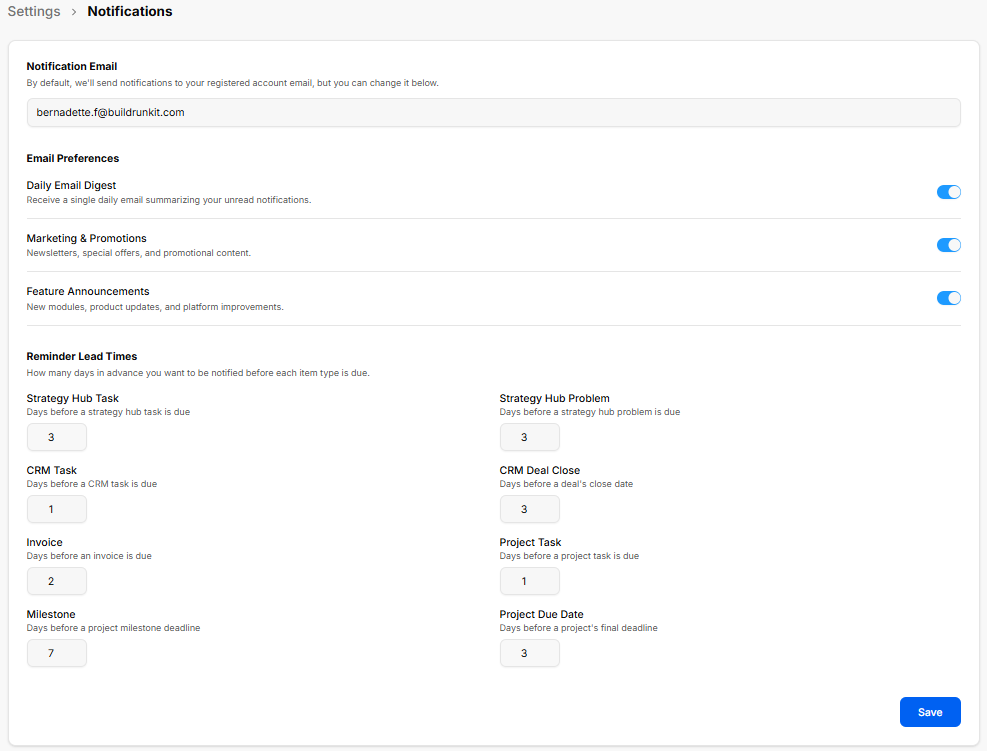
The Notifications settings section allows users to configure delivery email destinations, toggle system email preferences, and set advance notice lead times for upcoming tasks, milestones, deals, and invoice deadlines.
Notification Delivery & Email Preferences
-
Notification Email: Input field to set the email address where notifications are sent (defaults to registered account email).
-
Daily Email Digest: Toggle on/off to receive a single daily email summarizing unread notifications.
-
Marketing & Promotions: Toggle on/off for newsletters, special offers, and promotional updates.
-
Feature Announcements: Toggle on/off for new modules, product updates, and platform improvements.
Reminder Lead Times
-
Strategy Hub Task: Numeric field for advance warning days before a strategy hub task is due (e.g., 3 days).
-
Strategy Hub Problem: Numeric field for advance warning days before a strategy hub problem is due (e.g., 3 days).
-
CRM Task: Numeric field for advance warning days before a CRM task is due (e.g., 1 day).
-
CRM Deal Close: Numeric field for advance warning days before a deal's close date (e.g., 3 days).
-
Invoice: Numeric field for advance warning days before an invoice is due (e.g., 2 days).
-
Project Task: Numeric field for advance warning days before a project task is due (e.g., 1 day).
-
Milestone: Numeric field for advance warning days before a project milestone deadline (e.g., 7 days).
-
Project Due Date: Numeric field for advance warning days before a project's final deadline (e.g., 3 days).
-
Save Button: Updates and saves all notification settings.
CRM Settings Sub-Section
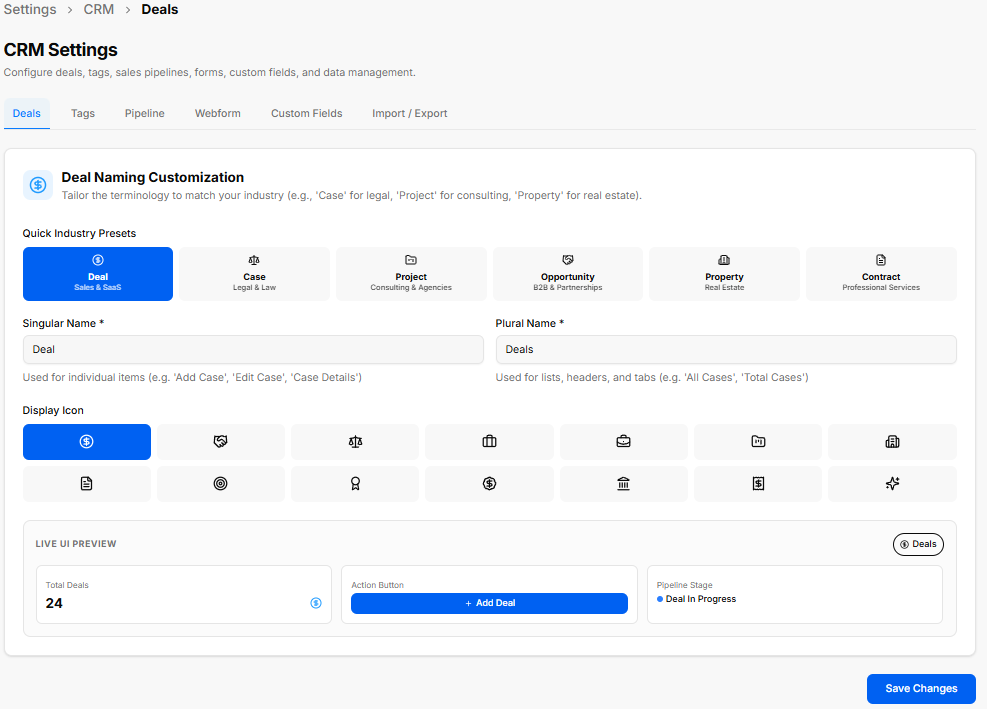
The CRM Settings section under Settings allows workspace owners to configure deals, tags, sales pipelines, webforms, custom fields, and data import/export rules.
CRM Settings Tabs
-
Deals: Customizes deal terminology, presets, singular/plural naming, display icons, and presents a Live UI Preview before saving changes.
-
Tags: Manages category tags for filtering CRM records.
-
Pipeline: Configures custom sales pipeline stages and progress workflows.
-
Webform: Sets up lead capture forms for embedding or sharing.
-
Custom Fields: Adds tailored data fields across contacts and deal profiles.
-
Import / Export: Handles bulk CSV data backups and lead imports.
-
Detailed Module Guide: For full step-by-step instructions and deeper breakdowns of each tab, see the BuildRunKit CRM > CRM Settings section of this user guide.
Projects Settings Sub-Section
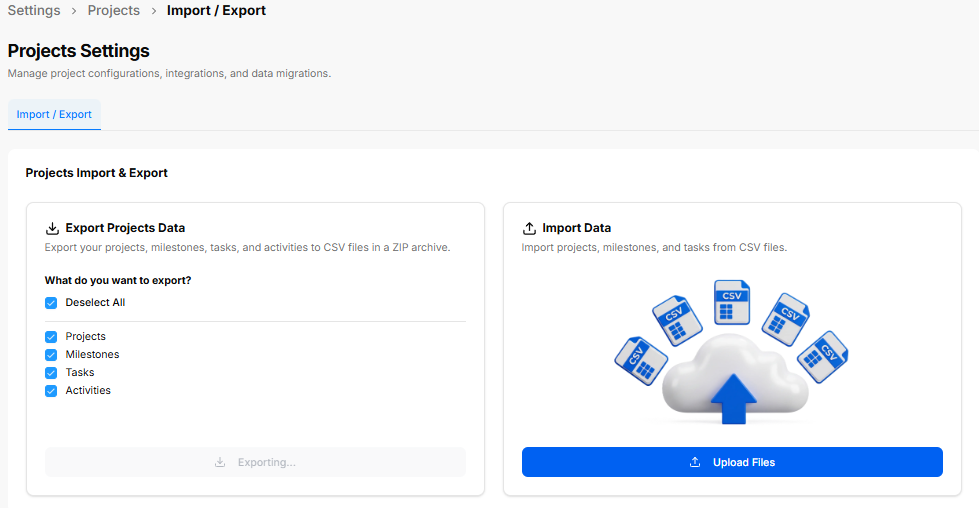
The Projects Settings section allows workspace owners to manage project configurations, data backups, and CSV file migrations.
Projects Import & Export Controls
-
Export Projects Data: Downloads selected project items to CSV files archived in a ZIP folder.
-
Export Options: Select or deselect specific categories including Projects, Milestones, Tasks, and Activities.
-
Exporting Button: Initiates the export package generation.
-
-
Import Data: Allows importing external project structures, milestones, and tasks via CSV uploads.
-
Upload Files Button: Opens the file picker to upload external CSV files into the workspace.
-
-
Detailed Module Guide: For full step-by-step instructions and deeper breakdowns of project configurations, see the BuildRunKit Projects > Projects Settings section of this user guide.
Invoice Settings Sub-Section
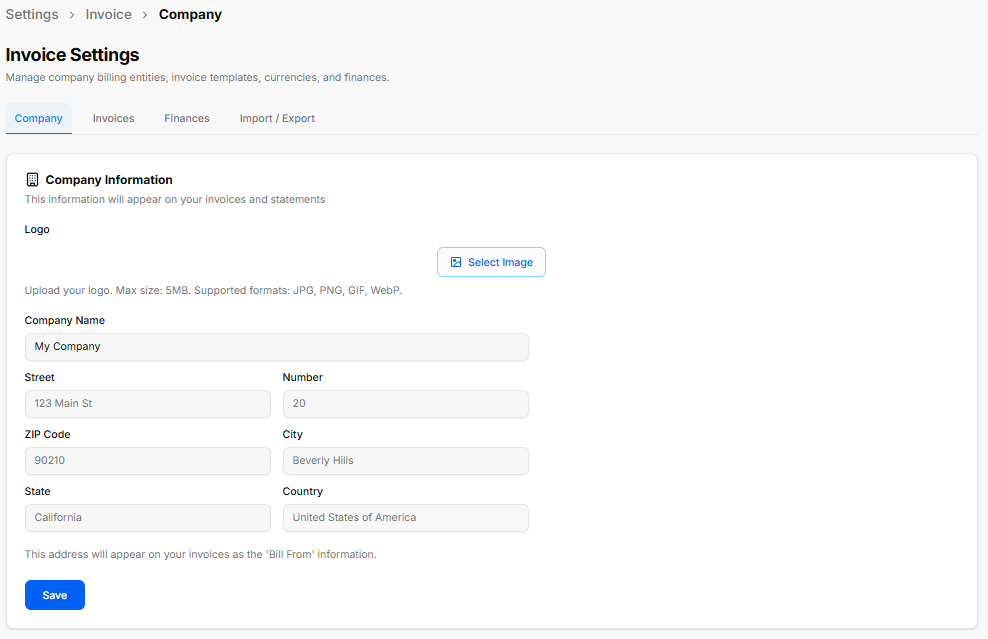
The Invoice Settings section allows workspace owners to manage billing entities, invoice display parameters, default currencies, and financial settings.
Invoice Settings Tabs
-
Company: Configures basic branding and sender details displayed under the "Bill From" section on outgoing invoices and statements.
-
Logo: Click Select Image to upload a company logo (Max size: 5MB; Formats: JPG, PNG, GIF, WebP).
-
Company Name: Input field for the business name (e.g., My Company).
-
Address Fields: Form fields for Street, Number, ZIP Code, City, State, and Country.
-
Save Button: Stores company identity and location updates.
-
-
Invoices: Controls default payment terms, invoice prefixing, numbering sequences, and notes.
-
Finances: Manages accepted payment gateways, tax percentages, and default currency formats.
-
Import / Export: Handles invoice history backups and CSV data migrations.
-
Detailed Module Guide: For full step-by-step instructions and detailed explanations of all invoice options, see the BuildRunKit Invoice > Invoice Settings section of this user guide.
Preferences Settings Sub-Section
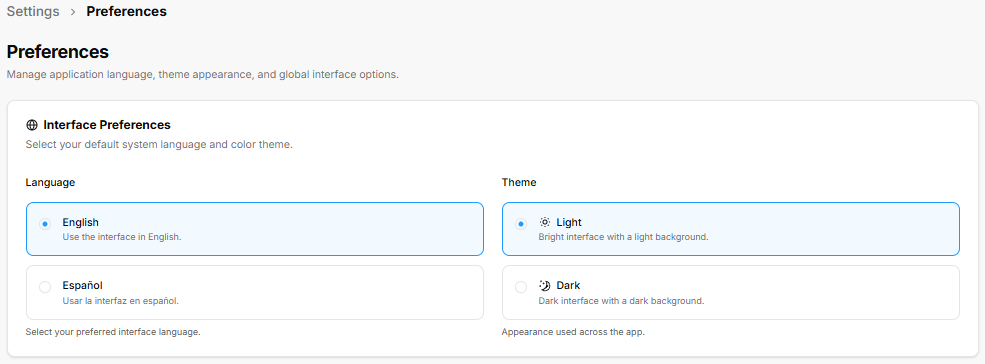
The Preferences section allows users to customize overall application language, visual themes, and global interface options.
Interface Preferences
-
Language Selection: Radio options to choose the preferred application interface language:
-
English: Sets the interface language to English.
-
Español: Sets the interface language to Spanish (Usar la interfaz en español).
-
-
Theme Selection: Radio options to switch the visual appearance across the entire platform:
-
Light: Applies a bright interface with a light background.
-
Dark: Applies a dark interface with a dark background.
-
Feedback, Help & Support Navigation Sub-section
Feedback, Help & Support Navigation Sub-section

Sidebar Support & Resources Navigation
The lower section of the primary navigation sidebar groups administrative configuration, direct user feedback channels, user guides, and customer support resources.
-
Feedback (Lightbulb Icon): Opens an interactive portal to submit feature requests, share usability feedback, or report operational performance issues.
-
User Manual (Open Book Icon): Directs to step-by-step user documentation and instructional guides covering platform features and workflows.
-
Help & Support (Lifebuoy Icon): Launches the main support hub for direct technical assistance, live help options, and troubleshooting resources.
Give Us Feedback
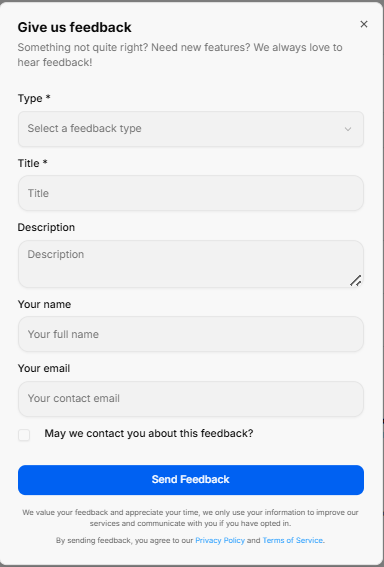
The Give us feedback portal opens as a dedicated pop-up modal designed to collect user input, feature requests, and system evaluations directly.
1. Feedback Input Fields
The submission form contains structured fields to accurately categorize and detail user input:
-
Type: A required dropdown menu to select the specific category of input, such as choosing a feature idea.
-
Title: A required text field to provide a brief, high-level summary of your input.
-
Description: A multi-line text area to expand on your idea, issue, or enhancement request with full context.
-
Your name: An optional text block to enter your full identification name.
-
Your email: An optional field to input your primary contact email address for follow-up correspondence.
2. Permissions & Execution
-
Contact Permission: A checkbox labeled May we contact you about this feedback? allows you to opt into direct follow-up communications regarding your submission.
-
Send Feedback: A solid blue action button centered at the base to execute and submit the form data to the support team.
Support Center
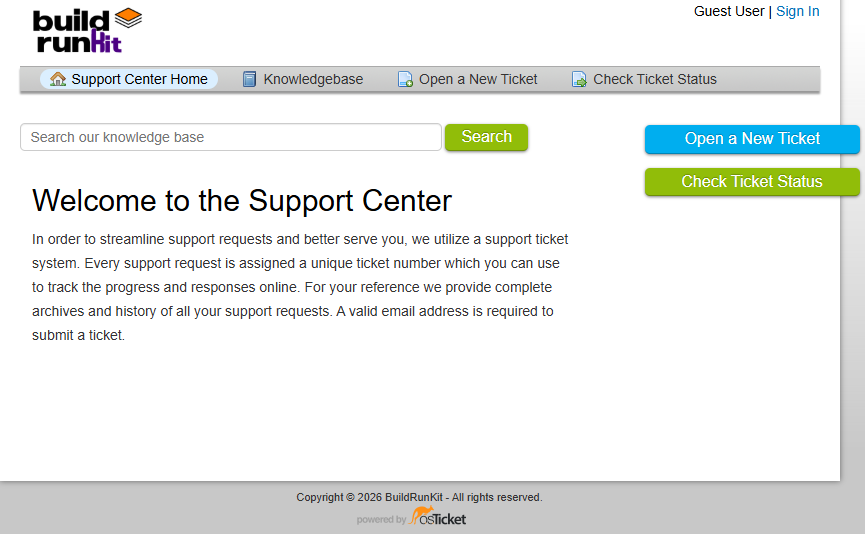
The Support Center is a dedicated external portal designed to streamline assistance requests and provide self-service documentation. It operates on a structured ticketing system to track, archive, and manage technical inquiries.
1. Main Navigation Header
The upper dashboard contains a persistent menu bar to jump between standard support desks:
-
Support Center Home: Navigates back to the main welcome dashboard landing page.
-
Knowledgebase: Opens a repository of self-service articles, setup documentation, and platform user guides.
-
Open a New Ticket: Toggles the submission form to file a new technical assistance request.
-
Check Ticket Status: Opens a login and tracking screen to check the history or updates of an active request.
-
Authentication Links: Located in the top right corner, allowing users to sign in or view their profile status.
2. Search Engine & Core Features
-
Knowledge Base Search: A prominent search bar sits beneath the header navigation. Users can type keywords, tools, or errors directly into the input line and click the green Search button to query documentation.
-
Ticketing System Overview: To maintain organization and response quality, every submitted request is instantly assigned a unique ticket number. This reference string allows you to review historical archives, monitor progress, and read technician responses online. A valid email address is mandatory to lodge a ticket.
3. Direct Action Sidebar
Two high-visibility action buttons are anchored on the right side of the layout for fast access:
-
Open a New Ticket: A bright blue tab providing an immediate shortcut to create a help request.
-
Check Ticket Status: A green tab offering a quick shortcut to log in and look over active ticket histories.